
In Ultimate Membership Pro, the Two Step SignUp add-on splits the registration form of a paid Membership into two steps: the member fills in their personal details first, then moves on to checkout to choose how to pay. A shorter first screen feels easier to start, and the payment part stays out of sight until the member is ready for it.
This guide switches the add-on on, explains its two settings and shows what your visitors see on each step.
Before you start
- The Two Step SignUp add-on is installed and active. It’s a Pro add-on, included in the Full Package and Agency plans. See Install a Pro add-on.
- Your license is active. See Find and activate your license key.
- You have a paid Membership, for example Pro Monthly at $19/month, and a page with the registration form. See Set up the registration form.
Switch on Two Step SignUp
- Go to Ultimate Membership Pro›Modules and open Two Step SignUp (in Members & Registration).
- Switch on Activate/Hold Two Step SignUp Integration.
- Optionally switch on Show Steps label, then click Save Changes.
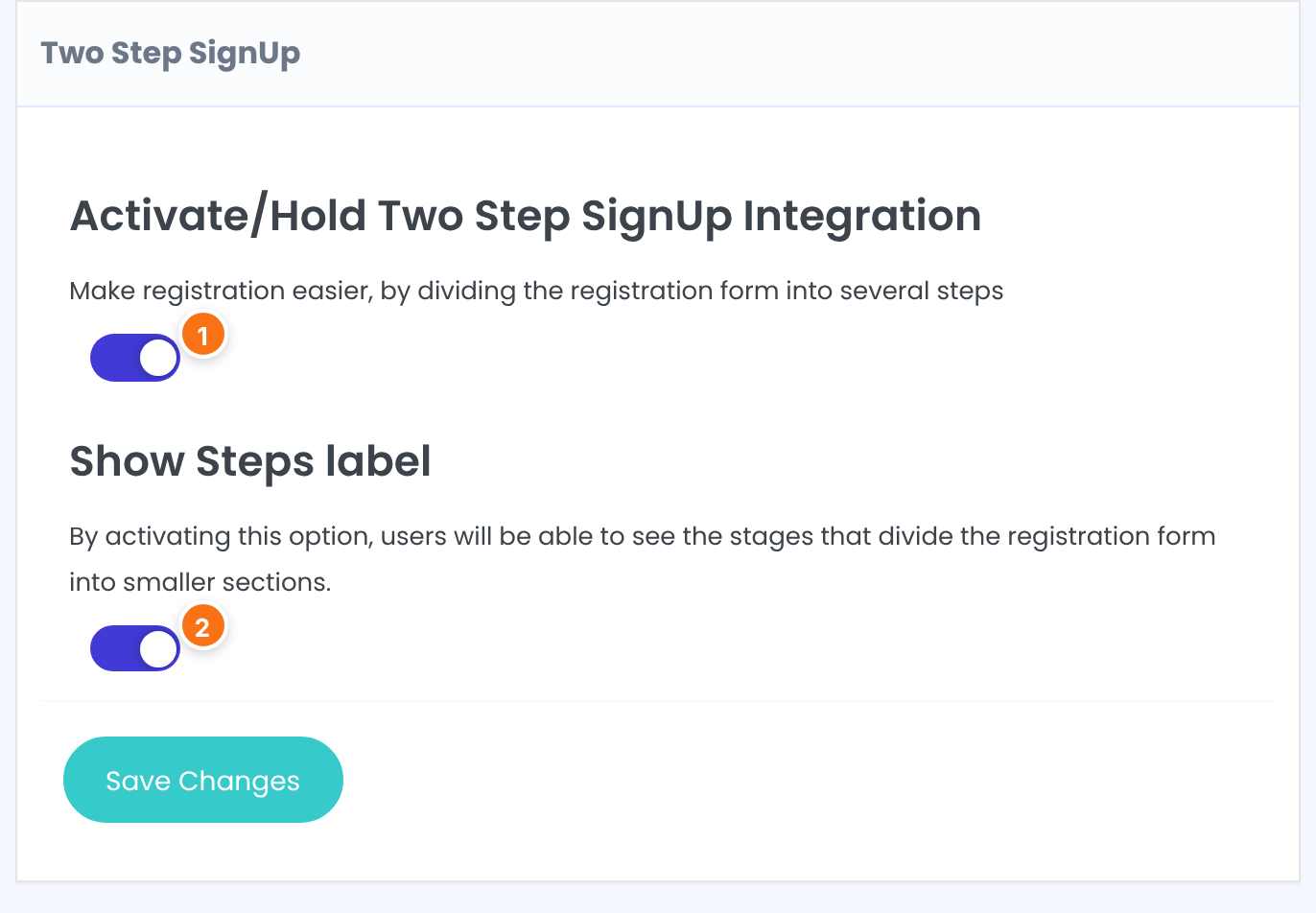
Turns the add-on on. The registration form of every paid Membership then shows in two steps.
Default: Off
Writes the name of each step under its circle in the progress bar: Personal Details and Checkout. Without it the bar shows only the numbers 1 and 2.
Default: Off
What members see
There’s nothing else to set up. Open the registration page for a paid Membership as a visitor and the form is split in two.
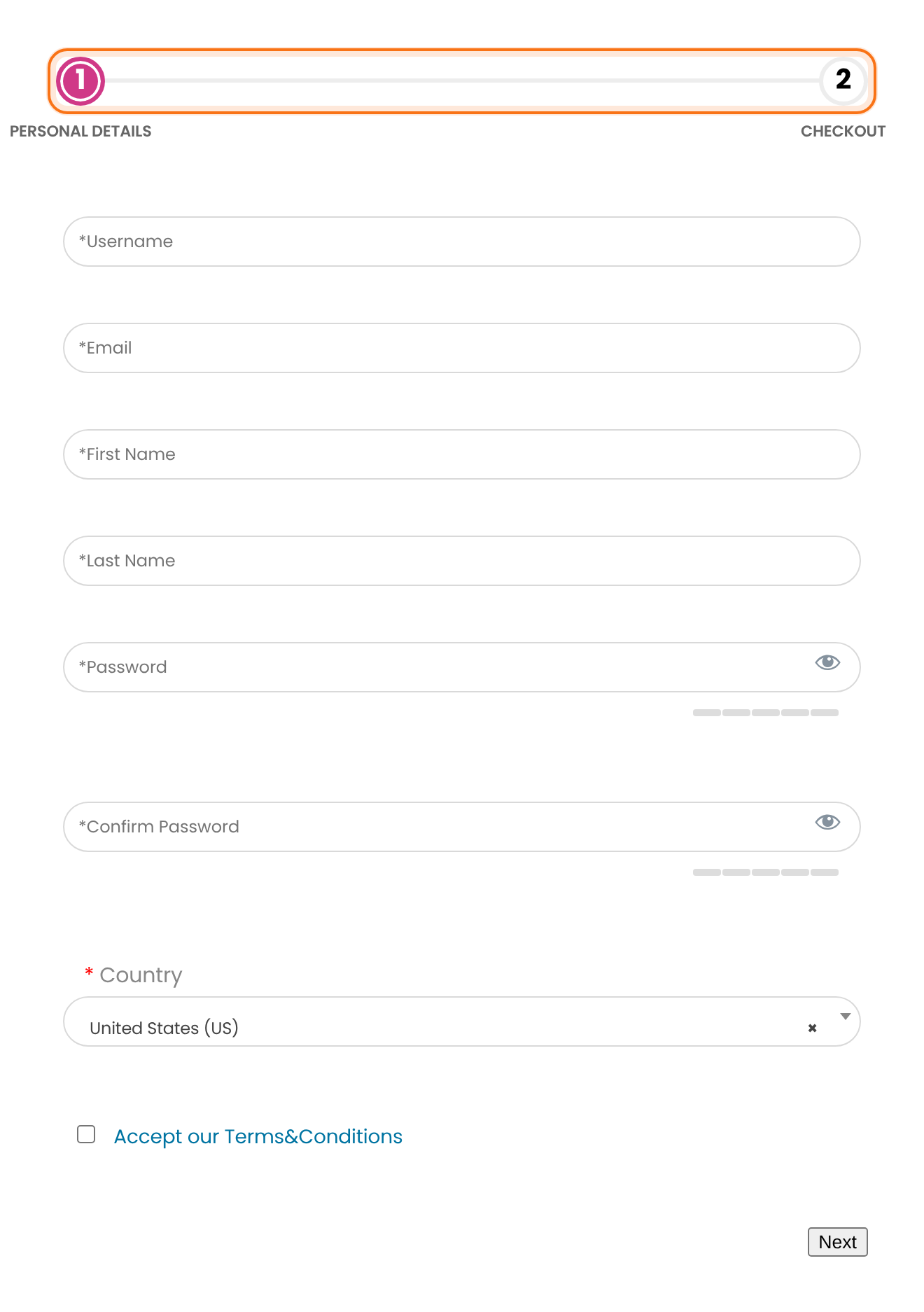
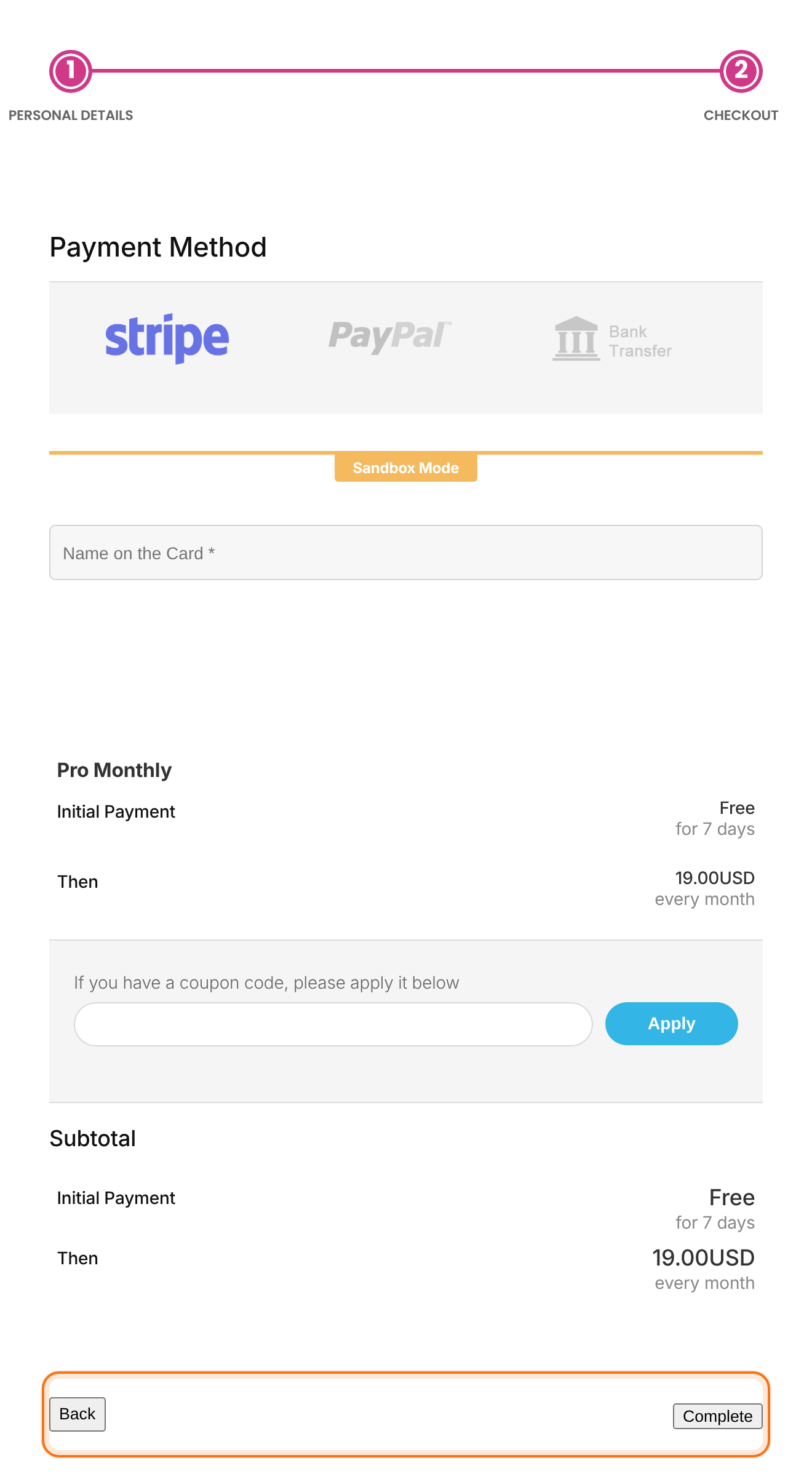
On step 1 the member fills in the registration fields and clicks Next. The second circle of the progress bar lights up and the form switches to step 2.
The progress bar and every field of your registration form, followed by a Next button.
What the form normally shows above the Register button: the payment method choice and its fields, the coupon box and the order summary. The Back button returns to step 1 with the entered details still in place.
Submits the registration form, the same as the Register button of a one-step form.
Which registration forms are split
- Only Memberships with a price. The registration form of a free Membership, such as Free Community, stays a single step.
- The add-on works with every built-in registration form template.
- The preview of the registration form in the admin shows the normal one-step form.
Example: paid sign-up for the Coaching Club
- Activate/Hold Two Step SignUp Integration
- On
- Show Steps label
- On
- Step 1
- Personal Details: username, email, name, password
- Step 2
- Checkout: payment method, coupon box, order summary
- Free Community
- Still one step, because it’s free
Learn more about Two Step SignUp
- Two Step SignUp add-on page: what it does, at a glance.
- All Pro add-ons for Ultimate Membership Pro.
- Ultimate Membership Pro plans: Pro add-ons come with the Full Package and Agency plans.
- How web forms work (MDN).
Troubleshooting
Why does the registration form still show a single step?
The add-on only splits the form of a paid Membership. Check that Activate/Hold Two Step SignUp Integration is on and saved, and that the form you opened is for a Membership with a price, such as Pro Monthly. Free Memberships and the admin preview show the standard form.
Why does the progress bar show only the numbers 1 and 2?
Show Steps label is off. Switch it on and click Save Changes to show the names Personal Details and Checkout under the circles.
Can I add more than two steps?
No. The add-on always splits the form into the same two steps: Personal Details and Checkout.
How do I split the registration form into steps in Ultimate Membership Pro?
Install the Two Step SignUp add-on, then switch on Activate/Hold Two Step SignUp Integration under Ultimate Membership Pro › Modules › Two Step SignUp and save. Registration for paid Memberships then runs in two steps.


