
In Ultimate Membership Pro, the Reset Invoice ID add-on restarts the counter that invoice numbers come from, so your next order is numbered from 1 or from a value you choose. You use it after a testing stage, when you have cleared your test orders and want the first real invoice to be number 1.
This guide explains how invoice numbers are built, how to reset the counter to 1 or to a custom value, and what to check first.
Before you start
- The Reset Invoice ID add-on is installed and active. It’s a Pro add-on, included in the Full Package and Agency plans. See Install a Pro add-on.
- Your license is active. See Find and activate your license key.
- You know how invoices work: the number printed on an invoice is the order code. See Send invoices.
How invoice numbers work
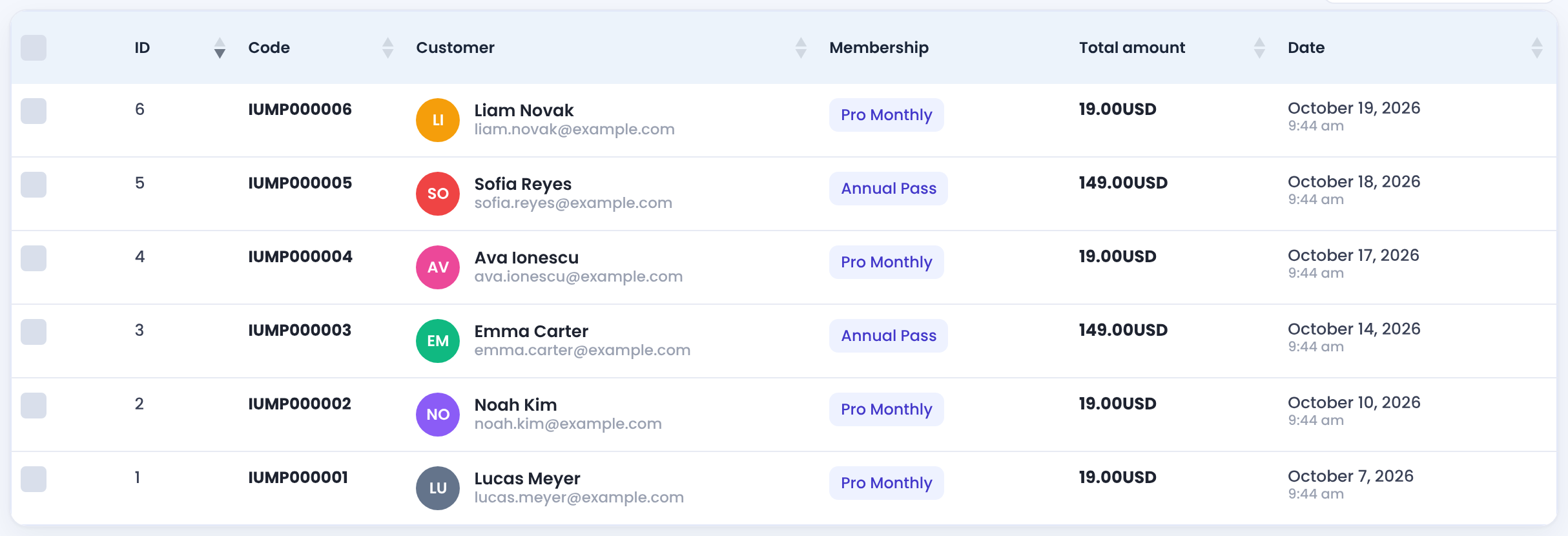
Every order gets a code made of a prefix and the order number in six digits, for example IUMP000004. That code is the invoice number, and it is also the Code column of Payment History. The order number comes from a counter that goes up by one with every new order. This add-on changes where that counter continues from.
Read this before you reset
- The reset applies only when no orders are stored in Ultimate Membership Pro. The screen says so itself: to remove existing orders and invoices first, use the Remove Dummy Data add-on. See Clear test data before launch (Remove Dummy Data), and read its warning too: it deletes data for good.
- The buttons act at once. Reset and Reset Custom run as soon as you click them, with no confirmation question, and nothing on the screen undoes them. You can only reset again to another number.
- The reset doesn’t delete or renumber any order or invoice. It changes the number the next new order receives.
- Invoice numbers matter for accounting. Reset only before you issue real invoices, for example right before launch.
Open the add-on and switch it on
- Go to Ultimate Membership Pro›Modules. The card is in the Payments & Billing group.
- Click the Reset Invoice ID card.
- Switch on Activate/Hold Reset Invoice ID Integration and click Save Changes.
Reset the counter
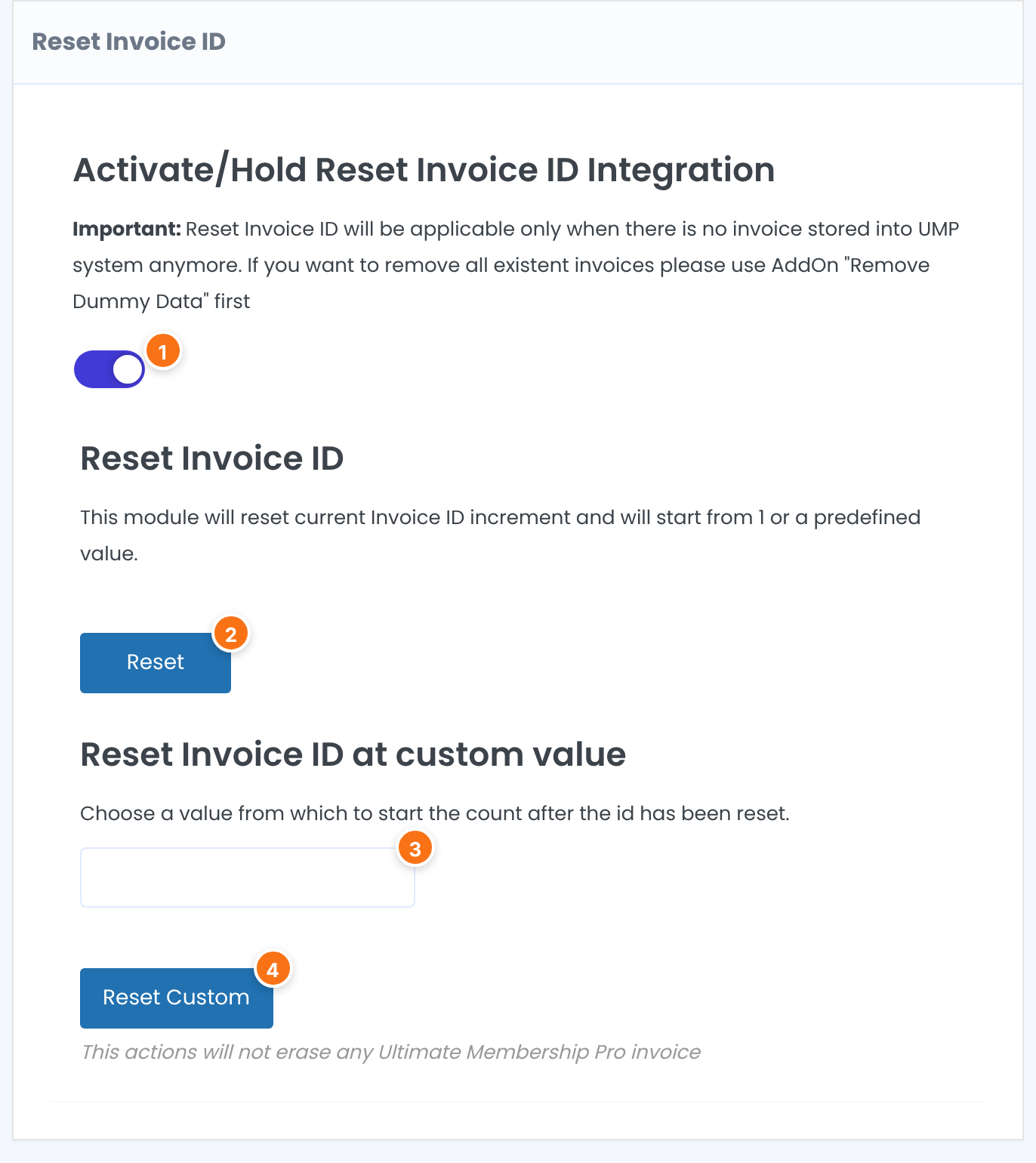
Turns the add-on on. Click Save Changes to keep it.
Default: Off
Restarts the counter at 1. With no orders stored, your next order gets the code IUMP000001.
The number the count should start from. It must be 1 or higher. Enter 1000 and the next order gets IUMP001000.
Restarts the counter at the number you typed in the field. Enter a number first.
The prefix, IUMP by default, is not touched. To change it, use Invoice Prefix Code under Settings › Payment Settings. See the invoices guide linked above.
To check the result, place a test order, or wait for your first real order, and read its Code in Payment History.
Example: a clean start for launch day
- Before
- Test orders removed with Remove Dummy Data (Payments)
- Action
- Reset
- First real order
- Pro Monthly, $19, code IUMP000001
- Alternative
- Reset Custom with 1000: first real order IUMP001000
Learn more about Reset Invoice ID
- Reset Invoice ID add-on page: what it does, at a glance.
- All Pro add-ons for Ultimate Membership Pro.
- Ultimate Membership Pro plans: Pro add-ons come with the Full Package and Agency plans.
- What an invoice contains (Wikipedia).
Troubleshooting
Why does my next order keep the number after my last order?
The reset is meant for when no orders are stored in Ultimate Membership Pro, as the note on the add-on screen says. Clear the old orders first, for example with the Remove Dummy Data add-on, then reset.
Does Reset Invoice ID renumber existing invoices?
No. Existing orders keep their codes. The screen states that the action doesn’t erase any Ultimate Membership Pro invoice.
Can I undo a reset?
There is no undo button. Run Reset Custom again with the number you want the count to continue from.
How do I change the letters in front of the invoice number?
Change Invoice Prefix Code under Settings › Payment Settings. New orders use the new prefix. See Send invoices.


