
In Ultimate Membership Pro, the Manager Role add-on adds a WordPress role called UMP – Manager. A user with this role can open the Ultimate Membership Pro screens you choose, such as Members or Coupons, without being an administrator. It is meant for support staff or assistants who handle members but should not touch the rest of your site.
This guide turns the role on, picks the screens a manager can open and shows how to give the role to a person.
Before you start
- The Manager Role add-on is installed and active. It’s a Pro add-on, included in the Full Package and Agency plans. See Install a Pro add-on.
- Your license is active. See Find and activate your license key.
- At least one role is switched on under Ultimate Membership Pro›Settings›General Options›WP Dashboard Access. The UMP – Manager role is allowed into the dashboard together with the roles you switch on there. See Control access to the WordPress dashboard.
Turn on Manager Role
- Go to Ultimate Membership Pro›Modules and open the Manager Role card.
- Switch on Activate/Hold Manager Role Integration and click Save Changes.
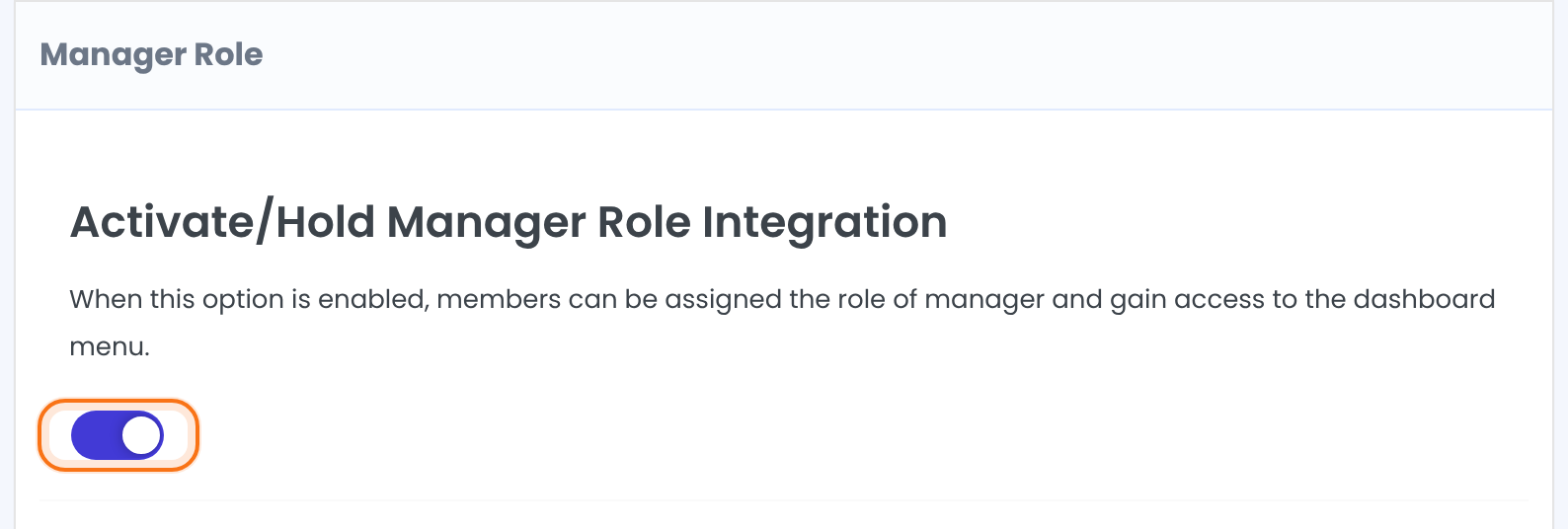
Saving with the switch on creates the UMP – Manager role in WordPress. Saving with it off removes the role again. The role can read the site, write and publish posts, and open the Ultimate Membership Pro dashboard.
Choose which screens a manager can open
Under Allow Access To A Specific Tab, every Ultimate Membership Pro screen has a switch. A manager sees only the screens that are switched on. Click Save Changes after you change them.
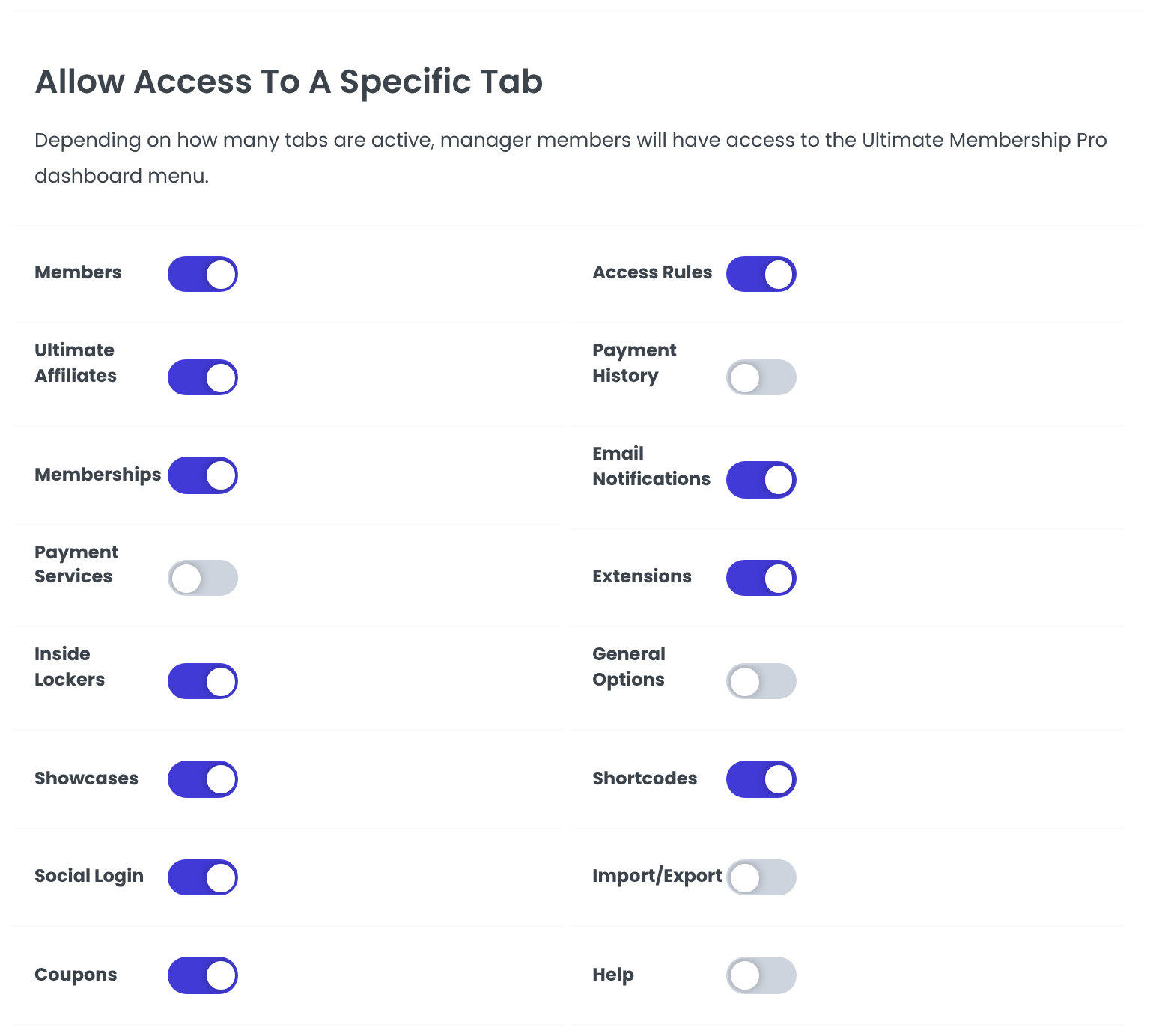
The screens a manager can open by default. Extensions is the Modules screen.
Default: On
Screens you may prefer to keep for administrators. Switch on only what the person needs.
Default: Off
Keep it small
A manager who can open a screen can change everything on it. Leave Extensions, General Options and Payment Services off unless the person is someone you trust with your settings and payments.
Give the role to a person
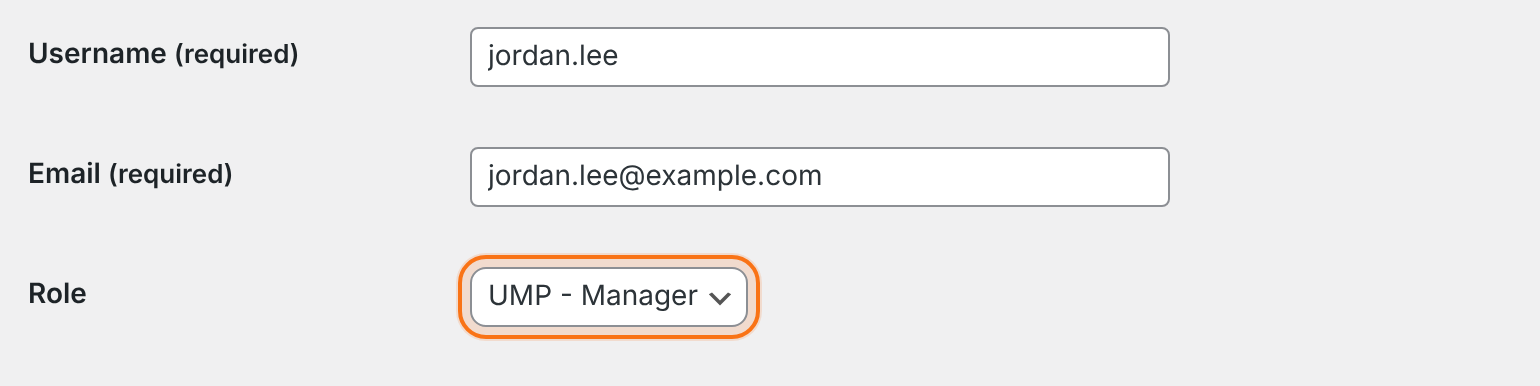
Open Users›Add New User in WordPress, or edit an existing user, and pick UMP – Manager in the Role list.
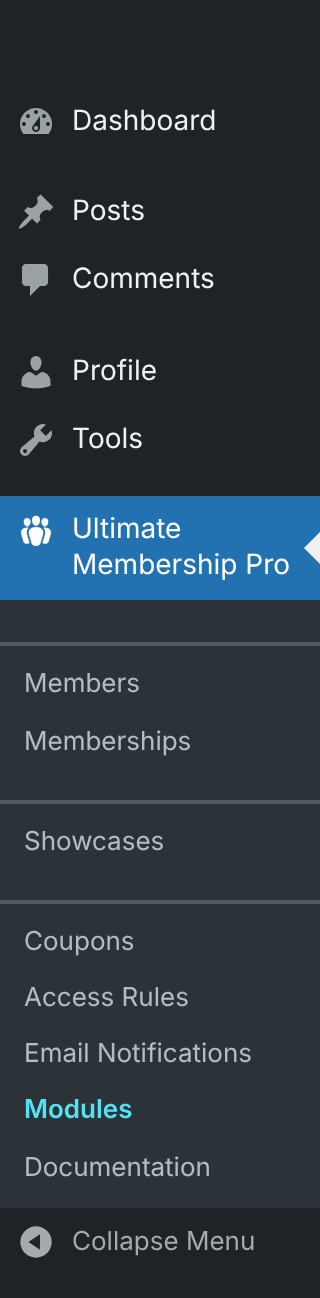
When the person logs in, they get the WordPress dashboard with an Ultimate Membership Pro menu that lists only the screens you allowed:
Good to know
- Administrators always see everything. The settings above apply only to users with the UMP – Manager role.
- Switching the add-on off removes the UMP – Manager role from WordPress. Switch it on again before you give the role to anyone.
- This role is for working in the dashboard. To give members extra abilities such as writing posts, use WordPress User Roles.
Example: a support assistant for Coaching Club
- Activate/Hold Manager Role Integration
- On
- Allowed screens
- Members, Memberships, Coupons, Email Notifications
- Kept for administrators
- Payment Services, Payment History, General Options, Extensions, Import/Export, Help
- Assistant’s role
- UMP – Manager
Learn more about Manager Role
- Manager Role add-on page: what it does, at a glance.
- All Pro add-ons for Ultimate Membership Pro.
- Ultimate Membership Pro plans: Pro add-ons come with the Full Package and Agency plans.
- WordPress roles and capabilities explained.
- WordPress Users screen documentation.
Troubleshooting
The manager is sent to the home page after logging in. Why?
WordPress keeps non-administrators out of the dashboard unless their role is allowed. Switch on at least one role under Settings › General Options › WP Dashboard Access; the UMP – Manager role is allowed along with it. See Control access to the WordPress dashboard.
I don’t see UMP – Manager in the Role list. Why?
The role exists only while the add-on is switched on and saved. Switch it on, click Save Changes and check the Role list again.
A screen is missing from the manager’s menu. Why?
Its switch under Allow Access To A Specific Tab is off. Switch it on and save. The change applies the next time the manager opens the dashboard.
How do I let someone manage members in Ultimate Membership Pro without making them an administrator?
Turn on the Manager Role add-on, choose the screens they may open under Allow Access To A Specific Tab, and give their user the UMP – Manager role.


