
In Ultimate Membership Pro, the Restrict My Account Tabs add-on decides, tab by tab, which Member Portal tabs each member sees, based on the Memberships they have. Use it to keep a Payments tab away from free members, or to give Pro members a tab that others don’t get.
This guide switches the add-on on, sets a rule for a tab and shows the result in the Member Portal.
Before you start
- The Restrict My Account Tabs add-on is installed and active. It’s a Pro add-on, included in the Full Package and Agency plans. See Install a Pro add-on.
- Your license is active. See Find and activate your license key.
- Your Memberships exist and the Member Portal is set up. See Set up the Member Portal.
Switch on the add-on
- Go to Ultimate Membership Pro›Modules and open Restrict My Account Tabs (in Members & Registration).
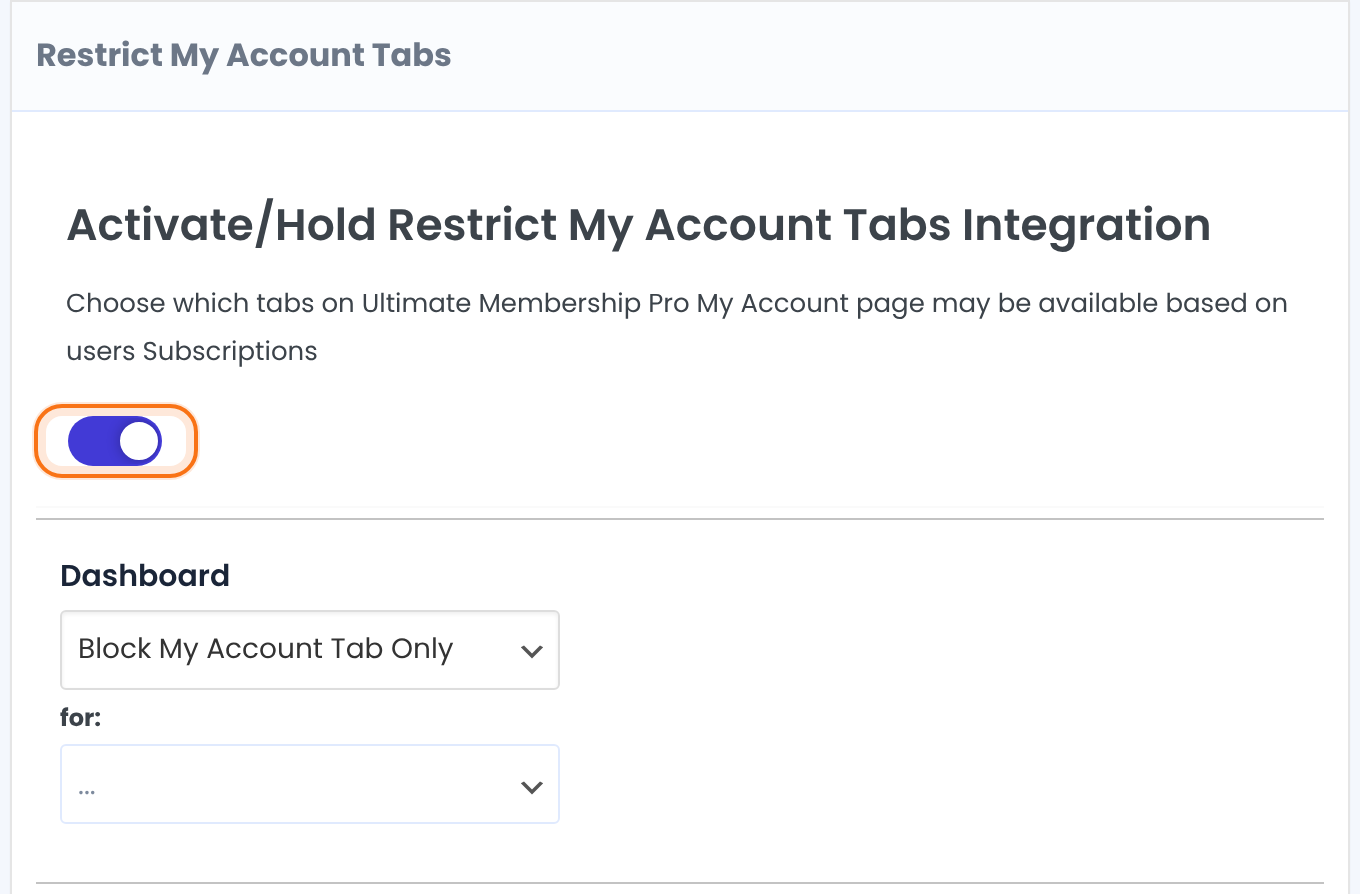
- Switch on Activate/Hold Restrict My Account Tabs Integration.
Set a rule for a tab
Below the switch there is one block for each tab of the Member Portal: Dashboard, Profile, Subscriptions, Social Plus, Orders, Help, LogOut and any tab added by a module or by you. A tab gets a rule when you choose at least one entry in for:.
- Find the tab. The block names are the tab names used in the admin, so the Payments tab is called Orders.
- Choose Block My Account Tab Only or Show My Account Tab Only.
- Pick a Membership, or All, in the for: select. It appears as a tag below the select. Click the x on a tag to remove it.
- Repeat for other tabs, then click Save Changes at the bottom of the screen.
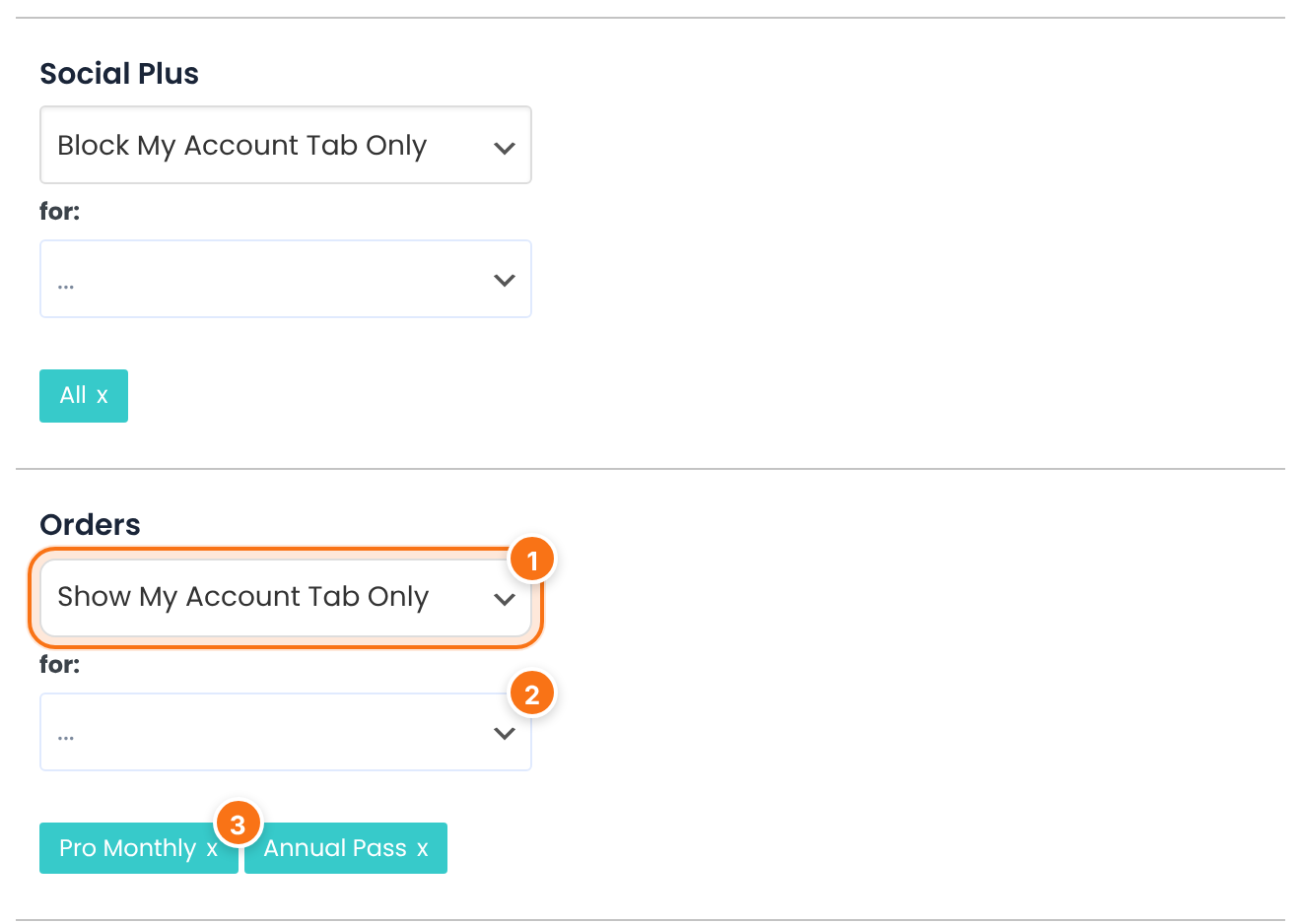
Hides the tab for members who have one of the Memberships in the tag list.
Shows the tab only to members who have one of the Memberships in the tag list. Everyone else doesn’t see it.
Select a Membership to add it to the rule. All means every member: with Block the tab is hidden for everyone, with Show it is visible to everyone.
The Memberships of the rule. A tab with no tag has no rule and shows as usual.
How the rules are applied
- Only active Memberships count. A member whose Membership has expired is treated as not having it.
- A member with several Memberships matches a rule if any one of them is in the tag list.
- Administrators always see every tab, so test with a member account.
Check it as a member
Log in as a test member. The Member Portal menu shows only the tabs that member is allowed to see. Here a Free Community member has no Payments tab (the Orders rule) and no Social Connection tab (the Social Plus rule):

A Pro Monthly member passes the Orders rule, so the Payments tab is there:

Tip
- To switch a tab off for every member in one place, use Show in Portal under Ultimate Membership Pro›Showcases›Member Portal instead. See Set up the Member Portal.
- Your own tabs from the Member Portal Tabs module get a block here too. See Add custom tabs to the Member Portal.
Example: Payments for paying members only
- Tab
- Orders (shown as Payments in the portal)
- Rule
- Show My Account Tab Only
- for:
- Pro Monthly, Annual Pass
- Free Community members see
- Dashboard, Profile Details, Subscriptions, Help, LogOut
- Pro Monthly and Annual Pass members see
- The same tabs plus Payments
Learn more about Restrict My Account Tabs
- Restrict My Account Tabs add-on page: what it does, at a glance.
- All Pro add-ons for Ultimate Membership Pro.
- Ultimate Membership Pro plans: Pro add-ons come with the Full Package and Agency plans.
- Subscription business model (Wikipedia).
Troubleshooting
How do I hide a Member Portal tab from some members in Ultimate Membership Pro?
Switch on the Restrict My Account Tabs add-on. For the tab, choose Block My Account Tab Only and pick the Memberships in the for: select, then click Save Changes. Members with one of those Memberships no longer see the tab in their menu.
Why can I still see a tab I restricted?
Administrators see every tab. Log in as a member to check the rule.
Why does a tab still show for a member?
A tab only has a rule when at least one Membership or All is chosen in the for: select, and the member’s matching Membership must be active. Check the tags and that you clicked Save Changes.
Why did a tab disappear for a member whose Membership expired?
With Show My Account Tab Only, the member needs an active Membership from the list. When it expires, the tab is no longer shown.


