
In Ultimate Membership Pro, the Divi Content Locker add-on adds a locker to Divi sections, rows and columns, so that part of a page appears only to the visitors, logged-in users or Memberships you choose. It works in both the Divi 4 and the Divi 5 builder, and it can show a message in place of the locked content or release it on a schedule.
This guide switches the add-on on, finds the locker in Divi, and explains each setting.
Before you start
- The Divi Content Locker add-on is installed and active. It’s a Pro add-on, included in the Full Package and Agency plans. See Install a Pro add-on.
- Your license is active. See Find and activate your license key.
- The Divi theme or the Divi Builder plugin is installed and active, and you have a page built with it.
- Your Memberships exist, so you can pick them in the locker.
Switch on the add-on
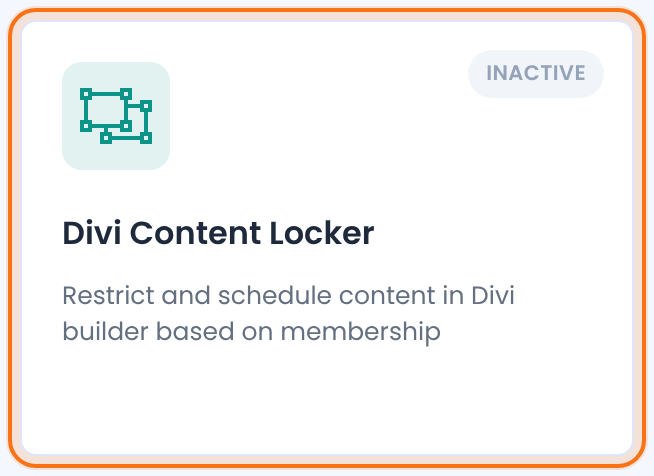
- Go to Ultimate Membership Pro›Modules and open Divi Content Locker, in the Content Protection group.
- Switch on Activate/Hold Divi Content Locker Integration.
- Click Save Changes.
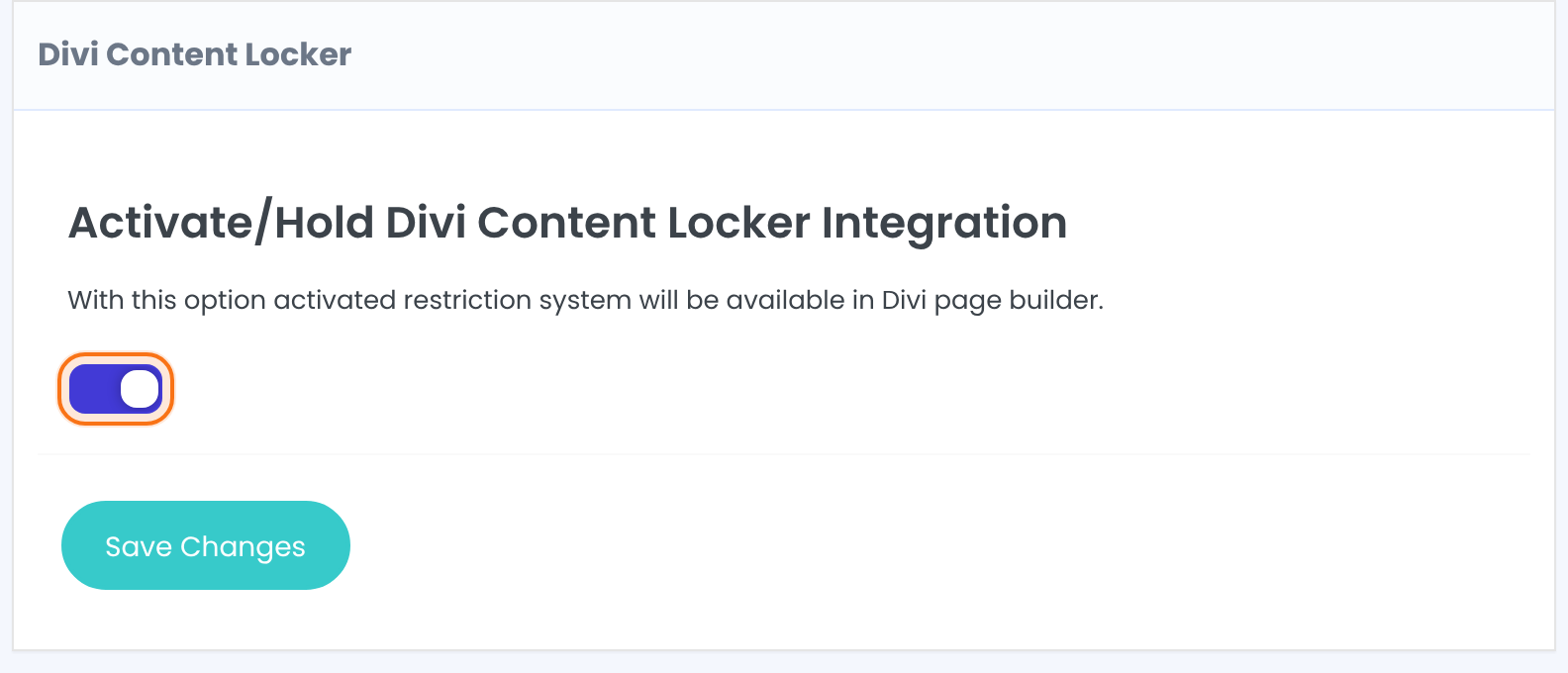
Makes the restriction system available in the Divi page builder. The lock settings themselves are in Divi, on each section, row or column.
Default: Off
Open the locker in Divi
Edit a page with the Divi builder and open the settings of the section, row or column you want to lock. Where the locker is depends on the builder:
Divi 5
- Section, row, column, group
- Advanced tab, Ultimate Membership Pro section
Divi 4
- Section
- Advanced tab, Ultimate Membership Pro toggle
- Row, column
- Ultimate Membership Pro tab, Content Locker toggle
The locker is on layout elements. To lock one text or image, put it in its own row or column and lock that. If you convert a page from Divi 4 to Divi 5, its locker settings are carried over.
Choose who sees the element
- Set Enable Locker to Yes.
- Choose the Type of restriction: Show only For or Hide only For.
- Tick the Memberships, Registered Users or Unregistered Users the restriction applies to.
- Save the page in Divi.
Turns the locker on for this element. Administrators always see the whole content, even when it’s restricted.
Default: No
Whether the list below is who sees the element or who doesn’t.
- Show only For: only the people you tick see the element.
- Hide only For: the people you tick don’t see it, and everyone else does.
A checkbox for each of your Memberships, plus Registered Users (logged-in people, with or without a Membership) and Unregistered Users (visitors who aren’t logged in). Several ticks are allowed, and one match is enough. With nothing ticked, the element isn’t restricted. In Divi 4 this list has no label.
Choose what people without access see
What appears to people who can’t see the element.
- Hide: the element is removed from the page.
- Replace content with message: the element is replaced by your message.
Default: Hide
The text shown in place of the element. HTML is allowed in Divi 5, and Divi 4 gives you a text editor. If you leave it empty, nothing is shown.
Default: This content is restricted
Release the content on a schedule
With Show only For, you can also decide when the element opens and when it closes again, as Drip Content does for pages. See Release content over time (Drip Content).
Releases the content at regular intervals. Even a member with the right Membership waits until the release time, and loses the element after the expiry time.
Default: No
When the element opens.
- Instantanly Subscription: as soon as the Membership starts.
- After Subscription: after a number of days, weeks or months. Set Type of release time: (Days, Weeks or Months) and Release time value:.
- On Specific Date: on the date you pick in On Specific Date:.
Default: Instantanly Subscription
When the element closes again.
- Never: it stays open.
- After Certain Period: after a number of days, weeks or months. Set Type of expire time: and Expire time value:.
- On Specific Date: on the date you pick in On Specific Date:.
Default: Never
Good to know
- Test with a member account or a private browser window. Administrators see everything, and the Divi builder preview doesn’t apply the locker.
Whole pages
Divi Content Locker is made for parts of a page. To restrict the whole page, restrict it like any other page, from the Locker box in the editor or with Access Rules. See Restrict your first page and Restrict content with Access Rules.
Example: a members-only section on the Coaching Club home page
- Join row
- Enable Locker Yes, Show only For Unregistered Users, Un-Authorized Content Hide
- Live sessions row
- Enable Locker Yes, Show only For Pro Monthly and Annual Pass, Replace content with message: Live sessions are for Pro Monthly and Annual Pass members.
- Week 2 workbook section
- Show only For Pro Monthly, Drip Content Yes, After Subscription, 7 Days
- Result
- Visitors see the join row and the message. Pro Monthly members see the live sessions row, and the workbook a week after they join
Learn more about Divi Content Locker
- Divi Content Locker add-on page: what it does, at a glance.
- All Pro add-ons for Ultimate Membership Pro.
- Ultimate Membership Pro plans: Pro add-ons come with the Full Package and Agency plans.
- Divi sections: Content, Design and Advanced settings.
Troubleshooting
Why don’t I see the Ultimate Membership Pro settings in Divi?
Check that Activate/Hold Divi Content Locker Integration is on and saved in Modules, then reload the builder. The settings are on sections, rows and columns, not on single modules such as Text or Image.
Why can I still see a locked section?
Administrators see everything, and the Divi builder preview doesn’t apply the locker. Open the page in a private window, or log in as a member, to see what visitors see. If your site uses page caching, clear the cache.
Why isn’t anything hidden after I switched Enable Locker on?
Choose a Type of restriction and tick at least one Membership, Registered Users or Unregistered Users. With nothing ticked, the element isn’t restricted.
Why is nothing shown where I chose Replace content with message?
The Message is empty. Type the text people should see, or choose Hide.
How do I show a Divi row only to members of one Membership?
Switch on the Divi Content Locker add-on, open the row’s settings in Divi, set Enable Locker to Yes, choose Show only For and tick the Membership. Only members who have that Membership see the row.


