
In Ultimate Membership Pro, the Mailster Pro add-on saves your members as subscribers in the lists of the Mailster newsletter plugin on your site. Each Membership can have its own list, and members are taken off that list when the Membership ends, so every newsletter goes to the people who still hold the Membership.
This guide switches the add-on on, chooses the Default List and a list for each Membership, and shows when members are added and removed.
Before you start
- The Mailster Pro add-on is installed and active. It’s a Pro add-on, included in the Full Package and Agency plans. See Install a Pro add-on.
- Your license is active. See Find and activate your license key.
- The Mailster newsletter plugin is installed and active on the same site, with at least one list.
- Your Memberships exist. See Create your first Membership.
What it adds to the built-in Opt-In
The Opt-In module of Ultimate Membership Pro can already send new members to one Mailster list, under the name Mailster (MyMail). Mailster Pro works with Memberships too. See Collect newsletter subscribers (Opt-In) for the built-in option.
Opt-In with Mailster (built in)
- List
- One list for everyone
- Added
- When a new member registers
- Removed
- Never
Mailster Pro (add-on)
- List
- A Default List, plus a different list for each Membership
- Added
- When a new member registers (as an Opt-In service) and each time a Membership is activated
- Removed
- Taken off the list when a Membership ends; unsubscribed when the account is deleted
Switch on the add-on
- Go to Ultimate Membership Pro›Modules and open the Mailster Pro card.
- Switch on Activate/Hold Mailster Pro Integration and click Save Changes.
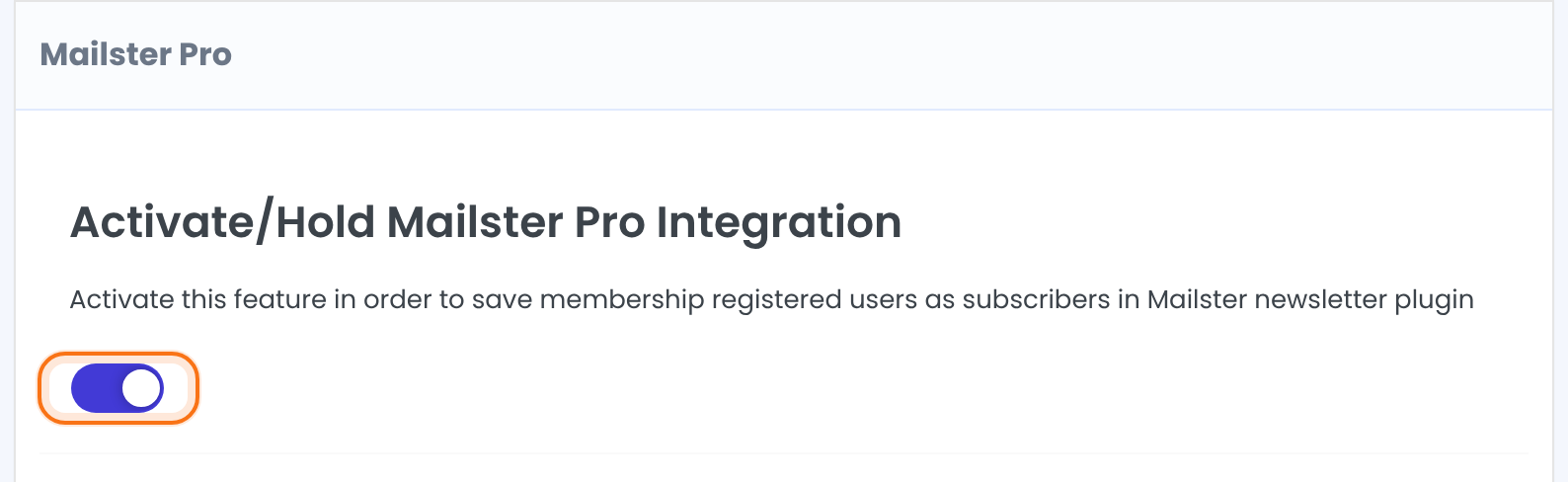
Saves membership registered users as subscribers in Mailster.
Default: Off
Choose the Default List
The lists come straight from the Mailster plugin on your site; there is nothing to connect or refresh. Create new lists in Mailster first, then reopen this screen.
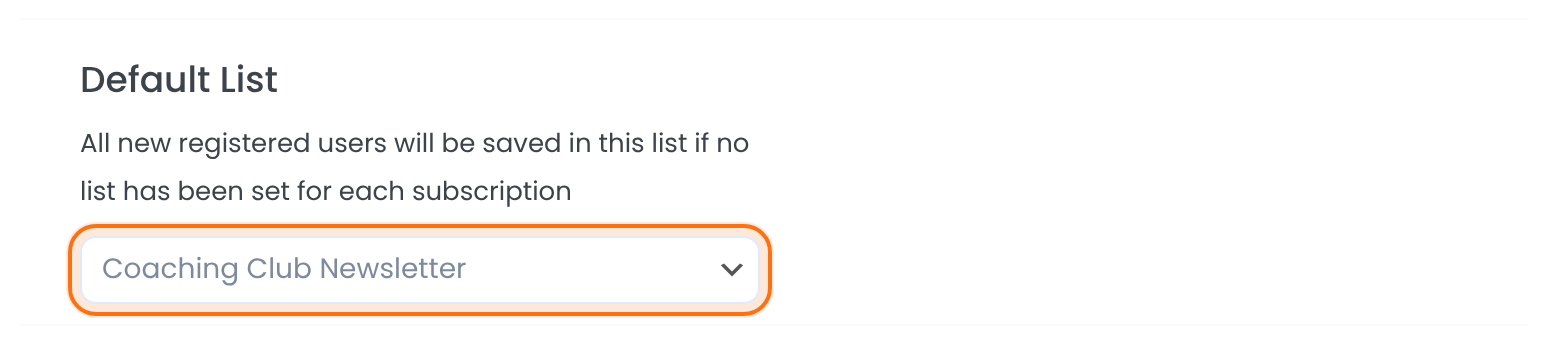
Members are saved in this list when a Membership has no list of its own, and when they register with Mailster Pro chosen as the Opt-In service.
Choose a list for each Membership
Under List Assigned Based on Subscription there is one select per Membership. Pick a list for each Membership that should have its own, then click Save Changes.
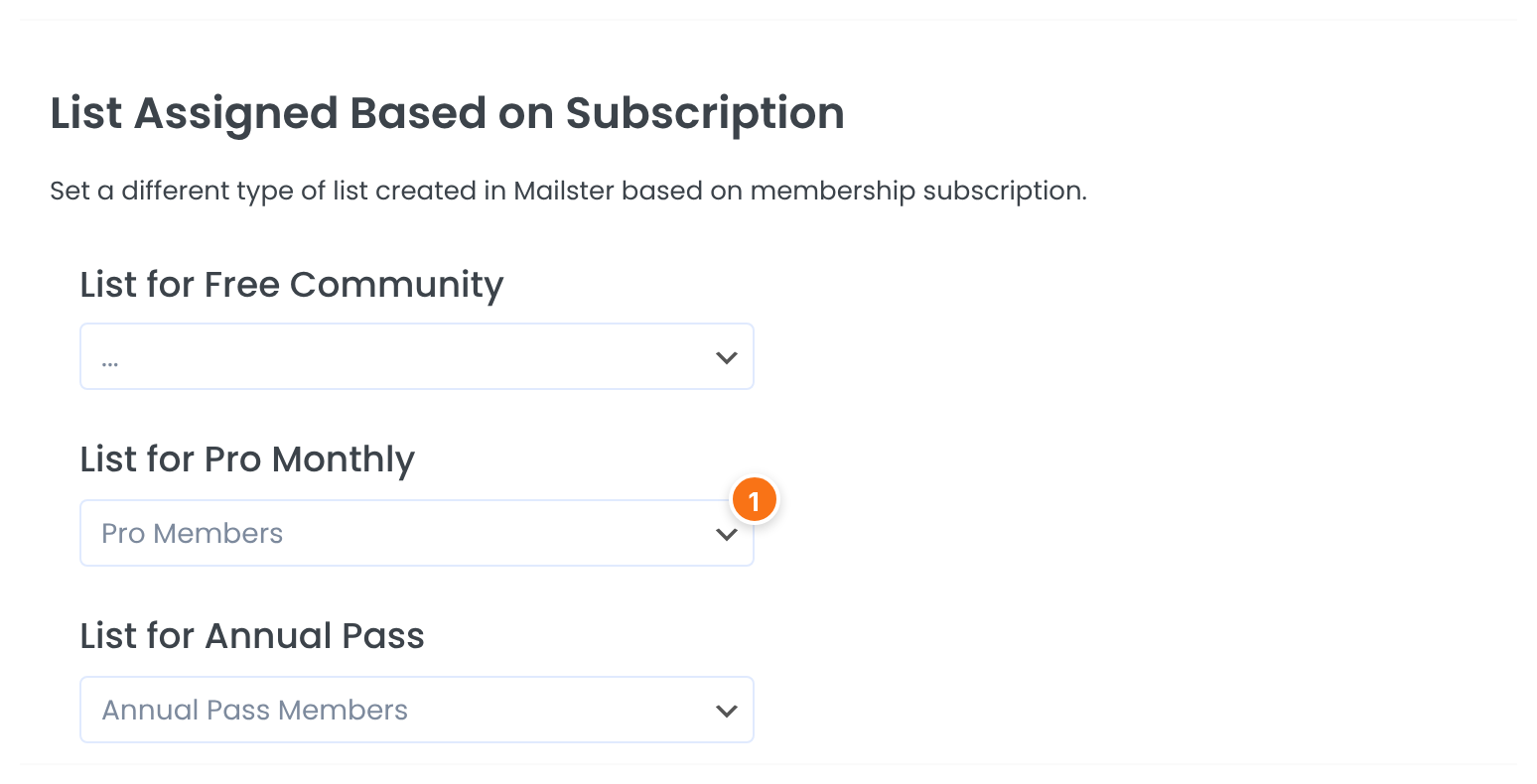
The list that members of this Membership are saved in. Leave “…” to use the Default List.
Add new sign-ups to the Default List
With the add-on on, Mailster Pro appears in the list of Opt-In services. Choose it to send every new registration to the Default List.
- Go to Ultimate Membership Pro›Registration Form.
- Switch on Opt-In Subscription, click Mailster Pro under Choose Opt-In Service and click Save Changes.
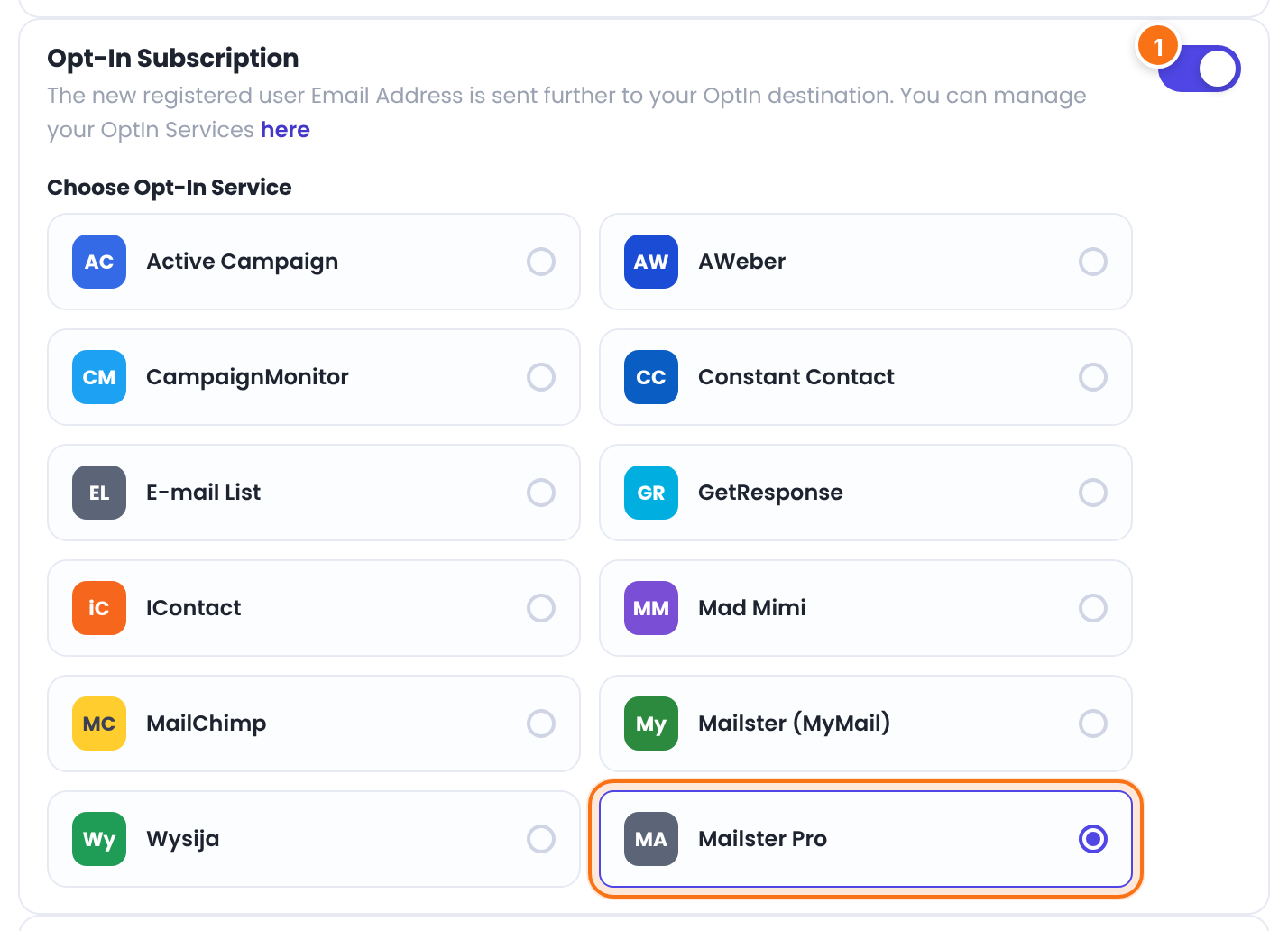
When members are added and removed
The member is saved in the Default List with their email address, first name and last name.
The member is saved in the list of that Membership, or in the Default List when it has none. A person who is already a Mailster subscriber is added to the list; a new subscriber is created with the status Subscribed.
The member is taken off the list of that Membership, or off the Default List when it has none. The subscriber stays in Mailster.
The subscriber is unsubscribed in Mailster.
Good to know
- Removal when a Membership expires runs together with the daily email notification check, so keep at least one notification for expired subscriptions (to the member or to the admin) in your Email Notifications. See Set up email notifications.
- A Membership without its own list uses the Default List for adding and for removing. If members can hold several Memberships, give each one a list of its own.
- Members are saved only from the moment the add-on is on. Existing members are not copied.
Example: a list for each paid plan
- Activate/Hold Mailster Pro Integration
- On
- Default List
- Coaching Club Newsletter
- List for Free Community
- …
- List for Pro Monthly
- Pro Members
- List for Annual Pass
- Annual Pass Members
- Opt-In Subscription
- On, Mailster Pro
Learn more about Mailster Pro
- Mailster Pro add-on page: what it does, at a glance.
- All Pro add-ons for Ultimate Membership Pro.
- Ultimate Membership Pro plans: Pro add-ons come with the Full Package and Agency plans.
- Mailster subscribers and lists overview.
Troubleshooting
The lists show only “…”. Why?
The lists are read from the Mailster plugin. Check that Mailster is installed and active on this site and that it has at least one list, then reopen the screen.
Why isn’t a new member saved in my list?
Check that the add-on switch is on and saved, that Mailster is active, and that a list is chosen: the one for the Membership or the Default List. For members who only register, Mailster Pro must also be chosen under Choose Opt-In Service.
What is the difference between Mailster (MyMail) and Mailster Pro in the Opt-In services?
Mailster (MyMail) is the built-in option: one list, filled when a member registers. Mailster Pro is the add-on: a Default List plus a list for each Membership, filled on registration and whenever a Membership is activated, and cleaned when a Membership ends.
What happens to a person who is already a Mailster subscriber?
They are added to the list. Their existing subscriber record is kept.
How do I send a newsletter only to members of one Membership in Ultimate Membership Pro?
Give that Membership its own list under List Assigned Based on Subscription, then send your Mailster campaign to that list.


