
In Ultimate Membership Pro, the Elementor Widget Lock add-on adds a lock control to every widget, section and container in the Elementor page builder, so that element appears only to the visitors, logged-in users or Memberships you choose. It lets you build one page for everyone and still show a join button to visitors and a download box to members.
This guide switches the add-on on, locks an element in Elementor, and explains what each choice does.
Before you start
- The Elementor Widget Lock add-on is installed and active. It’s a Pro add-on, included in the Full Package and Agency plans. See Install a Pro add-on.
- Your license is active. See Find and activate your license key.
- Elementor is installed and active, and you have a page built with it.
- Your Memberships exist, so you can pick them in the lock.
Switch on the add-on
- Go to Ultimate Membership Pro›Modules and open Elementor Widget Lock, in the Content Protection group.
- Switch on Activate/Hold Elementor Widget Lock Integration.
- Click Save Changes.
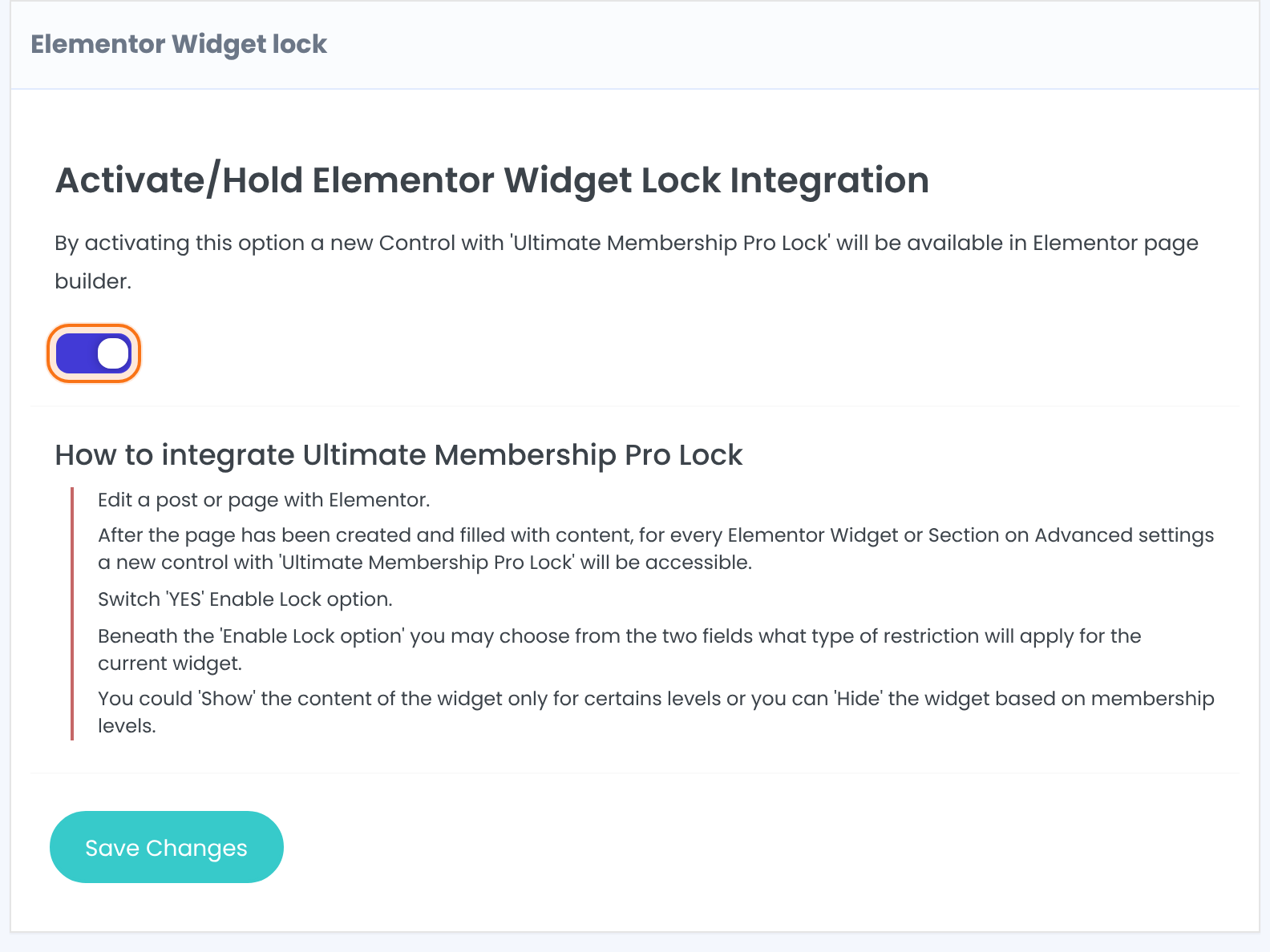
Adds the Ultimate Membership Pro lock control to Elementor. Until you switch it on and save, Elementor doesn’t show the control.
Default: Off
Lock an element in Elementor
- Edit a page or post with Elementor.
- Click the widget, section or container you want to lock.
- Open the Advanced tab, then the Ultimate Membership Pro – Lock section.
- Set Enable Lock to Yes.
- Pick who sees the element in Show for:, or who doesn’t in Hide for:.
- Click Update in Elementor.
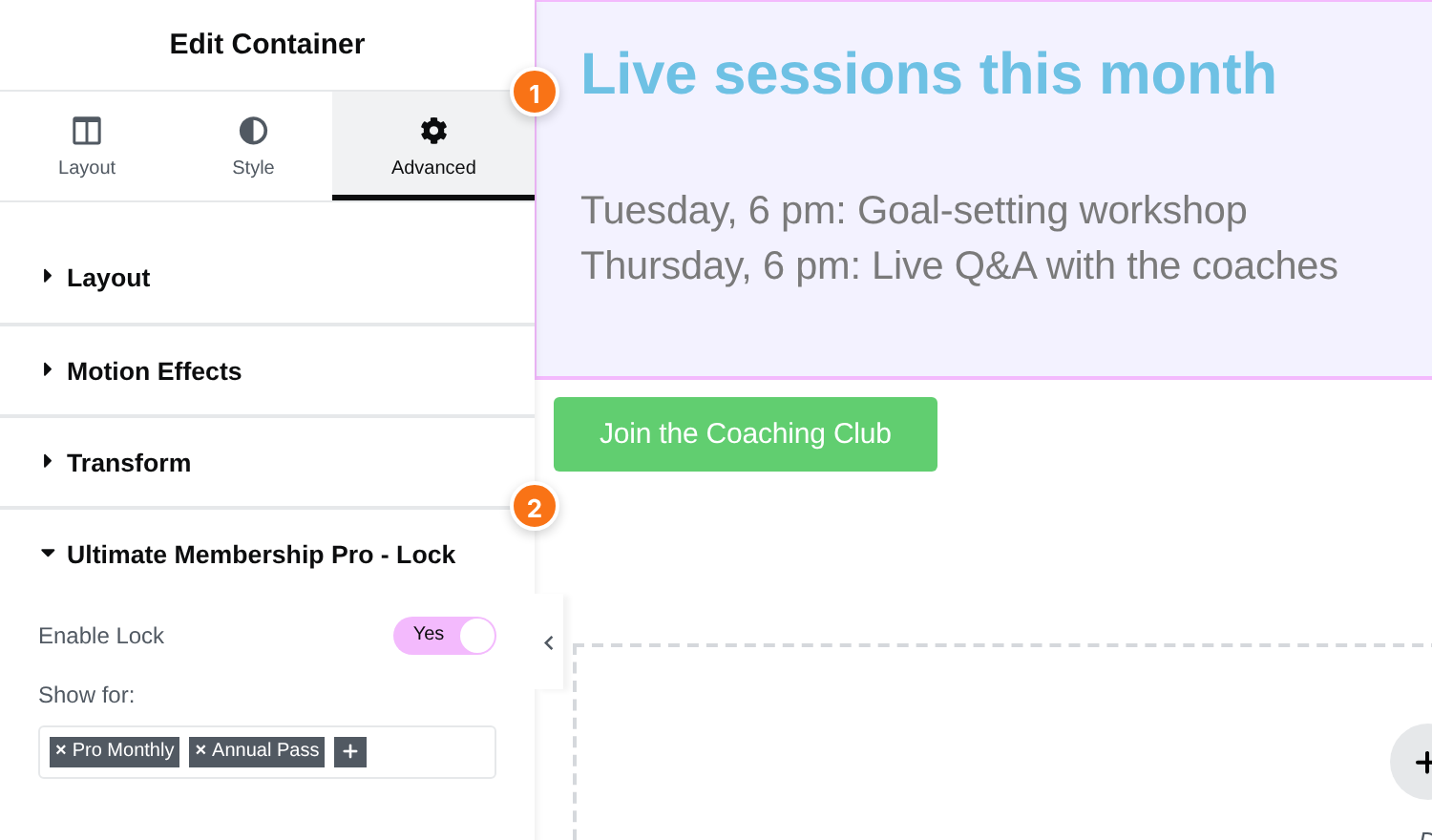
Turns the lock on for this element. Choose Yes to see the two fields below. With the lock on but nothing picked, everyone sees the element.
Default: No
The element is shown only to the people you pick. Everyone else doesn’t see it. You can pick several, and one match is enough.
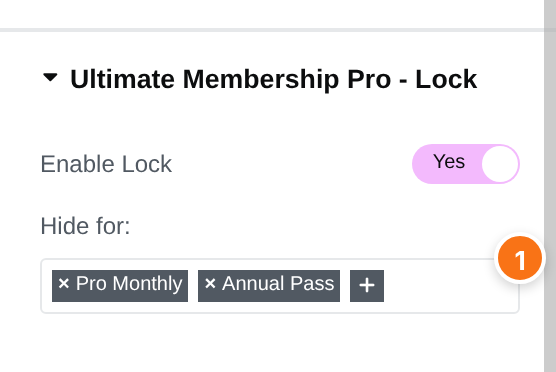
The element is hidden from the people you pick. Everyone else sees it.
Use one of the two fields per element. Show for: disappears while Hide for: has a choice, and the other way round. Clear one to use the other.
Choose who the lock applies to
Both lists offer the same choices: All, Registered Users, Unregistered Users, and each of your Memberships by name.
With Show for:, everyone sees the element. With Hide for:, nobody sees it except administrators.
People who are logged in, with or without a Membership.
Visitors who aren’t logged in.
Members who have that Membership right now. A Membership that has expired doesn’t count.
Good to know
- Administrators always see every element, so test with a member account or a private browser window.
- Elementor can keep a ready-made copy of your elements (Element Cache) and show that copy to everyone. On sites with locked elements, set Element Cache to Disable in Elementor›Settings›Performance, so each visitor gets the version meant for them.
- A locked element is left out of the page for people who can’t see it. It isn’t just hidden, so its content isn’t sent to their browser.
Tip
- Pick Registered Users in Show for: for something every logged-in member should see, and a single Membership for something that belongs to one plan.
- Elementor Widget Lock is made for parts of a page. To restrict the whole page, restrict it like any other page, from the Locker box in the editor or with Access Rules. See Restrict your first page and Restrict content with Access Rules.
What visitors and members see
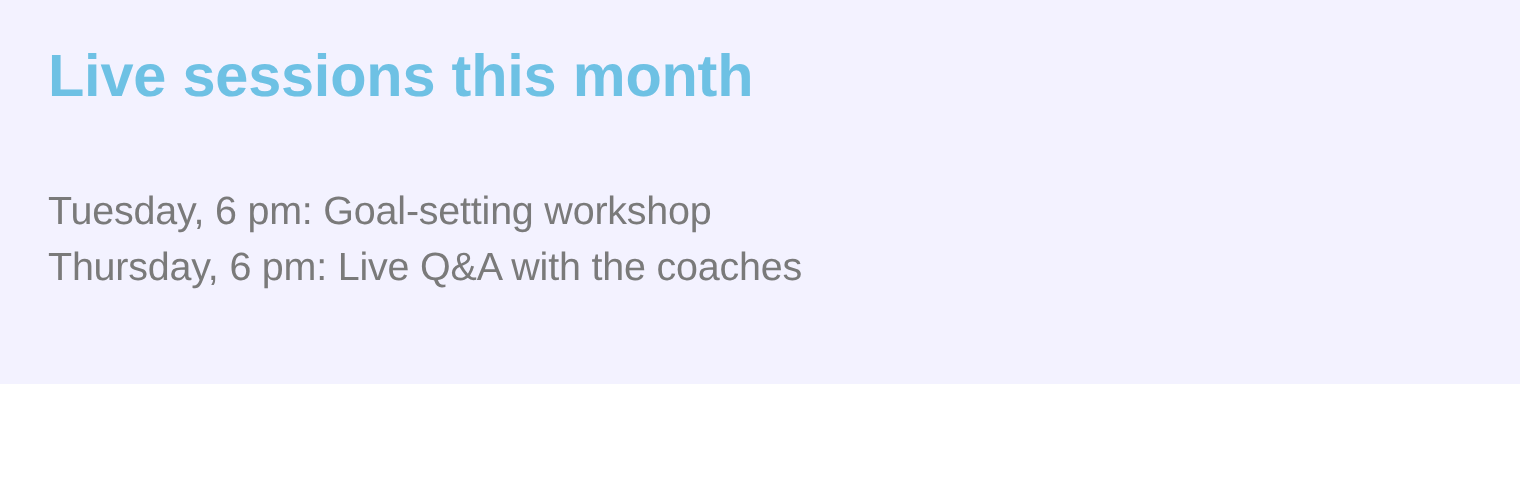
Here the Live sessions container is locked with Show for: Pro Monthly and Annual Pass, and the join button with Show for: Unregistered Users. Each person gets only the parts meant for them.

Example: one pricing page for everyone
- Join Free Community button (section)
- Enable Lock Yes, Show for: Unregistered Users
- Upgrade box (container)
- Enable Lock Yes, Hide for: Pro Monthly, Annual Pass
- Live sessions list (widget)
- Enable Lock Yes, Show for: Pro Monthly, Annual Pass
- Result
- Visitors see the join button and the upgrade box. Free Community members see the upgrade box. Paying members see the live sessions list
Learn more about Elementor Widget Lock
- Elementor Widget Lock add-on page: what it does, at a glance.
- All Pro add-ons for Ultimate Membership Pro.
- Ultimate Membership Pro plans: Pro add-ons come with the Full Package and Agency plans.
- Elementor Advanced tab settings.
Troubleshooting
Why don’t I see Ultimate Membership Pro – Lock in Elementor?
Check that Activate/Hold Elementor Widget Lock Integration is on and saved in Modules, then reload the Elementor editor. The section is in the Advanced tab of widgets, sections and containers.
Why can I still see a locked element?
Administrators see every element, and widgets stay visible inside the Elementor editor so you can keep working on them. Open the page in a private window, or log in as a member, to see what visitors see. If your site uses page caching, clear the cache so the page is built again.
Why can’t I fill both Show for and Hide for?
Each element uses one of them. Show for: is hidden while Hide for: has a choice, and the other way round. Clear the choices in one field to use the other.
How do I show an Elementor widget only to members of one Membership?
Switch on the Elementor Widget Lock add-on, open the widget, then Advanced and Ultimate Membership Pro – Lock. Set Enable Lock to Yes and pick the Membership in Show for:. Only members who have that Membership see the widget.


