
In Ultimate Membership Pro, the Export Orders To CSV add-on turns your orders into a CSV file that you download and open in a spreadsheet. It is handy for bookkeeping, for sending a month of sales to your accountant, or for building your own reports.
This guide covers how to open the add-on, how to pick the orders to export, what each column of the file contains, and how to download it.
Before you start
- The Export Orders To CSV add-on is installed and active. It’s a Pro add-on, included in the Full Package and Agency plans. See Install a Pro add-on.
- Your license is active. See Find and activate your license key.
- Your site has orders to export. They are listed under Ultimate Membership Pro›Payment History. See Manage payments and orders.
Open the add-on
- Go to Ultimate Membership Pro›Modules. The card is in the Payments & Billing group; you can also type its name in the Search modules… box.
- Click the Export Orders to CSV card to open its screen.
The screen starts with the switch Activate/Hold Export Orders To CSV Integration. It is on by default. If you turn it off, switch it on again and click Save Changes before you export: exports run only while it is on.
Choose which orders to export
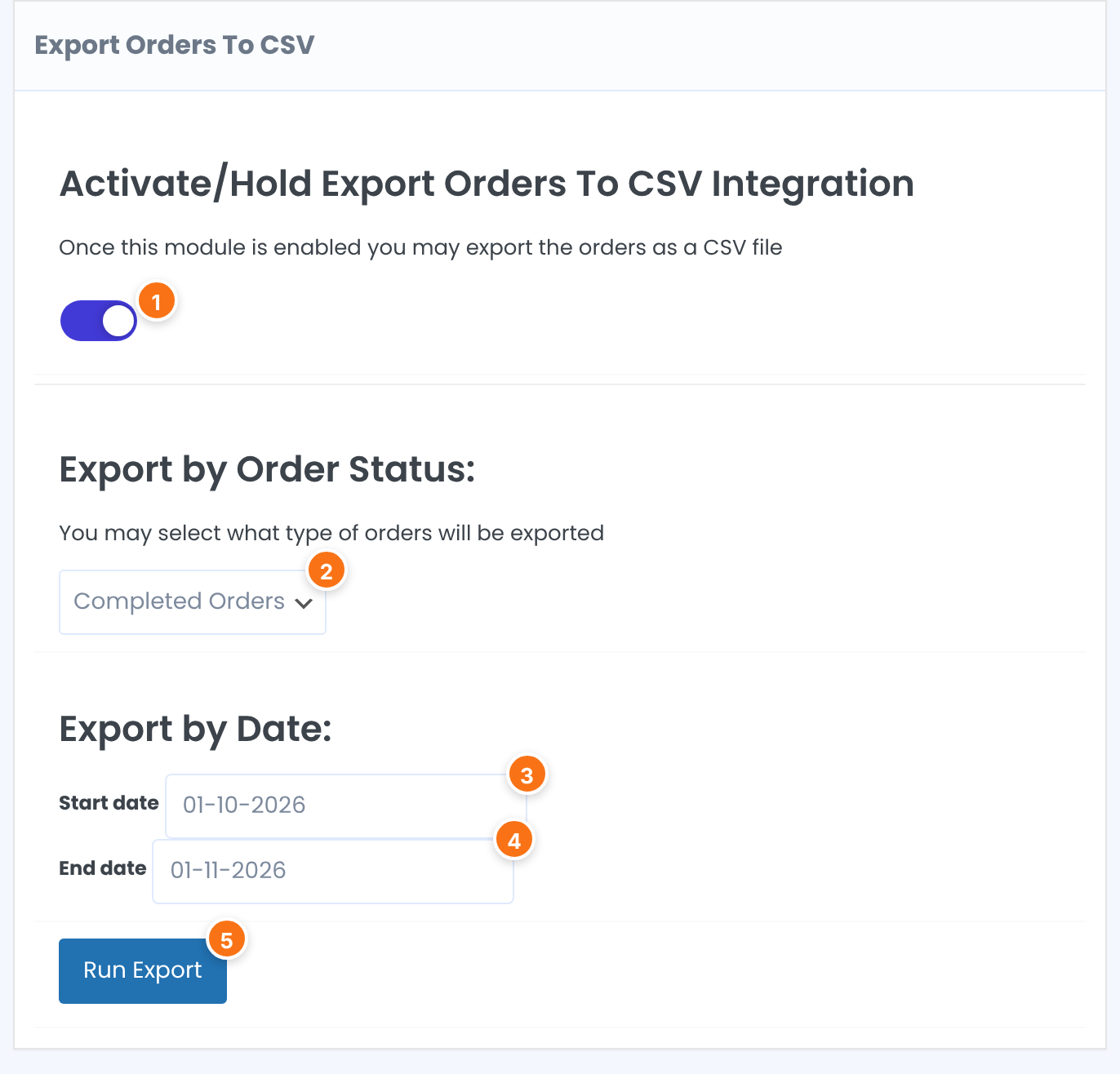
Lets the screen export orders. Save Changes keeps this switch.
Default: On
Which orders go into the file.
- All Orders: every order, whatever its status (completed, pending, failed, refunded and so on).
- Completed Orders: paid orders only.
- Pending Orders: orders still waiting for payment, such as bank transfers you haven’t confirmed.
Default: All Orders
Optional. The first day to include, written day-month-year, for example 01-10-2026. Click the field to pick the day from a calendar. Leave it empty to start from your oldest order.
Optional. Orders are included up to, but not including, this day. To export all of October, enter 01-11-2026. Leave it empty to include everything up to today.
Builds the file with the choices above.
Leave both dates empty to export every order of the chosen status.
Run the export and download the file
- Click Run Export. The screen reloads.
- Click Download, which now appears next to Run Export. The CSV file opens or downloads in your browser.

Orders are listed from the oldest to the newest. The file is temporary: the next export creates a new file and removes the previous one, so download it straight away.
What the file contains
The first row holds the column names. Each following row is one order:
Columns, in order
ID, Code, Customer Email, Customer ID, First Name, Last Name, Membership, Membership ID, Amount, Taxes, Total Amount, Currency, Payment Method, Coupon, Transaction ID, Date, StatusThe order number, and the order code that is also the invoice number, for example IUMP000004. See Send invoices.
Who placed the order. Customer ID is the member’s WordPress user ID.
The Membership that was bought.
The price before taxes, the taxes, and the total the member was charged. Amount equals Total Amount when no taxes apply.
The currency code of the order, for example USD.
The gateway used, the coupon code if one was applied, and the gateway’s transaction reference.
When the order was created, written in your site’s date and time format, and its status, for example Completed or Pending.
Tip
- Values are separated by commas, so the file opens directly in Excel, Numbers or Google Sheets.
- For a monthly routine, export Completed Orders with the first day of the month as Start date and the first day of the next month as End date.
Example: October sales for the accountant
- Export by Order Status:
- Completed Orders
- Start date
- 01-10-2026
- End date
- 01-11-2026
- Result
- One row per paid order, for example Pro Monthly at $19 and Annual Pass at $149
Learn more about Export Orders To CSV
- Export Orders To CSV add-on page: what it does, at a glance.
- All Pro add-ons for Ultimate Membership Pro.
- Ultimate Membership Pro plans: Pro add-ons come with the Full Package and Agency plans.
- Importing CSV files into Google Sheets.
- Opening CSV files in Excel.
Troubleshooting
Why doesn’t a Download button appear after Run Export?
Either the Activate/Hold switch is off, or no order matches your choices. Switch it on and save, then widen the status or the dates. Remember that orders on the End date itself are not included.
Why is the Payment Method column empty for some orders?
The column shows the name of the gateway recorded for the order. When the order has no gateway recorded, the cell is empty.
Can I export orders by Membership or by customer in Ultimate Membership Pro?
The add-on filters by order status and date only. Export the file, then filter the Membership or Customer Email columns in your spreadsheet.
Which date format should I type?
Day-month-year with dashes, for example 01-10-2026. Clicking the field opens a calendar that fills it in for you.


