
In Ultimate Membership Pro, the Dashboard and the Reports screen show how your membership site is doing: revenue, members, MRR, renewals, refunds and cancellations. The Dashboard gives a quick look; Reports gives the details for any period.
This guide explains what each screen shows and how the main numbers are calculated.
Before you start
- Some activity on the site: members and completed payments. With none, the charts show “No revenue in this period”.
The Dashboard: a quick look
Ultimate Membership Pro›Dashboard opens with four numbers:
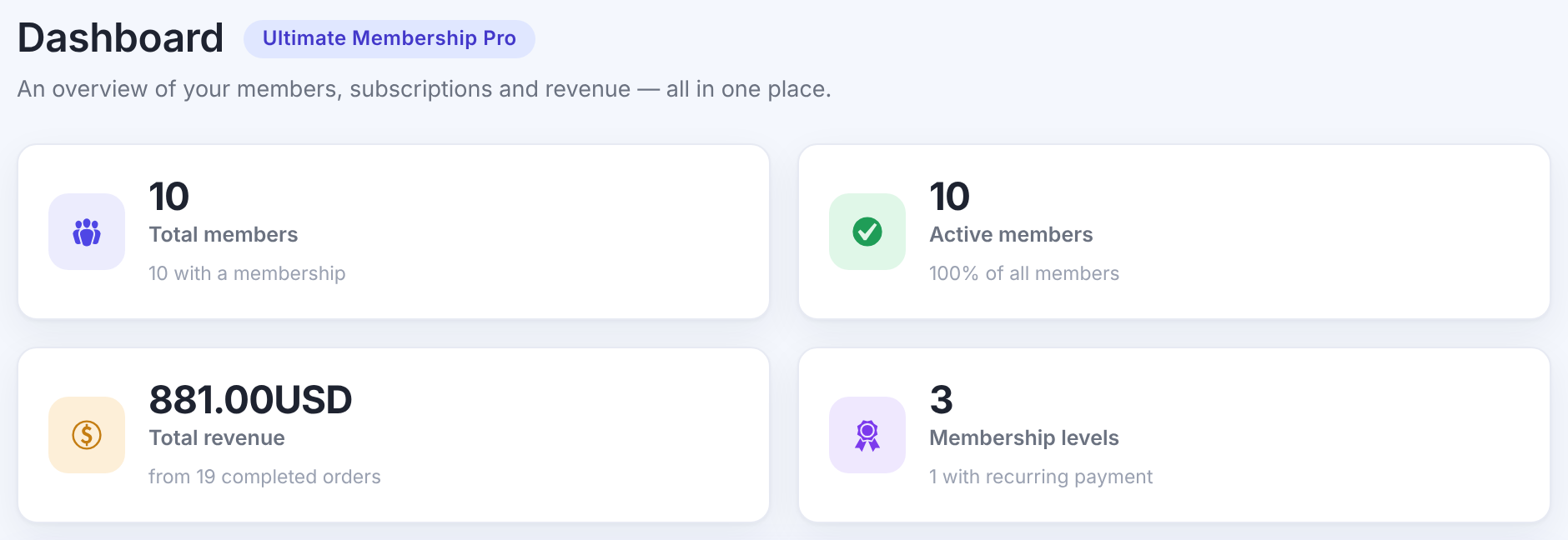
All members, and how many have a Membership.
Members with an active Membership, and their share of all members.
All completed payments, and how many orders they come from.
How many Memberships you sell, and how many are recurring.
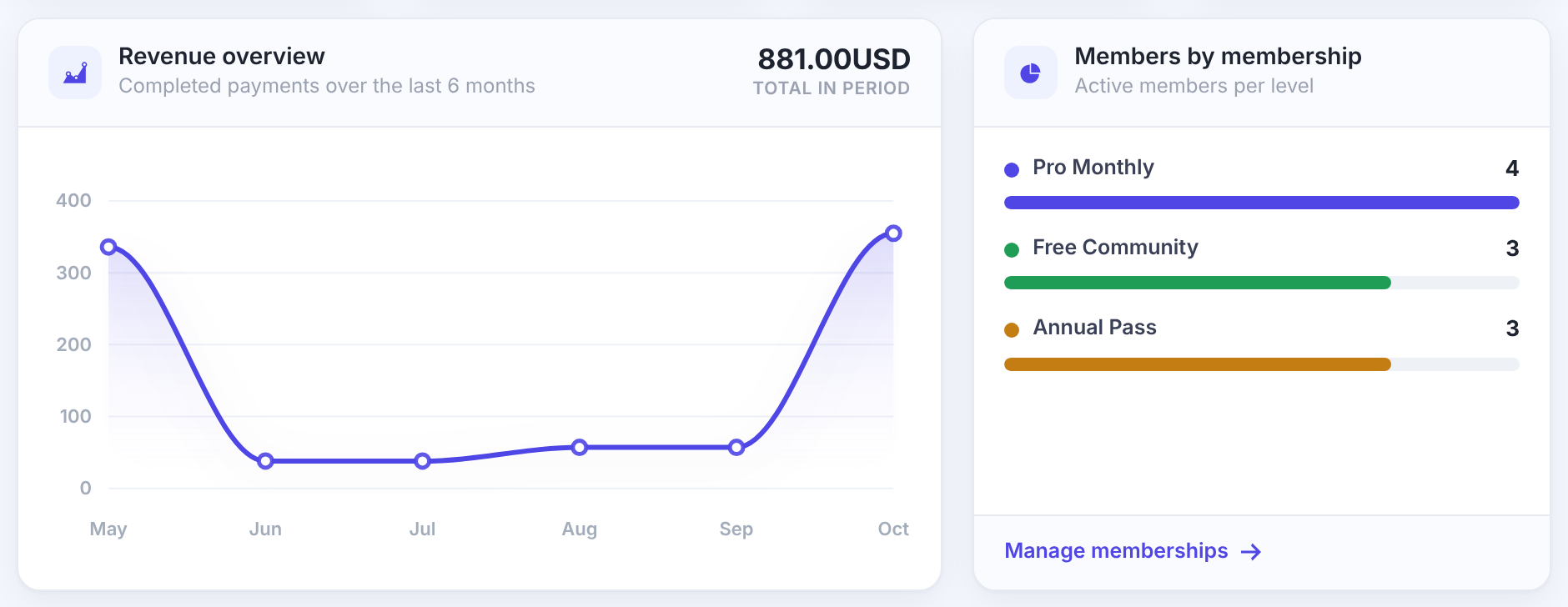
Below them, a Setup progress card counts five setup steps (setup wizard, a Membership, a payment gateway, the register and login pages, a first member), and two charts follow:
Open Reports and pick a period
- Go to Ultimate Membership Pro›Reports.
- Pick a period, a period to compare with, and click Filter.
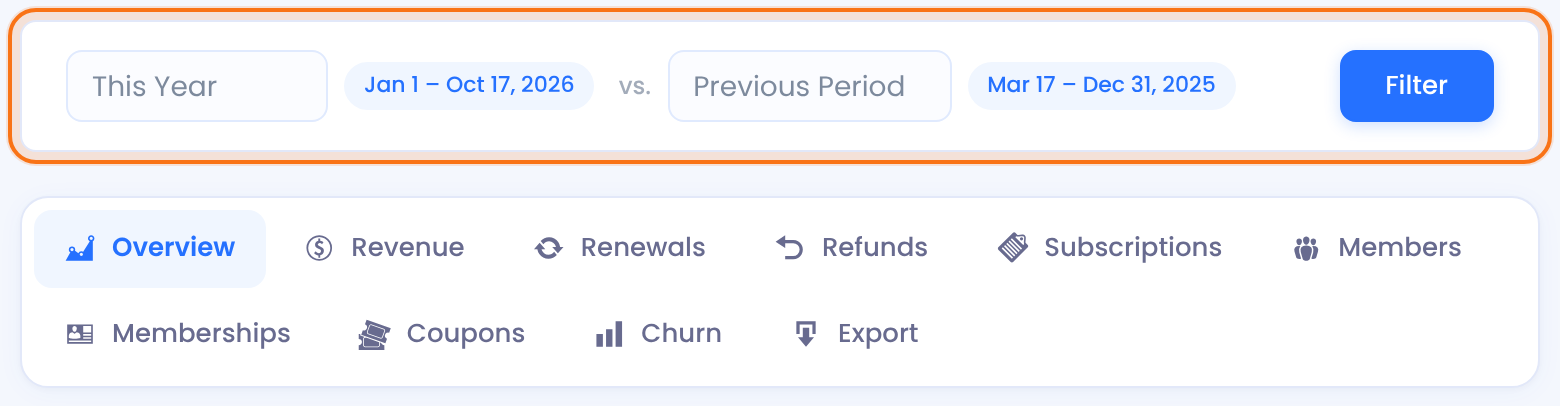
Today, Yesterday, This Week, Last Week, Last 30 Days, This Month, Last Month, This Quarter, Last Quarter, This Year, Last Year or Custom Range.
Default: Last 30 Days
What to compare with: Previous Period, Previous Month, Previous Quarter or Previous Year. Each card shows the change as a percentage.
Default: Previous Period
Read the Overview
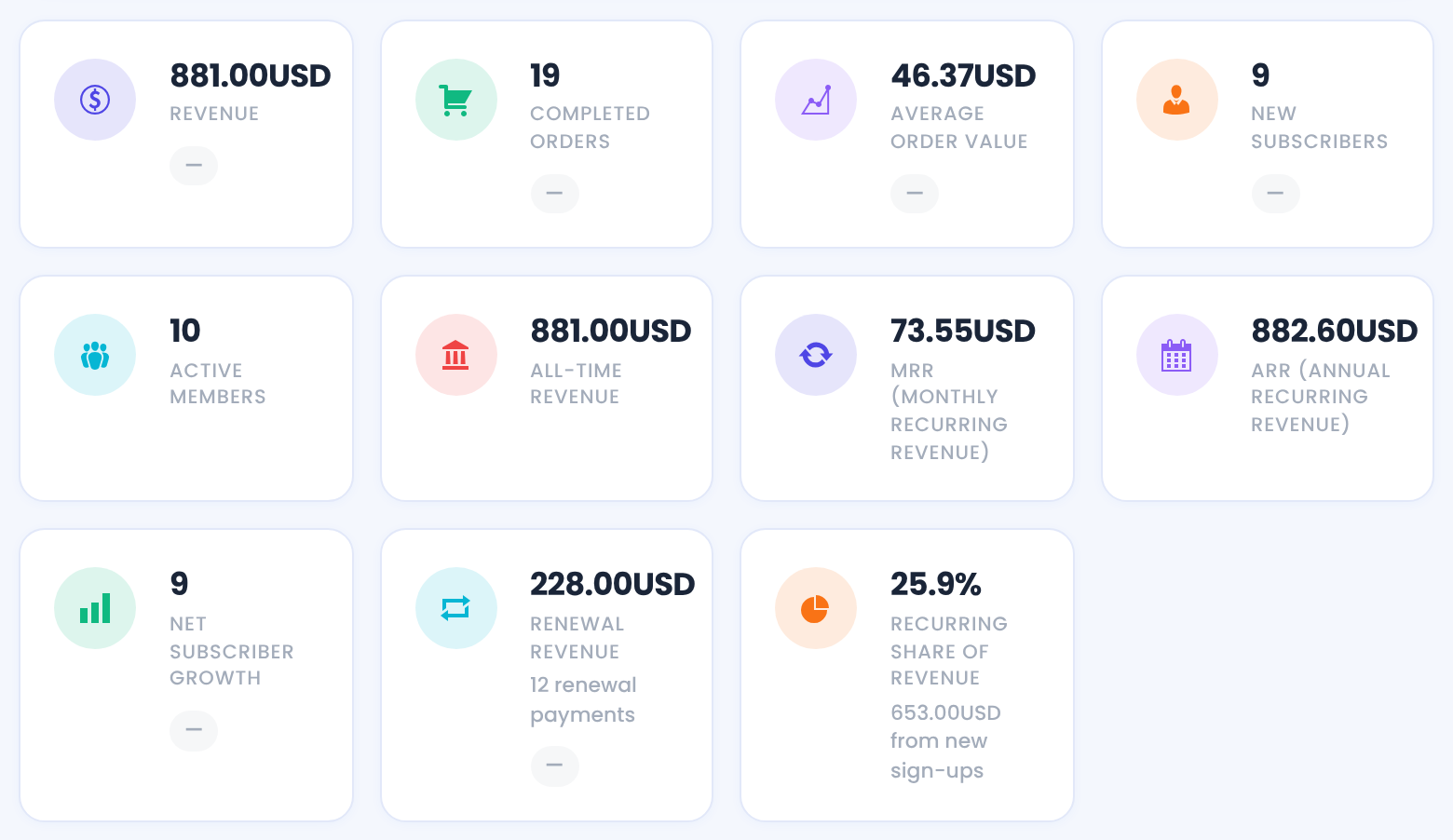
Completed payments in the period, how many, and the average amount.
Members who started a Membership in the period.
Members with an active Membership.
Every completed payment since the start.
For each recurring paid Membership: its price turned into a monthly amount, times its active members. It’s based on your prices, not on payments received.
MRR × 12.
New subscribers minus members who churned in the period. Can be negative.
Automatic recurring charges in the period.
How much of the period’s revenue comes from renewals, with the amount from new sign-ups.
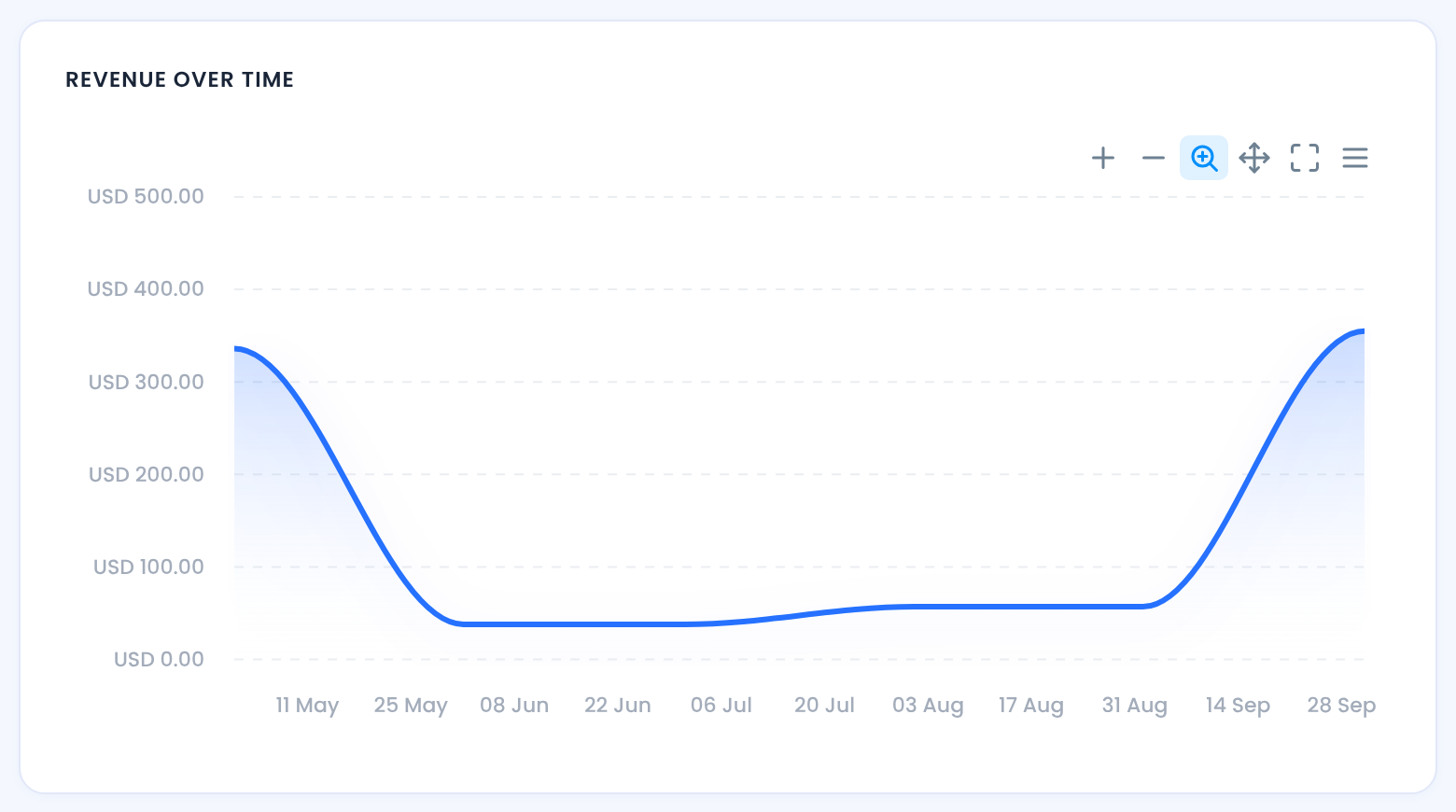
The charts below the cards show revenue and new subscribers over time. Use their toolbar to zoom or download them.
Dig into the other tabs
Net Revenue (after refunds), Refund Rate, Orders by Status and Revenue by Payment Gateway.
Renewal payments, new versus renewal revenue, and renewals per Membership.
Refunded amount and orders, over time and per Membership.
Subscriptions by status and per Membership.
Total and expired members, Churn Rate, Retention Rate and Trial → Paid Conversion.
Paid and free Memberships, ARPU, LTV, revenue and MRR per Membership, MRR over time.
Coupon uses and the revenue each code brought.
Churned subscriptions and the cancellation reasons members gave.
Export the data
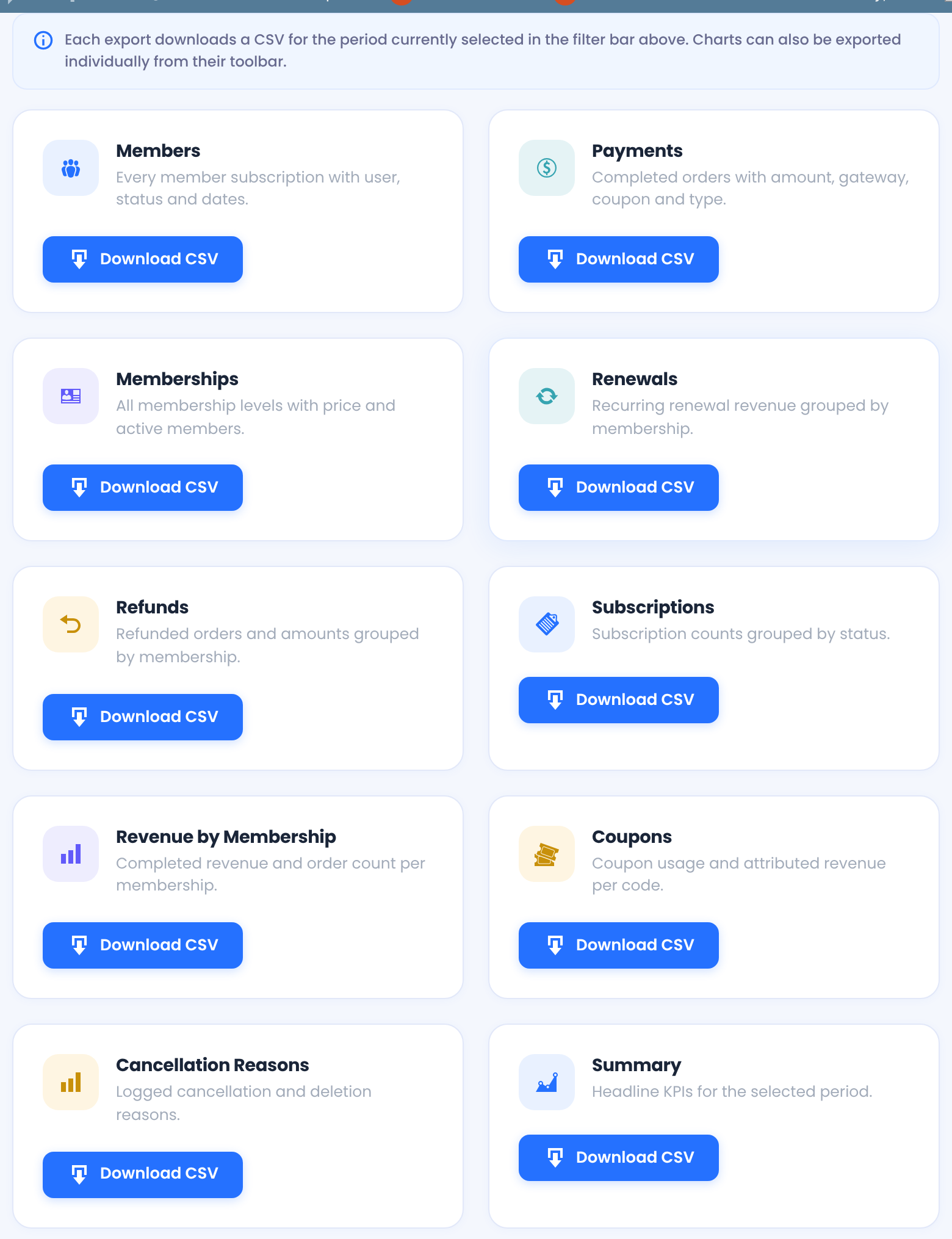
The Export tab downloads a CSV for the selected period: Members, Payments, Memberships, Renewals, Refunds, Subscriptions, Revenue by Membership, Coupons, Cancellation Reasons and a Summary of the headline numbers.
Good to know
- Revenue counts only completed orders. Pending orders, such as an unconfirmed bank transfer, aren’t included.
- Churn and retention are estimates: the plugin compares cancellations and expiries with the members active at the start of the period.
- Trial → Paid Conversion is a best-effort estimate, as the screen notes.
- Cancellation reasons come from the Reason for Cancellation module; without it, the Churn tab has no reasons.
Tip
- For one member’s history, use Track member activity or the Payments item of their Details menu.
Example: a monthly check
- Period
- Last Month vs. Previous Month
- Look at
- Revenue, New Subscribers, MRR, Net Subscriber Growth
- Then
- Churn tab for cancellation reasons
- Export
- Payments CSV for the accountant
Troubleshooting
Why do Reports say “No revenue in this period”?
There are no completed orders in the selected period. Pick a longer period, such as This Year, and click Filter.
Why does Reports show MRR when no payments arrived?
MRR is calculated from Membership prices and active members, so members you added by hand count too.
Why are the report numbers different from my payment gateway?
Reports count only orders marked Completed in Payment History. Check for orders that are still Pending there.


