
In Ultimate Membership Pro, you can import members from a CSV file: the plugin creates their accounts and gives them the right Membership with the start and expiry dates from your file. Use it when you move from another site or a spreadsheet.
This guide prepares the CSV file and imports it, first with the Import Users & Memberships module, then with the Export-Import screen.
Before you start
- The Memberships exist on this site. The file refers to them by slug, for example
pro_monthly. See Create your first Membership. - Already have the people as WordPress users (from another plugin, WooCommerce or a WordPress import)? They are members already. Import only their Memberships.
- Your license is active; modules need it. See Find and activate your license key.
- A backup of your database, as with any bulk change.
Two ways to import
Import Users & Memberships module
- Where
- Modules › Import Users & Memberships
- Passwords
- Taken from the file, or generated
- Existing Memberships
- Kept, unless you rewrite their dates
- Best for
- Moving members with their passwords; updating Memberships
Export-Import screen
- Where
- Export-Import › Members
- Passwords
- Always generated
- Existing Memberships
- Dates from the file replace the current ones
- Best for
- Files from another plugin: you map the columns and get a report
Prepare the CSV file
Start from the sample: Download CSV Sample on the module screen. Keep its columns. One row per member and Membership: a member with two Memberships takes two rows with the same email.
Identifies the member. A new email creates a new account.
Empty uses the part of the email before @, if it’s free.
The new member’s password. Empty generates one.
The member’s name.
The Membership’s slug, for example pro_monthly. Empty imports the member without a Membership.
Format YYYY-MM-DD HH:MM:SS, for example 2026-10-01 09:00:00. Empty dates add the Membership without activating it.
A file with three Coaching Club members
Email*,Username,Password,First Name,Last Name,Membership Slug,Started Time,Expired Date
mia.torres@example.com,mia.torres,,Mia,Torres,pro_monthly,2026-10-01 09:00:00,2026-11-01 09:00:00
jonas.berg@example.com,jonas.berg,,Jonas,Berg,annual_pass,2026-09-15 10:30:00,2027-09-15 10:30:00
leila.haddad@example.com,leila.haddad,,Leila,Haddad,free_community,,
Import with the Import Users & Memberships module
- Go to Ultimate Membership Pro›Modules and open Import Users & Memberships (in Members & Registration).
- Switch on Rewrite Membership start time & expire time only if the file should change the dates of Memberships members already have.
- Under File ready for import, click Choose File, pick your CSV and click Import.
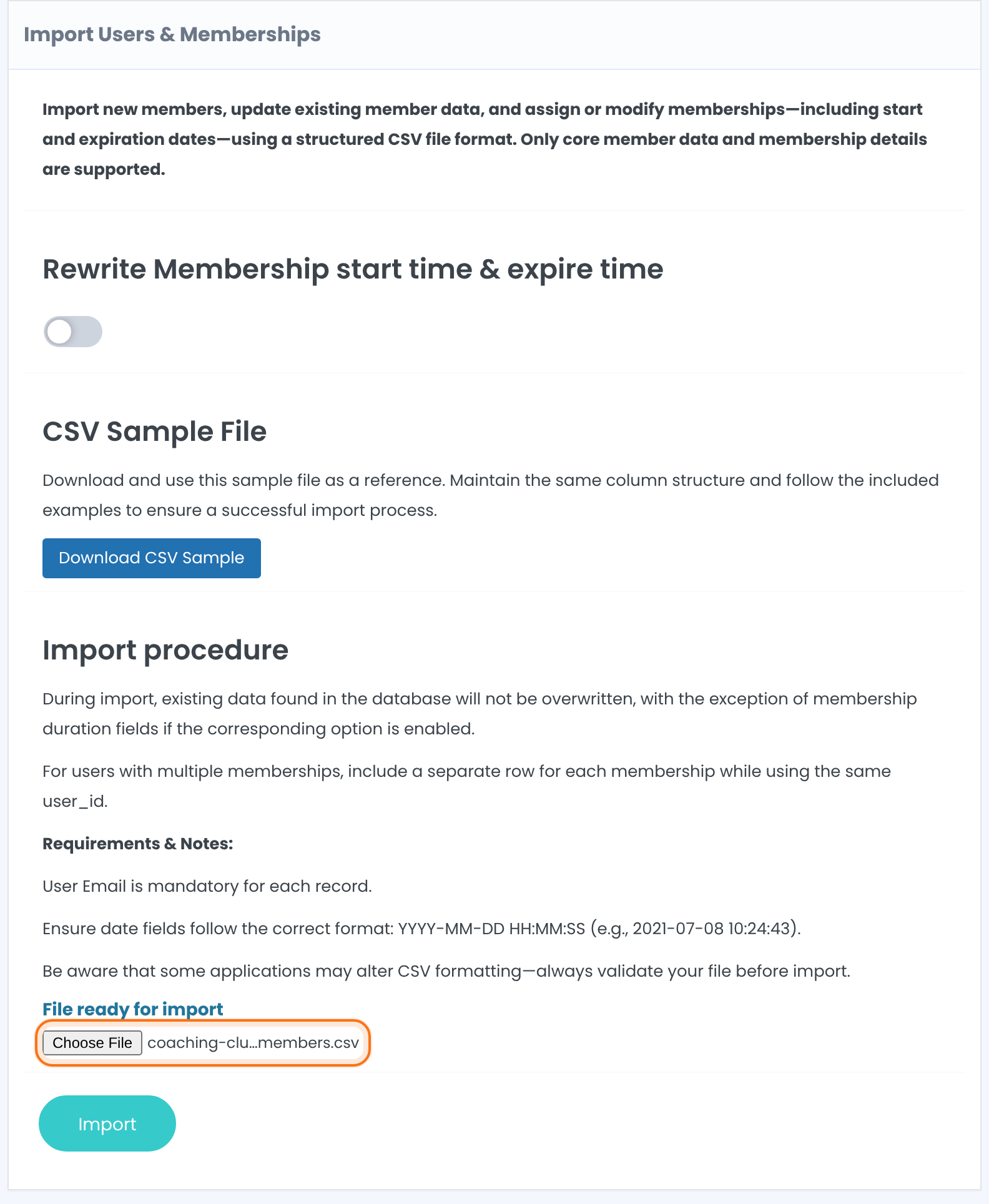
Off: a member who already has the Membership keeps its dates. On: the dates in the file replace them.
Default: Off
When the import is done, the screen shows Total users affected with the number of rows that reached a member.
A new account is created. Without a password in the file, the member gets the Send auto-generated Password to Customer email, if you set it up.
The row goes to that member: the Membership is added if they don’t have it yet.
Or import with the Export-Import screen
Use it for files from other tools, where the columns have other names or another order.
- Go to Ultimate Membership Pro›Export-Import, drag the file onto Import members from CSV (CSV, up to 10 MB) and click Import CSV File.
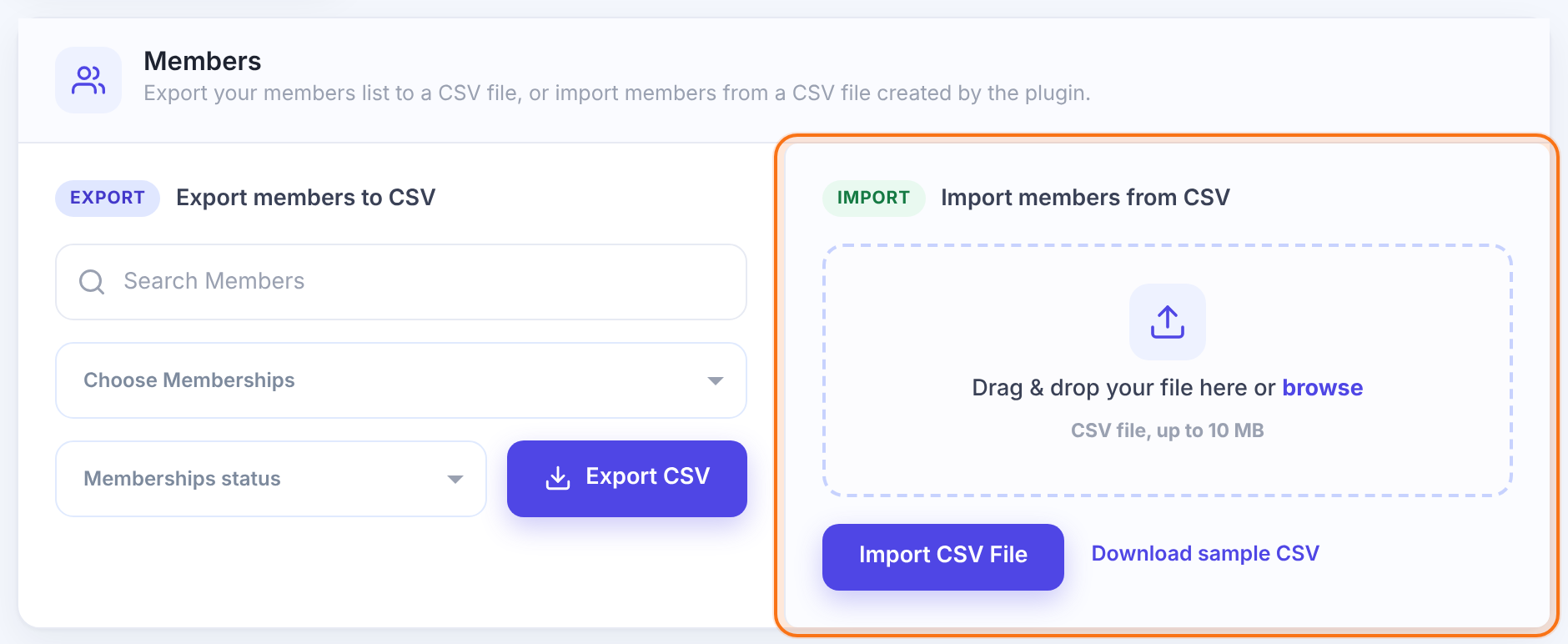
- Match each plugin field to a column of your file, or — Skip this field —. Check Preview (first rows) and click Start import.
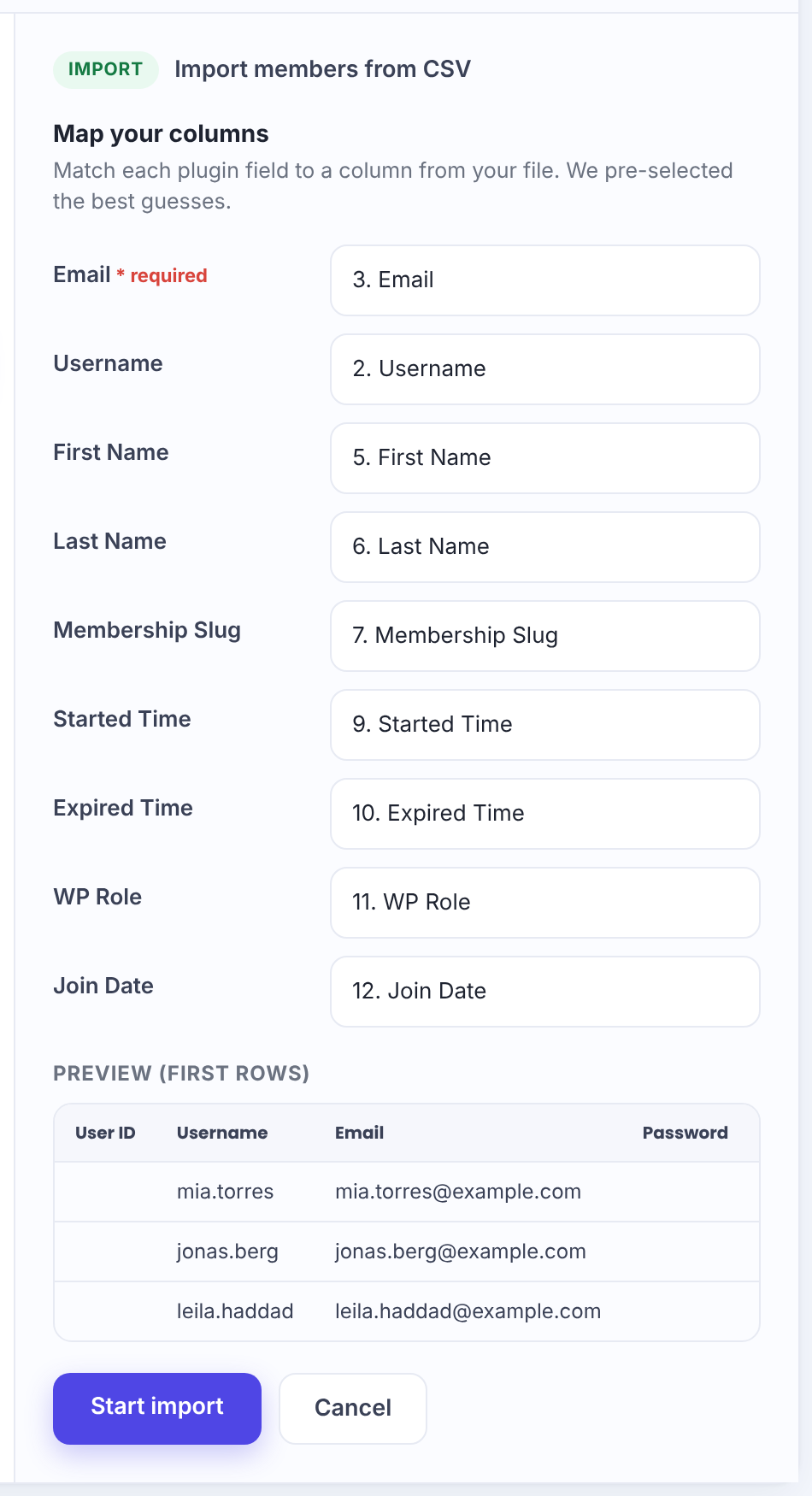
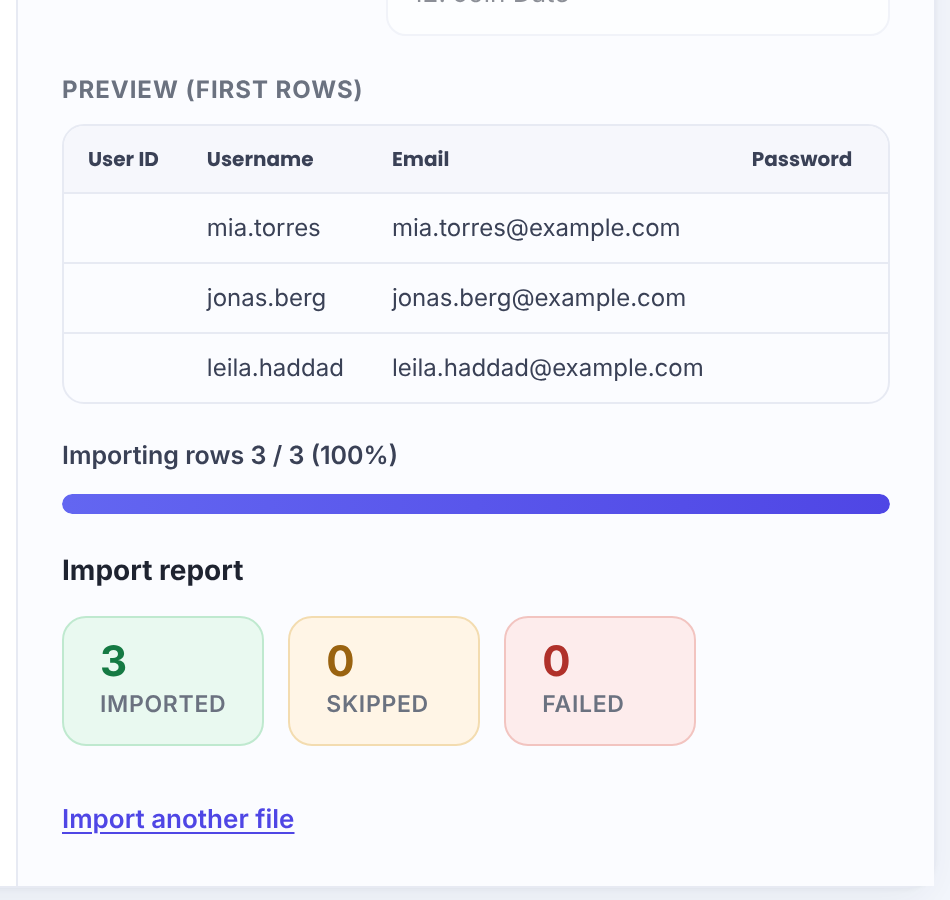
This screen also reads WP Role and Join Date. Passwords in the file are ignored: every new member gets a generated one. For a member who already exists, the row’s Membership is added or updated with the file’s dates.
Before you import
- For members who already exist, leave the profile columns empty: the row then only adds the Membership.
- On the Export-Import screen, a row with empty dates for a Membership the member already has makes that Membership inactive.
- A Membership Slug that doesn’t exist on this site is ignored; the member is imported without it.
- Imported Memberships don’t create orders or gateway subscriptions, so recurring Memberships won’t renew by themselves.
Tip
- Set up the Send auto-generated Password to Customer email before you import, so new members can log in. See Set up email notifications.
- Memberships imported without dates show an Activate button in Members › Details › Manage Plans.
- Moving members between two sites with Ultimate Membership Pro? Export CSV on the Members screen gives you a file the Export-Import screen reads as it is.
Example: three members from a spreadsheet
- File
- coaching-club-members.csv, 3 rows
- Mia Torres
- Pro Monthly, Oct 1 – Nov 1, 2026
- Jonas Berg
- Annual Pass, Sep 15, 2026 – Sep 15, 2027
- Leila Haddad
- Free Community, no dates: activate it in Manage Plans
- Rewrite
- Off
- Result
- Total users affected: 3
Troubleshooting
Why was nothing imported from my CSV file?
Start from the sample file and keep its header row: the Import Users & Memberships module finds the columns by their names, and every row needs an email address.
Why were members imported without their Membership?
The Membership Slug in the file doesn’t match a Membership on this site. Copy the slug exactly from the Memberships screen.
Why is an imported Membership not active?
The row had no dates. Click Activate in Manage Plans, or import the row again with dates (and Rewrite on, in the module).
Why didn’t the import change the dates of an existing Membership?
The module keeps the dates of Memberships members already have. Switch on Rewrite Membership start time & expire time and import again.
Why didn’t new members get a password?
Put passwords in the file, or set up the Send auto-generated Password to Customer notification. Members can also use Lost Password.
What does “Missing or invalid email address.” mean?
On the Export-Import screen, the row has no valid email address. Fix it and import that row again.
Why are the imported dates wrong?
Dates must use the format YYYY-MM-DD HH:MM:SS. Spreadsheet apps often change dates when they save a CSV; open the file in a text editor to check.


