
In Ultimate Membership Pro, the Export-Import screen copies the plugin configuration from one site to another with an XML file. Use it when you build a new site or move from a staging copy to the live one, instead of setting everything up again.
This guide explains what the file contains, then exports and imports it.
Before you start
- Ultimate Membership Pro is installed and activated on both sites, ideally the same version.
- The Memberships exist on the new site; they aren’t part of the file. See Create your first Membership.
- A backup of the new site’s database. The import overwrites settings.
What the file contains
The plugin configuration: showcases and forms, custom fields, messages, Member Portal, payment gateway settings, module settings, email notifications, coupons, invitation codes, taxes and gift templates.
The restriction and Drip Content settings saved on each post and page. They are linked to post IDs, so they only fit a copy of the same site.
Memberships, members, orders and your Pages Setup (page IDs differ between sites). Move members with Import members from a CSV file.
Export the settings
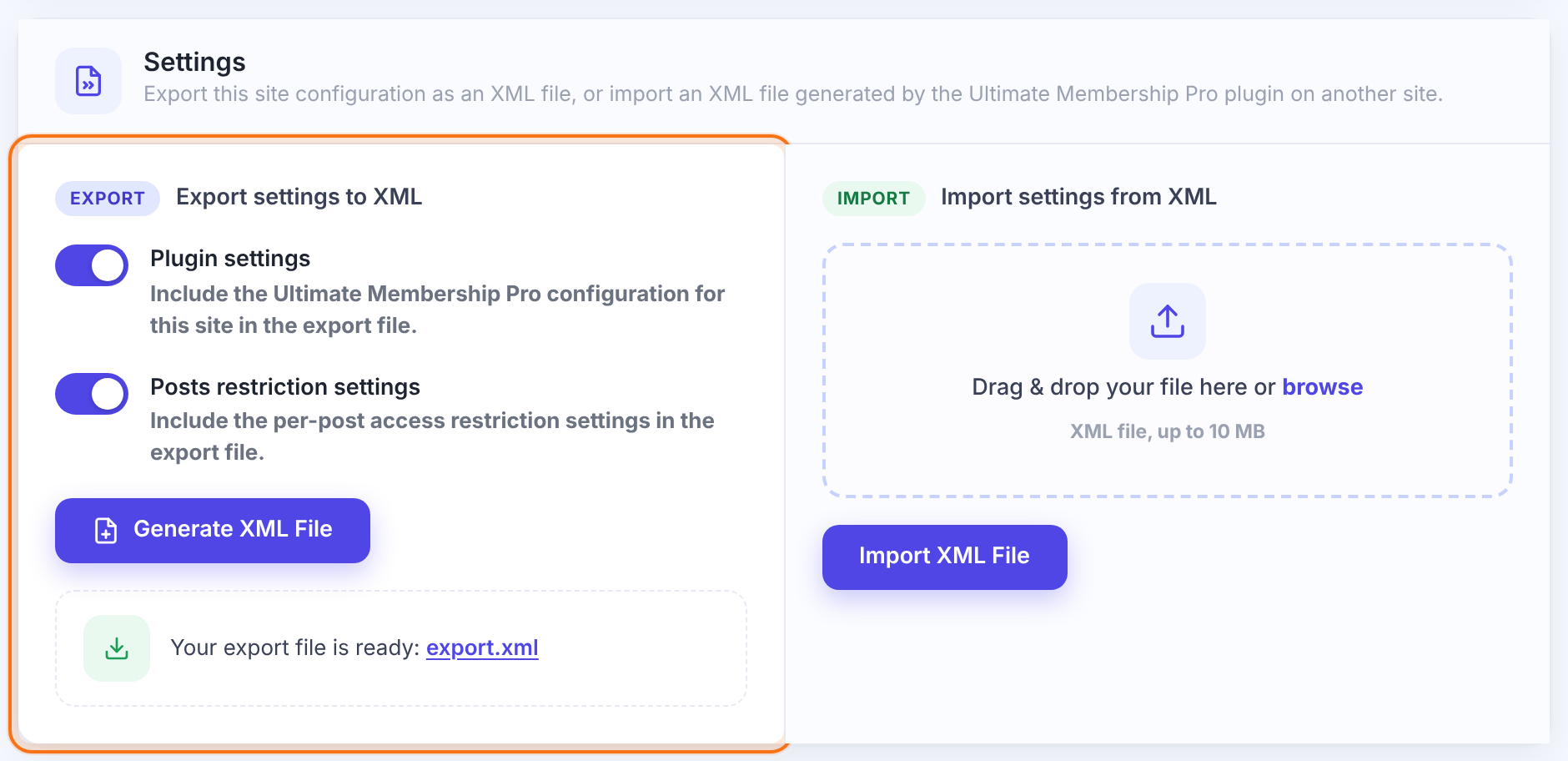
- On the old site, go to Ultimate Membership Pro›Export-Import and open Settings.
- Switch on Plugin settings, Posts restriction settings or both.
- Click Generate XML File, then the export.xml link to download it.
Import them on the new site
- On the new site, go to Ultimate Membership Pro›Export-Import, Settings.
- Drag the file onto Import settings from XML or click browse (XML, up to 10 MB).
- Click Import XML File.
- Check the result: open Payment Gateways, the showcases and Email Notifications.
- Assign your pages again in Settings›Pages Setup.
Good to know
- Settings in the file replace the same settings on the new site.
- Notifications, coupons and other list items are added, not replaced. Importing the same file twice creates duplicates.
- Settings tied to one Membership (for example a notification for Pro Monthly) use the Membership’s ID. Check them if the Memberships have different IDs on the new site.
- The file includes payment gateway settings. Keep it private, and delete it from the old site’s wp-content/uploads/ultimate-membership-pro folder after downloading.
Tip
- Switch off live payments on the copy (sandbox mode) until the move is finished, so test orders don’t charge real cards.
Example: staging to live
- Exported on staging
- Plugin settings
- Created first on live
- Free Community, Pro Monthly, Annual Pass
- Imported on live
- export.xml
- After import
- Pages Setup assigned, gateways checked in sandbox mode
Troubleshooting
Why doesn’t a download link appear after Generate XML File?
Switch on at least one of the two options, Plugin settings or Posts restriction settings, then click Generate XML File again.
Why don’t restrictions apply on the new site after the import?
Posts restriction settings follow post IDs. On a different site the IDs differ, so set the Locker of each page again.
Why do membership pages show the wrong content after the import?
Your Pages Setup isn’t in the XML file. Pick the pages again in Settings›Pages Setup.


