
The Ultimate Membership Pro Taxes module adds VAT, sales tax or any other percentage-based tax to Membership payments, based on the country (and, if you want, the state) of each member. Members see each tax as its own line at checkout, the payment gateway charges the total, and the tax is saved with the order.
This guide switches the module on, sets a general tax, adds rates for specific countries and states, and explains prices with tax included.
Before you start
- Your license is active; modules need it. See Find and activate your license key.
- Your registration form asks for the member’s country. The Country field is on the form by default; check it under Ultimate Membership Pro›Registration Form›Custom Fields (column On Registration). See Use the built-in special fields.
- For rates per US or Canadian state, also turn on the State field there.
- You know which rates you must charge. Ultimate Membership Pro applies the rates you enter; it doesn’t look up tax rules for you.
How the tax rate is chosen
Rate for the member’s country
- When
- A rate exists for the member’s Country (and State, if set)
- Example
- France: VAT 20%
General Tax Value
- When
- No rate matches, or the member’s country is unknown
- Example
- VAT 19% for everyone else
If neither applies (no matching rate and no general tax), no tax is added. Free Memberships, free trials and orders brought to $0 by a coupon are never taxed.
Switch on the Taxes module
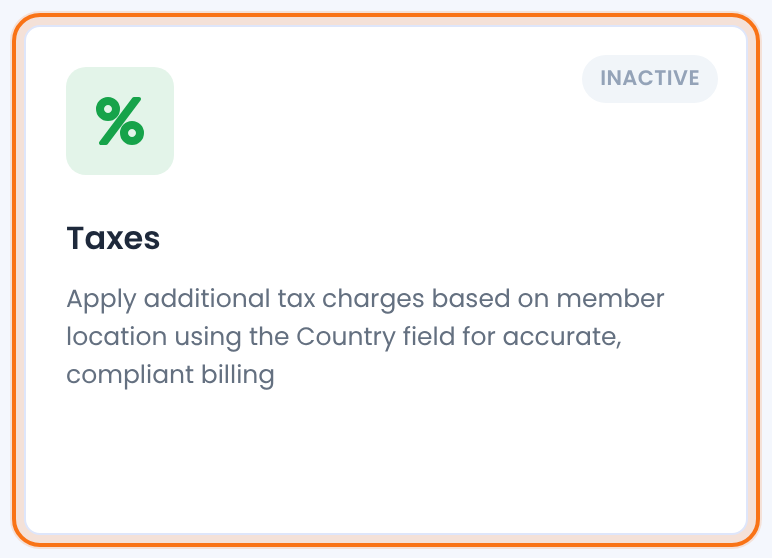
- Go to Ultimate Membership Pro›Modules and open Taxes (in Payments & Billing).
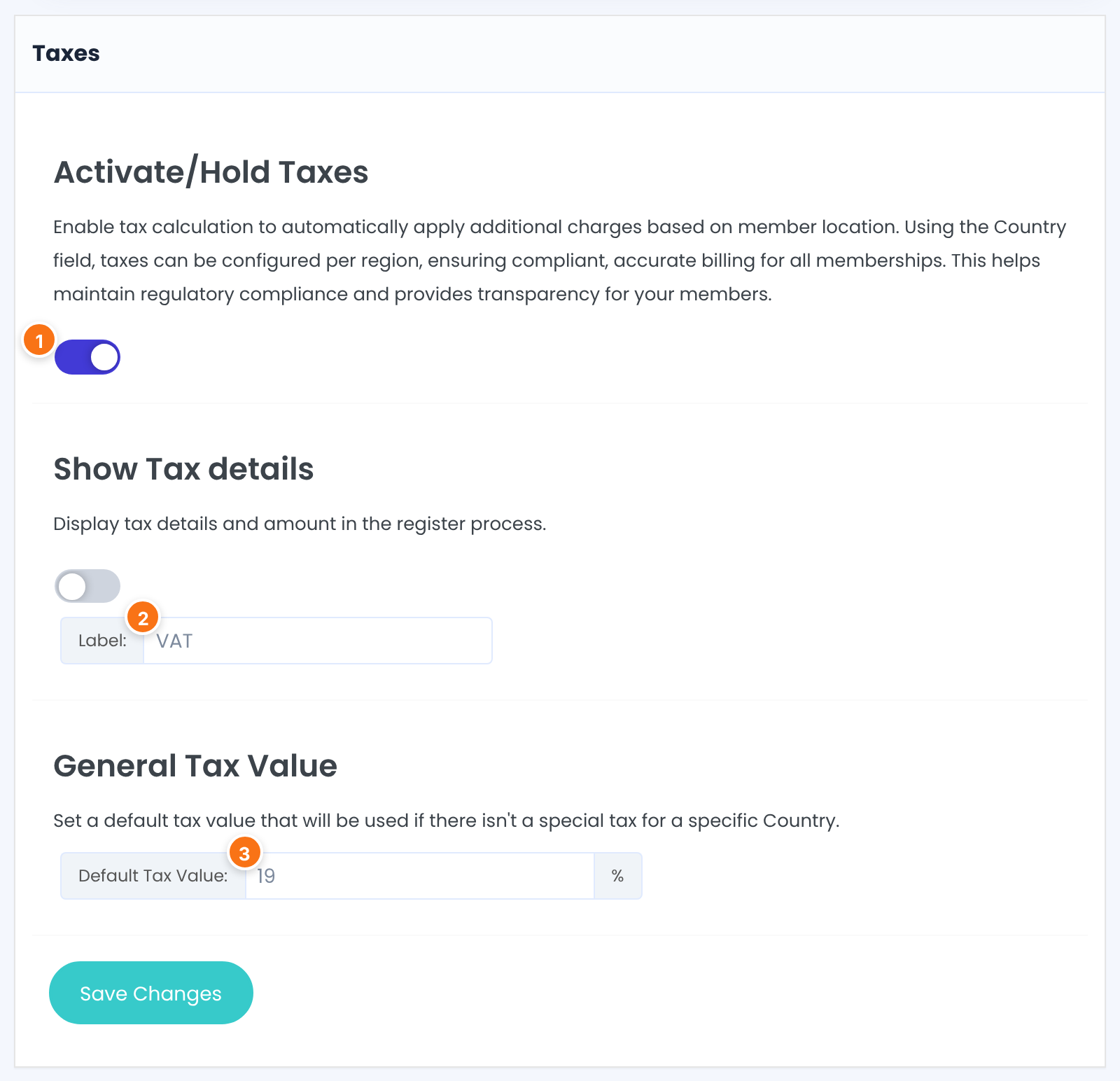
Turns tax calculation on for every paid Membership. While it’s off, no tax is added anywhere and the tax columns are hidden.
Default: Off
The name of the general tax, shown to members at checkout and on invoices, for example VAT.
The rate, in percent, for members whose country has no rate of its own or who haven’t given a country. Leave it at 0 (or the Label empty) to charge no tax in that case.
Default: 0
Click Save Changes.
Add a rate for a country or state
Below the settings is the list of rates. Click Add New Tax.
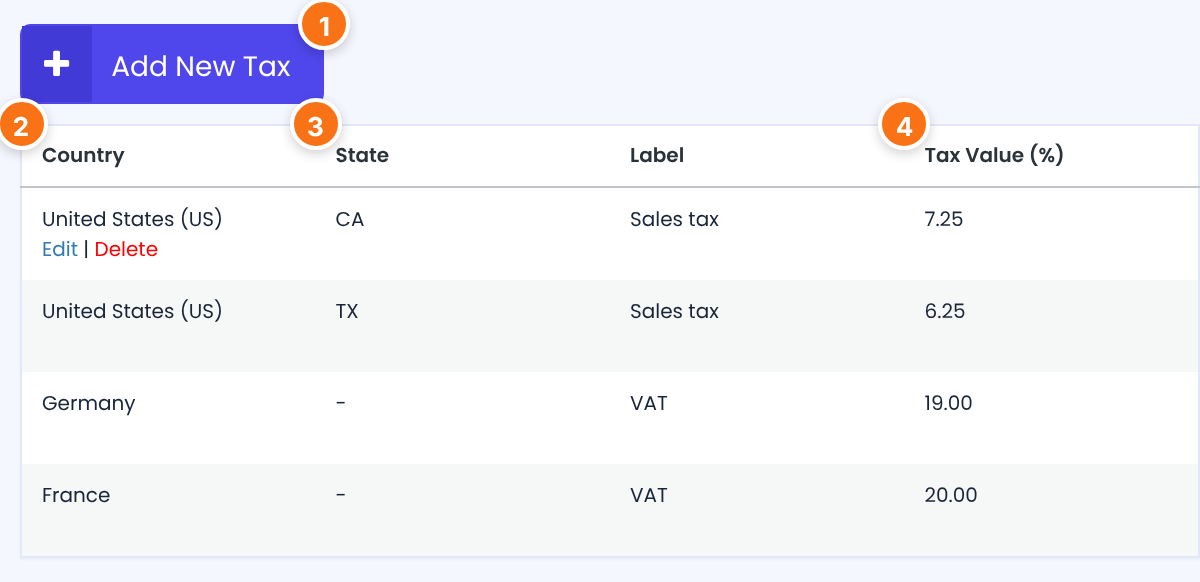
Opens the Add/Edit Tax form.
The country the rate applies to. Hover over a row for Edit and Delete; Delete removes the rate at once, without asking.
The state, or “-” for the whole country.
The rate in percent.
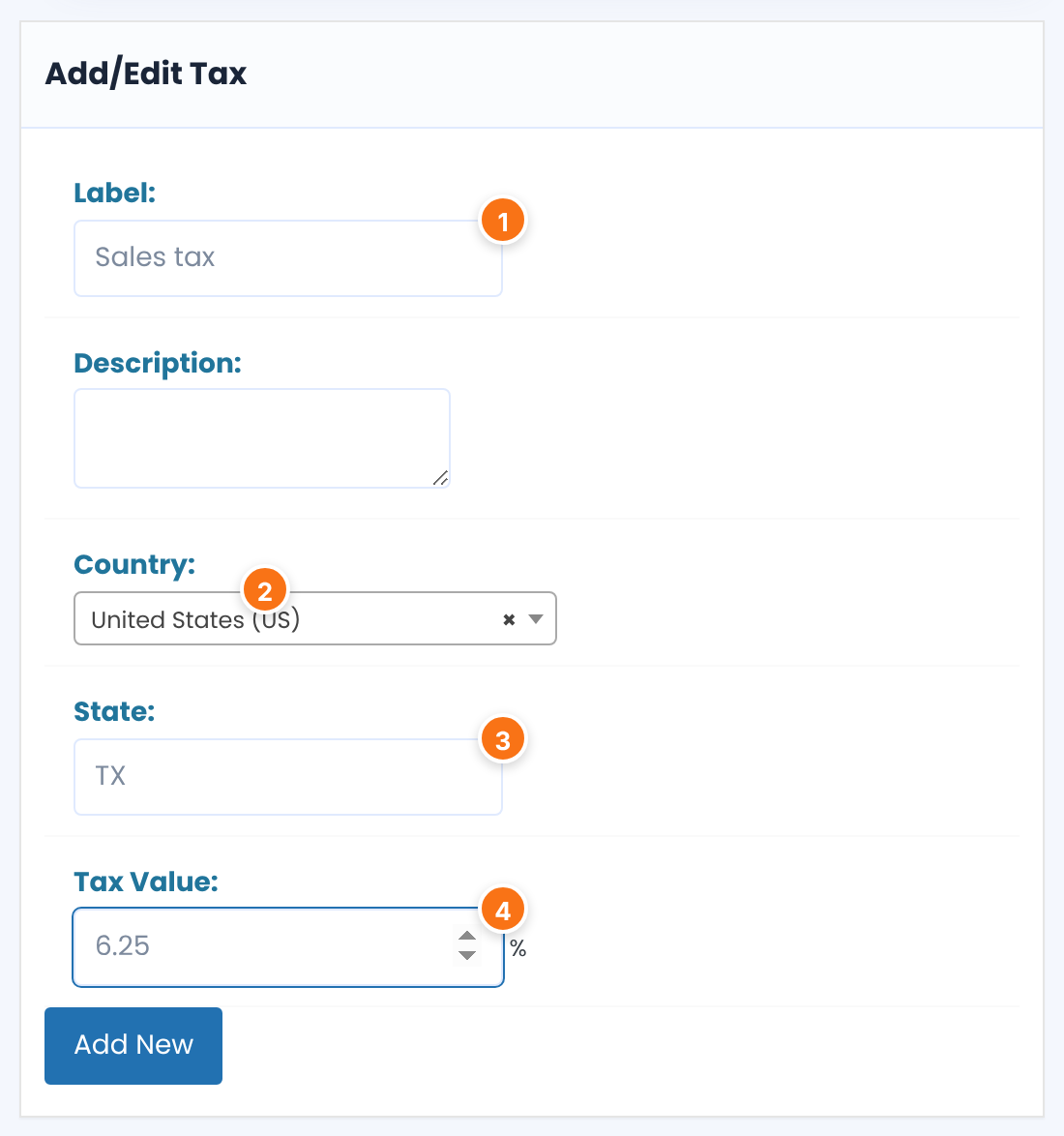
The tax name members see at checkout, for example VAT or Sales tax.
A note for you.
The member’s country. The list starts at the first country in alphabetical order, so always pick the country yourself.
Leave empty for the whole country. For a state rate, type the value exactly as the registration form stores it: for the United States and Canada the two-letter code (TX, CA), for other countries the text the member typed.
The rate in percent, for example 6.25.
Click Add New (Update when editing). Each country, label and state combination has one rate; to change it, edit that rate.
Several rates for one country
You can add more than one rate for the same country with different labels, for example a national and a local tax. They’re all applied, each as a percentage of the price, and the checkout lists each one.
For a member with a State, only the rates for that state apply; if there are none, the rates for the whole country apply. A member without a State gets only the whole-country rates.
Choose whether prices include tax
By default, taxes are added on top of the Membership price. If your prices already include tax (common for consumer prices in the EU), go to Ultimate Membership Pro›Settings›Payment Settings and find Taxes Settings:
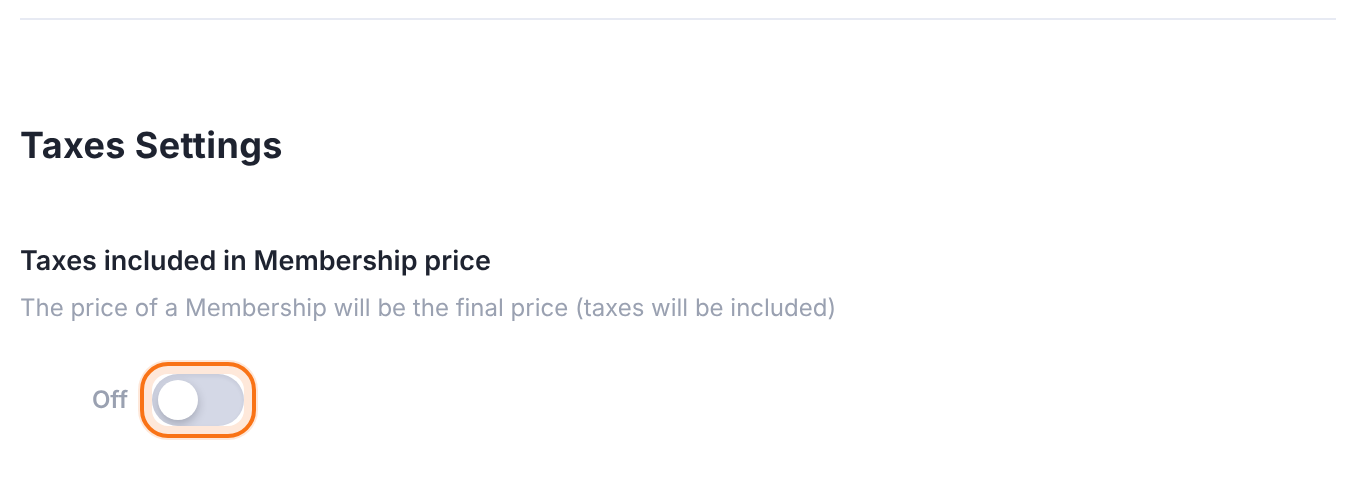
Applies to every Membership and every rate.
- Off: the member pays the price plus tax. Annual Pass at $149 with VAT 19% costs $177.31.
- On: the member pays the price you set, and the tax is taken out of it. Annual Pass at $149 with VAT 19% costs $149: $125.21 plus $23.79 VAT.
Default: Off
Show the taxes box at checkout
Tax lines appear in the price summary as soon as the module is on. To also show a separate Taxes box with each rate, go to Ultimate Membership Pro›Showcases›Checkout Page:

Adds the Taxes box with each tax and its rate under the price summary.
Default: Off
The heading of that box, in the messages of the same screen.
Default: Taxes
What members see
At checkout, each tax appears under the Membership price with its label and rate, and the Subtotal includes it. The gateway charges the Subtotal.
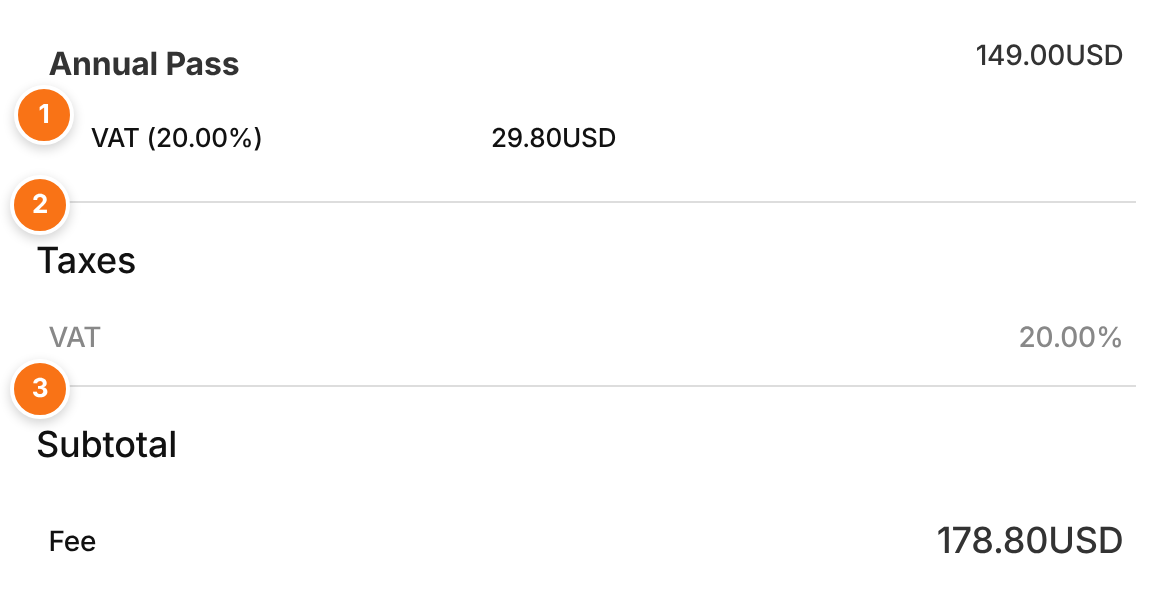
The label, the rate and the amount, for example “VAT (20.00%) 29.80USD”.
Each tax with its rate.
What the member pays, tax included.
When a new visitor registers and pays in one step, the tax updates as soon as they choose their country on the form. Before that, the country set in Ultimate Membership Pro›Settings›Public Workflow under Default Country is used. For recurring Memberships the tax is added to every payment, and to the first payment of a paid trial.
After the payment, Ultimate Membership Pro›Payment History shows Net amount, Taxes and Total amount for each order, and invoices show a Total Taxes: line. See Send invoices.
Limits
- Rates are percentages of the price. Fixed tax amounts aren’t supported.
- The rate depends on the Country (and State) saved in the member’s profile. Members who registered before you added the Country field have none, so they get the general tax.
- Ultimate Membership Pro doesn’t validate VAT numbers or apply reverse charge for businesses.
- Coupons are applied first; tax is calculated on the discounted price.
- Changing a rate doesn’t change orders already placed.
Let members correct their country
Turn on On Profile for the Country field under Registration Form › Custom Fields so members can update their country in the Member Portal, and the right rate applies to their next purchase.
Example: EU VAT and US sales tax
- Activate/Hold Taxes
- On
- Label / General Tax Value
- VAT / 19
- France
- VAT 20%
- Germany
- VAT 19%
- United States, TX
- Sales tax 6.25%
- United States, CA
- Sales tax 7.25%
- Taxes included in Membership price
- Off
- Annual Pass for a member from France
- $149 + $29.80 VAT = $178.80
Troubleshooting
Does Ultimate Membership Pro handle taxes?
Yes. The Taxes module under Modules adds percentage-based taxes per country and state, or a general tax for everyone, to Membership payments.
Why isn’t tax added at checkout?
Check that Activate/Hold Taxes is on and saved, and that a rate matches the member’s country or a General Tax Value with a Label is set. Free Memberships, free trials and $0 orders aren’t taxed.
Why does a member get the general tax instead of their country’s rate?
Their profile has no Country, or a different one. Members who registered before the Country field was on the form have no country saved. Check the member’s profile, or let members edit the field in the Member Portal.
Why isn’t my state rate applied?
The State field must be on the registration form, and the State in the rate must match what is saved: the two-letter code for the United States and Canada (TX, not Texas). A member with no State gets only the whole-country rates.
Can I show prices with tax included?
Yes. Turn on Taxes included in Membership price under Settings › Payment Settings › Taxes Settings. The member then pays the price you set, and the tax is calculated as part of it.
Where can I see how much tax I collected?
Payment History shows Net amount, Taxes and Total amount for each order while the module is on. See Manage payments and orders.


