
Ultimate Membership Pro can take card payments through Authorize.net, a card gateway with fraud filters and automatic recurring billing. Recurring Memberships are paid with a card form on your checkout page; one-time Memberships send members to Authorize.net’s hosted payment form.
This guide connects Authorize.net, sets the URLs Authorize.net reports payments to, and runs Sandbox tests for the Coaching Club site.
Before you start
- You have an Authorize.net merchant account, with recurring billing enabled if you sell recurring plans. For testing, an Authorize.net Sandbox account.
- You have a paid Membership, for example Pro Monthly at $19/month. See Create your first Membership.
- Your site should use HTTPS, because recurring plans collect card details on your checkout page.
What Authorize.net supports
One-time Memberships
- Access types
- LifeTime, Limited Time, Date Range
- Checkout
- Redirect to Authorize.net’s hosted payment form
- Currency
- Your site currency is sent with the payment
Recurring Subscription
- Checkout
- Card form on your checkout page
- Cycles
- 7 to 365 days or 1 to 12 months
- Trials
- Free trials, as a number of billing cycles
The card form for recurring plans asks for Name on the Card, Credit Card Number and Expiration (MMYY). Recurring charges use your Authorize.net account’s currency.
Open the Authorize.net settings
- Go to Ultimate Membership Pro›Payment Gateways.
- Find Authorize.net and click Complete setup (Manage once it’s active).

The page is called Authorize.net Gateway. Its badge shows Inactive, Sandbox or Live.
Turn on the gateway
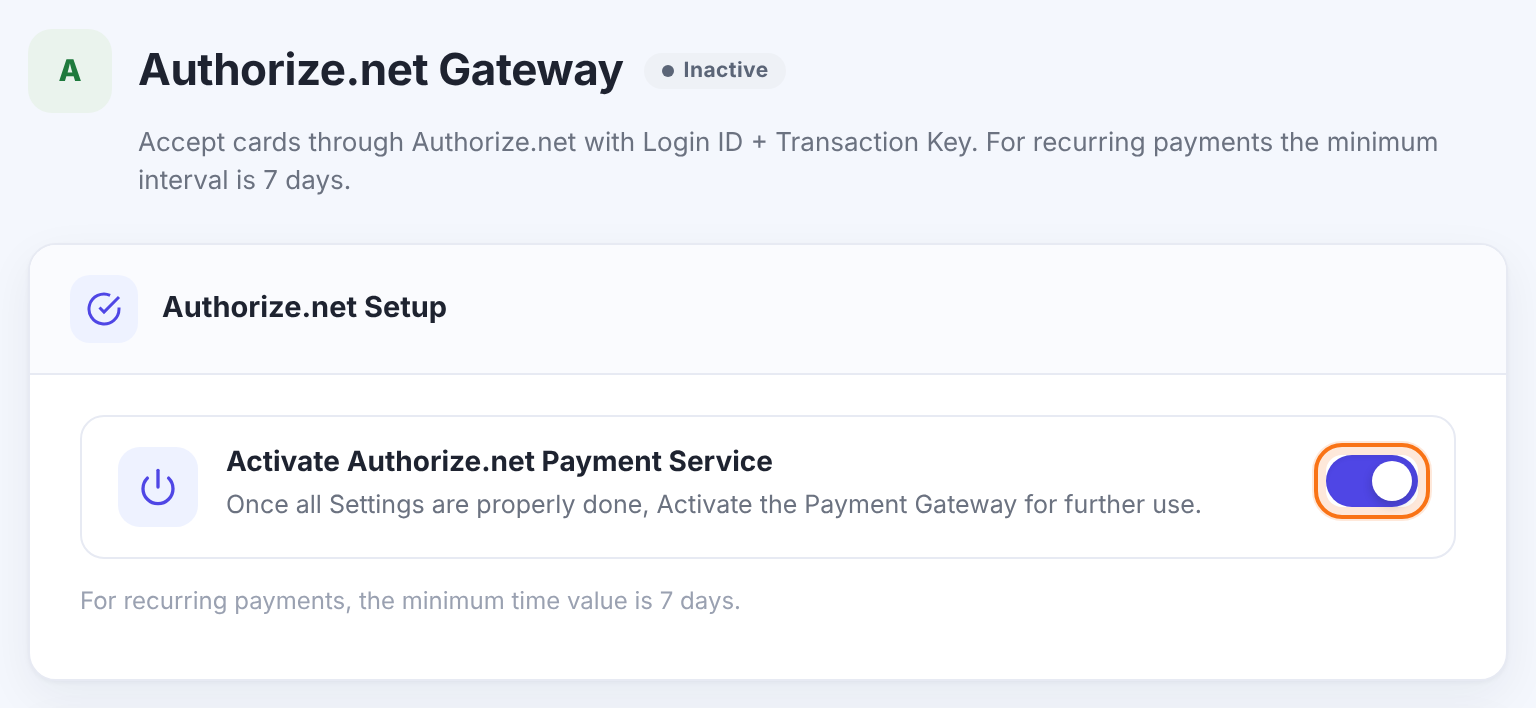
Makes Authorize.net available at checkout. It’s offered to members only when this is on and both Login ID and Transaction Key are filled in.
Default: Off
The note under the switch is a reminder that recurring plans need a cycle of at least 7 days.
Add your Login ID and Transaction Key
In Authorize.net, go to Account and, under Security Settings, open API Credentials & Keys. That’s where you find your Login ID and Transaction Key. Your Sandbox account has its own pair.
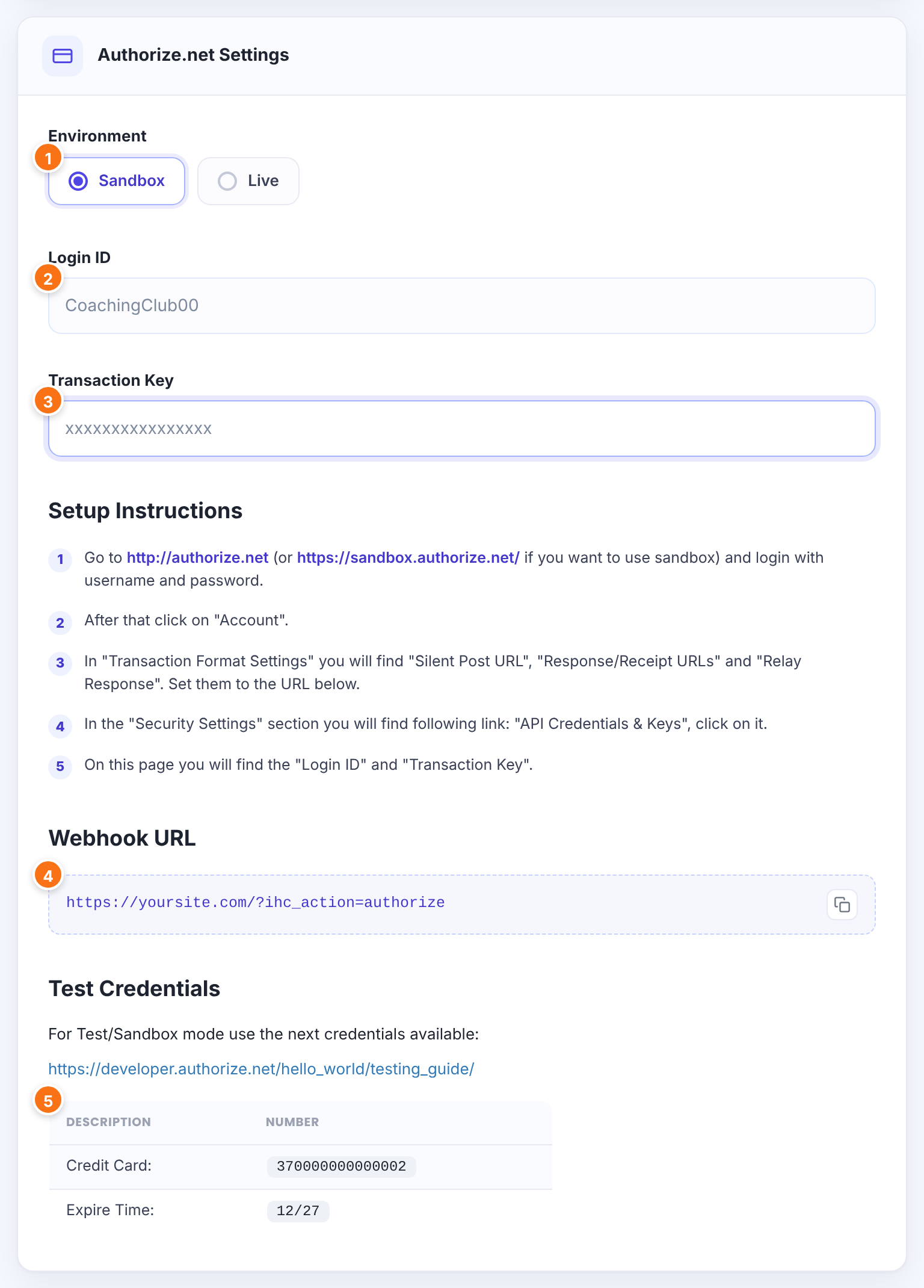
Sandbox sends payments to Authorize.net’s test system; Live takes real payments. Use the credentials of the matching account.
- Sandbox
- Live
Default: Live
Your API Login ID.
Your Transaction Key. Keep it secret.
Where to set the URLs and find the credentials, shown on the screen for reference.
The address Authorize.net reports payments to (next step). Use the copy button next to it.
A test card for Sandbox payments: 370000000000002, expiry 12 of next year. Authorize.net’s testing guide, linked above the table, lists more test cards.
Set the response URLs in Authorize.net

https://yoursite.com/?ihc_action=authorize- In Authorize.net, go to Account and open Transaction Format Settings.
- Set Silent Post URL to the Webhook URL.
- Set Response/Receipt URLs and Relay Response to the same URL.
Authorize.net then posts the result of each one-time payment, and of every recurring charge after the first, to your site:
The order becomes Completed and the Membership is activated or extended.
The payment failed and the Membership is taken off the member’s account.
Nothing changes until Authorize.net sends the final result.
The first payment of a recurring plan is confirmed straight away at checkout, when Authorize.net accepts the subscription.
Set how Authorize.net appears at checkout
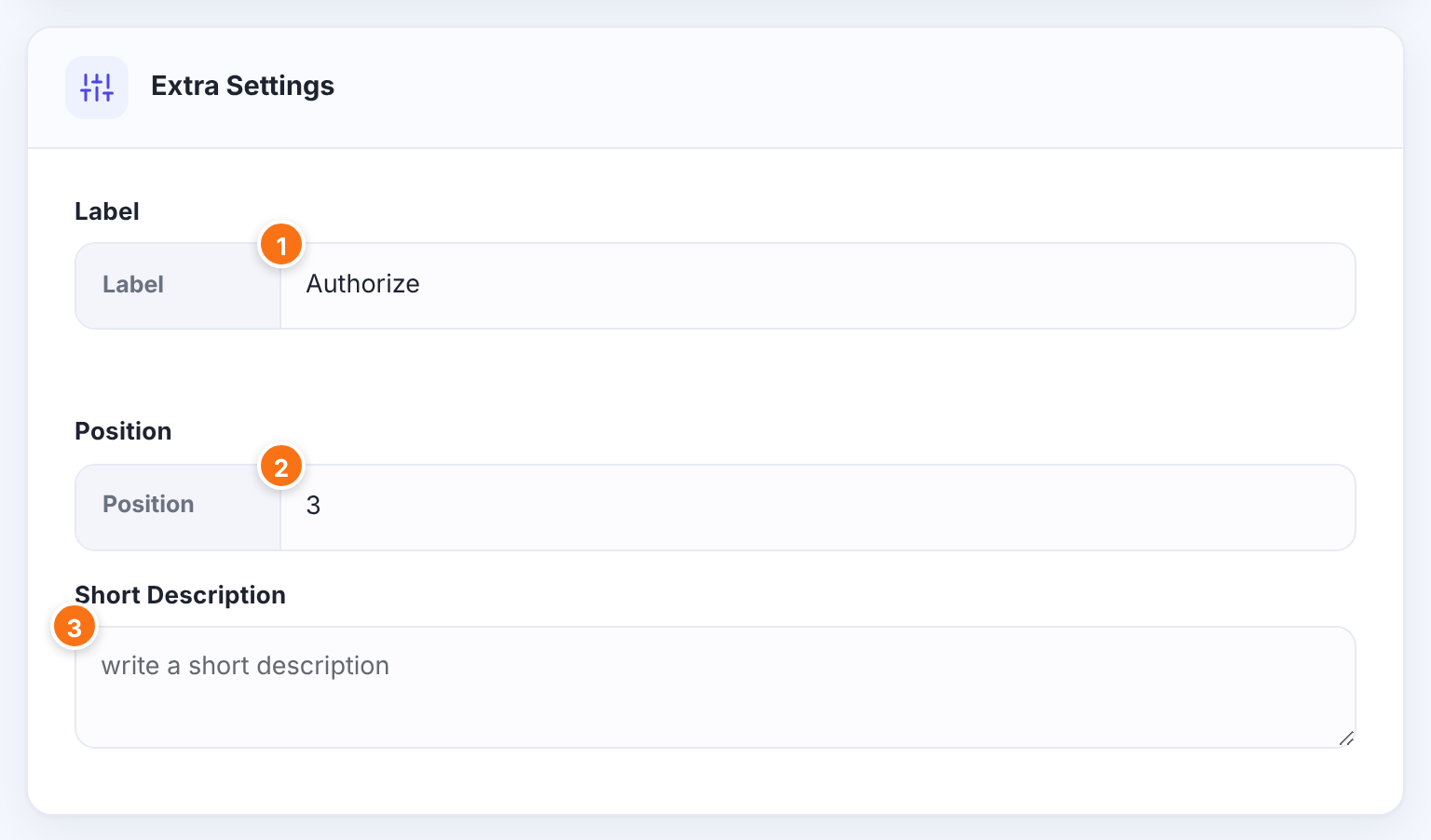
The name of this payment method at checkout, for example Credit card.
Default: Authorize
The order of this gateway among the payment methods at checkout. Lower numbers come first.
Default: 3
Optional text about the gateway, saved with its settings.
Click Save Changes.
Test a payment
- With Environment on Sandbox and your Sandbox credentials saved, buy Pro Monthly in a private window.
- Choose Authorize.net at checkout. In Sandbox, the card form shows a Sandbox Mode box and is filled with a test card. Complete the purchase.
- Check Ultimate Membership Pro›Payment History: the order is Completed and the subscription appears in your Authorize.net Sandbox account.
- Buy a one-time Membership such as Annual Pass too. You’re sent to Authorize.net’s payment form; pay with a test card and check that the order becomes Completed.
When both work, switch Environment to Live, paste your live credentials, set the same URLs in your live account, and save.
Limits to know
- Recurring cycles must be at least 7 days.
- Cycles can be at most 12 months or 365 days.
- Trials are counted in billing cycles (Couple cycles subscription payments).
- Trials are free.
- On Going plans are created in Authorize.net with 9999 payments.
- Cancel subscriptions and make refunds in your Authorize.net account.
Test both flows
One-time and recurring Memberships use different Authorize.net screens. Test one of each in Sandbox before you go live.
Example: Coaching Club on Authorize.net
- Environment
- Sandbox while testing, then Live
- Login ID, Transaction Key
- From Account › API Credentials & Keys
- Silent Post URL, Response/Receipt URLs, Relay Response
- https://yoursite.com/?ihc_action=authorize
- Pro Monthly
- Recurring Subscription, 1 Months, $19
- Annual Pass
- Limited Time, $149, one payment
- Label
- Credit card
Troubleshooting
Why isn’t the Membership activated after a member submits the card form for a recurring plan?
Authorize.net didn’t accept the subscription, so no payment was taken. Check the Environment and the credentials, that recurring billing is enabled on your account, and that the card details are valid.
Why do the card fields turn red at checkout?
A card field is empty: the name, the card number or the expiration date. The expiration date must be in MMYY format, for example 1227.
Why does a one-time order stay Pending after payment?
Authorize.net couldn’t post the result to your site. Check that Silent Post URL, Response/Receipt URLs and Relay Response are set to https://yoursite.com/?ihc_action=authorize and that your site is publicly reachable.
What’s the shortest recurring cycle?
Authorize.net’s shortest recurring cycle is 7 days. Use 7 days or more.
How do I cancel an Authorize.net subscription?
Cancel the subscription in your Authorize.net account. See Manage your members to update the member’s Membership on your site.


