
Ultimate Membership Pro can take card payments through Braintree, the PayPal-owned payment platform. Members type their card details into a card form on your checkout page and never leave your site. For recurring Memberships, Braintree bills members according to a Plan you create in your Braintree account.
This guide connects Braintree, creates the Plan for the Coaching Club’s Pro Monthly Membership, adds the webhook and runs a Sandbox test.
Before you start
- You have a Braintree account. For testing, a Braintree Sandbox account (it’s free and separate from your live account).
- Your Braintree merchant account uses the currency you sell in, for example USD.
- You have a paid Membership, for example Pro Monthly at $19/month with the slug
pro_monthly. See Create your first Membership. - Your site should use HTTPS, because card details are typed on your checkout page.
What Braintree supports
Payments
- One-time
- Yes: LifeTime, Limited Time and Date Range Memberships
- Recurring
- Yes, through a Braintree Plan
- Checkout
- Card form on your checkout page
Billing rules
- Cycles
- Months only
- Trials
- Free trials only, set in days or months
- Limited billing
- 2 or more payments (Max no of Periods)
The checkout form asks for Name on the Card, Credit Card Number, Expiration and CVC. One-time payments are charged in your Braintree merchant account’s currency.
Open the Braintree settings
- Go to Ultimate Membership Pro›Payment Gateways.
- Find Braintree and click Complete setup (Manage once it’s active).

The page is called Braintree Gateway. Its badge shows Inactive, Sandbox or Live.
Turn on the gateway
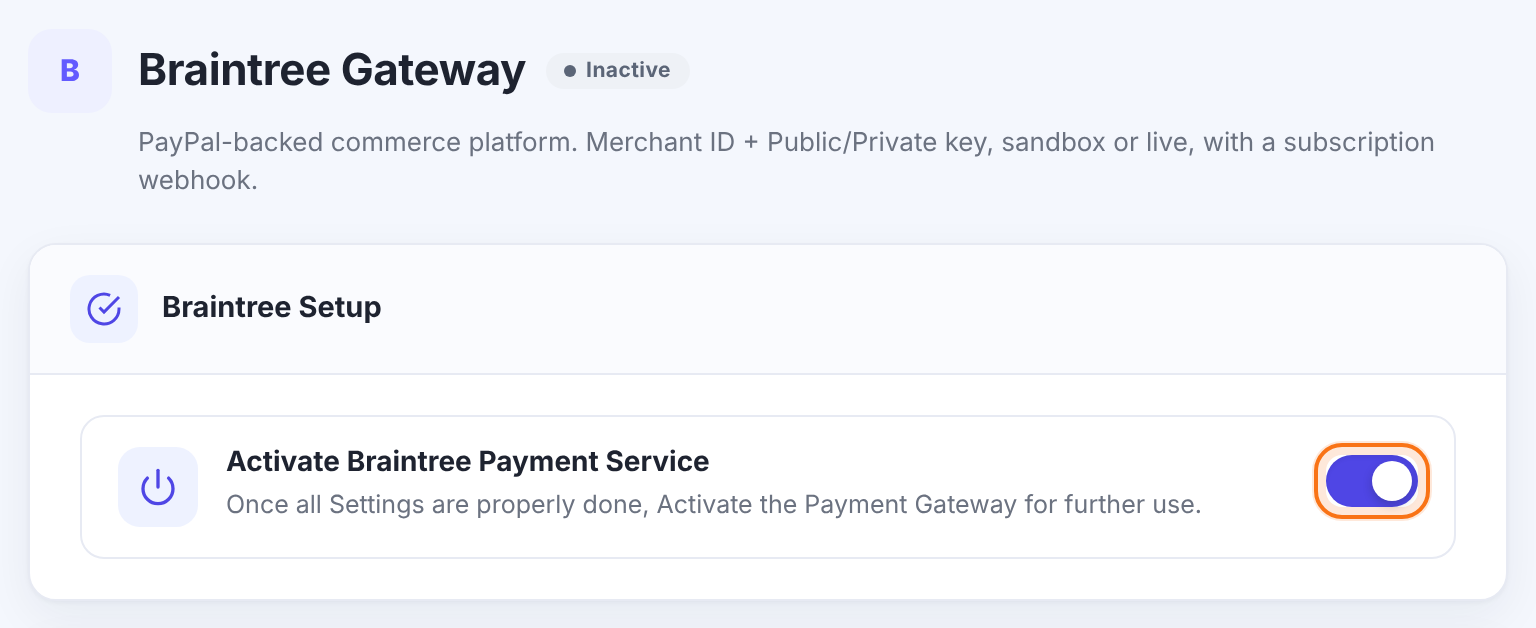
Makes Braintree available at checkout. It’s offered to members only when this is on and Merchant ID, Public Key and Private Key are all filled in.
Default: Off
Add your Braintree keys
In Braintree, go to Account › My User and click View Authorizations. That page shows your Public Key, Private Key and Merchant ID. Sandbox and live accounts have different keys.
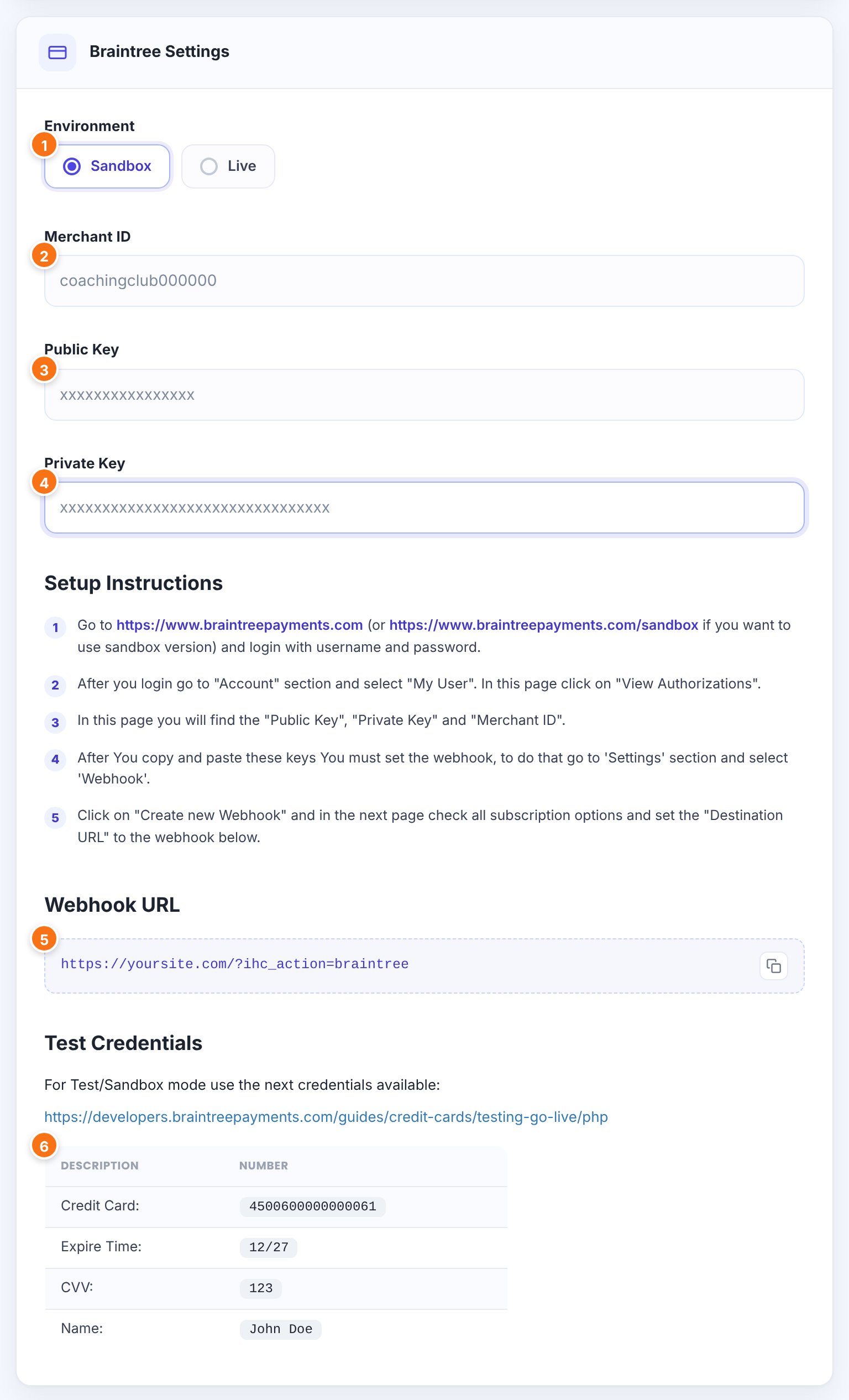
Sandbox sends payments to your Braintree Sandbox account; Live takes real payments. Use the keys that match the environment.
- Sandbox
- Live
Default: Live
Your Braintree merchant ID.
The public key from View Authorizations.
The private key from View Authorizations. Keep it secret.
Where to find the keys and how to add the webhook, shown on the screen for reference.
The address to paste in Braintree (Step 5). Use the copy button next to it.
A test card for Sandbox payments: 4500600000000061, expiry 12 of next year, CVV 123, name John Doe. In Sandbox the checkout form is filled with these values for you.
Create a Plan for each recurring Membership
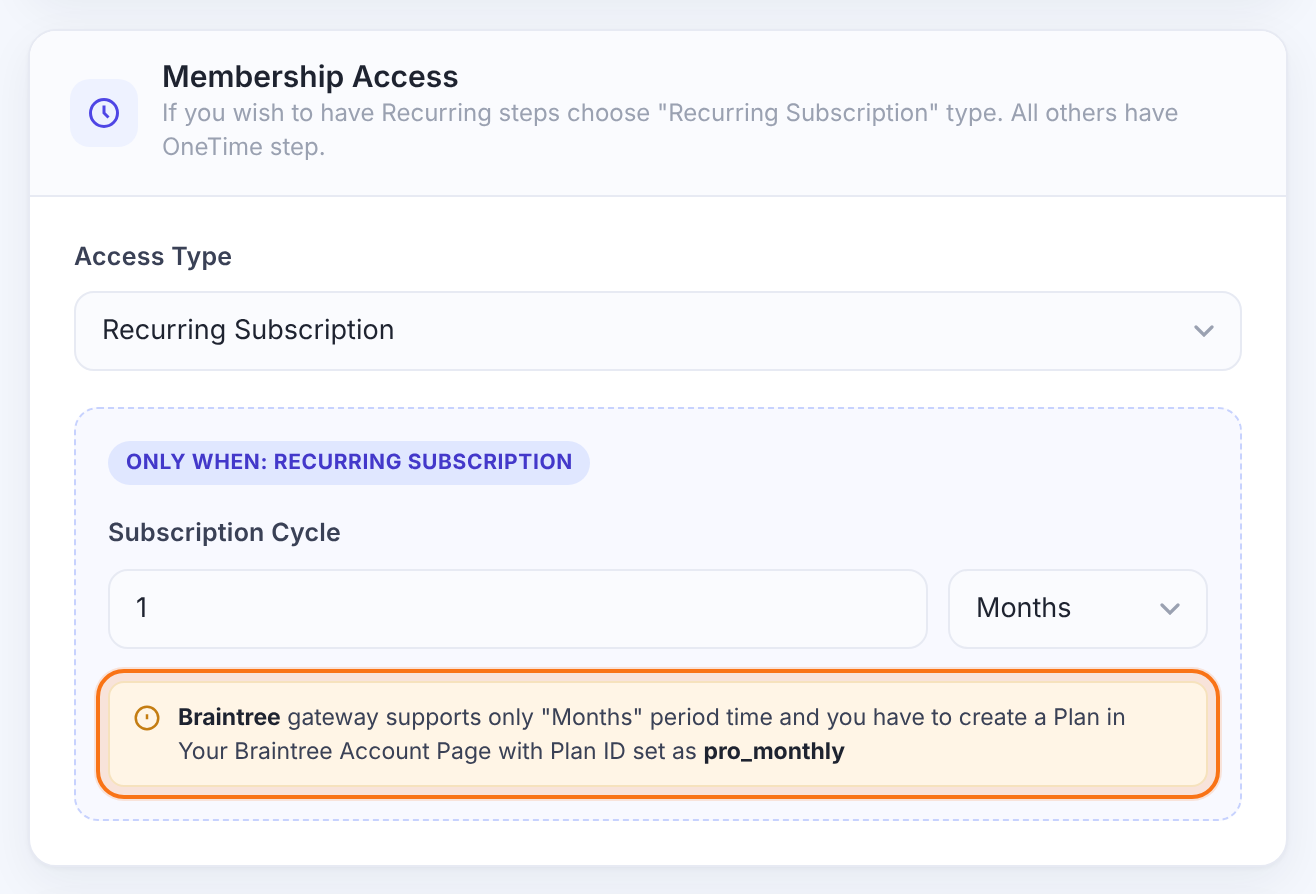
This is the step people miss. For a Recurring Subscription, Ultimate Membership Pro asks Braintree to start a subscription on the Plan whose Plan ID is the same as the Membership’s Membership Slug. The billing frequency and the currency of that subscription come from the Plan, not from the Membership.
- In Ultimate Membership Pro›Memberships, open the Membership and copy its Membership Slug, for example
pro_monthly. - In your Braintree control panel, create a new Plan.
- Set Plan ID to exactly the Membership Slug:
pro_monthly. - Set the price (19.00), the currency (USD) and the billing cycle in months (every 1 month) to match the Membership.
- If the Membership has a free trial, set the same trial in the Plan.
- Save the Plan. Repeat for every Recurring Subscription you sell with Braintree, in Sandbox and again in your live account.
Once Braintree is active, the Membership screen reminds you of the Plan ID to use:
No matching Plan, no subscription
- If no Plan in Braintree has the Membership Slug as its Plan ID, Braintree refuses the subscription and the member can’t complete the purchase.
- The Plan decides how often members are billed and in which currency. If the Plan says every 3 months, members are billed every 3 months, whatever the Membership says. Keep both the same.
- If you change a Membership Slug, create a Plan with the new slug too.
Add the webhook in Braintree

https://yoursite.com/?ihc_action=braintree- In Braintree, go to Settings › Webhooks and click Create new Webhook.
- Paste the Webhook URL as the Destination URL.
- Tick all the Subscription notifications and save.
A recurring payment went through. The order becomes Completed and the Membership is extended. The first payment of a plan without a trial is confirmed this way too.
The Membership is taken off the member’s account.
The Membership’s status becomes Cancelled.
Set how Braintree appears at checkout
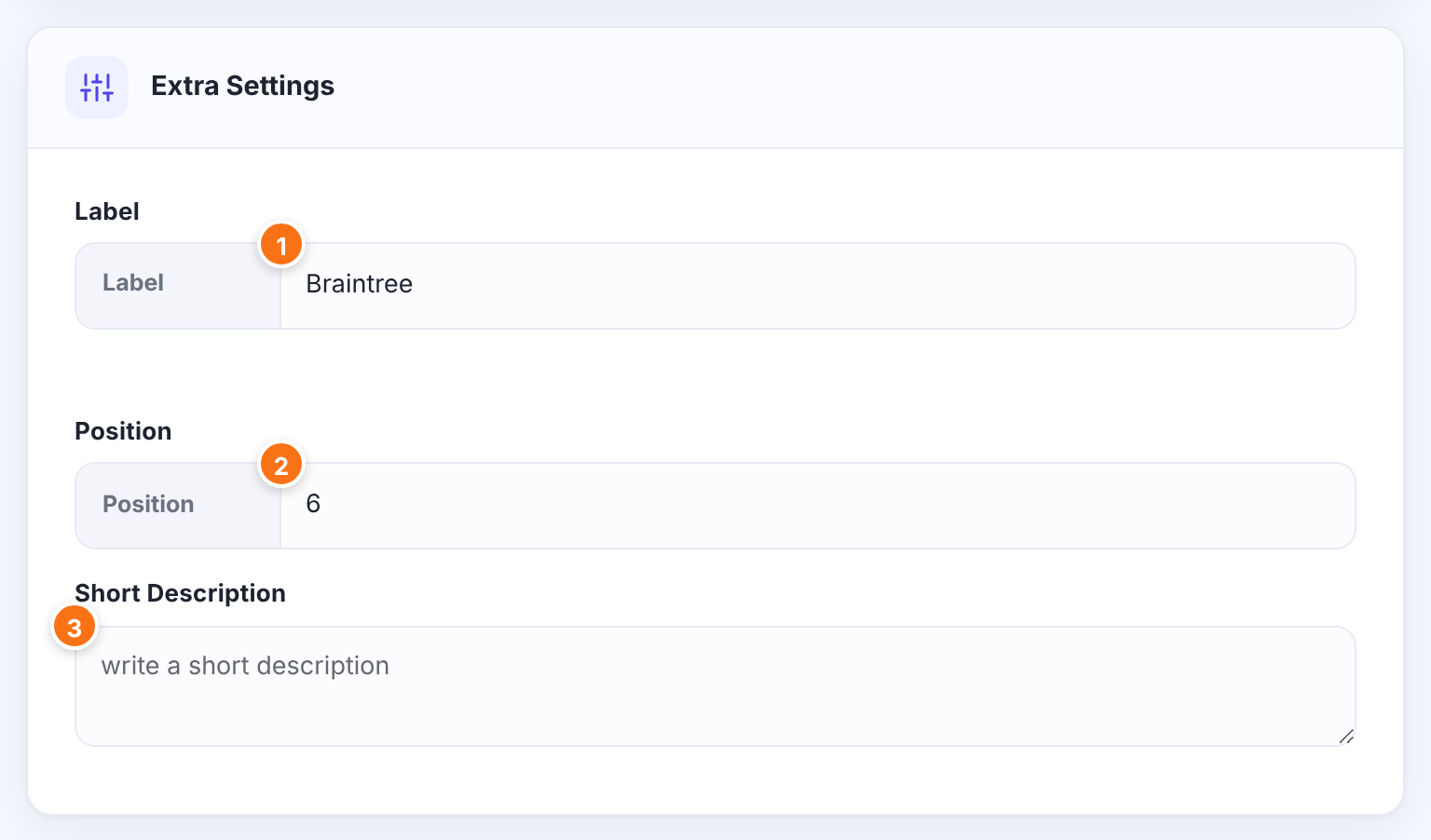
The name of this payment method at checkout, for example Credit card.
Default: Braintree
The order of this gateway among the payment methods at checkout. Lower numbers come first.
Default: 6
Optional text about the gateway, saved with its settings.
Click Save Changes.
Test a payment
- With Environment on Sandbox and your Sandbox keys saved, buy Pro Monthly on your site in a private window.
- Choose Braintree at checkout. The card form is already filled with the test card.
- Complete the purchase, then check the new subscription under Subscriptions in your Braintree Sandbox.
- In Ultimate Membership Pro›Payment History, the order becomes Completed once Braintree sends the Subscription Charged Successfully notification (right away if the Membership has a free trial).
When it works, switch Environment to Live, paste your live keys, create the same Plans and webhook in your live Braintree account, and save.
Limits to know
- Recurring Memberships must use a Subscription Cycle in Months.
- Trials are free trials, set in days or months.
- Limited billing needs at least 2 payments.
- Manage and cancel Braintree subscriptions in your Braintree control panel; the webhook then marks the Membership Cancelled.
- Refunds are made in Braintree.
Name the Plan after the slug from day one
Pick short, final Membership Slugs such as pro_monthly before you create Plans. It saves you from re-creating Plans in two Braintree accounts later.
Example: Coaching Club on Braintree
- Environment
- Sandbox while testing, then Live
- Merchant ID, Public Key, Private Key
- From Account › My User › View Authorizations
- Braintree Plan
- Plan ID
pro_monthly, $19.00, every 1 month - Webhook
- https://yoursite.com/?ihc_action=braintree, all Subscription notifications
- Membership
- Pro Monthly, Recurring Subscription, 1 Months, slug pro_monthly
- Label
- Credit card
Troubleshooting
Why isn’t the Membership activated after a member submits the Braintree card form?
Braintree refused the card, the customer or the subscription, so no payment was taken. For recurring plans the most common reason is a missing Plan: check that a Plan with the Membership Slug as Plan ID exists in the Braintree account that matches the Environment.
Why do the card fields turn red at checkout?
A field is empty or invalid: the name, the card number, the expiration date (MM / YY) or the CVC, which must have 3 digits.
Why does the order stay Pending after a recurring purchase?
Without a trial, the first payment is confirmed by the Subscription Charged Successfully notification. Check that the webhook exists in Braintree with the right Destination URL and that your site is publicly reachable.
Why are members billed at the wrong interval or in the wrong currency?
Braintree uses the interval and currency of the Plan. Edit the Plan in Braintree so it matches the Membership.
How do I cancel a Braintree subscription?
Cancel it in your Braintree control panel. Once you cancel there, the webhook sets the Membership to Cancelled. See Membership statuses explained.


