
In Ultimate Membership Pro, the WooCommerce Payment Integration module lets you sell a Membership as a WooCommerce product. Members buy it through the WooCommerce cart and checkout, with any payment method your store offers, and get the Membership when the WooCommerce order is completed.
This guide switches the module on, links a product to a Membership, and explains what happens to the Membership when an order is placed, completed, refunded or cancelled.
Before you start
- WooCommerce is installed and active, with at least one payment method.
- Your license is active; modules need it. See Find and activate your license key.
- The Membership exists, for example Pro Monthly. See Create your first Membership.
- Your WooCommerce store currency is the same as the currency in Ultimate Membership Pro›Settings›Payment Settings. See Set your currency.
How a WooCommerce purchase works
1. Member checks out
- Where
- WooCommerce cart and checkout
- Account
- Logged in, or creates one at checkout
2. Order placed
- WooCommerce order
- Pending, Processing or On hold
- Membership
- Added on hold, no access yet
- Payment History
- A Pending order, method WooCommerce
3. Order completed
- WooCommerce order
- Completed (automatically or by you)
- Membership
- Active
- Payment History
- Completed
4. Refunded or cancelled
- WooCommerce order
- Refunded or Cancelled
- Membership
- Back on hold, access ends
Switch on the module
- Go to Ultimate Membership Pro›Modules. In Payments & Billing, open WooCommerce Payment Integration.
- Switch on Activate/Hold WooCommerce Payment Integration and click Save Changes.
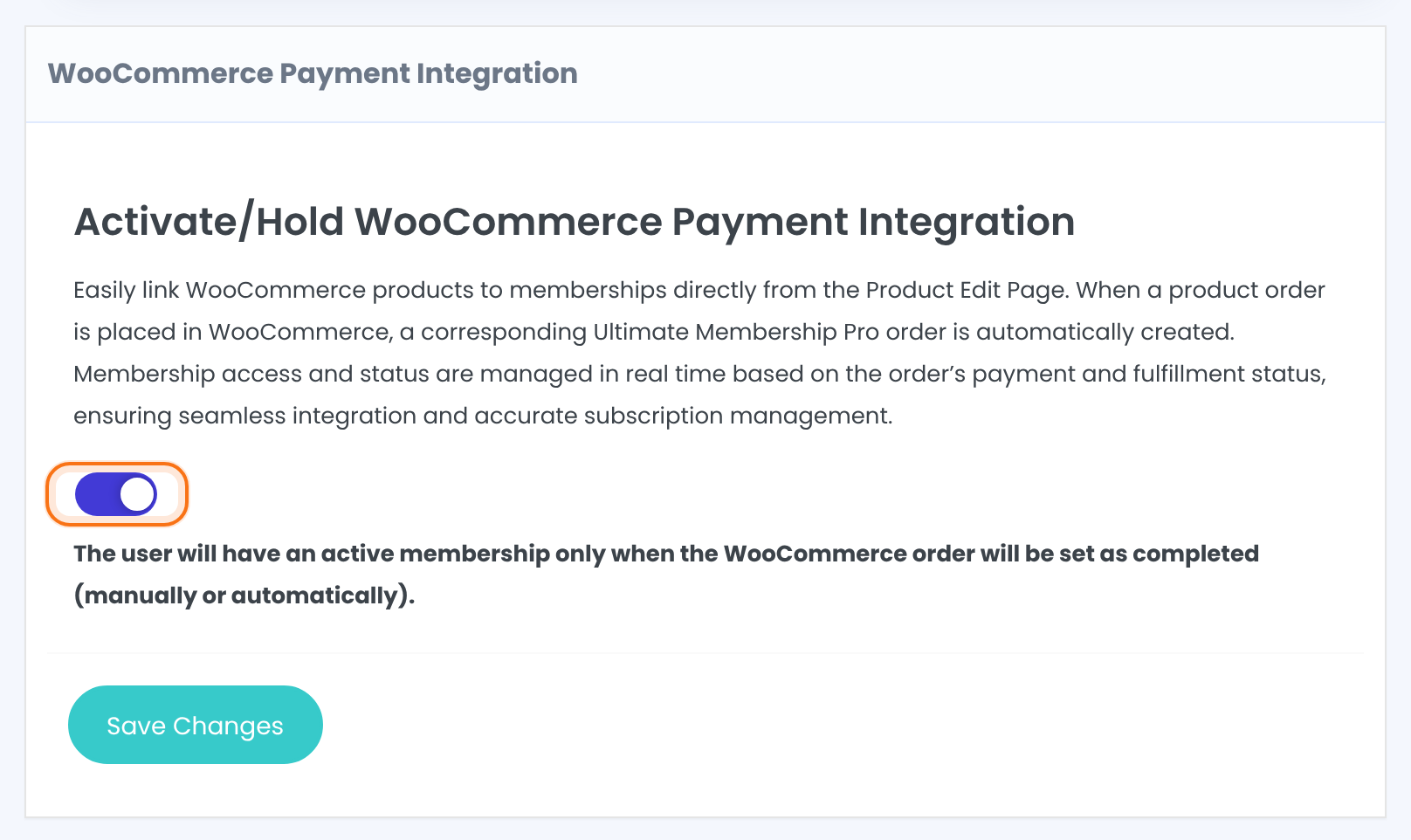
Turns the integration on. The note under it sums up the rule: “The user will have an active membership only when the WooCommerce order will be set as completed (manually or automatically).” There are no other module settings.
Default: Off
Link a product to a Membership
You link products in the WooCommerce product editor. Create one product per Membership you want to sell, priced as you want members to pay.
- Go to Products and edit the product, or create a new one.
- In the Product data box, open the Ultimate Membership Pro Options tab.
- Under “Link this product to a Ultimate Membership Pro Membership”, pick the Membership in Linked Membership.
- Click Update (or Publish).
The Membership the buyer gets. None removes the link. A product grants one Membership; to sell two, link two products.
Default: None
The tab is available for simple, external and variable products, not for grouped products. On a variable product, the link is set on the product itself and applies to all its variations, so every variation gives the same Membership.
Or link it from the Membership
When the module is on, the edit screen of an existing Membership has a WooCommerce Product – Membership Relation card. In Products, type part of the product name (“Search a product…”) and pick it, then save the Membership. A linked product shows as Current Product assign: with a bin icon to change it.

Check your links
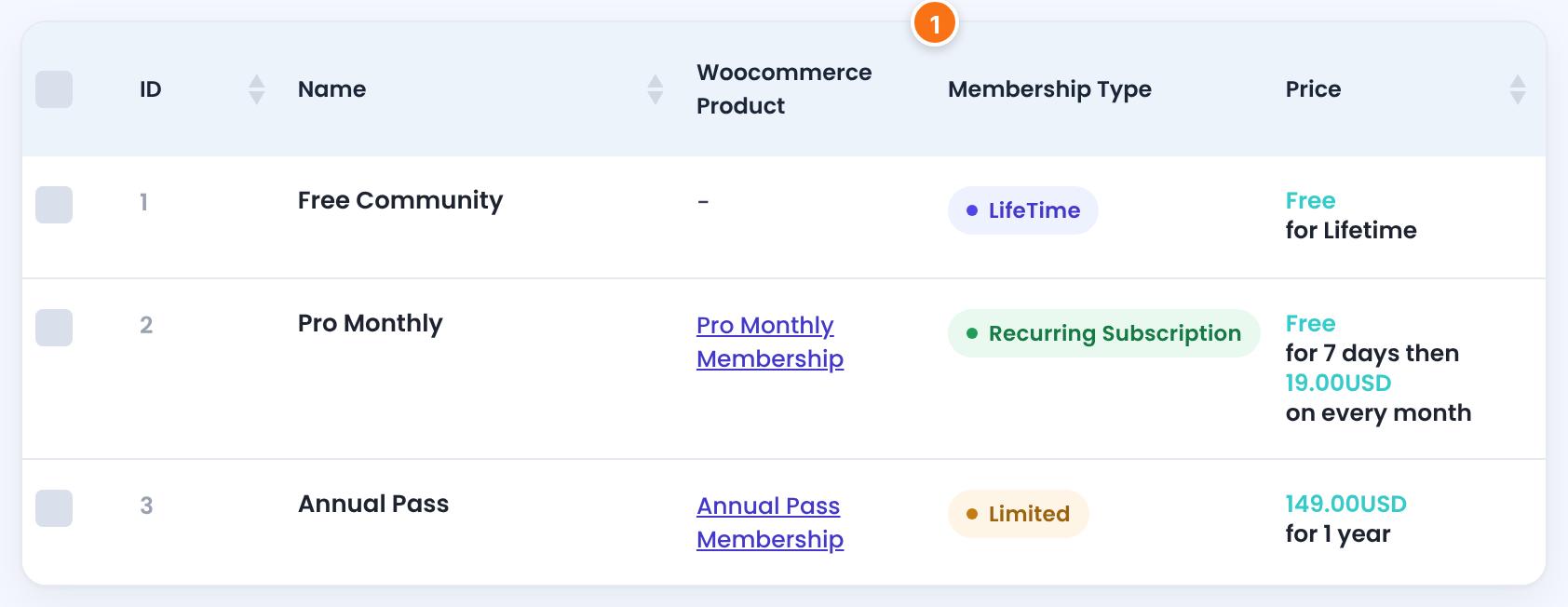
Back on the module screen (Modules›WooCommerce Payment Integration), a table lists every linked Membership and product, each with a link to its edit screen:

The Ultimate Membership Pro›Memberships list also gets a Woocommerce Product column while the module is on, with “-” for Memberships without a product:
What happens with each order
For each linked product in the order, the member gets the Membership on hold (no access yet) and a Pending order appears in Payment History with the payment method WooCommerce. Its Transaction is woocommerce_order_1042_2: the WooCommerce order number, then the Membership ID. The amount is what the customer paid for that product, tax included. Works with the classic and the block checkout.
The Membership becomes active for its full duration (no trial period), the order in Payment History becomes Completed, and the Payment confirmation received – Order Completed emails are sent if active.
Nothing changes: the member still has no access. Only Completed activates the Membership.
When an order moves from Completed or Processing to Refunded or Cancelled, from On hold to Refunded, or from Pending payment to Cancelled or Failed, the Membership goes back on hold and access ends; it isn’t deleted. The Payment History order shows the WooCommerce status, for example cancelled, under the Other chip.
If the Membership is still active, the new period is added to its current expiry date. If it has expired, it starts again from the completion date.
Let orders complete on their own
WooCommerce completes paid orders by itself only when every product in them is virtual and downloadable. Tick both boxes on your Membership products, or members wait until you mark each order Completed in WooCommerce › Orders.
Limits
- Guests get nothing. The buyer must be logged in or create an account during the WooCommerce checkout; turn on account creation at checkout in WooCommerce’s settings.
- No automatic renewals. Recurring Memberships aren’t charged again through WooCommerce, and WooCommerce Subscriptions isn’t supported. Members renew by buying the product again.
- Trial periods, Ultimate Membership Pro coupons, taxes and gateways don’t apply to WooCommerce orders; WooCommerce’s own prices, coupons, taxes and payment methods do.
- Memberships are granted through the WooCommerce checkout. For an order you create by hand in WooCommerce › Orders, assign the Membership from the member’s profile.
- Ultimate Membership Pro records amounts in its own currency, so keep it the same as the store currency.
Example: Coaching Club sells its plans in the shop
- Module
- WooCommerce Payment Integration, switched on
- Product “Annual Pass Membership”
- $149, virtual and downloadable, Linked Membership: Annual Pass
- Product “Pro Monthly Membership”
- $19, virtual and downloadable, Linked Membership: Pro Monthly (members buy it again each month)
- WooCommerce
- Account creation at checkout on, currency USD
- Ultimate Membership Pro
- Default System Currency USD
Troubleshooting
A customer bought the product but has no Membership. Why?
Check three things: the WooCommerce order is Completed (Processing and On hold don’t grant access), the customer was logged in or created an account at checkout (guest orders don’t grant a Membership), and the product is still linked (see the table on the module screen).
I can’t find the Ultimate Membership Pro Options tab on my product. Where is it?
Check that the WooCommerce Payment Integration module is on and saved. The tab isn’t shown for grouped products; use a simple or variable product.
Can Ultimate Membership Pro renew a recurring Membership automatically through WooCommerce?
No. WooCommerce orders are one-time purchases for Ultimate Membership Pro, and WooCommerce Subscriptions isn’t supported. Members renew by buying the product again. To charge automatically, sell recurring Memberships through a gateway such as Stripe instead.
I refunded a WooCommerce order. Does the member lose access?
Yes, for a full refund of a Completed or Processing order: the Membership goes back on hold. A partial refund doesn’t change the Membership.
Where do I see the WooCommerce orders in Ultimate Membership Pro?
In Payment History, with the payment method WooCommerce. The Transaction column shows woocommerce_order_ followed by the WooCommerce order number and the Membership ID.
Can members still buy the Membership through the Ultimate Membership Pro checkout?
Yes. The module adds the WooCommerce way of buying; your Ultimate Membership Pro checkout and gateways keep working for the same Memberships.


