
In Ultimate Membership Pro, you can add a member manually: create an account from the admin and give it any Membership, paid or free, without going through checkout. Use it for a client who paid by invoice, a team member or a free pass for a partner.
This guide creates a member, assigns a Membership and then shows how to change it later from Manage Plans.
Before you start
- The Membership you want to give exists. See Create your first Membership.
- The person doesn’t have an account yet. For an existing account, open it with Details › Edit Member and start at step 4.
Open the Add New Member form
- Go to Ultimate Membership Pro›Members and click Add New Member.
The form has four tabs: Account & Login, Profile & Fields, Membership Plans and Additional Settings. Nothing is saved until you click Save Changes at the bottom.
Fill in the account
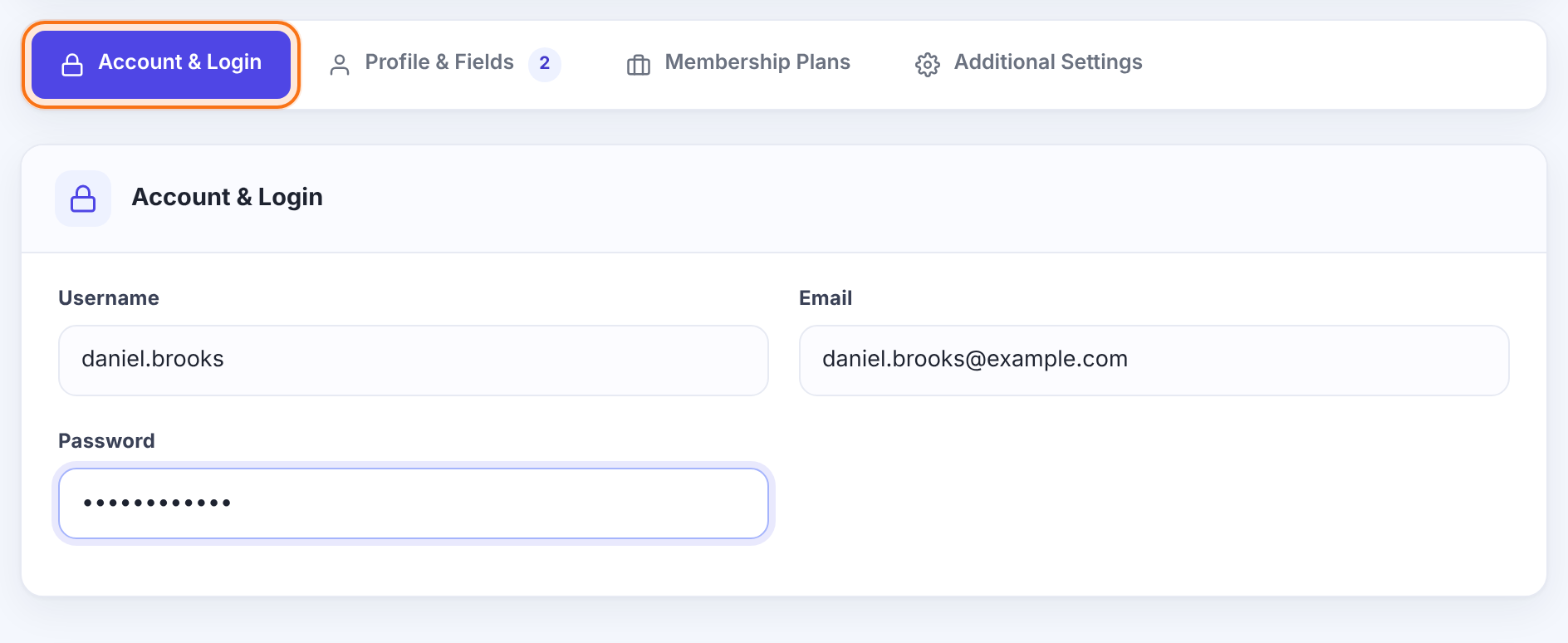
The login name. WordPress doesn’t let you change it later.
Must be valid and not used by another account.
Set one and share it with the member, or leave it for them to reset with Lost Password.
Add profile details
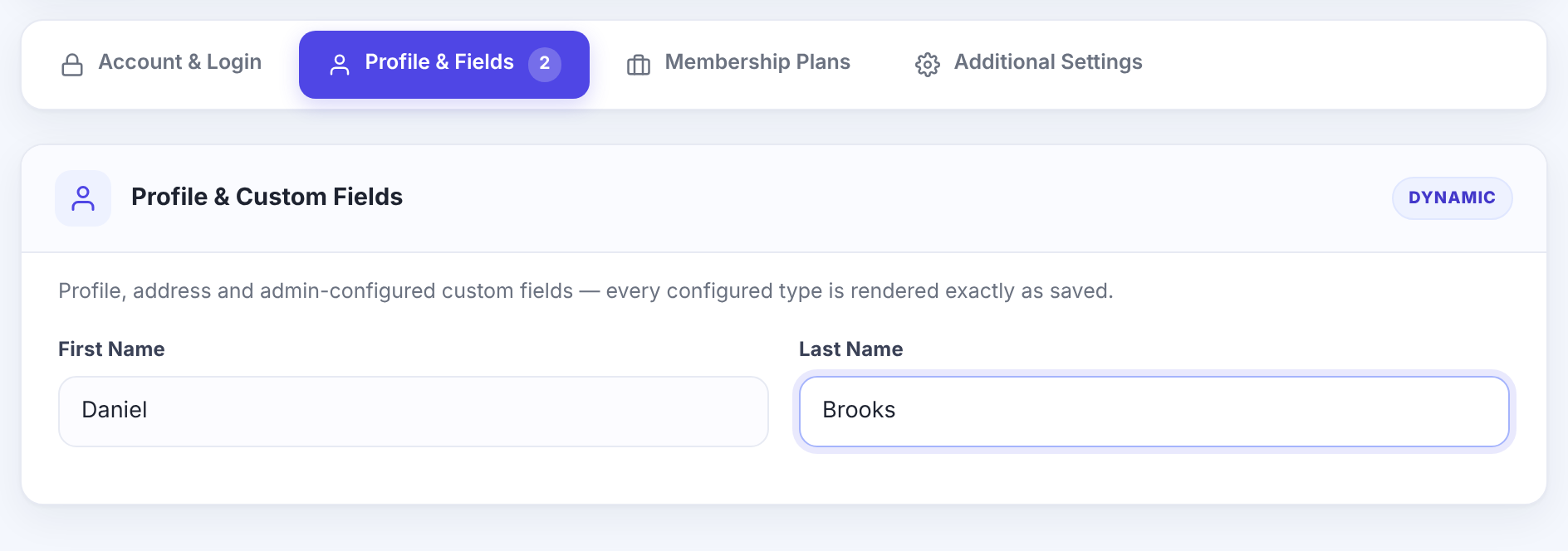
Which fields appear here is set in Ultimate Membership Pro›Registration Form›Custom Fields, column On Admin. See Add custom fields to the registration form.
Assign a Membership
- Open Membership Plans.
- Pick the Membership in Choose a membership plan and click Assign New.
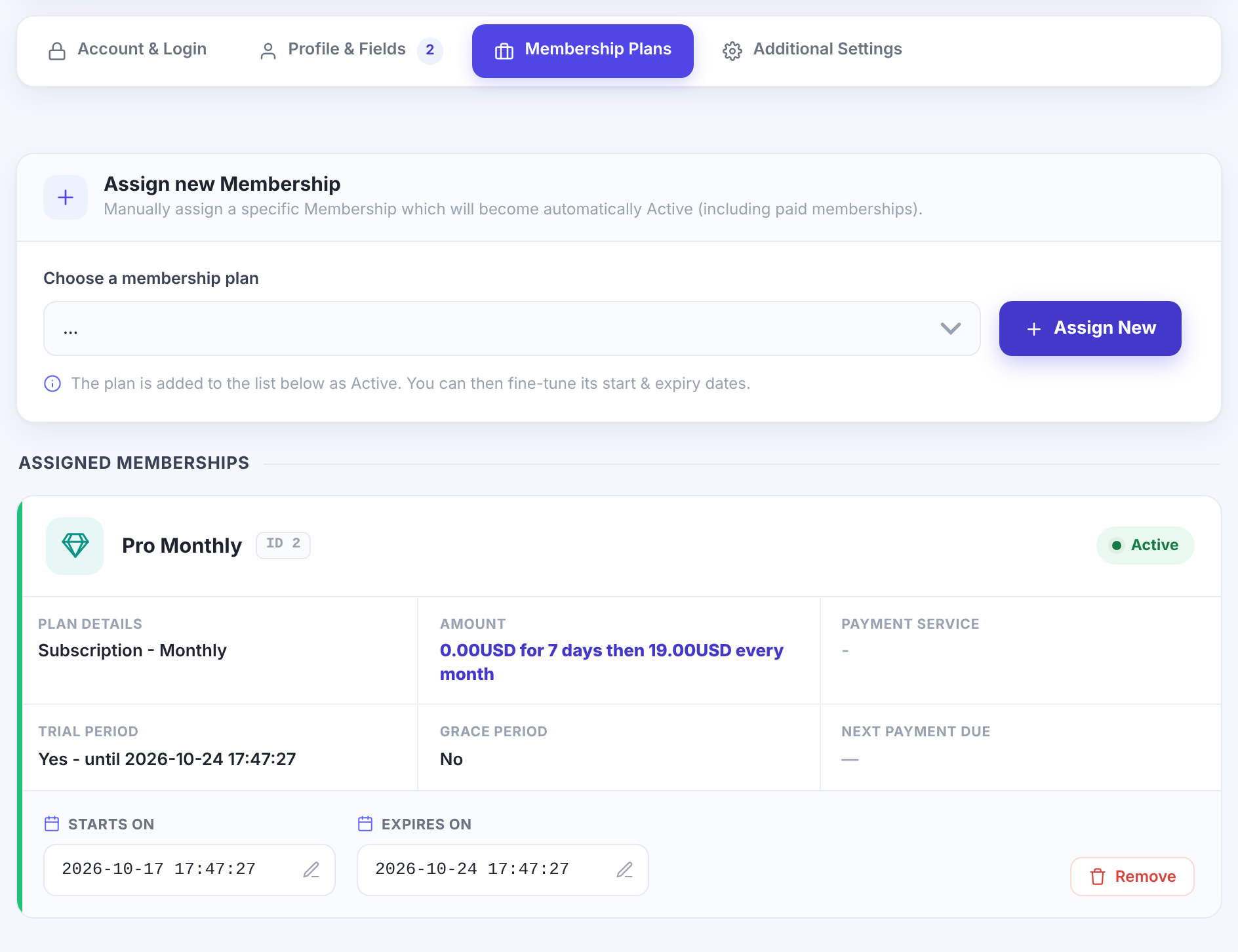
When access begins. Defaults to now.
When access ends, worked out from the Membership’s billing settings (for a free trial, the end of the trial). Change it to give a longer or shorter period.
Takes the Membership off this member.
No payment is taken
- A Membership you assign here is active right away, even a paid one. No checkout runs and no gateway subscription is created, so a recurring Membership won’t renew by itself.
- When the dates pass, the Membership expires like any other. Extend Expires On, or ask the member to buy it, to keep access going.
Set extra options
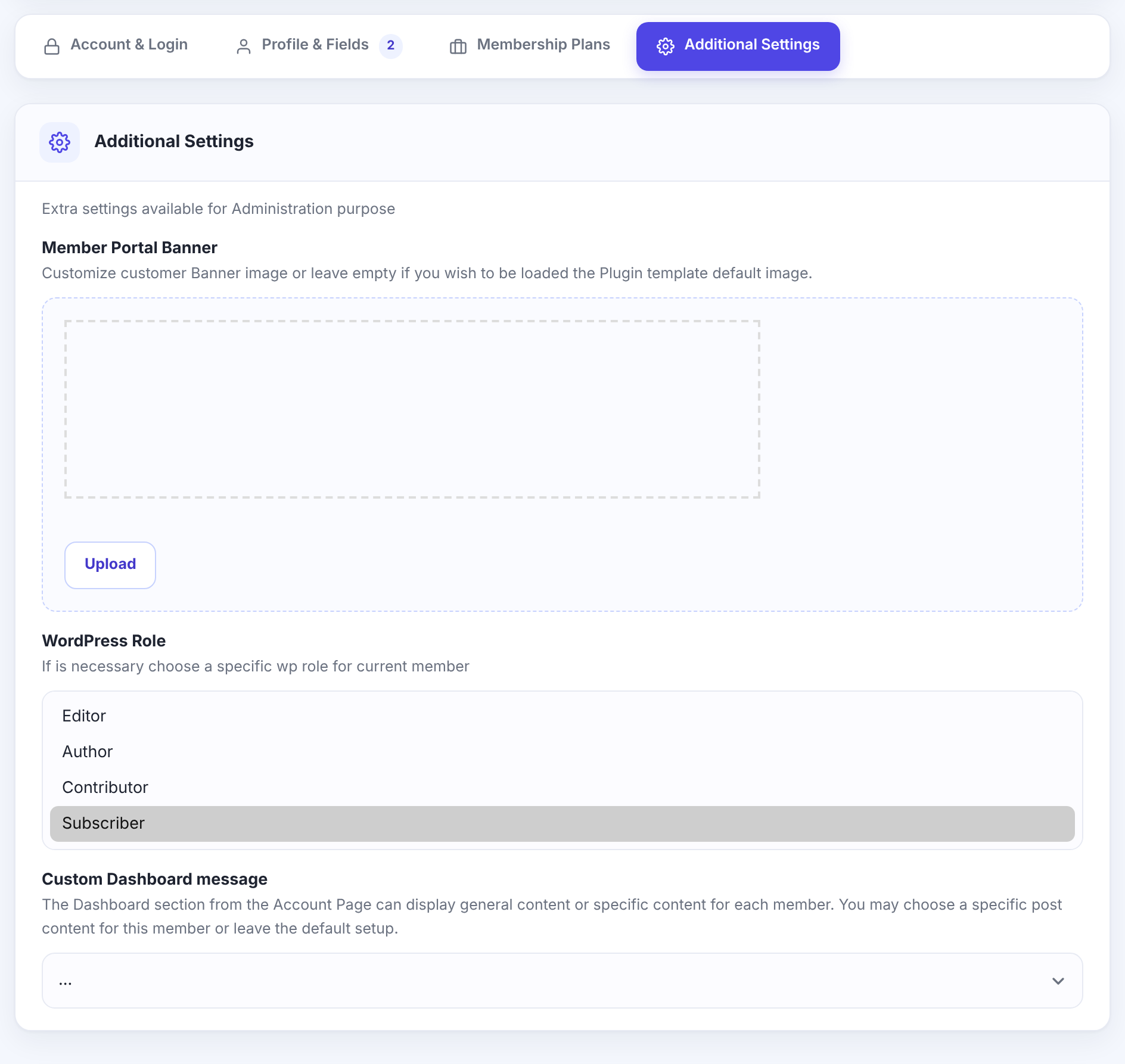
A banner image only for this member, at the top of the Member Portal. Empty uses the portal’s default.
Show the content of one post or page in this member’s Dashboard tab instead of the general Dashboard text.
Default: …
Save the member
- Click Save Changes. The member appears in the Members list.
Change a Membership later
For an existing member, open the Details menu in Ultimate Membership Pro›Members and click Manage Plans. The page lists every Membership of that member with its plan, amount, payment service, trial and grace period.
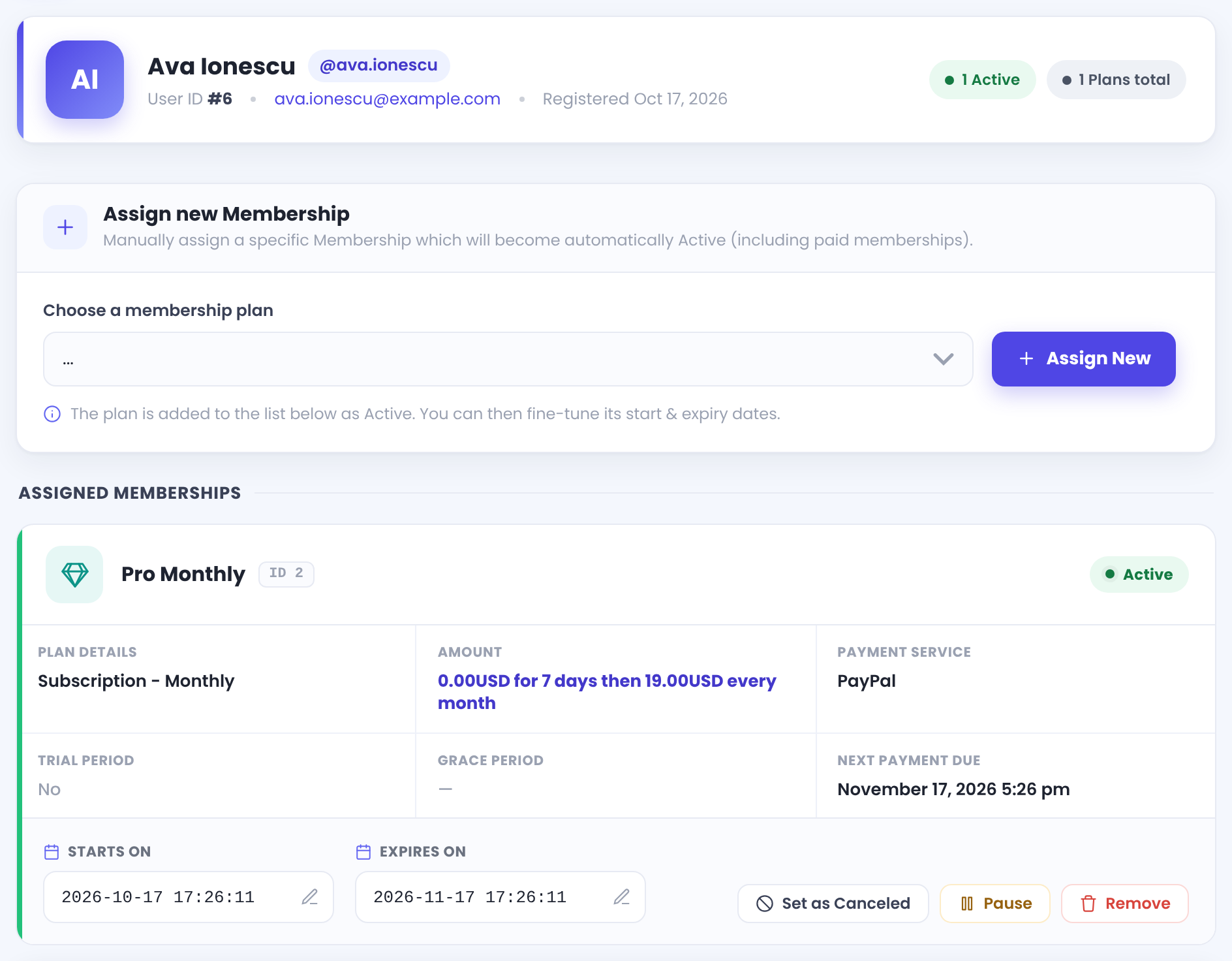
Click the pencil to edit the dates, then save.
Starts a Membership that was added without dates, for example by an import.
Starts a new period for an expired Membership.
Marks a recurring subscription as canceled in Ultimate Membership Pro. Cancel the charging plan at the payment service first.
Stops the clock on the Membership and starts it again later.
Deletes the Membership from this member.
Click Save Changes after changing dates or statuses; the page reminds you with “Remember to save your date & status changes.”
Example: a coach paid by invoice
- Username
- daniel.brooks
- daniel.brooks@example.com
- Membership
- Pro Monthly, assigned in Membership Plans
- Expires On
- Moved to one month after the invoice date
- WordPress Role
- Subscriber
Troubleshooting
Why do I get “Invalid Username” when I add a member?
The username has characters WordPress doesn’t allow, or another account already uses it. Pick a different username.
Why do I get “You must have a valid email address”?
The email address isn’t valid. Check it for typos and spaces.
What does “Sorry, that email address is already used!” or “Email address has already been taken” mean?
Another account already uses this email address. Search for it in the Members list and edit that account instead of creating a new one.
Why is a field missing from the Profile & Fields tab?
Only fields with On Admin switched on appear there. Turn it on for that field in Ultimate Membership Pro›Registration Form›Custom Fields.
Why did a Membership I assigned by hand expire too early?
Memberships you assign in the admin don’t renew by themselves. Open Manage Plans for the member, change Expires On and save.


