
In Ultimate Membership Pro, the Members Directory shows your members on a page of your site: a grid of member cards with photos and the details you choose, with search and filters. The Members Directory showcase builds it as a shortcode you place on any page.
This guide sets the options in the shortcode generator and publishes the directory.
Before you start
- Members with a photo and names make a better directory. Avatars come from the Avatar field; see Use the built-in special fields.
Open the shortcode generator
- Go to Ultimate Membership Pro›Showcases›Members Directory.
![Members Directory Showcase with the tabs Shortcode Generator, Public Individual Page and Additional Settings, and the Generated shortcode box with an [ihc-list-users …] shortcode and a Copy shortcode button](https://ultimatemembershippro.com/wp-content/uploads/2026/10/ump-members-directory-01-dir-shortcode.png)
The options aren’t saved on this screen: they’re written into the shortcode. To change a directory later, set the options again, copy the new shortcode and replace the old one.
Choose who is listed
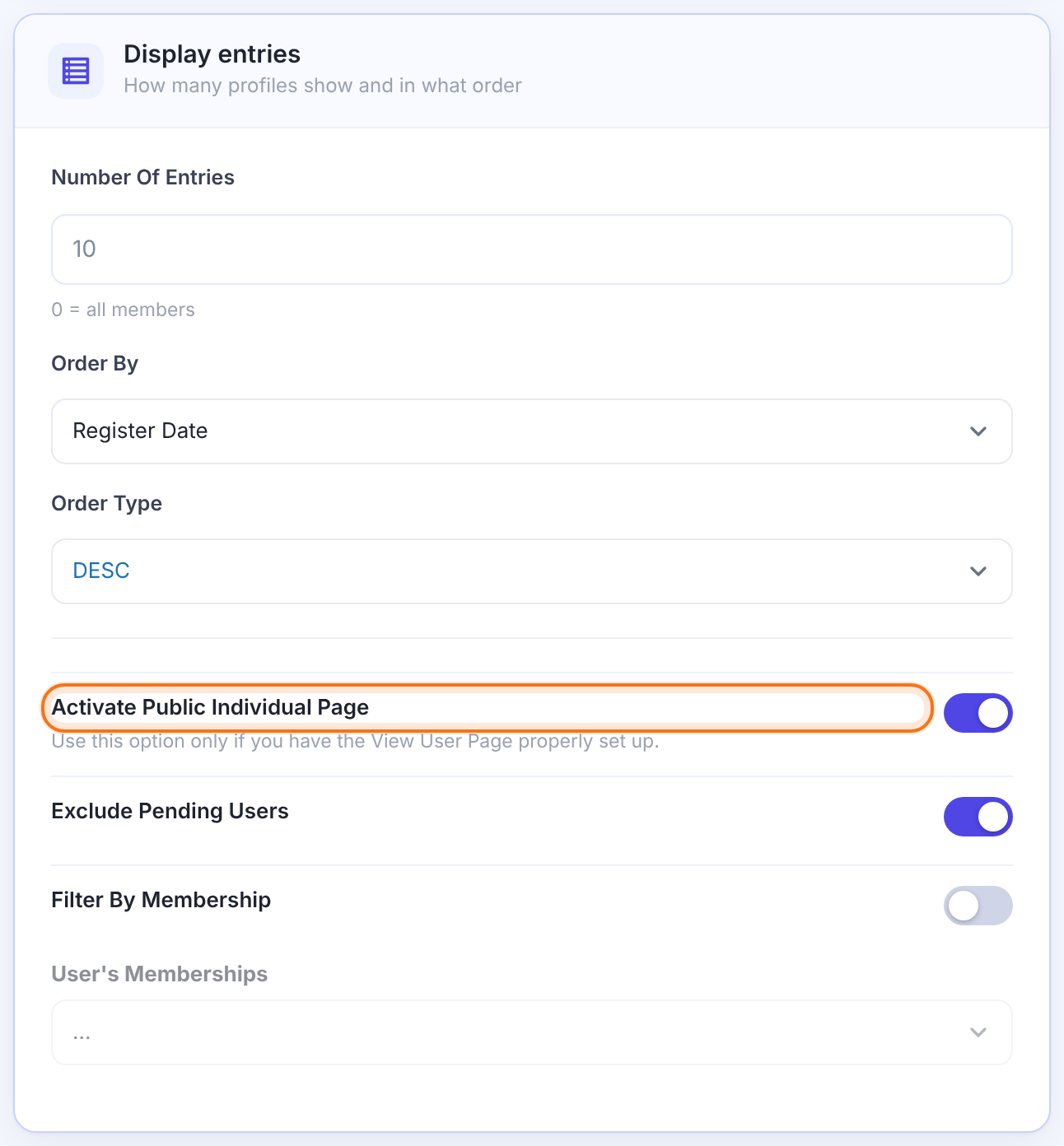
How many members the directory lists in total. 0 lists all.
Default: 10
Register Date, UserName, E-mail Address, Random or Last name.
Default: Register Date
ASC or DESC.
Default: DESC
Makes each card open the member’s public profile. The link ends with the member’s username, even when Username isn’t shown on the card. See Show public member profiles.
Default: Off
Lists only members of the Memberships picked in User’s Memberships, and only while that Membership has an end date in the future. A member whose Membership has expired, or is On Hold and has no end date yet, isn’t listed.
Default: Off
Choose the look
The card design: Theme 1 to Theme 10. Every theme shows members as cards in a grid. For a moving row of cards, use the slider (see “Choose pagination or a slider”).
Default: Theme 1
Cards per row, from 1 to 6. Each card takes an equal share of the width of the area the shortcode sits in, so a narrow content area or a narrow page-builder column gives narrower cards. To change the width of the directory, change the width of that page, section or column. Screens narrower than 960 px are set in Additional Settings › Responsive Settings.
Default: 5 Columns
The accent color of the cards.
Centers the text on each card.
Default: On
Shows “Email: …” instead of the value alone.
Default: Off
Choose the fields on each card
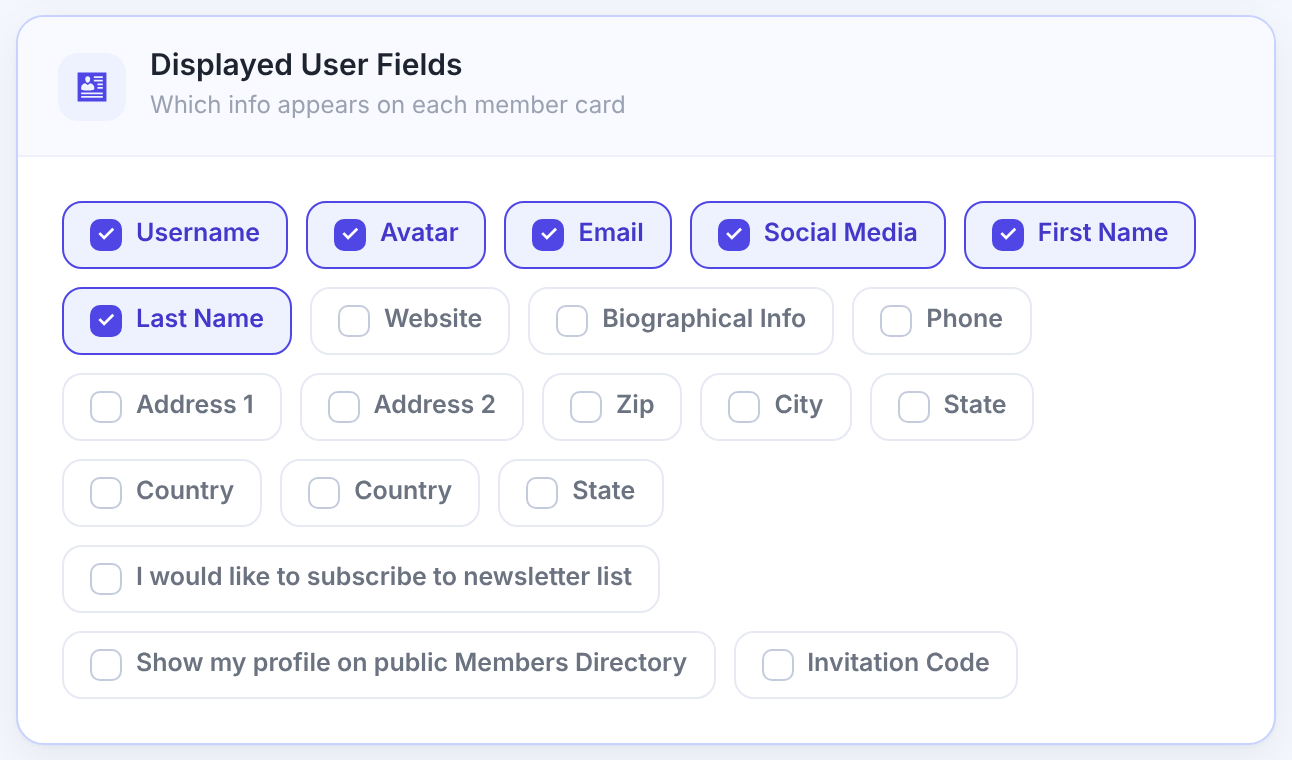
Every registration field can be shown. By default: Username, Avatar, Email, Social Media, First Name and Last Name.
The card design decides where Username, First Name, Last Name, Email, Avatar and Social Media go, and the first name always comes before the last name. There is no option to change that. All other fields you tick are listed below the email address, in the order you ticked them. To change their order, edit the user_fields part of the shortcode and put the fields in the order you want. Order By only sorts the members in the list; it doesn’t change what a card shows.
Add search and filters
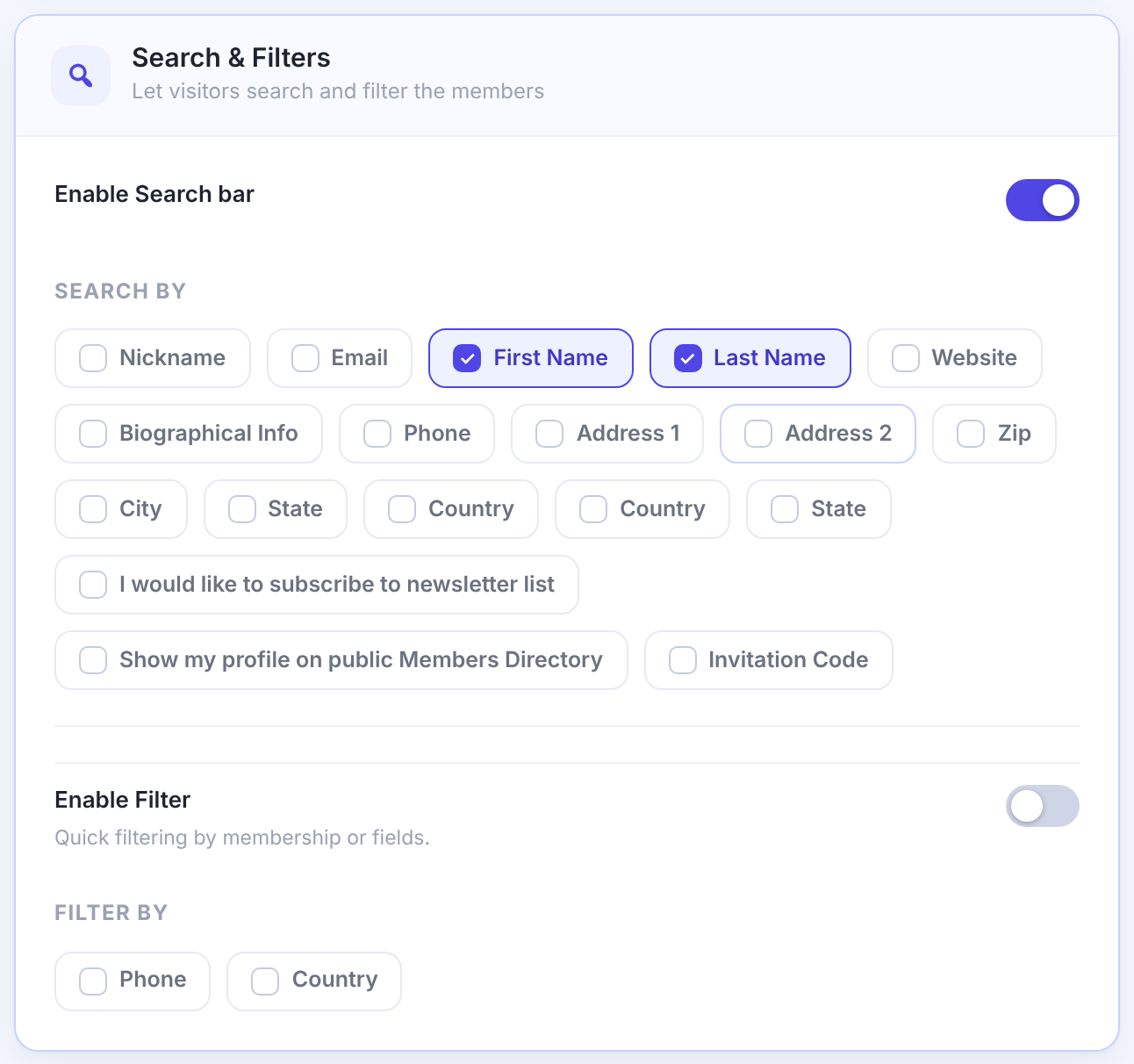
Adds a search box; tick the fields it searches in Search by.
Default: Off
Adds quick filters on the fields you tick in Filter by.
Default: Off
Choose pagination or a slider
Entries Per Page (default 5), Position (Top by default) and Theme.
Shows the members as a carousel: Items per Slide, Slider Timeout, Pagination Speed, animations and carousel options. With the slider on, pagination is off.
Default: Off
The directory has two layouts: a grid of cards (with pagination) or a slider. There is no option to show members as a table or a plain list.
Publish the directory
- Click Copy shortcode.
- Create a page, for example Members, paste the shortcode in a Shortcode block and publish.
The Coaching Club directory
[ihc-list-users num_of_entries='10' entries_per_page='5' order_by='user_registered' order_type='desc'
 user_fields='user_login,user_email,first_name,last_name,ihc_avatar,ihc_sm' theme='ihc-theme_1'
 color_scheme='0a9fd8' columns='5' align_center='1' inside_page='1' show_search='1'
 search_by='first_name,last_name' general_pagination_theme='ihc-listing-users-pagination-1'
 pagination_pos='top' exclude_pending='1']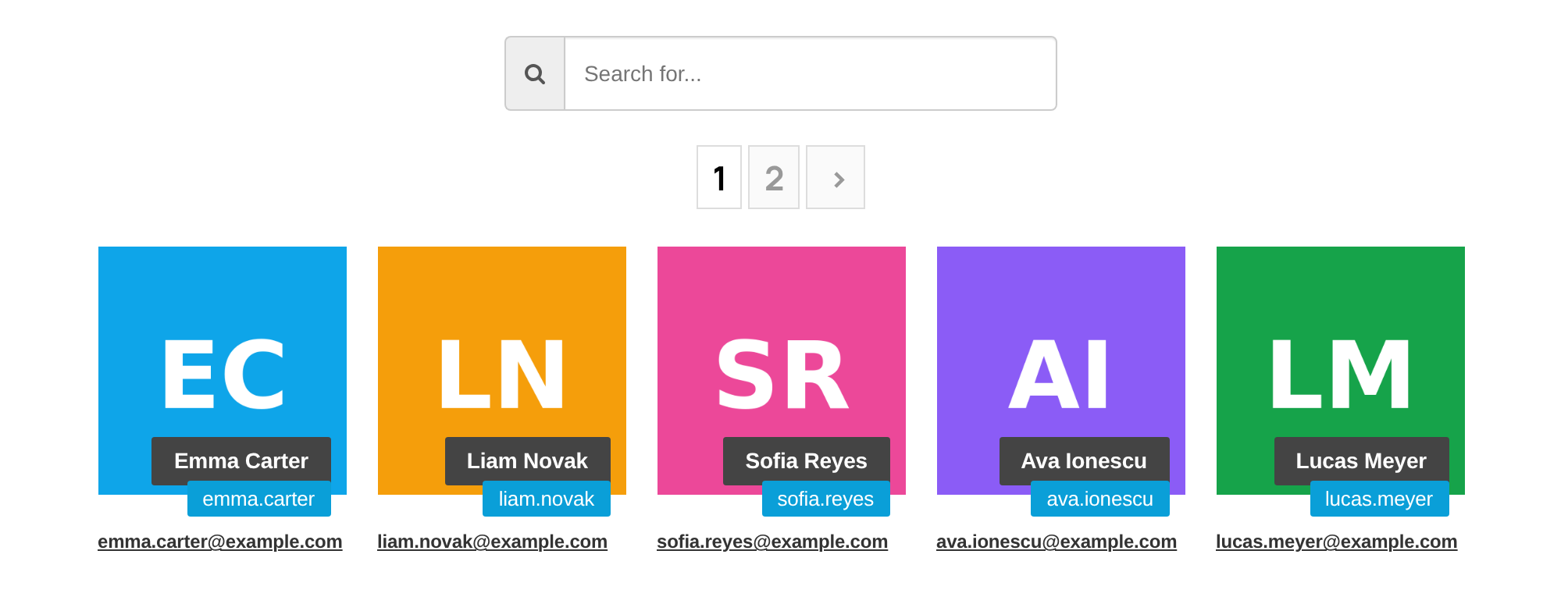
Who appears in the directory
- Every member except administrators, unless you use Filter By Membership or Exclude Pending Users.
- If your registration form shows the Show my profile on public Members Directory field, only members who ticked it are listed. The generator shows a warning when that’s the case.
- Email is ticked by default. Untick it if addresses shouldn’t be public.
Show the directory to members only
- The directory shortcode has no login check of its own. To keep it for members, restrict the page it’s on with the Locker. Pick Show Page Only, add Registered Users (or the Memberships you want), and choose what everyone else gets. See Restrict your first page.
- Member profiles open on a separate page, the Public Individual Page. Restrict that page the same way if profiles should be members-only too.
Tip
- Use Additional Settings for the number of columns per screen width and for custom CSS.
In Additional Settings › Responsive Settings you pick the number of columns (1 to 6, or Auto) for three screen widths: up to 479 px, 480 to 767 px and 768 to 959 px. The defaults are 1, 2 and Auto. Auto keeps the value of Columns. These settings apply to every directory on your site. Click Save changes on that tab.
Example: the Coaching Club community page
- Entries
- 10, Register Date, DESC
- Fields
- Avatar, Username, First Name, Last Name, Email
- Search
- First Name, Last Name
- Exclude Pending Users
- On
- Profiles
- Activate Public Individual Page on
- Page
- Members
Troubleshooting
Why is the Members Directory empty?
No member matches the shortcode. Check Filter By Membership and, if your registration form has it, the Show my profile on public Members Directory field.
Why does the [ihc-list-users] shortcode show as text?
Paste it in a Shortcode block, or a Shortcode widget in your page builder.
Why don’t my Members Directory changes show?
The options live in the shortcode. Copy the new shortcode from the generator and replace the old one on your page.
Why does clicking a member in the directory give a 404?
WordPress needs to rebuild its addresses: save Settings›Permalinks once. See Show public member profiles.
Why does my directory show fewer columns than I set?
Each card takes a share of the width of the area the directory sits in. On a narrow area, or on a screen under 960 px, the screen-width settings in Additional Settings › Responsive Settings apply instead. Themes 4 and 10 also keep each card at least 250 px and 295 px wide, so a narrow area fits fewer cards per row.
Can I show the last name before the first name on the card?
There is no option for it. Every card design shows the first name, then the last name. To sort the members by last name, set Order By to Last name.
Why is a member with a Membership missing when I filter by Membership?
Filter By Membership lists a member only while that Membership has an end date in the future. A Membership that has expired, or is On Hold with no end date yet, isn’t counted. Check the member’s Membership under Ultimate Membership Pro›Members.
How do I show the directory only to logged-in members?
Restrict the page that holds the directory with the Locker: Show Page Only for Registered Users or for the Memberships you choose. See Restrict your first page.


