
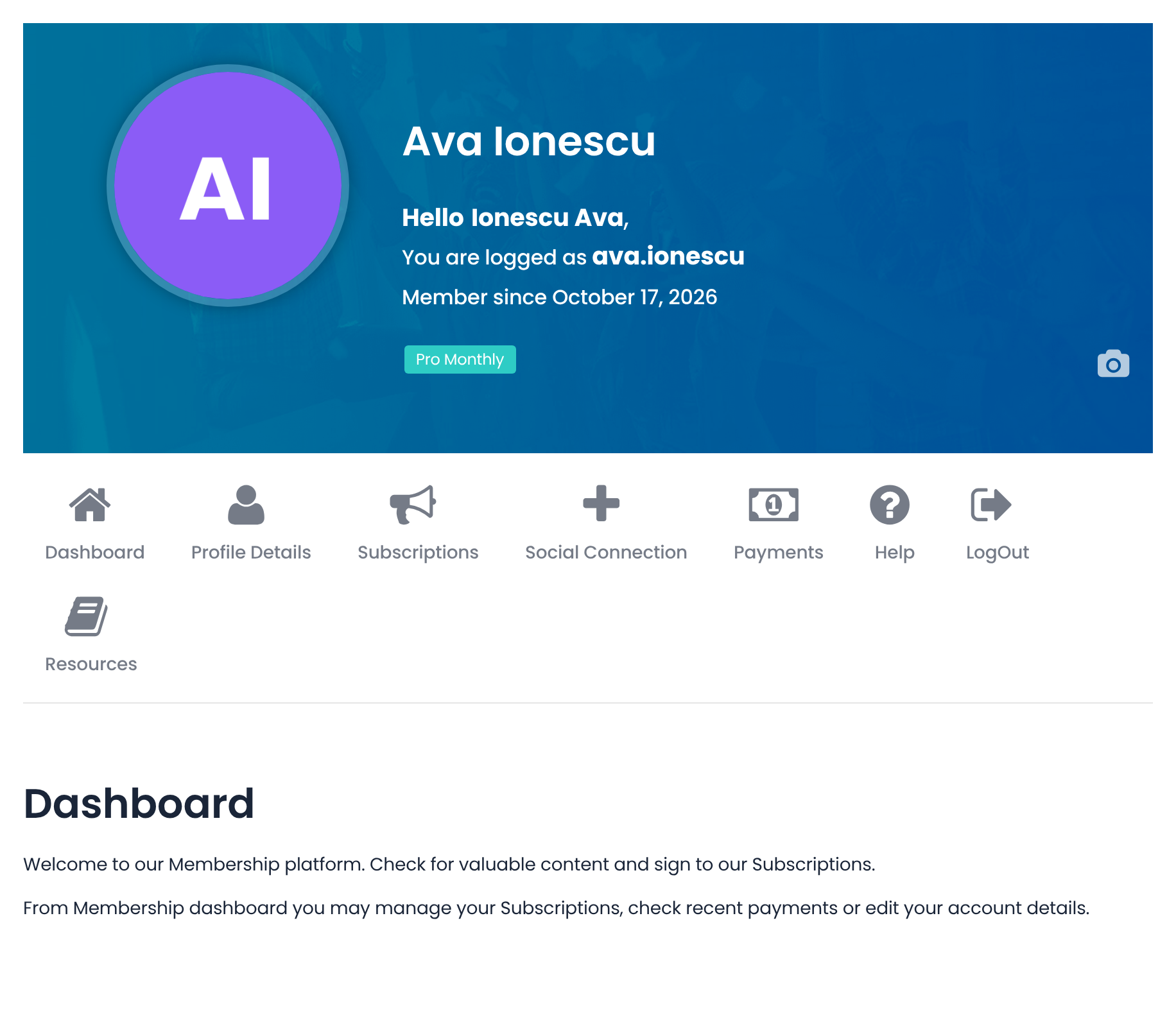
In Ultimate Membership Pro, the Member Portal is the account area members land on after they log in, shown by the [ihc-user-page] shortcode on the My Account page. It shows a banner with their name, a menu of tabs and the content of the open tab: their profile, Memberships, payments and anything else you add.
This guide sets up each part of the portal, from the banner at the top to the message at the bottom.
Before you start
- Your Member Portal page exists. The plugin creates it as My Account with the
[ihc-user-page]shortcode; see Set up the membership pages. - A test member account, so you can check the result as a member. Administrators see the portal too, but without Memberships or payments.
Open the Member Portal settings
- Go to Ultimate Membership Pro›Showcases›Member Portal.
![Member Portal settings header with the Embed the Member Portal box showing the [ihc-user-page] shortcode and a Copy button, and the section links Top Section, Content Section, Bottom Section and Custom CSS](https://ultimatemembershippro.com/wp-content/uploads/2026/10/ump-member-portal-01-portal-header.png)
The screen has four sections: Top Section, Content Section, Bottom Section and Custom CSS. They are saved together with one Save Changes button.
Set up the top of the portal
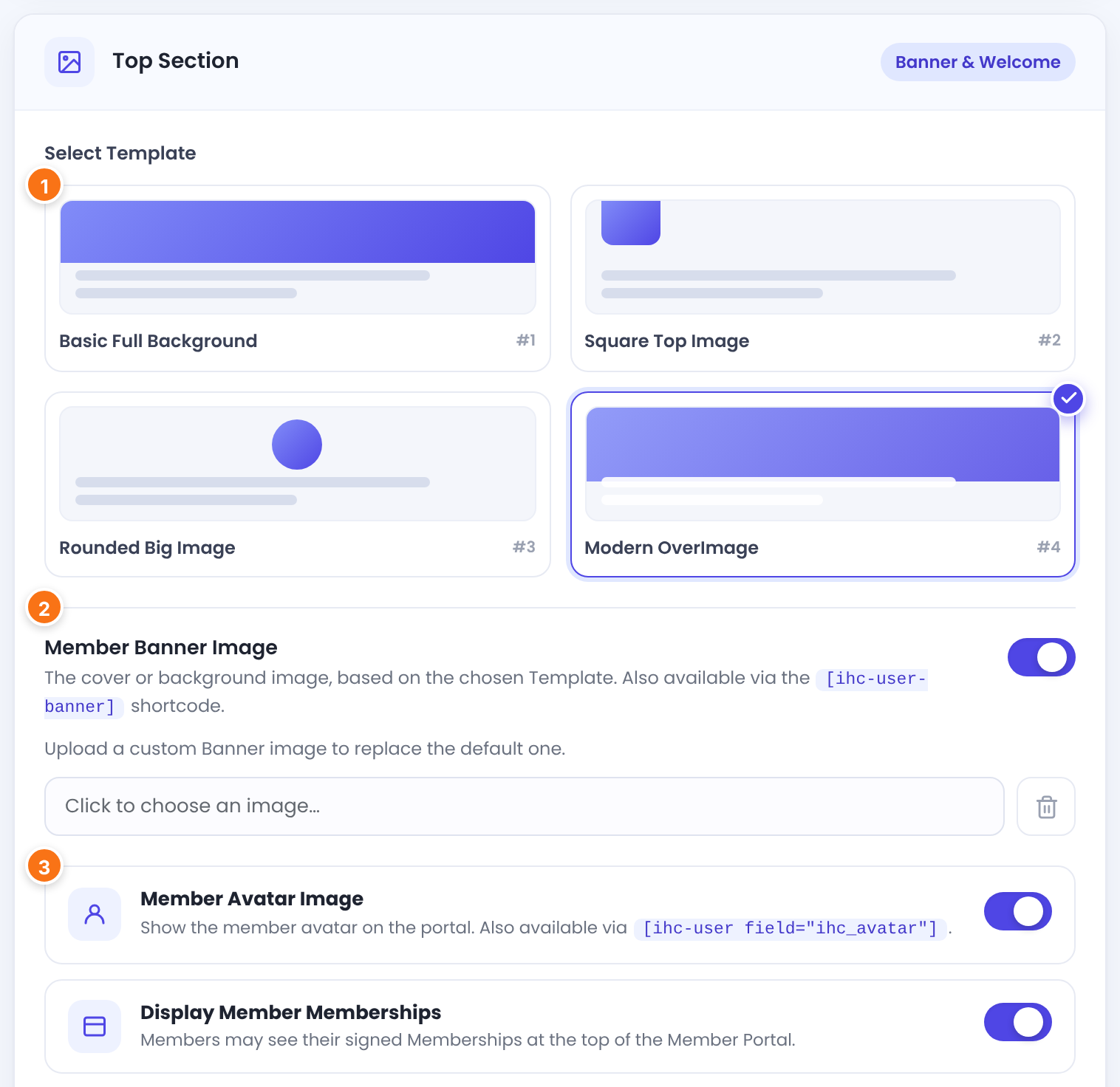
How the banner, avatar and name are laid out: Basic Full Background, Square Top Image, Rounded Big Image or Modern OverImage.
Default: Modern OverImage
The cover image. Upload your own to replace the default one. Also available with [ihc-user-banner].
Default: On
Shows the member’s avatar. Also available with [ihc-user field="ihc_avatar"].
Default: On
Write the welcome message
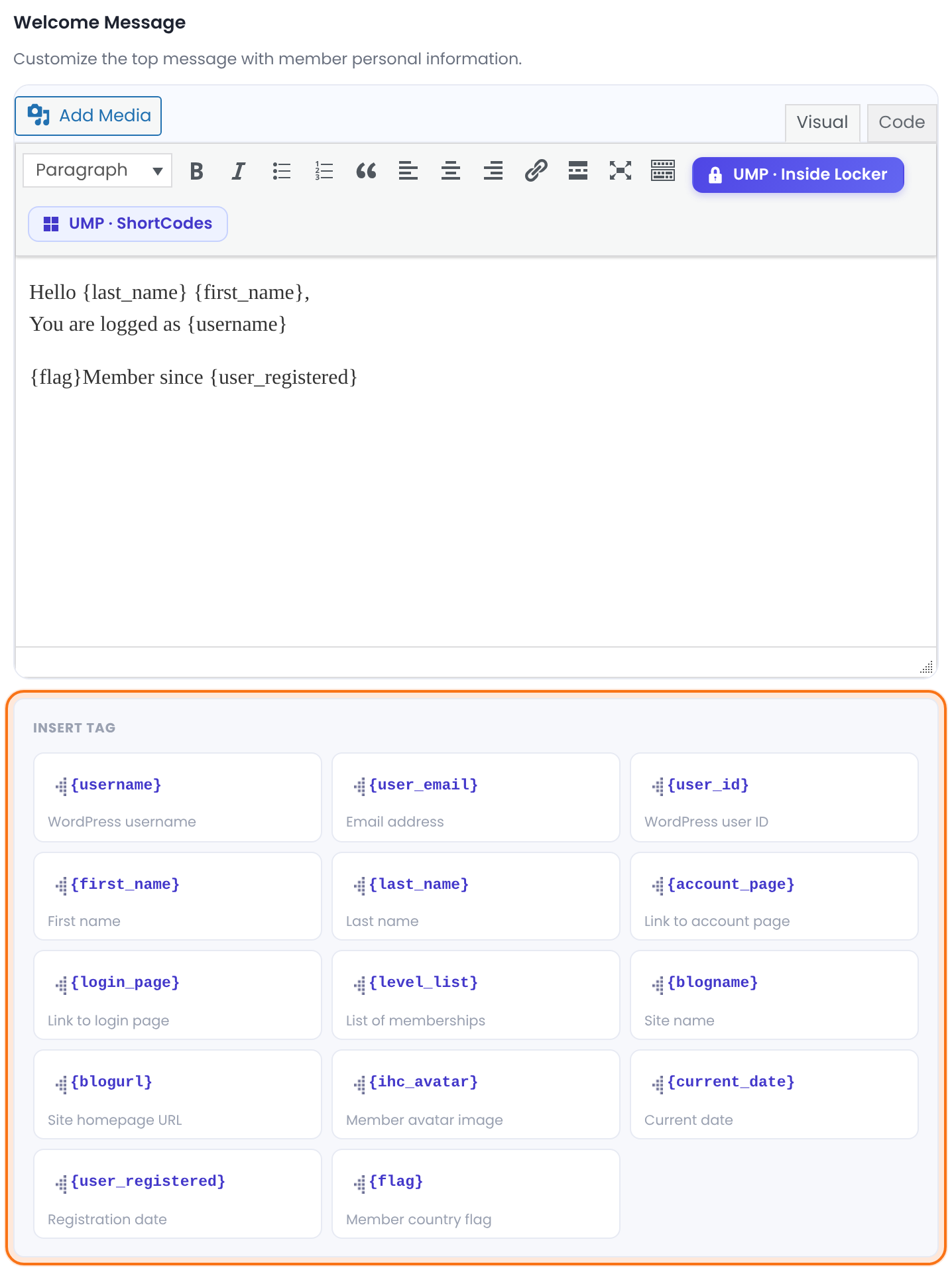
Tags include {username}, {user_email}, {first_name}, {last_name}, {level_list} (the member’s Memberships), {user_registered}, {account_page}, {flag} and one {CUSTOM_FIELD_…} tag for each registration field.
Choose the menu and the tabs
Scroll to Content Section.
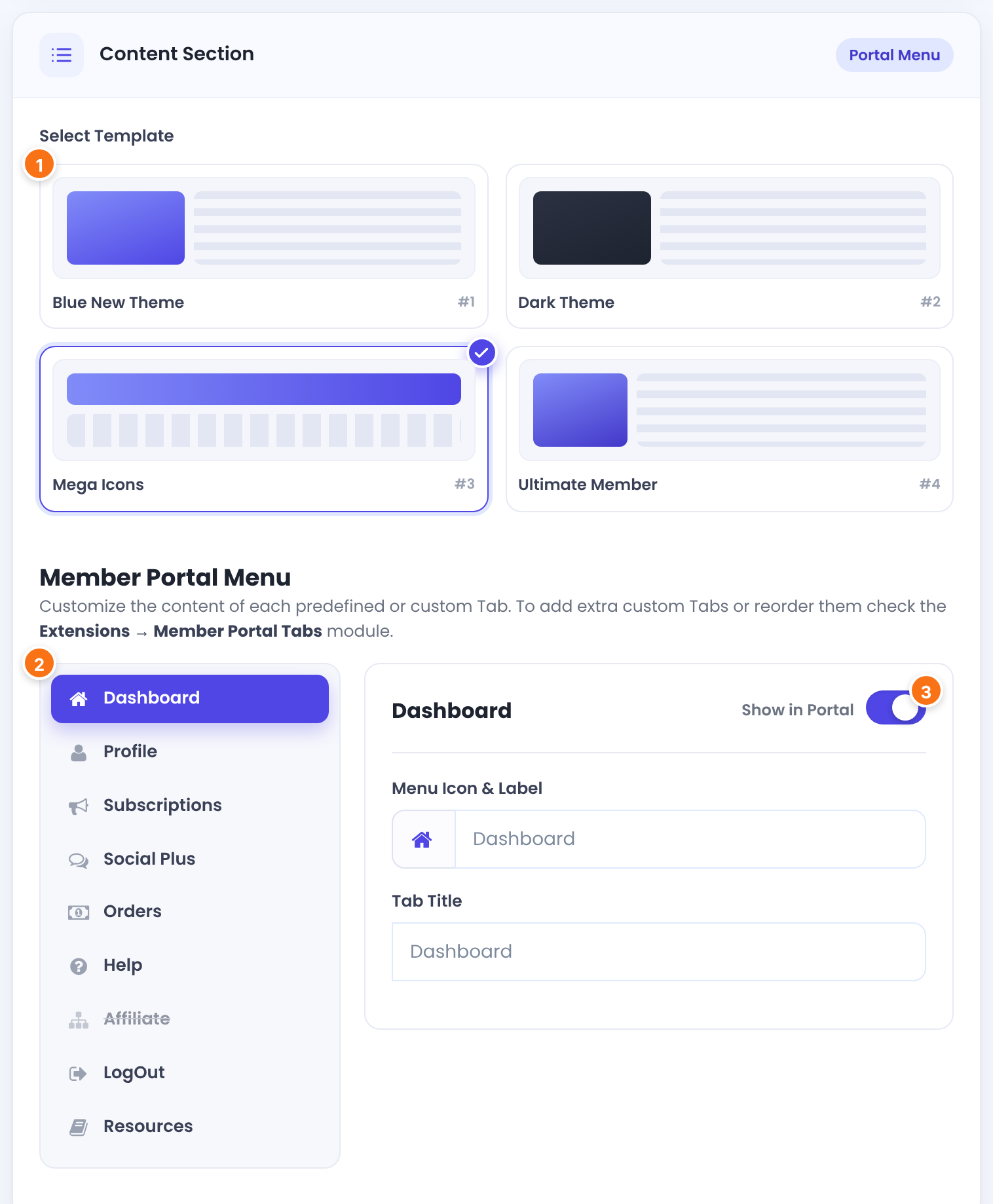
The menu style: Blue New Theme, Dark Theme, Mega Icons or Ultimate Member.
Default: Mega Icons
Every tab the portal can show. Click a tab to edit it.
Shows or hides the tab for members.
The icon and the name in the menu.
The heading above the tab content.
Text, images or shortcodes shown in the tab, above its built-in sections. Tags work here too.
The tabs you can show:
A welcome text you write. Each member can get their own content (see the tip below).
The profile form, where members edit their details and password.
The member’s Memberships and the plans they can still buy.
Buttons to connect social accounts for login.
The member’s payments. Its menu label is Payments.
A text you write, for example how to contact you.
Logs the member out.
Appear when their module is on.
Appears when Ultimate Affiliate Pro is active and Account Page – Affiliate Tab is on in the Affiliates screen.
Added with the Member Portal Tabs module. See Add custom tabs to the Member Portal.
Shown by default: Dashboard, Profile, Subscriptions, Social Plus, Orders, Help and LogOut. To reorder the tabs, use the Member Portal Tabs module.
Choose what each tab contains
Some tabs have Additional Tab Settings: switches for the built-in sections they show.
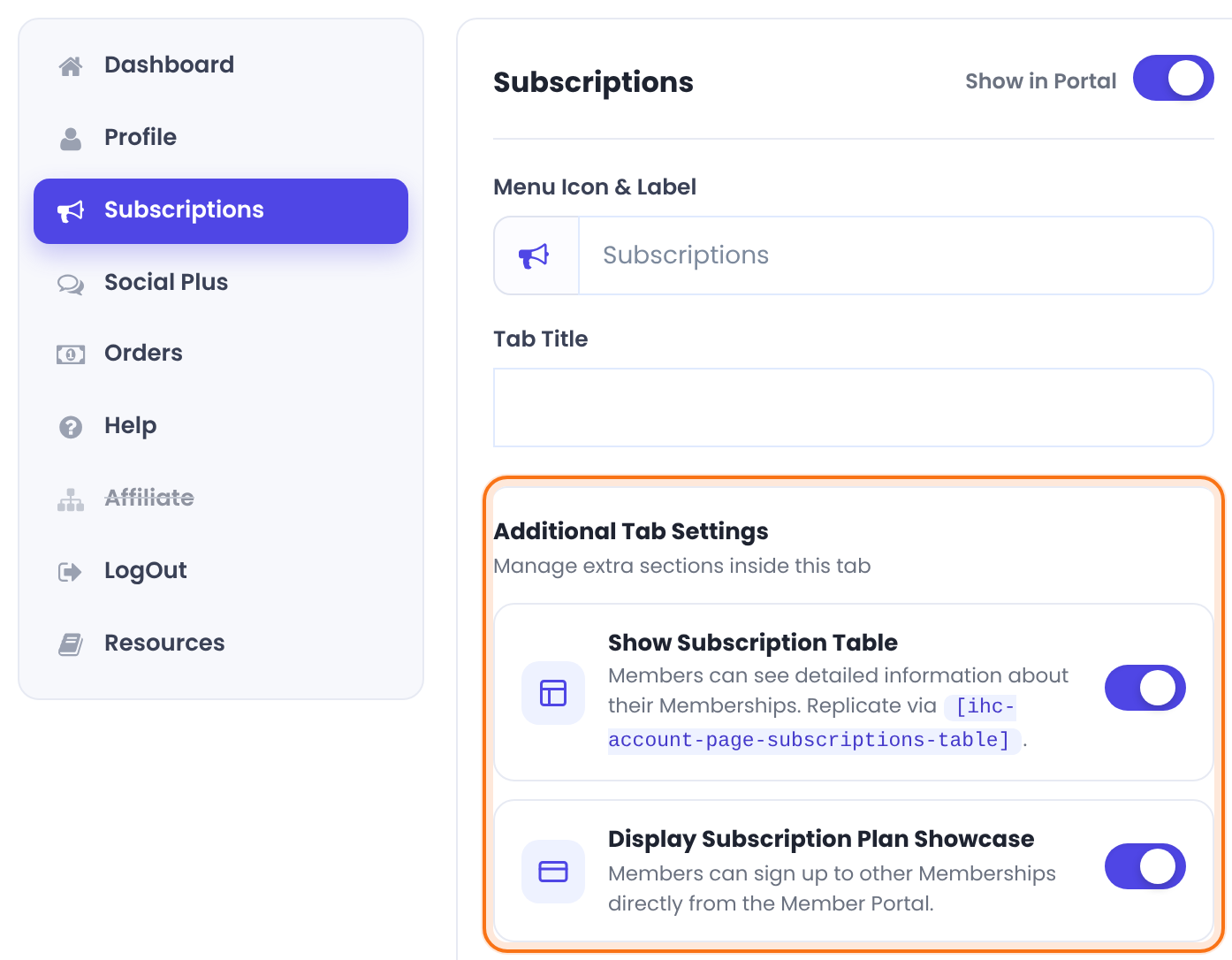
The member’s Memberships with dates and actions. Same as [ihc-account-page-subscriptions-table].
Default: On
Lets members buy other Memberships from the portal.
Default: On
The profile form. Same as [ihc-edit-profile-form].
Default: On
The member’s payments. Same as [ihc-account-page-orders-table].
Default: On
The social connect buttons. Same as [ihc-social-links-profile].
Default: On
The Pushover settings form.
Default: On
To change the columns and buttons of the subscription and payment tables, see Customize the Subscriptions and Payments tables. The look of the profile form is in Customize the profile form.
Add a footer and your own styles
Text shown at the bottom of every tab, for example your support email. Tags work here.
Styles for the portal only. See Style forms and pages with CSS.
Save and check as a member
- Click Save Changes.
- Log in as your test member in a private window and open My Account.
Shortcodes
[ihc-user-page]                        the whole Member Portal
[ihc-user-banner]                      only the banner
[ihc-user field="ihc_avatar"]          the member's avatar
Good to know
- The portal only shows to logged-in users. Visitors who open the My Account page are sent to the login page.
- Tabs of modules (Membership Gifts, Membership Cards, Pushover Notifications, Your Sites) stay hidden while their module is off, even if Show in Portal is on.
- Tab Content shows above the built-in sections of a tab, not instead of them. To show only your text, switch the built-in section off.
Tip
- Give one member their own Dashboard text or banner: open the member with Details › Edit Member › Additional Settings. See Add a member and assign a Membership.
- Already using WooCommerce or BuddyPress? The portal can live in their account pages: see WooCommerce My Account and BuddyPress profiles.
Example: the Coaching Club portal
- Top template
- Modern OverImage, avatar and Membership badges on
- Welcome Message
- Hello {first_name}, Member since {user_registered}
- Menu template
- Mega Icons
- Tabs shown
- Dashboard, Profile, Subscriptions, Payments, Help, LogOut, Resources
- Bottom Message
- Questions? support@coachingclub.example
Troubleshooting
Why is the My Account page empty?
The Member Portal only shows to logged-in users, and the page must contain [ihc-user-page]. If you replaced the page, select it again in Settings › Pages Setup.
Why doesn’t a tab show in the Member Portal?
Check that Show in Portal is on for that tab in Showcases › Member Portal and save. Tabs of modules also need their module switched on.
Why is the Affiliate tab missing from the Member Portal?
The Affiliate tab needs Ultimate Affiliate Pro to be active and Account Page – Affiliate Tab switched on in the Affiliates screen.
Why don’t my Member Portal changes appear?
Click Save Changes once for the whole Member Portal screen, then clear your page cache and reload the page as a member.
Why does the Subscriptions tab have no table?
Show Subscription Table is off for the Subscriptions tab, or the member has no Memberships yet.


