
In Ultimate Membership Pro, email notifications are the automatic emails the plugin sends when something happens on your site: someone registers, pays, renews, cancels or is about to expire. Each notification is tied to one event, goes either to the member or to you, and can be different for each Membership.
This guide lists every event, then shows how to create a notification, write it with template tags, test it, switch it on or off and check what was sent.
Before you start
- The sender name and address are set. See Change the sender name and email.
- Your site can send email. WordPress sends notifications through its own mail function (wp_mail), so a working mail setup or an SMTP plugin is needed. If nothing arrives, see Emails are not sent.
- WP-Cron runs on your site. Reminders and expiry emails are sent by scheduled tasks.
How notifications work
The event that sends the email. There are 45: 17 go to the administrator and 28 to the member.
Fixed by the event. Customer emails go to the member’s account email. Administrator emails go to the Admin Email Address list in Notifications Settings, or to the WordPress admin email when that list is empty.
All memberships, or one Membership. A notification for a specific Membership is used instead of the All memberships one for members of that Membership.
Active or inactive. New notifications are created active. An inactive notification is not sent.
A new installation creates 11 notifications: the two Double E-mail Verification emails, the three Reset Password emails, New Customer Registered (admin), New Active Account Registered, New Pending Account Registered- Approve Request, Account have been Approved by Admin, Wire Transfer Payment Details and Send auto-generated Password to Customer. The setup wizard can add a few more. Every other event sends nothing until you create a notification for it.
Every email the plugin can send
The names below are the options of When should this notification be sent?, grouped as in the drop-down.
To the administrator
Register Process
- New Customer Registered: Someone creates an account.
Subscriptions
- New Subscription Assigned to Customer: A Membership is added to a member (it starts on hold until it’s paid or activated).
- Activation Subscription – First Time: A member’s subscription becomes active for the first time.
- Activation Subscription – Renewed: A subscription is renewed.
- Customer Trial Subscription has expired: A member’s trial period ends.
- First Alert Before Subscription Expire: A set number of days before a Membership expires. Also Second Alert and Third Alert, each with its own number of days.
- Customer enter in Grace Period: A subscription has expired and the grace period starts.
- After Subscription Expired: A Membership has expired.
Payments
- New Order Created: A new order is placed (it starts as Pending).
- Payment confirmation received – Order Completed: A payment is confirmed and the order becomes Completed.
- Before Subscription Payment due: Some days before a member is charged for a renewal.
Customer Actions
- Customer has Updated his Profile information: A member saves their details in the Member Portal.
- Customer Login Alert: A member logs in.
- Customer has Cancelled Subscription: A member cancels a subscription.
- Customer Deleted Subscription: A member deletes a subscription.
To the member
Register Process
- New Active Account Registered: The welcome email, when the new account can log in right away.
- New Pending Account Registered- Approve Request: The welcome email when the account has to be approved by you first.
Register Lite
- Send auto-generated Password to Customer: The password for accounts made with the Register Lite form (Registration with email only).
Double Email Verification
- Double E-mail Verification Request: The link that confirms the email address.
- Double E-mail Verification Completed: Sent once the address is confirmed. See Verify members’ email addresses.
Reset Password Process
- Reset Password – Step 1: Confirmation Request: The link that confirms a reset request.
- Reset Password – Step 2: Send Generated Password: The new password, after the member confirms.
- Reset Password – Step 3: Password Changed notification: The password was changed. See How password reset works.
Customer Account
- Account have been Approved by Admin: You approved a pending account.
- Account has been Deleted: The member’s WordPress account was deleted.
Customer Actions
- Customer has Updated his Profile information: The member saved their details in the Member Portal.
- Customer has Cancelled Subscription: The member cancelled a subscription.
- Customer Deleted Subscription: The member deleted a subscription.
Subscriptions
- New Subscription Assigned to Customer: A Membership was added to the account (on hold until it’s paid or activated).
- Activation Subscription – First Time: The subscription is active and has an expiry date.
- Activation Subscription – Renewed: The subscription was renewed.
- Customer Trial Subscription has expired: The trial period ended.
- First Alert Before Subscription Expire: A reminder before the Membership expires. Also Second Alert and Third Alert.
- Customer enter in Grace Period: The subscription expired and the grace period started.
- After Subscription Expired: The Membership expired.
Payments
- New Order Created: The order was placed (Pending until it’s paid).
- Payment confirmation received – Order Completed: The payment receipt.
- Wire Transfer Payment Details: The bank details, when the member chooses bank transfer. See Accept bank transfers.
- Before Subscription Payment due: Some days before the member is charged for a renewal.
- Upcoming Card Expiry Reminder: The saved card expires next month. Stripe Connect only; see Set up Stripe.
Drip Content
- When Post become Available: A dripped post unlocked. Needs the Drip Content Notifications module; see Notify members when drip content unlocks.
Scheduled emails
The expiry alerts, After Subscription Expired, Before Subscription Payment due and Upcoming Card Expiry Reminder are checked once a day; grace period and trial expiry are checked twice a day. When WP-Cron doesn’t run, these emails are not sent.
Open Email Notifications
- Go to Ultimate Membership Pro›Email Notifications.
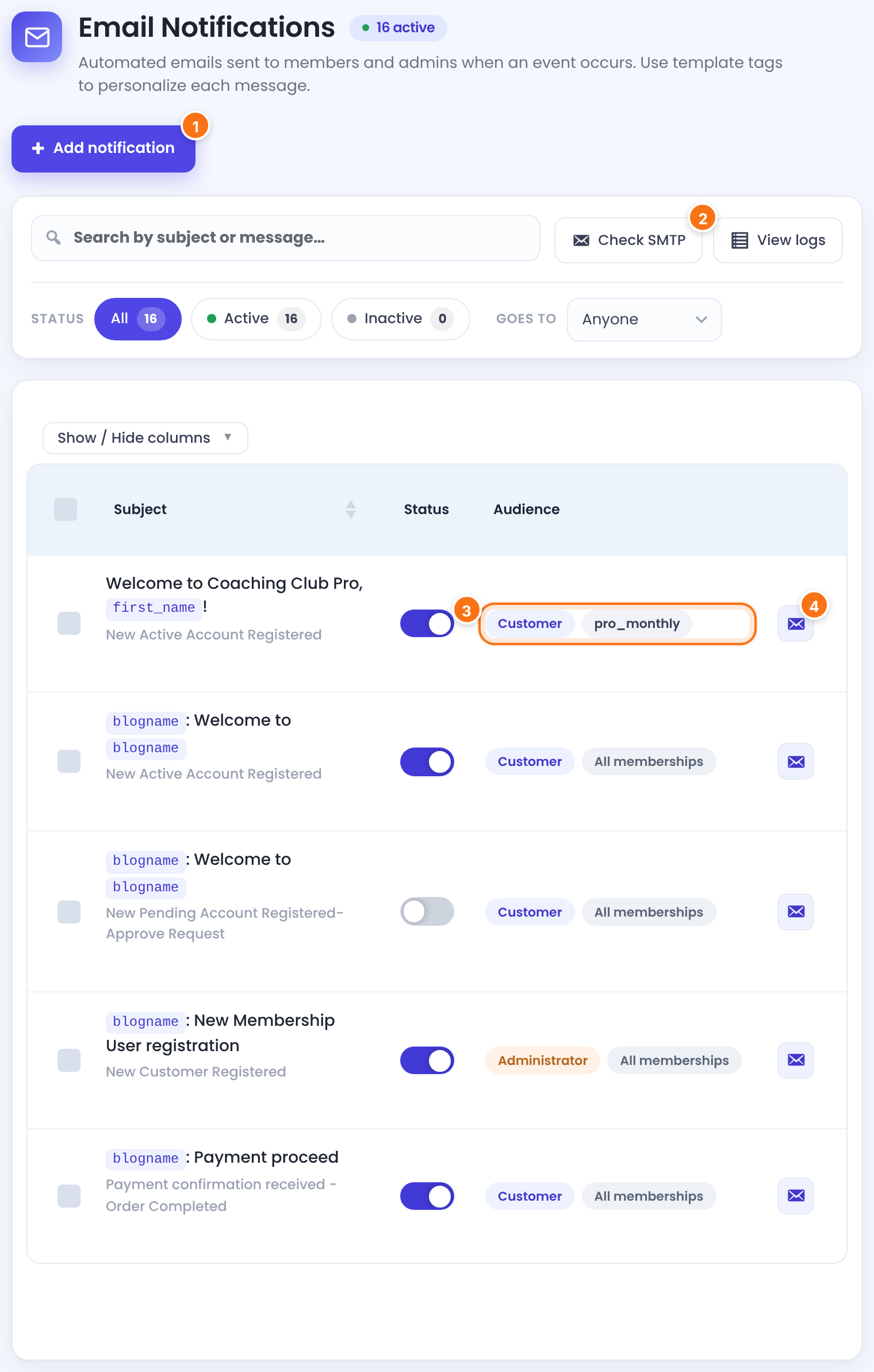
Opens the form for a new notification.
Check SMTP sends a test message to the WordPress admin email to check that your site can send email at all. View logs opens Notification Logs (step 5).
Switches the notification on or off right away, without opening it.
Sends the saved version of this notification to an address you choose.
Who receives it (Customer or Administrator) and the target Membership.
Search by subject or message, Status (All, Active, Inactive) and Goes to (Anyone, Customer, Administrator).
Hover a subject to Edit or Remove it. To remove several, tick them and use Bulk Actions › Remove.
Choose the event and the Membership
- Click Add notification, or Edit under an existing one.
- In When should this notification be sent?, pick the event.
- In Target Membership, keep All memberships or pick one Membership.
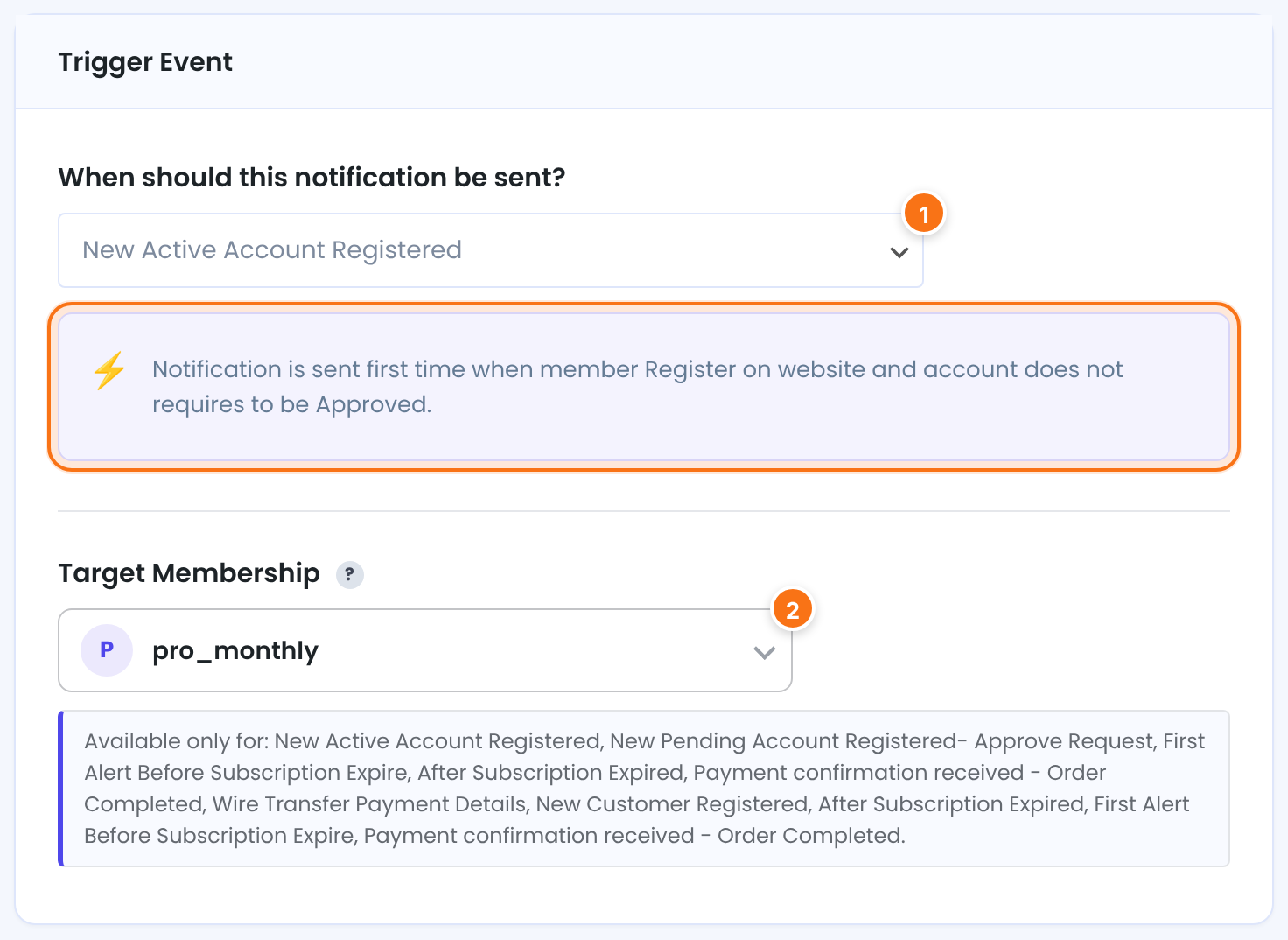
The event. The box under it explains when it fires, and the badge next to the page title shows who receives it (→ Customer or → Administrator).
Send only for members of one Membership. Memberships are listed by their slug. It works for the events in the Available only for list under the field: New Active Account Registered, New Pending Account Registered- Approve Request, First Alert Before Subscription Expire, After Subscription Expired, Payment confirmation received – Order Completed and Wire Transfer Payment Details (member), and New Customer Registered, After Subscription Expired, First Alert Before Subscription Expire and Payment confirmation received – Order Completed (admin).
Default: All memberships
Picking an event replaces the text
When you change the event, the subject and the message are replaced with that event’s default template, also on a notification you already edited. Choose the event first, then write.
Write the subject and the message
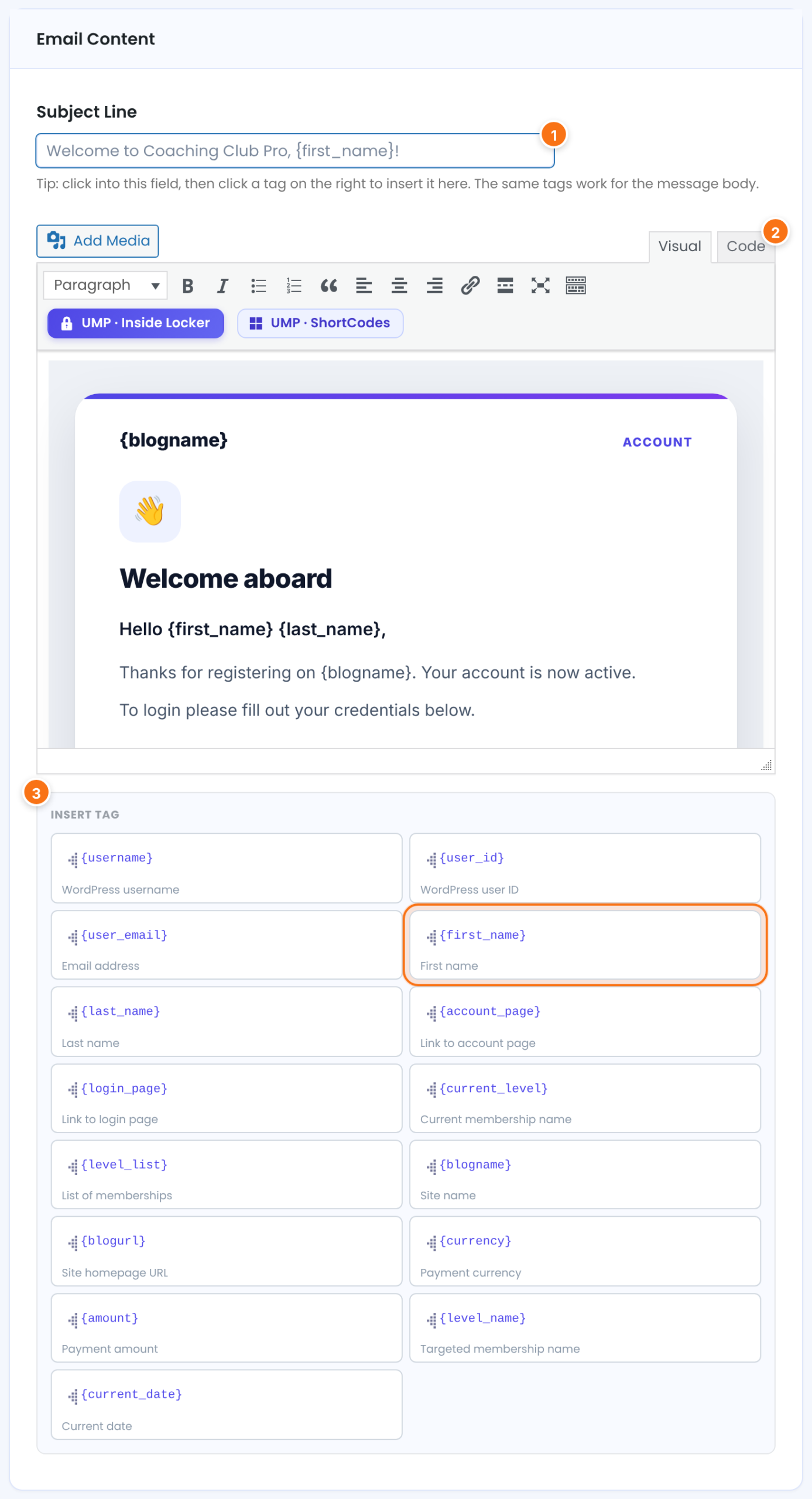
The email subject. Tags work here too: click into the field, then click a tag.
The email body. Each event starts with a designed HTML template. Use Code to edit the HTML itself; the Visual view may change complex HTML such as layout tables.
The tags for this event, each with a short description. Under Custom fields you get one tag per registration field.
Tags are replaced with the member’s data when the email is sent:
{username}, {user_id}, {user_email}, {first_name}, {last_name}
{account_page} (Member Portal), {login_page}, {blogurl} (home page)
{current_level}, {current_level_expire_date}, {level_list}, {level_name} (the Membership the event is about)
{blogname}, {current_date}, {currency}, {amount}
{verify_email_address_link} (Double E-mail Verification Request), {password_reset_link} (Reset Password Step 1), {NEW_PASSWORD} (Reset Password Step 2), {POST_LINK} (When Post become Available), {order_code} (New Order Created, Payment confirmation received and Wire Transfer Payment Details)
{CUSTOM_FIELD_<slug>} for any registration field, for example {CUSTOM_FIELD_phone}. See Add custom fields to the registration form.
The panel only lists the tags that make sense for the chosen event; for example, account emails have no Membership or amount tags. {amount} is a number only, formatted with your decimals and separators. Put {currency} next to it, for example “{amount} {currency}”.
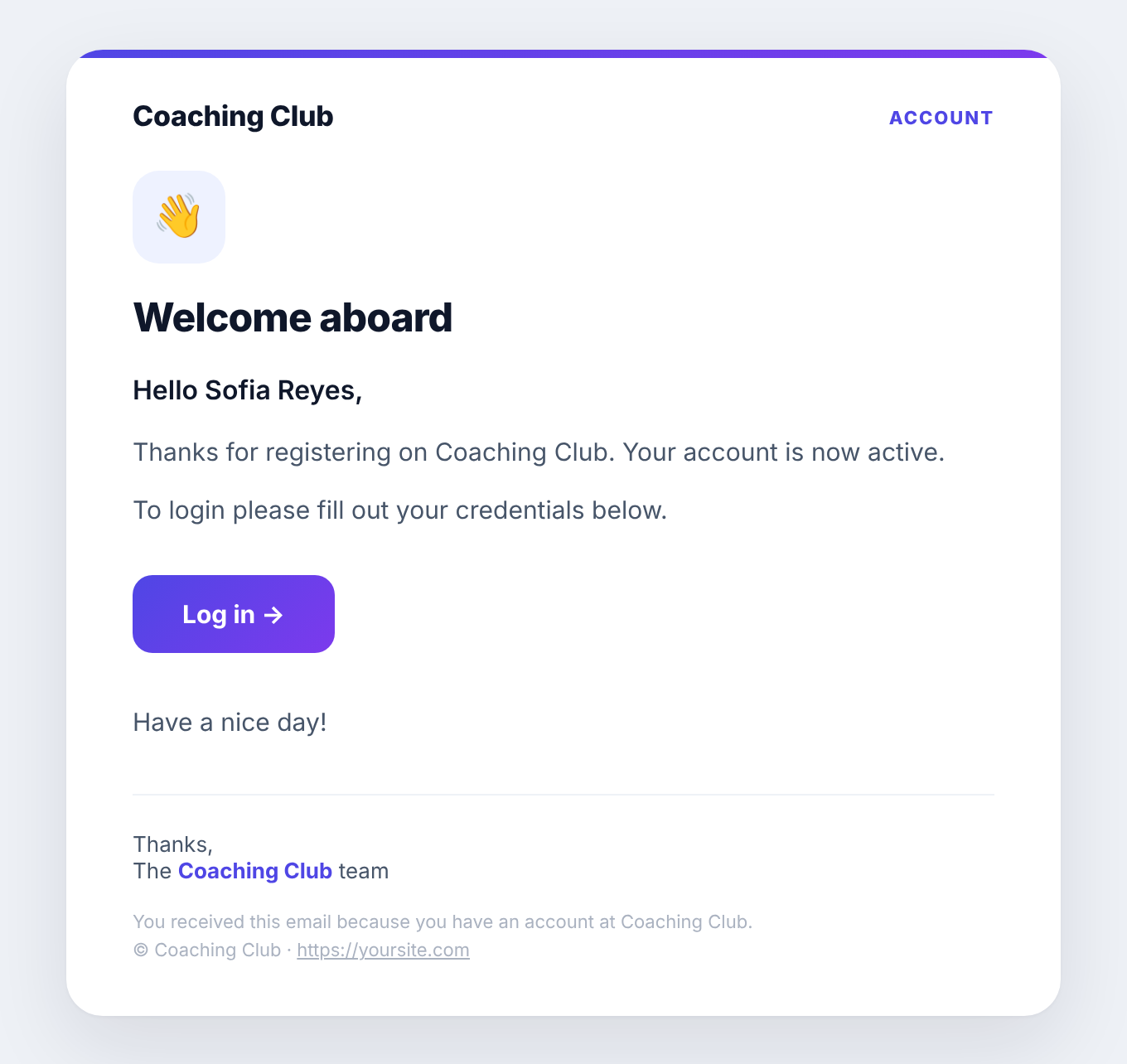
Click Create Notification (or Save Changes when editing). This is what a member gets from the default welcome template:
HTML in emails
Emails are sent as HTML. Style elements with inline style attributes, as the default templates do: many email apps ignore stylesheets. Line breaks you type are turned into paragraphs.
Send a test email
- In the form, click Send Test Email (or the envelope icon in the list).
- Check the To address (your WordPress admin email by default) and click Send Test.
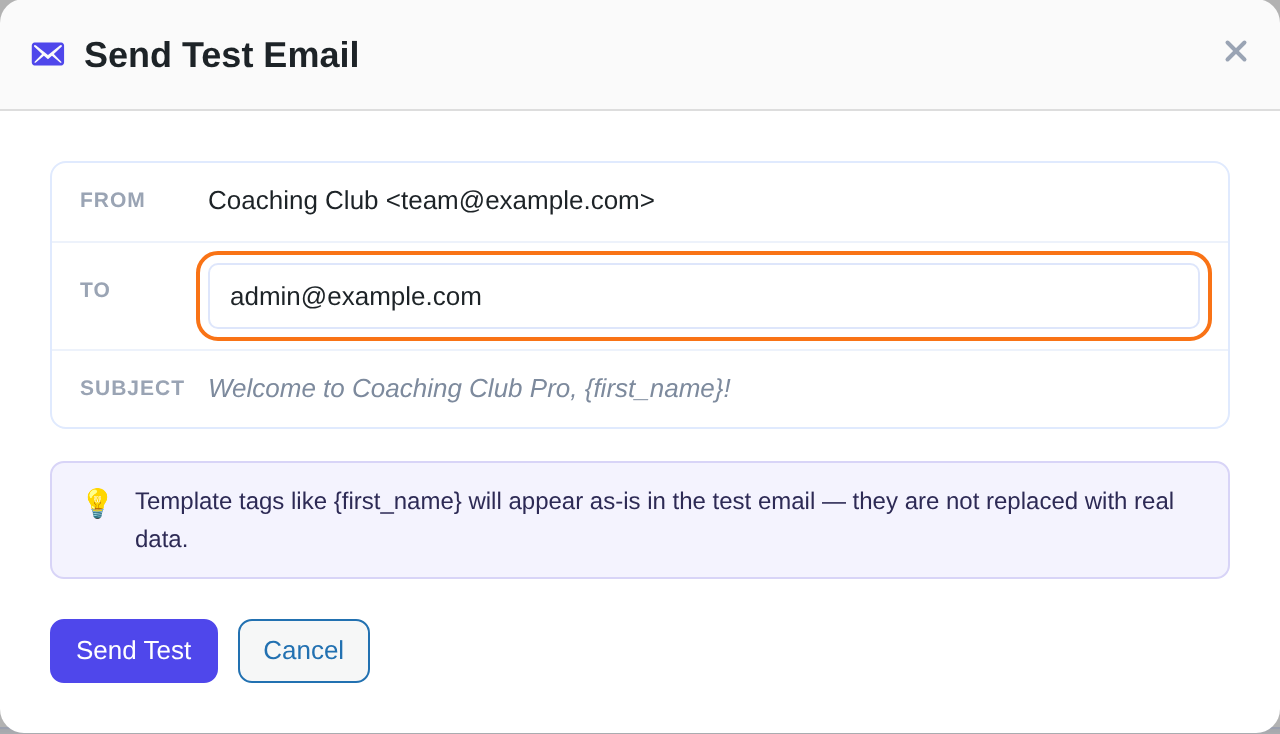
From the form, the test uses the text on screen, even before you save. From the list, it uses the saved version. Template tags stay as they are in a test, for example {first_name}, because there is no member to take data from.
Check what was sent
- Click View logs on the Email Notifications list (it opens in a new tab).
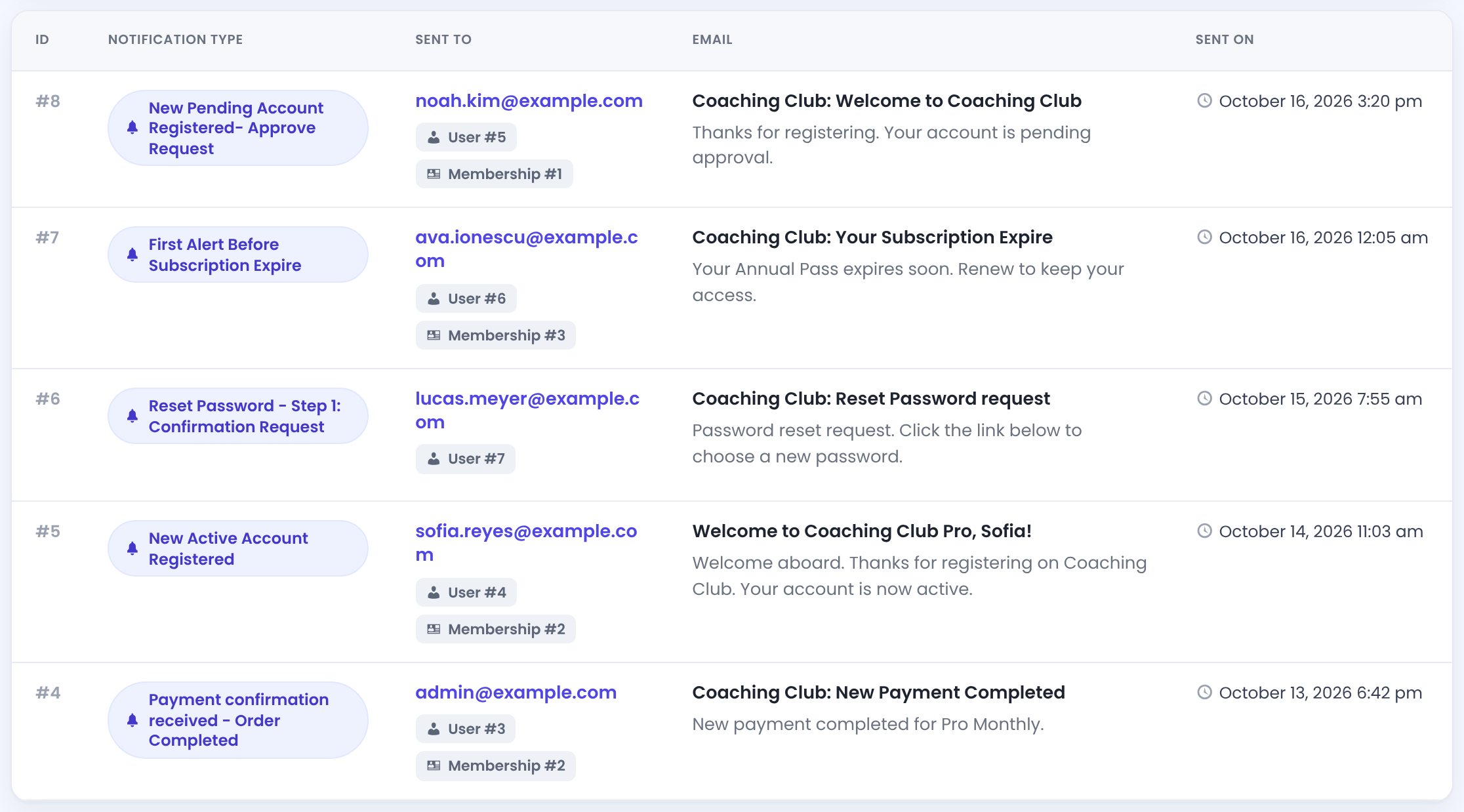
Search by type, email or subject. On a member’s details page, Show more notifications opens the same list for that member only. An email appears here once WordPress accepted it; if it’s listed but never arrived, the problem is delivery (see Emails are not sent). To delete old entries, use Clean Up Notifications logs older than in Ultimate Membership Pro›Settings›Notifications Settings.
Limits and gotchas
Good to know
- One notification per event and target is used. If you create two for the same event and the same Membership, only the most recent one is sent.
- A Membership-specific notification replaces the All memberships one for that Membership, also when it’s switched off. Switch off the Pro Monthly welcome email and Pro Monthly members get no welcome email at all.
- The two welcome emails don’t overlap: New Active Account Registered goes to accounts that can log in right away, New Pending Account Registered- Approve Request to accounts you must approve. After you approve, Account have been Approved by Admin is sent.
- Payment confirmation received – Order Completed is sent for every payment that completes, not only the first one. A member on a recurring Membership gets it again each time a renewal is paid, and the administrator version is sent each time too. It is also sent when you set a bank transfer order to Completed. If you don’t want members to read a “welcome” tone on every renewal, keep the message neutral, for example: “Hi {first_name}, we received your payment for {level_name}. Thank you!”
- Activation Subscription – First Time is sent when a payment gives a Membership its first end date, for example after a new sign-up. Activation Subscription – Renewed is sent when a payment makes a Membership active again after its end date has passed; for a recurring Membership, that is the renewal payment. A payment that arrives before the end date moves the end date forward but doesn’t send the Renewed email. For one payment, a member gets one of the two emails, never both.
- Subjects and messages can be translated with WPML String Translation. See Translate with WPML.
Example: a welcome email for Pro Monthly
- When should this notification be sent?
- New Active Account Registered
- Target Membership
- Pro Monthly
- Subject Line
Welcome to Coaching Club Pro, {first_name}!- Message
- Default template, with a line about the weekly live call
- Status
- Active
- Test
- Sent to admin@example.com before saving
Troubleshooting
Why didn’t a new member get the welcome email?
Check which welcome email applies. If new accounts need your approval, the member gets New Pending Account Registered- Approve Request, not New Active Account Registered. Make sure that notification exists and is active, and that a Membership-specific version isn’t switched off. If no email from your site arrives at all, see Emails are not sent.
How do I add my own HTML to an email?
Edit the notification, switch the message editor to Code, and paste or edit the HTML there. Use inline styles. The Visual view may change complex HTML when you switch back to it.
Why does my test email show {first_name} instead of a name?
Test emails are sent without a member, so template tags are not replaced. Real notifications replace them.
Why is my Target Membership ignored?
Target Membership only works for the events in the Available only for list under the field. For other events, the email goes to every member it applies to.
Can admin emails go to more than one address?
Yes. Enter several addresses separated by commas in Admin Email Address. See Change the sender name and email.
How do I stop an email without deleting it?
Turn off its Status switch in the Email Notifications list. It stays there with its text and can be switched on again.
Why did a member get “Payment confirmation” again this month?
That email is sent for every payment that completes, and each renewal of a recurring Membership is a new payment. You also receive the administrator version each time. Write the message so it reads well on a renewal, for example “We received your payment for {level_name}.”
When is “Activation Subscription – Renewed” sent, and when “First Time”?
First Time is sent when a payment gives the Membership its first end date, such as a new sign-up. Renewed is sent when a payment makes a Membership active again after its end date has passed, for example a recurring payment that arrives on or after the renewal date. A payment that arrives before the end date extends the Membership without sending Renewed. A member gets only one of the two for a payment.


