
The Ultimate Membership Pro setup wizard gets a new membership site running in six short steps. It activates your license, sets the basics such as the currency, turns on a payment gateway, creates your first Membership and picks the emails members receive.
On a new install, the wizard opens the first time you open any Ultimate Membership Pro screen. This guide goes through each step.
Before you start
- Ultimate Membership Pro is installed and active. See Install Ultimate Membership Pro.
- Your license key is at hand. See Find and activate your license key.
- To take card payments with Stripe, you have a Stripe account you can log in to.

Click Continue to save a step and move to the next one, or Back to return. The last step’s button reads Complete.
License
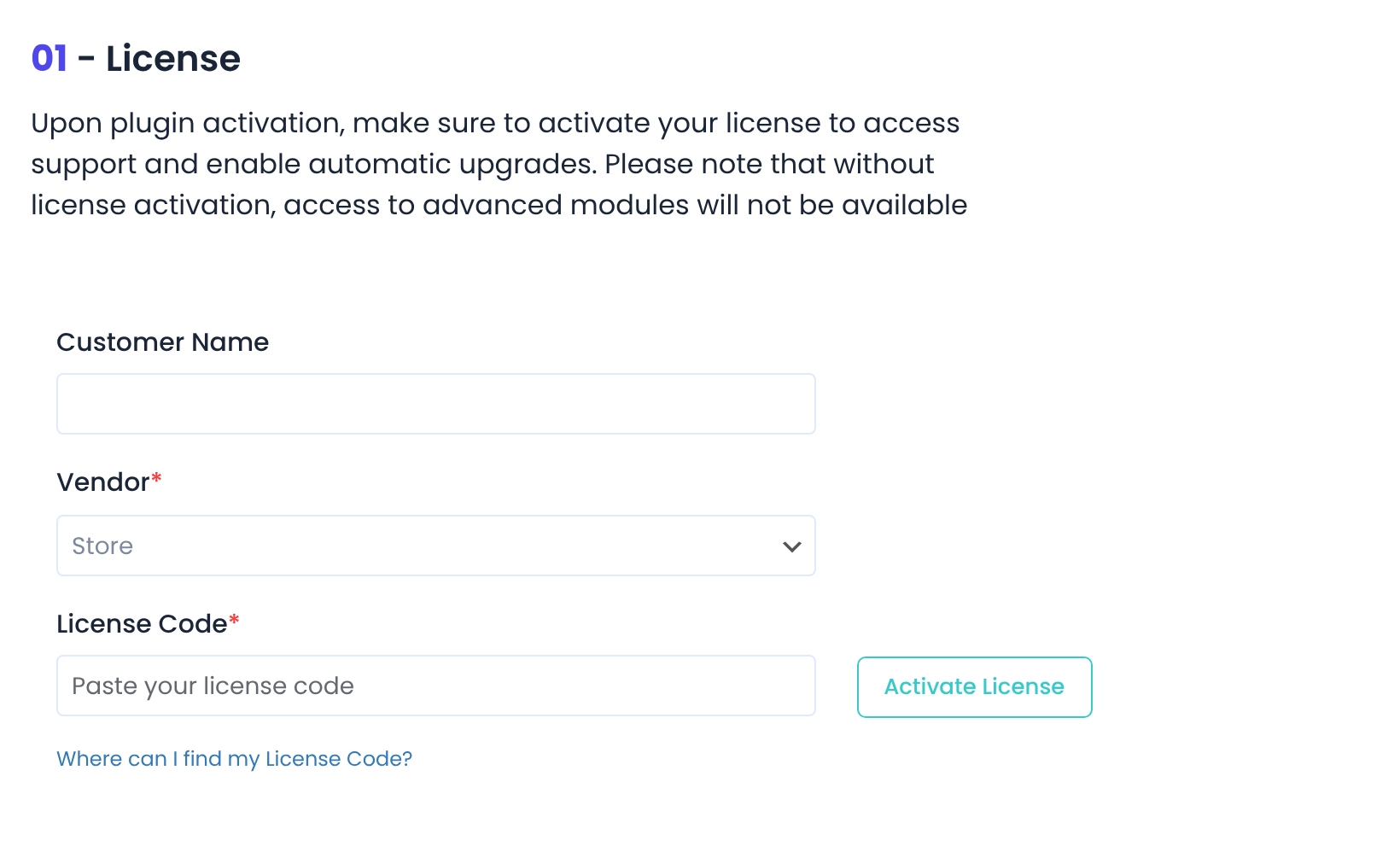
Your name.
Leave it on Store.
Default: Store
Paste your key, then click Activate License. Your browser briefly goes to the license server and comes back.
You can’t continue without an active license. To do it later, click Skip this Step.
General Options
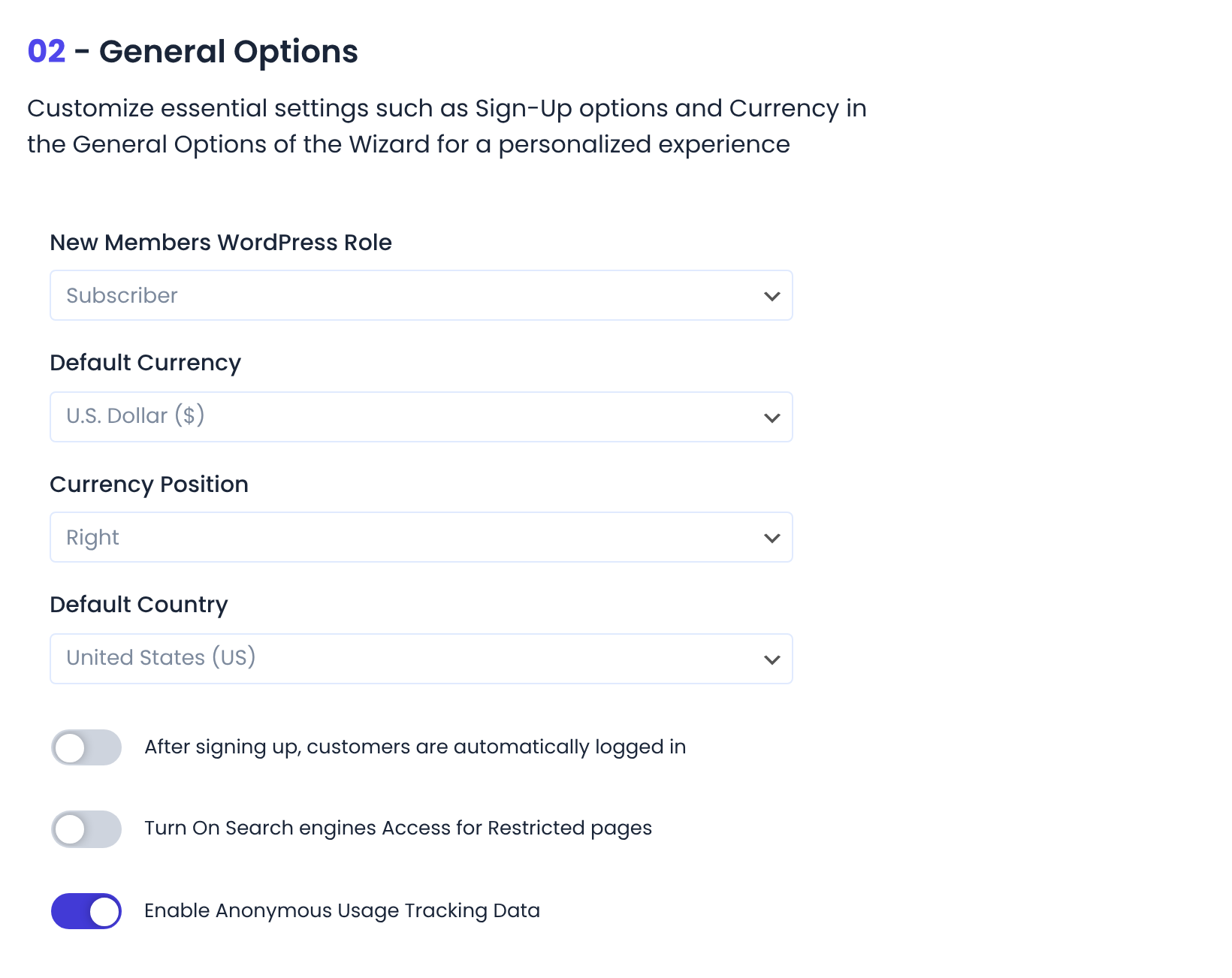
Whether the currency symbol shows before (Left) or after (Right) the price.
Default: Right
Pre-selected in country fields.
Default: United States (US)
Turn it on to skip the login step after registration.
Default: Off
Lets search engines index pages you restricted.
Default: Off
Payment Options
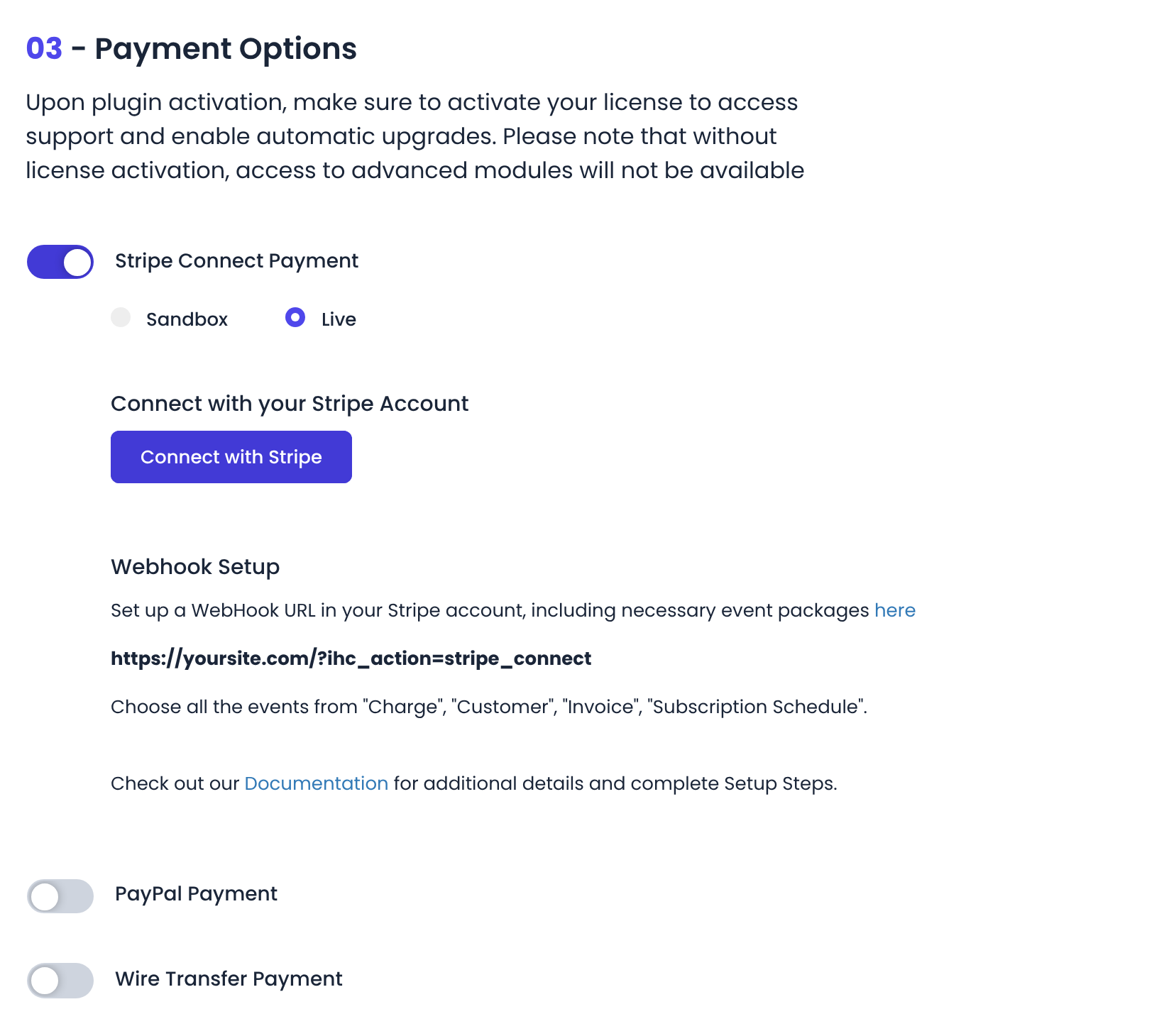
Turn on at least one gateway. You can add the others later from the Payment Gateways screen.
Choose Sandbox or Live, then click Connect with Stripe and log in to Stripe. Under Webhook Setup the wizard shows the webhook URL to add in Stripe, with all events from Charge, Customer, Invoice and Subscription Schedule. See Stripe Connect – Setup Documentation.
Choose Sandbox or Live and enter your Merchant Email and Merchant account ID.
Write the Wire Transfer Instructions buyers see after they order, such as your bank details.
The name of each gateway as buyers see it.
Membership Plan
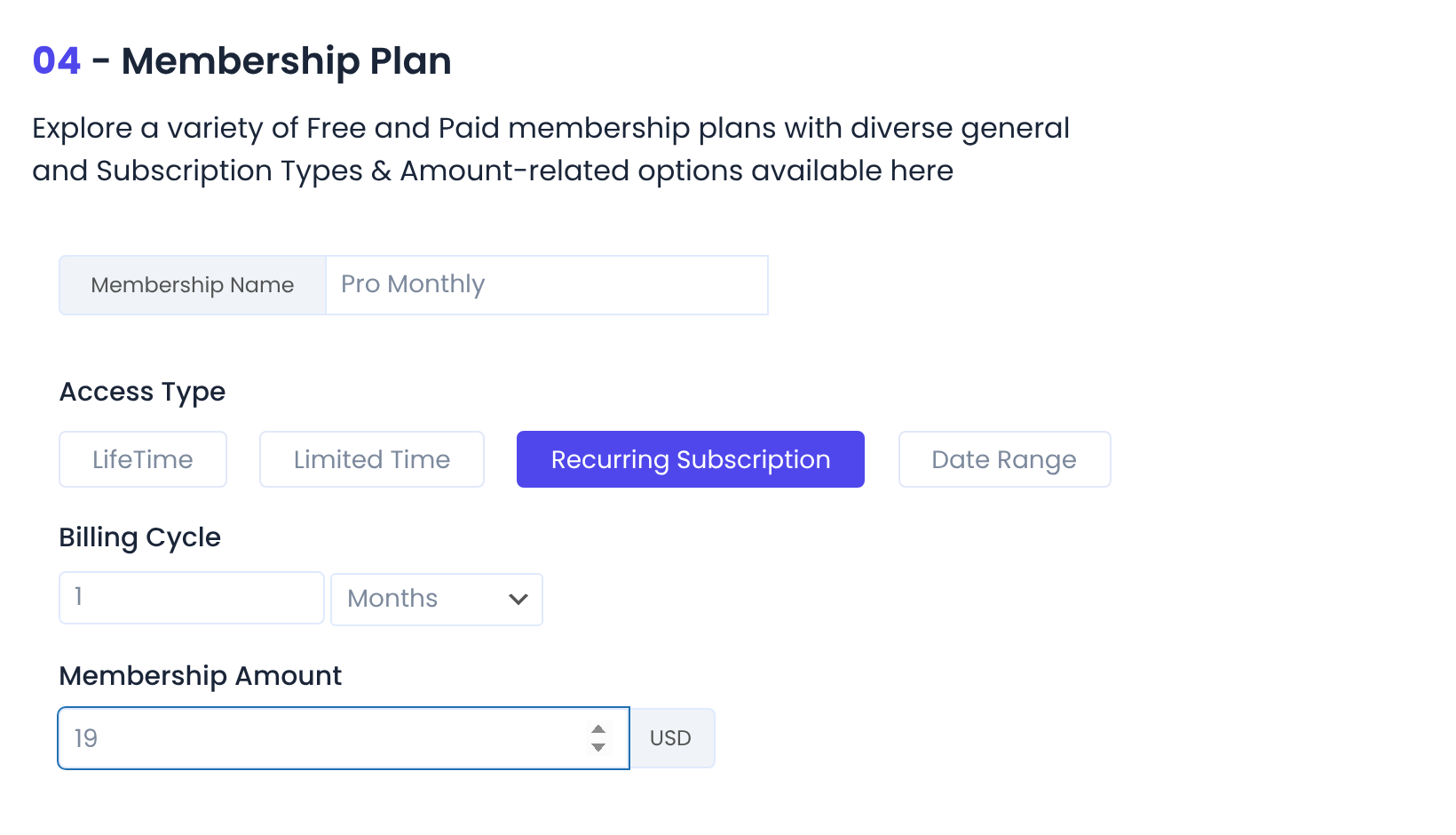
The plan name members see.
LifeTime, Limited Time, Recurring Subscription or Date Range.
Default: LifeTime
How long access lasts, for example 3 Months.
The first and last day of access.
How often the plan renews, for example 1 Months.
Leave it empty or 0 for a free Membership. A Recurring Subscription needs an amount.
You can add trials, expiry rules and the rest later. See Create your first Membership.
Email Notifications
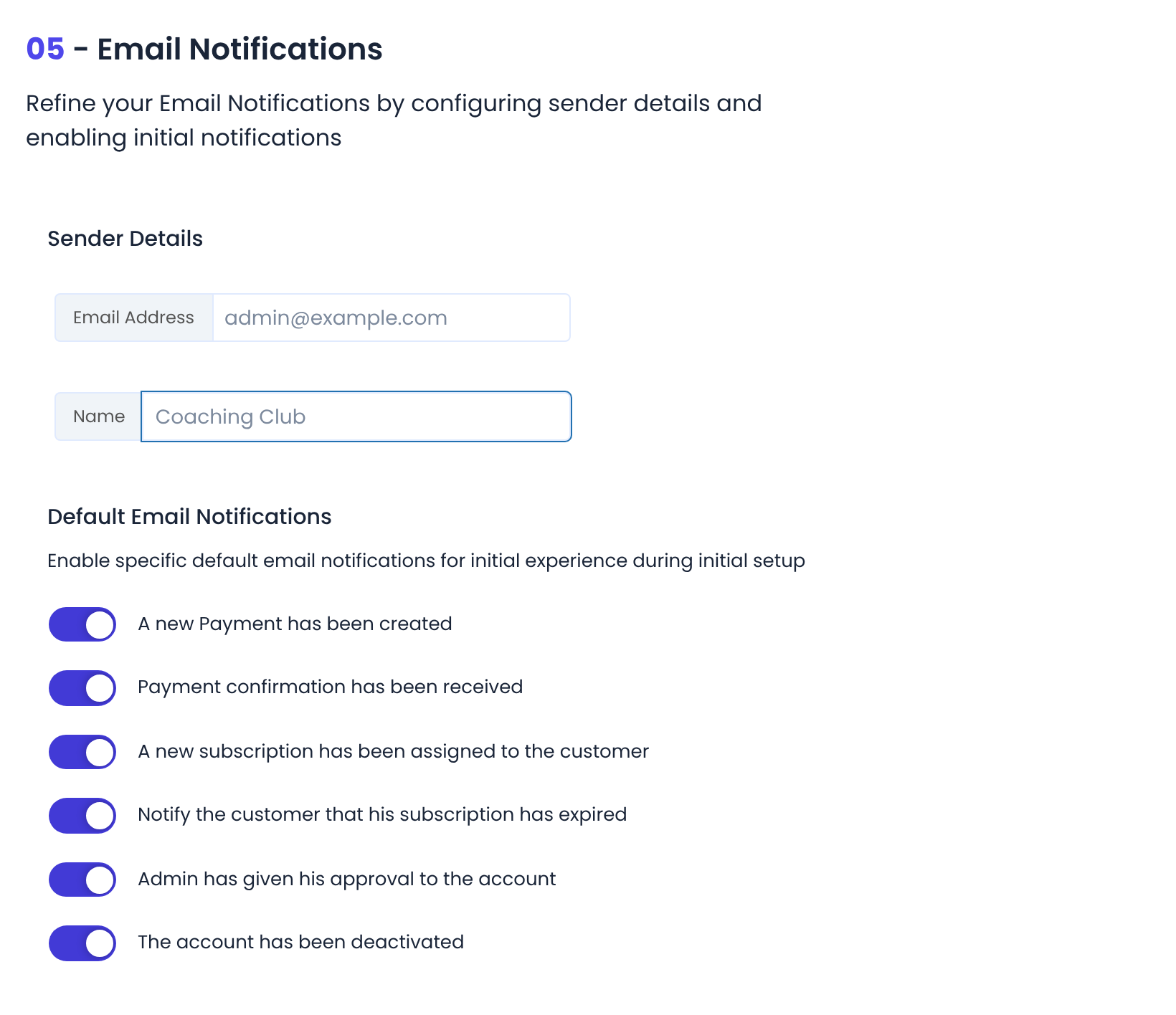
The sender name members see, such as your site name.
- A new Payment has been created
- Payment confirmation has been received
- A new subscription has been assigned to the customer
- Notify the customer that his subscription has expired
- Admin has given his approval to the account
- The account has been deactivated
Default: All on
Complete
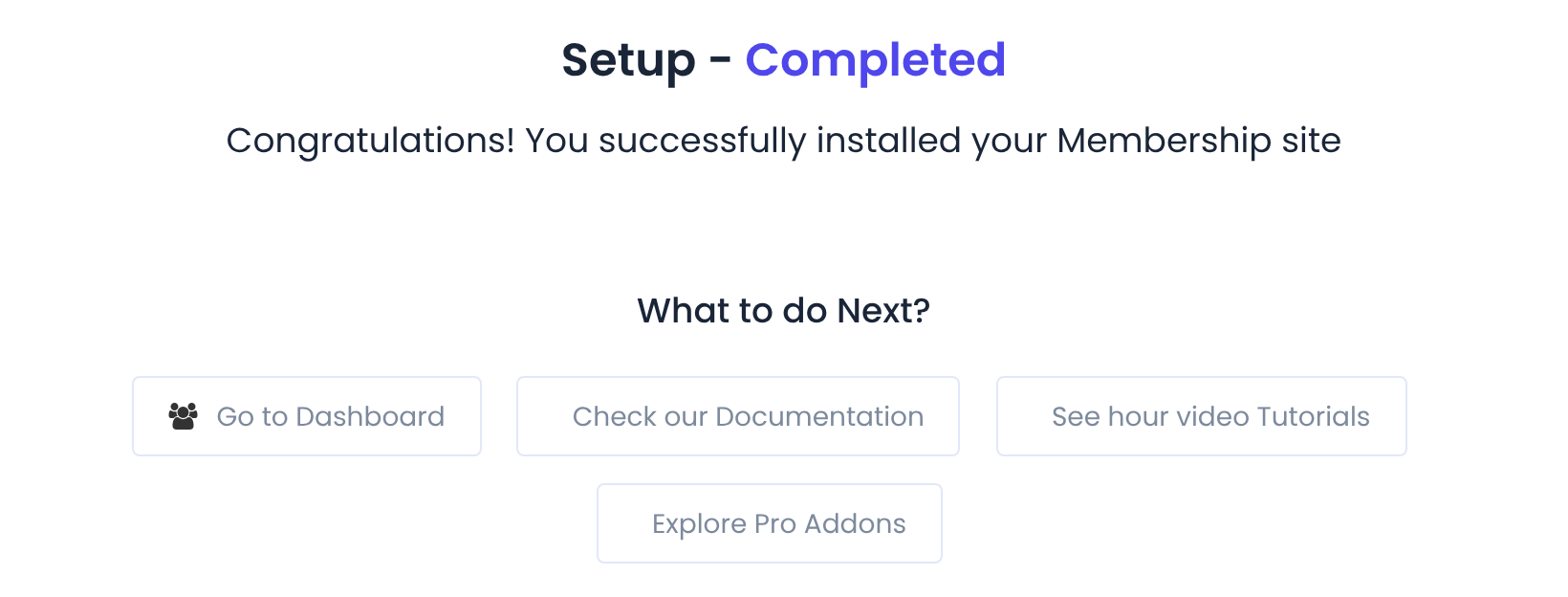
The last screen confirms the setup and links to the dashboard, the documentation and the add-ons. The wizard doesn’t run again after this; change the same options later under Ultimate Membership Pro›Settings.
Skip the wizard
Prefer to set things up yourself? Click Skip The Wizard and Setup Manually at the bottom of any step. The plugin then creates the default email notifications and three demo Memberships (Free, One Time Plan and Recurring Plan) and opens the Members screen. Edit or delete the demo plans when you create your own.
Left the wizard halfway?
If you leave the wizard without finishing or skipping it, the plugin shows a warning that the Wizard Setup was not completed, with a link back to it. You can dismiss the warning for 48 hours.
Example: Coaching Club
- License
- Activated in step 1
- New Members WordPress Role
- Subscriber
- Default Currency
- U.S. Dollar ($)
- Payment Options
- Stripe Connect Payment, Live
- Membership Name
- Pro Monthly
- Access Type
- Recurring Subscription
- Billing Cycle
- 1 Months
- Membership Amount
- $19
- Sender Name
- Coaching Club
Troubleshooting
“Please activate Ultimate Membership Pro.”
The license isn’t active yet. Activate it in step 1, or click Skip this Step.
“Please select at least one Payment Service.”
Switch on Stripe Connect, PayPal or Wire Transfer in step 3.
“Please complete Setup and connect your Stripe Account.”
Click Connect with Stripe and finish the connection in Stripe, or switch Stripe off.
“Please Enter a valid Membership Name” or “Please complete the price of the Membership”
Fill in the Membership Name. A Recurring Subscription also needs an amount above 0.
The wizard doesn’t open
It only opens on new installs. Once finished or skipped, use the Settings screens.


