
To move a membership site built with Ultimate Membership Pro to a new domain or host, you copy the whole WordPress site, then fix the two things that depend on your address: your license and your payment notifications. Members, Memberships and orders travel with the database.
This guide lists what to copy, moves the license, updates Stripe and PayPal, checks the site after the move, and shows how to run a staging or test copy without charging cards or emailing members.
Before you start
- You can use a migration plugin, or your host’s own copy or move tool, to copy a WordPress database and the wp-content folder. See the WordPress handbook on migrating a site.
- The new server meets the requirements.
- You can log in to the old and the new site as an administrator.
- You can log in to your Stripe and PayPal accounts, and to your account on ultimatemembershippro.com for the license.
What to copy when you move a membership site
Members are regular WordPress users. Ultimate Membership Pro keeps everything else in its own database tables and in WordPress options, so one complete copy of the database carries all of it.
Stored as WordPress users, in the users and usermeta tables.
Stored in tables created by the plugin, for example ump_memberships, ihc_orders, ihc_coupons and indeed_members_payments. Notifications and taxes have their own tables too. All of them start with your WordPress table prefix, such as wp_. Keep the same prefix on the new site, or use a migration tool that renames the tables.
Stored as options in the options table, with names that start with ihc_. This includes your gateway settings and your Pages Setup.
Files the plugin saves are in wp-content/uploads/ultimate-membership-pro. Copy the whole wp-content folder.
Pick the method that fits what you want to move.
Move the whole site
- Use when
- The same site gets a new domain or host
- Copies
- Members, Memberships, orders, settings
- How
- Migration plugin or host tool
Copy only the settings
- Use when
- You build a new site
- Copies
- Plugin settings, not members or orders
- How
- Export and import plugin settings
Export-Import is not a site migration
The settings file from Ultimate Membership Pro›Export-Import doesn’t include Memberships, members, orders or your Pages Setup. Use it to copy a setup to a new site, not to move a running one. To bring only your members, see Import members from a CSV file.
Back up the old site
- Make a full backup of the database and the wp-content folder. Store it outside the server you are leaving.
- Write down your payment setup: which gateways are on, and in Ultimate Membership Pro›Payment Gateways whether each one is in live or test mode.
- Choose a quiet time. Orders and sign-ups made on the old site after you copy the database are not in the copy.
For a backup method, see the WordPress handbook on backups.
Copy the site to the new domain or host
- Copy the database and the wp-content folder with your migration plugin or your host’s tool. Let it replace the old address with the new one in the database.
- Open the new site and log in as an administrator.
- Go to Ultimate Membership Pro›Members and check that your members and their Memberships are there.
Until you finish the next steps, the new site can’t confirm payments and runs without an active license.
Move your license
The license is activated for one domain, so the new domain counts as a new site. Revoke it on the old site, then activate it on the new one. The full steps are in Move your license to another site and Find and activate your license key.
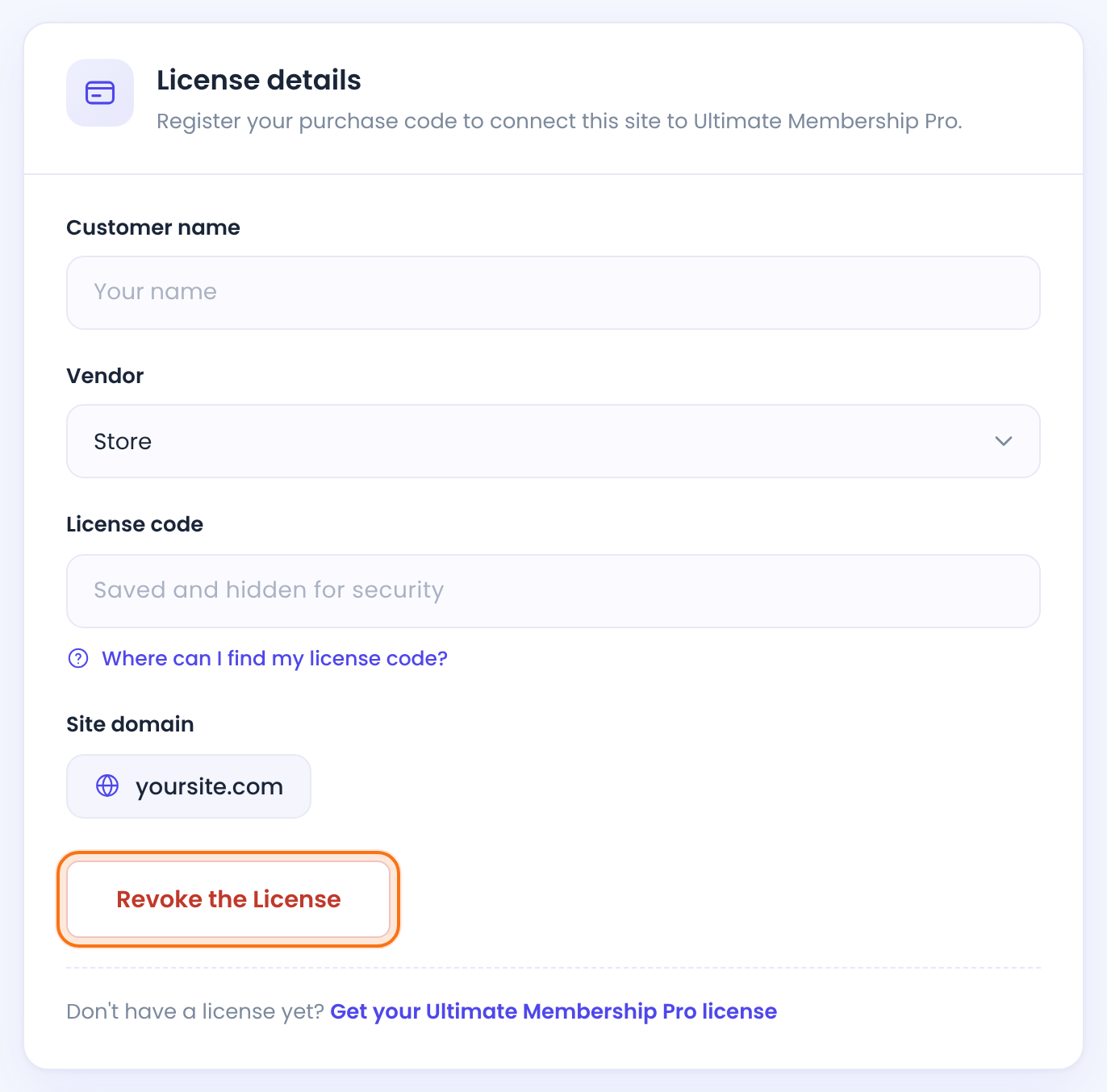
- On the old site, go to Ultimate Membership Pro›Licensing and click Revoke the License.
- On the new site, go to Ultimate Membership Pro›Licensing, paste your key and click Register the License or Activate the License.
- If the old site is gone, remove it from the Manage Sites list in the Licenses tab of your account on ultimatemembershippro.com.
Update your payment gateways
Payment providers confirm payments by calling your site. Each gateway has its own notification address, made of your site address followed by ?ihc_action= and a gateway code. After a move, the address changes with your domain, so the provider has to be told the new one. Until then, new orders stay Pending.
For the Coaching Club site, which moves to newsite.com, the new addresses look like this:
https://newsite.com/?ihc_action=stripe_connect
https://newsite.com/?ihc_action=stripe_checkout
https://newsite.com/?ihc_action=paypal
The exact address for your site is shown on each gateway’s page under Webhook URL, with a copy button. Open Ultimate Membership Pro›Payment Gateways, click Manage on a gateway and copy it from there.
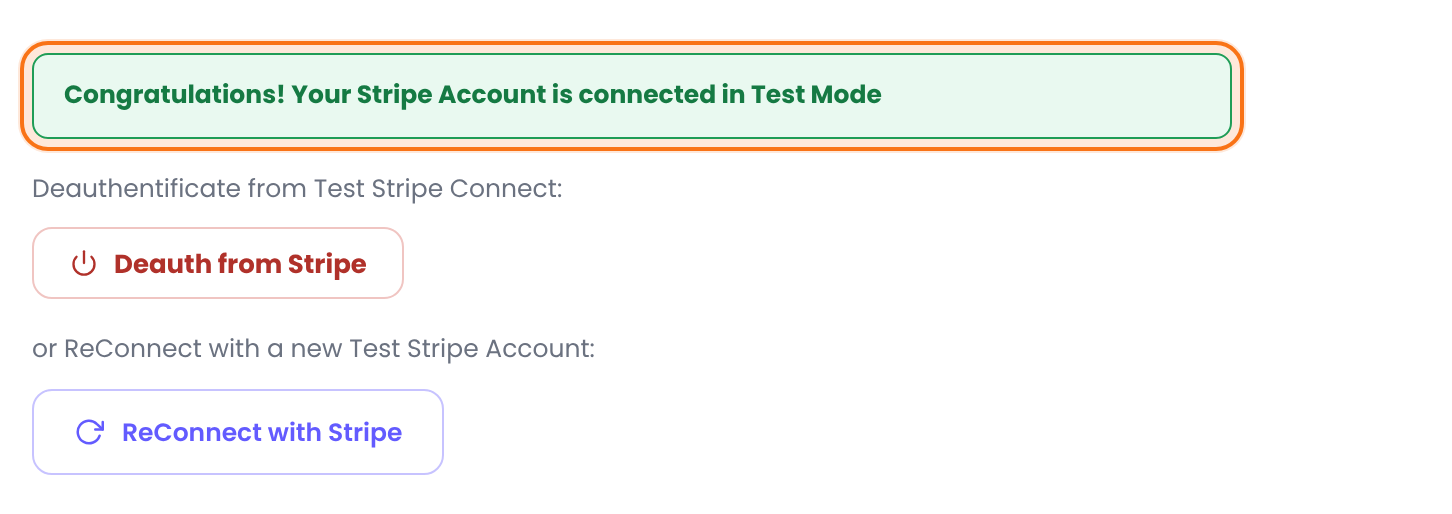
The account connection is saved in your site settings, so the database copy brings it along. On the Stripe Connect Gateway page, check that the Environment you use shows Congratulations! Your Stripe Account is connected in Live Mode. If it says the account is not connected, click Connect with Stripe. Then, in your Stripe dashboard, change the webhook endpoint to the new address (or add a new endpoint and delete the old one), with all events from Charge, Customer, Invoice and Subscription Schedule. Do this in the same Stripe mode, test or live, as the connection. See Set up Stripe.
The API keys are saved in your site settings and move with the database. In Stripe, point the webhook endpoint to the new address. Keep the events from Charge, Customer, Invoice and Subscription Schedule, and checkout.session.completed. See Set up Stripe Checkout.
In your PayPal account, open the Instant payment notifications settings and replace the old address with the new one. In a PayPal sandbox account, the setting is under Website payments. See Set up PayPal Standard.
Some gateways need the address in the provider’s dashboard, others receive it automatically with each payment. The list is in Paid, but the Membership is still on hold. Wire Transfer has no address.
Subscriptions keep running at the provider
Stripe and PayPal keep charging recurring plans as long as you use the same provider account. Every renewal is reported to your site, and your site adds the order and extends the Membership when that report arrives. So the new address has to be in place before the next renewal date. If your old site is offline while you switch, Stripe tries to deliver webhook events again for up to three days in live mode (see Stripe’s webhook documentation).
Check the first PayPal renewals
Ultimate Membership Pro adds the notification address to a PayPal subscription when the member signs up. After the move, check that each PayPal renewal creates a new Completed order in Ultimate Membership Pro›Payment History. If one doesn’t, see Paid, but the Membership is still on hold.
Check the pages and the permalinks
- Go to Ultimate Membership Pro›Settings and open Pages Setup. Check that every drop-down shows a page. The pages move with the database, so they should be the same ones. See Set up the membership pages.
- Go to Settings›Permalinks in WordPress and click Save Changes once, even if you changed nothing. It rebuilds the page addresses.
- Open the Register, Member Login and My Account pages in a private window. Check that they load on the new domain.
- Open a restricted page as a visitor and as a member with the right Membership.
Test a purchase
Test before you tell members the new site is open. You can buy in test mode, with the gateway’s Environment set to Test Mode or Sandbox, or buy a low-priced Membership yourself in live mode.
- For Stripe Connect, Test Mode and Live Mode are connected separately and use separate webhooks in Stripe. Connect and add the webhook for the mode you test in. The test card is
4000002500003155, expiry 12 of next year, any CVC. - For PayPal, use a sandbox Merchant account and a sandbox Buyer account, and set the Environment to Sandbox.
- Open the new site in a private window and buy Pro Monthly.
- In Ultimate Membership Pro›Payment History, the order turns Completed when the provider’s notification arrives, and the Membership becomes active.
- Set the gateway back to Live Mode (or Live) when you finish, and save.
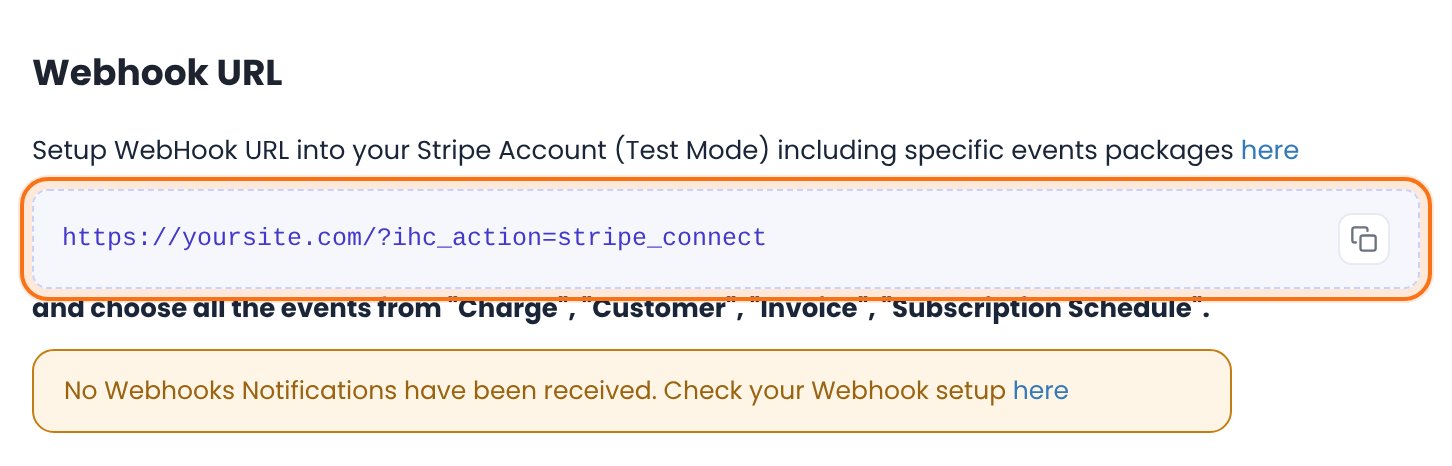
The Stripe Connect page shows Last Webhook Notification received at. That time is saved in your database, so on a moved site it can still show a time from before the move. Run a test payment and check that it changes.
Delete test orders
Test orders and test members stay in your reports. Remove them before you open the site. You can complete or review orders in Manage payments and orders.
Check that scheduled tasks and emails work
Expiry checks, payment due and card expiry reminders, grace period and trial emails, and drip content notifications run as WordPress scheduled tasks (WP-Cron). A new host can run them differently.
- Look at the top of the plugin screens. If you see Crons are disabled on your WordPress Website, your host turned WP-Cron off. Ask the host to run wp-cron.php from a server cron job. See Emails are not sent.
- Go to Ultimate Membership Pro›Email Notifications and click Check SMTP. The test email goes to your WordPress admin address.
- Open Tools›Site Health in WordPress and check that it reports no problem with scheduled events.
If your sender address used the old domain, update it. See Change the sender name and email.
Run a staging or test copy
A copy of your live site is a full copy of its settings. That includes your gateway connection and keys, your notifications and your scheduled tasks. Before anyone opens the copy, make it harmless.
In Ultimate Membership Pro›Payment Gateways, set Stripe Connect to Test Mode, and PayPal and the other gateways that have an Environment setting to Sandbox or their test mode. Stripe Checkout has no switch: replace the live keys with test keys. Export and import plugin settings has the same advice.
The copy still holds the live connection until you change the Environment. Don’t add the copy’s address to your live Stripe or PayPal notification settings. If the copy is protected by a password or runs on a local computer, providers can’t reach it anyway.
Notifications use the members of the copied database, and scheduled tasks send expiry and reminder emails on their own. Install an SMTP or mail-blocking plugin on the copy, and switch on its option to stop outgoing email or to send all email to one address. You can also set single notifications to Inactive in Ultimate Membership Pro›Email Notifications. See Set up email notifications.
A staging domain counts as its own site. See Move your license to another site.
Do this before the first visit
Set the gateways to test mode and stop outgoing email before you open the copy in a browser. Visitors and scheduled tasks can trigger payments and emails as soon as the site loads.
Example: Coaching Club moves to a new host
- Backup
- Database and wp-content, kept off the old server
- Copy
- Migration plugin, address replaced with newsite.com
- License
- Revoked on yoursite.com, activated on newsite.com
- Stripe Connect
- Connected in Live Mode, webhook changed to newsite.com/?ihc_action=stripe_connect
- PayPal Standard
- Instant payment notifications set to newsite.com/?ihc_action=paypal
- After the move
- Pages Setup checked, Permalinks saved
- Test
- Pro Monthly bought in test mode, order Completed
- Scheduled tasks
- Check SMTP sent, no cron notice
Learn more about moving a membership site
- Stripe with Ultimate Membership Pro
- PayPal with Ultimate Membership Pro
- Payment gateways
- Migrating WordPress in the WordPress handbook
- Stripe webhooks in the Stripe documentation
Troubleshooting
After the move, orders stay Pending. What is wrong?
The provider is still sending notifications to the old address, or it can’t reach the new one. Copy the Webhook URL from the gateway’s page, set it in the provider’s dashboard, in the same mode (test or live) you pay in, and make sure the address isn’t behind a password or maintenance mode. See Paid, but the Membership is still on hold.
Stripe Connect says my account is not connected after the move. What do I do?
The connection is saved in your site settings in the database. If the page says the account is not connected, check that the Environment is the mode you connected, and that your migration copied all options. If it still says not connected, click Connect with Stripe and connect the same Stripe account again. Then check the webhook in Stripe. See Set up Stripe.
The license shows Not activated on the new domain. Why?
A new domain counts as a new site, so the license has to be activated there. Revoke it on the old site (or remove the old site in Manage Sites in your account), then activate it on the new one. If it still fails, see Plugin or license won’t activate.
Membership pages show a 404 error or the wrong content after the move. How do I fix it?
Go to Settings›Permalinks and click Save Changes. Then open Ultimate Membership Pro›Settings, Pages Setup, and check that each drop-down shows a page. A message such as “Default Login Page is missing!” means no page is assigned for that type.
Do members have to log in again?
Yes, if the domain changed. Browsers keep the login cookie per domain, so members log in once on the new domain. Their Memberships and account details are unchanged.
Do recurring subscriptions keep billing after the move?
Yes. Stripe and PayPal keep charging as long as you use the same provider account. Each renewal needs the provider to reach your site, so update the notification address first, then check that the next renewal shows as a new Completed order in Payment History.
My staging copy emailed my members. How do I prevent it?
Stop outgoing email on the copy with an SMTP or mail-blocking plugin before you open it, and set the gateways to test mode. The steps are in the staging section above. For emails that don’t arrive, see Emails are not sent.


