
In Ultimate Membership Pro, a dripped lesson only helps if members know it’s open. The Drip Content Notifications module checks once a day which scheduled posts have become available and emails the members who can now read them.
This guide turns the module on and sets up the email it sends.
Before you start
- Your license is active. Modules only switch on with an active license; see Find and activate your license key.
- At least one post has a drip schedule. See Release content over time.
- WP-Cron runs on your site. If your host disables it, set up a server cron job that calls wp-cron.php.
Switch on the module
- Go to Ultimate Membership Pro›Modules and open Drip Content Notifications (in the Content Protection group).
- Switch on Activate/Hold Drip Content Notifications.
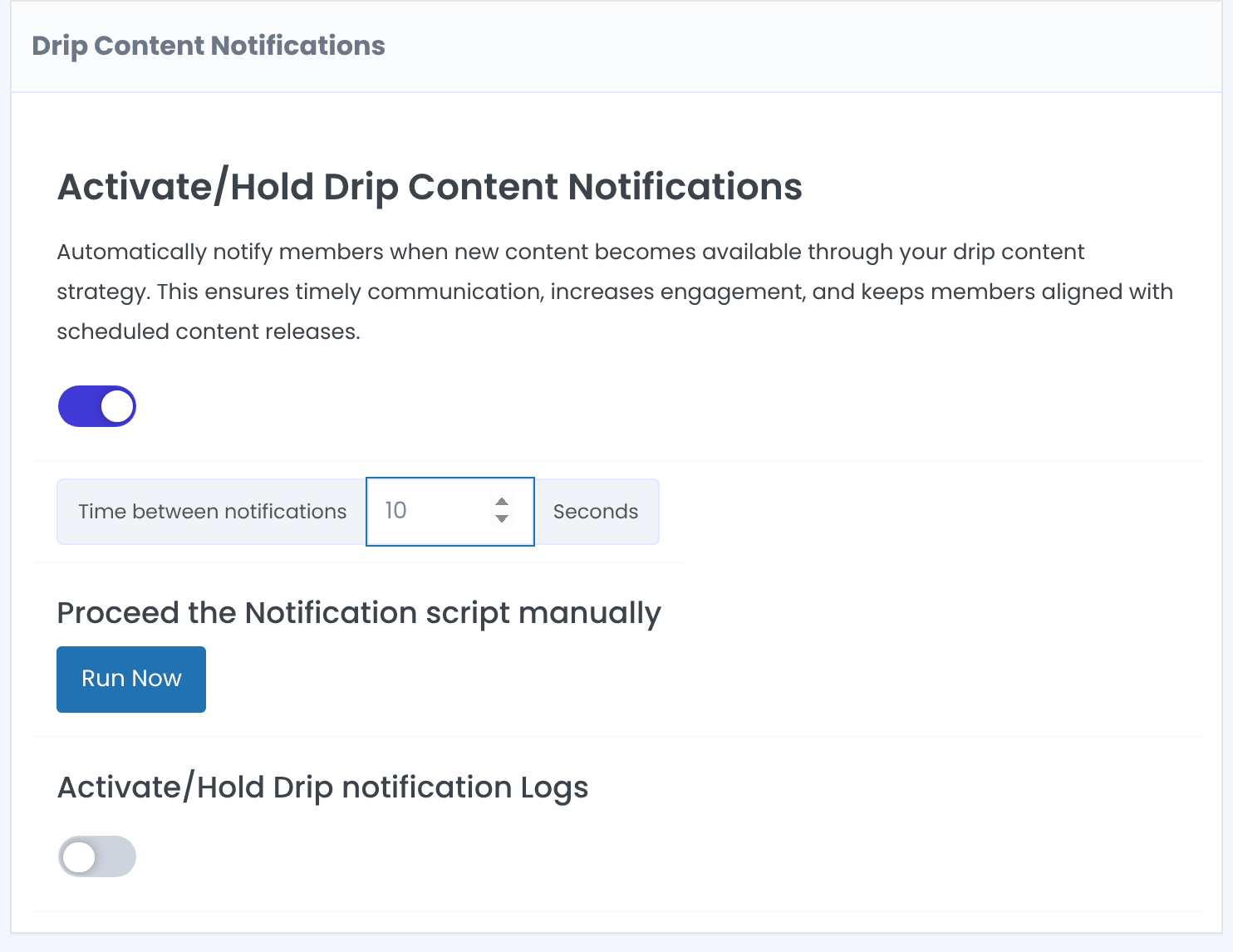
Turns the daily check on.
Default: Off
Seconds to wait between two emails, so your mail server isn’t flooded.
Run Now runs today’s check immediately instead of waiting for the daily run.
Keeps a log of each run. Open it with View Logs; remove old entries with Clean Up Logs older than: One Day, One Week or One Month.
Default: Off
Click Save Changes.
Create the email
- Go to Ultimate Membership Pro›Email Notifications and add a new notification.
- In When should this notification be sent?, pick When Post become Available (in the Drip Content group).
- Leave Target Membership on All memberships, or pick one Membership to give its members their own text.
- Write the subject and the message. Use
{POST_LINK}where the link to the post should go. - Click Create Notification.
The default subject is “{blogname}: A new Post has become available”. If no active notification of this type exists, nothing is sent.
When emails go out
On the release date, every member who matches the post’s Locker gets the email.
Each member gets the email on the day their delay ends, for example 7 days after their Membership started.
No email: the post is open from the first day.
Good to know
- The check runs once a day through WP-Cron, so an email can arrive some hours after the post opens.
- On a busy site with many members, a long wait between emails makes a run take a long time. Keep it short if your mail service allows it.
Example: weekly lesson emails
- Module
- On, 10 seconds between emails
- Notification
- When Post become Available, All memberships
- Subject
- Your next lesson is ready
- Message
- Week 2 is open for you: {POST_LINK}
Troubleshooting
No emails are sent
Check, in order: the module is on and saved, a When Post become Available notification exists and is active, the post uses On Specific Date or After Subscription, and WP-Cron runs. Click Run Now to test, with logs switched on.
I can’t open the module
The license isn’t active. The module card says Activate license; activate it on the Licensing screen.
Emails go out but don’t arrive
The problem is mail delivery, not the module. See Set up email notifications.


