
On an Ultimate Membership Pro site, a good menu changes with the person looking at it. Visitors see Login and Join; members see My Account and the members area. To restrict WordPress menu items, Ultimate Membership Pro adds a show or block rule to every link of your menus.
This guide shows a Member Login link only to visitors and a My Account link only to logged-in users. There are two places to do it; both save the same rule.
Before you start
- Your site uses a WordPress menu (Appearance › Menus).
- Hiding a link doesn’t lock the page behind it. Lock the page too: Restrict your first page.
Edit the menu item
- Go to Appearance›Menus and select your menu.
- Click the arrow on a menu item to open its settings.
- Under Ultimate Membership Pro – Menu item Restriction, choose the rule and the member types.
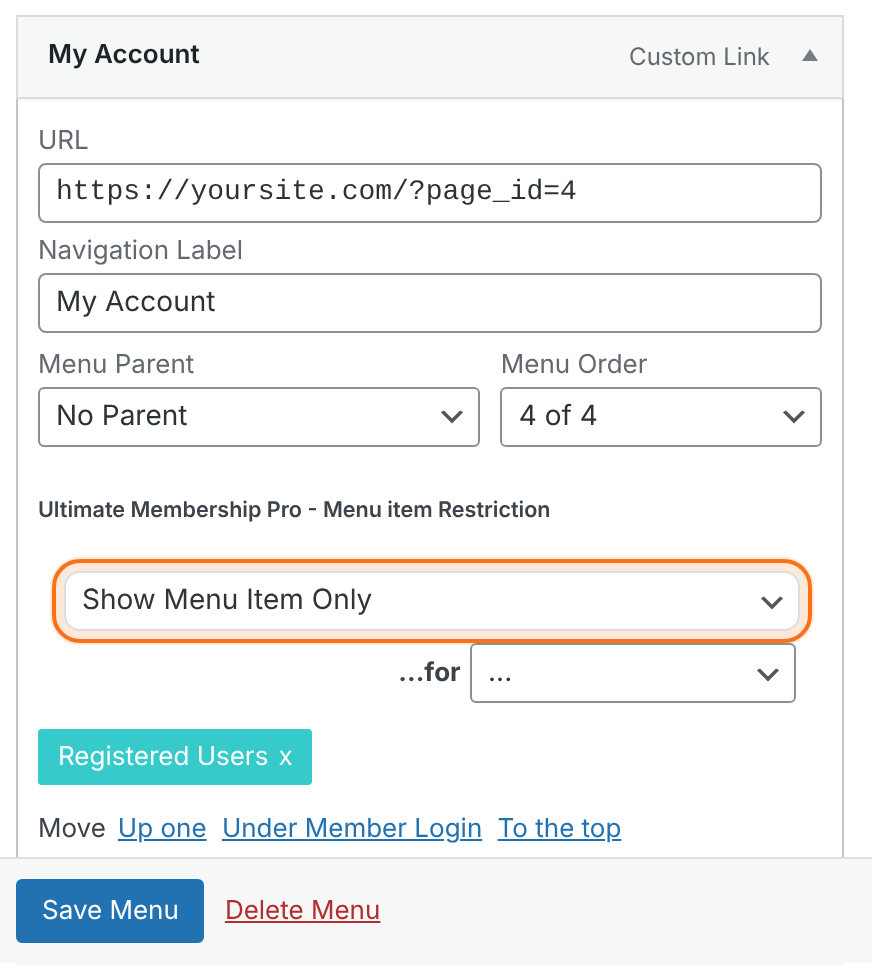
Show Menu Item Only shows the link only to the member types below. Block Menu Item Only hides it from them.
Default: Show Menu Item Only
Pick from the drop-down to add a tag: All, Registered Users, Unregistered Users or a Membership. Click x on a tag to remove it. With no tag, the link shows for everyone.
Click Save Menu.
Or use the plugin settings
Some themes and mega menu plugins replace the WordPress menu editor, and the fields above don’t show. Then go to Ultimate Membership Pro›Settings›Restrict WordPress Menu, pick the menu in Choose Menu to Restrict and set each link there.
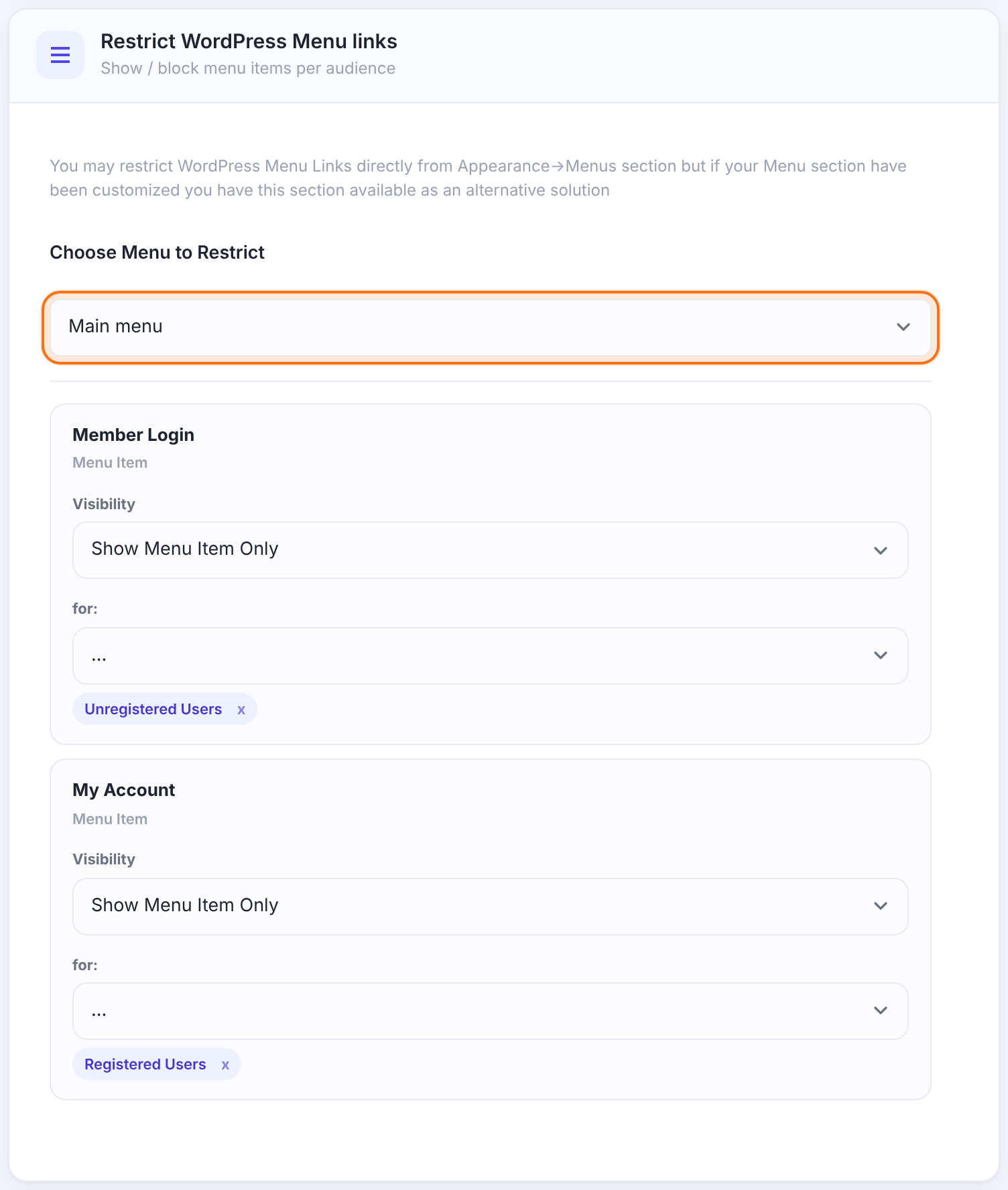
Save the changes. The rule is stored on the menu item, so it also shows up in Appearance › Menus.
Check the menu
Open your site in a private browser window, then log in as a test member. Administrators always see every link.
Login and register popups in the menu
In Appearance›Menus, the Ultimate Membership Pro box on the left adds Login and Register links that open the forms in a popup. Combine them with Show Menu Item Only for Unregistered Users.
Example: a member-aware menu
- Home, Courses
- No rule
- Member Login
- Show Menu Item Only for Unregistered Users
- My Account
- Show Menu Item Only for Registered Users
Troubleshooting
The restriction fields don’t show in Appearance › Menus
A theme or mega menu plugin replaced the menu editor. Use Settings › Restrict WordPress Menu instead.
All links still show
You’re logged in as an administrator. Check in a private window.
Members can still open the page by its URL
A menu rule only hides the link. Lock the page with its Locker or an Access Rule.
A link for a Membership doesn’t show for a member
The member’s Membership must be active. Expired or not-yet-started Memberships don’t count.


