
In Ultimate Membership Pro, Opt-In sends the email address of each new member to your mailing list, so your newsletter grows with your membership. It works with Mailchimp, ActiveCampaign, AWeber, GetResponse, Campaign Monitor, Constant Contact, iContact, Mad Mimi, Mailster and Wysija, or keeps a simple list on your site.
This guide connects a service, turns Opt-In on for the registration form and adds a consent checkbox so members choose whether to join.
Before you start
- An account with your email marketing service and a list (audience) for new members. Check that the list accepts contacts with only an email address and name, without extra required fields.
- The registration form is set up. See Set up the registration form.
Enter your service’s details
- Go to Ultimate Membership Pro›Modules and open Opt-In Management (in the Notifications & Marketing group). It’s always available; there is nothing to switch on.
- Find the box of your service, fill in its details and click its own Save Changes button.
Api URL, Api Key: and List ID: from your ActiveCampaign account settings.
Paste the Auth Code from the Get Your Auth Code From Here link, enter the Unique List ID and click Connect.
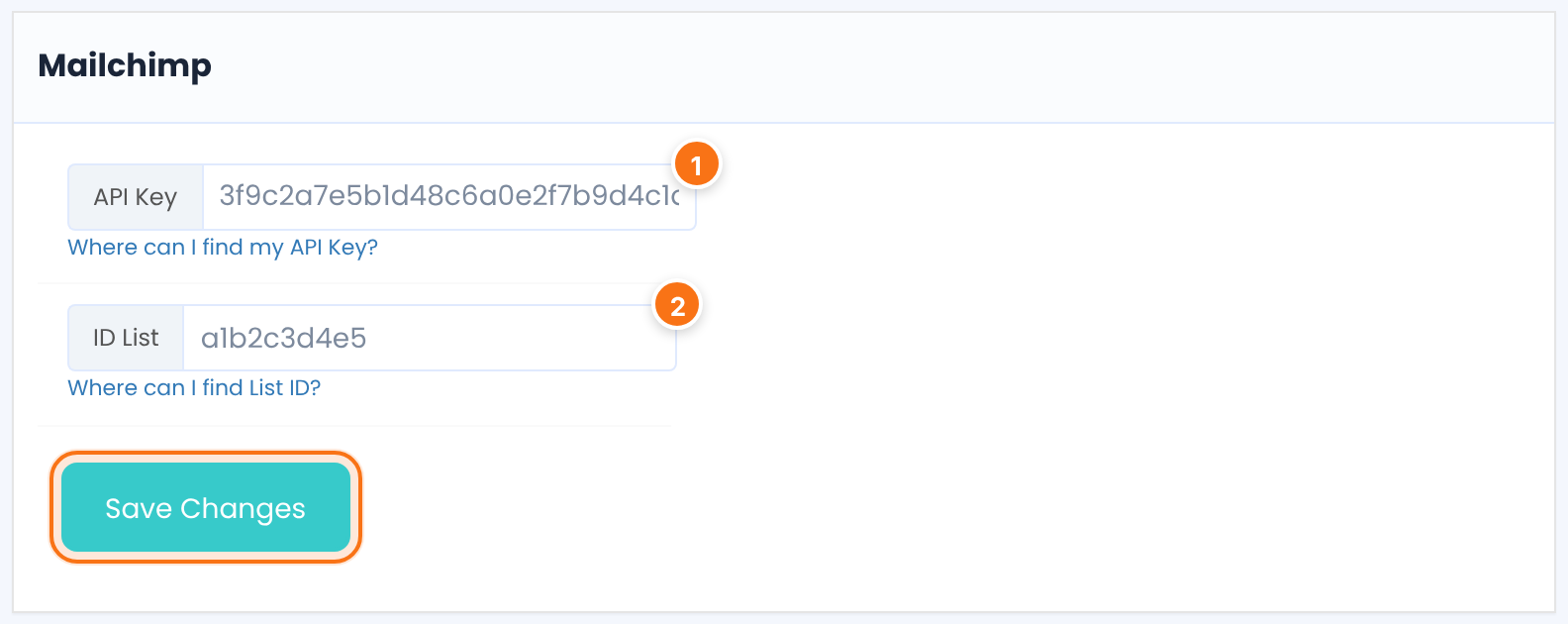
API Key and ID List (the audience ID). Members are added as subscribed, without a Mailchimp confirmation email.
API Key and List token.
API Key and List ID.
Username, App ID, App Password and the list ID.
Client Id and Client Secret of an app you create at Constant Contact, then Authenticate and pick the List. The box lists the steps and the Redirect URI to use.
Select Wysija List: lists the lists of the Wysija (MailPoet) plugin on your site.
Select MyMail List: lists the lists of the Mailster plugin on your site.
Username Or Email:, Api Key: and List Name:.
No service: addresses are stored on your site and shown in Saved E-mail List at the bottom of the screen, separated by commas, ready to copy.
Turn on Opt-In for the registration form
- Go to Ultimate Membership Pro›Registration Form, tab Register Form Showcase.
- Switch on Opt-In Subscription.
- Under Choose Opt-In Service, click the service you set up in step 1.
- Click Save Changes.
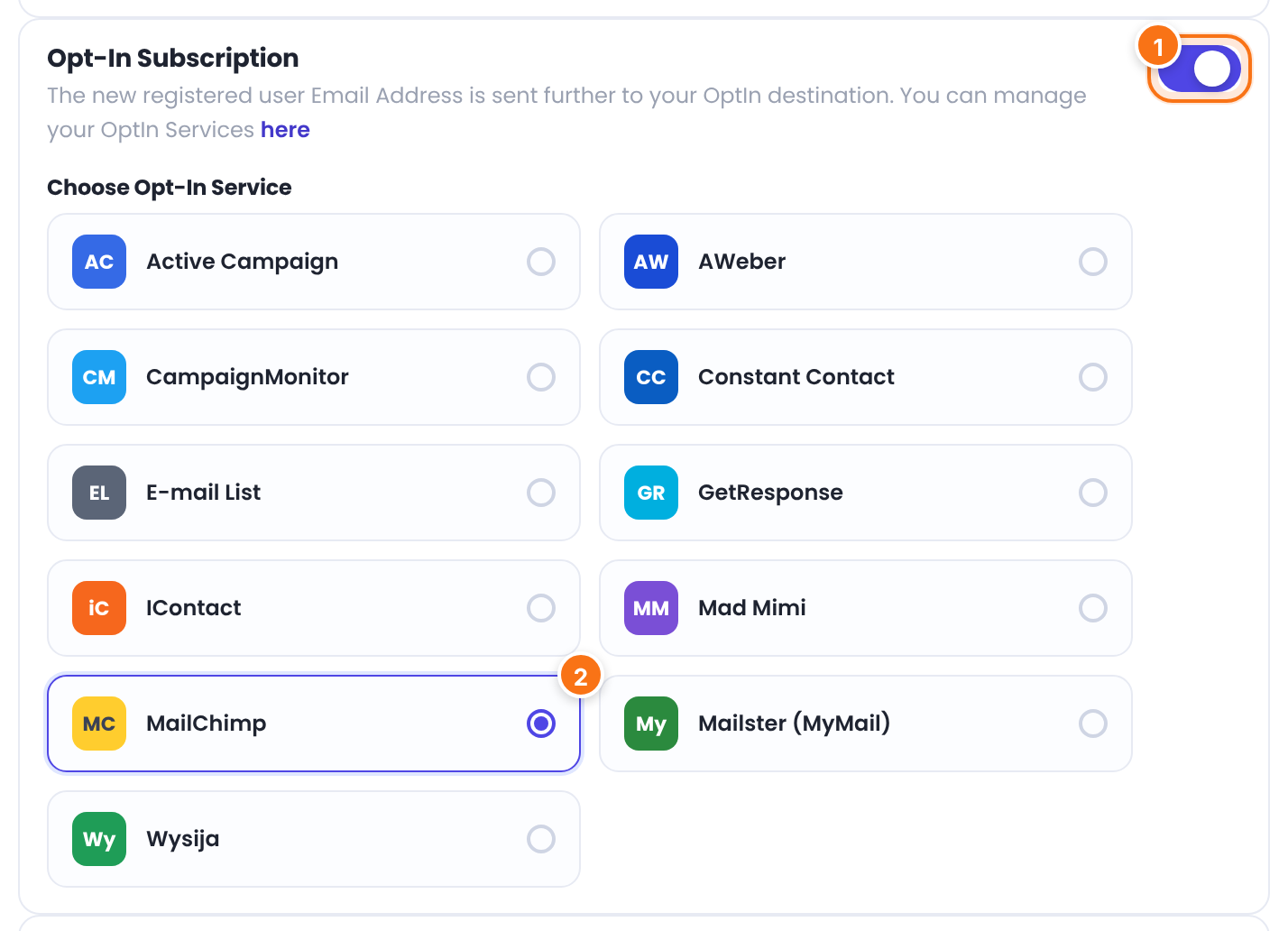
Sends each new member to the chosen service when they register.
Default: Off
The destination: one of the 11 options. Only one service is used at a time.
Ask for consent with a checkbox
Without a checkbox, every new member is added to your list. To let members choose, show the opt-in field on the form:
- In Ultimate Membership Pro›Registration Form, open the Custom Fields tab.
- Find the field
ihc_optin_accept(label “I would like to subscribe to newsletter list” by default) and switch on On Registration. - Optional: edit the field to change the label, or switch on Input Checkbox checked by default under Default State.
- Click Save Changes.

With the field on the form, only members who tick it are sent to your list.
When a member is added
Right after the account is created, with the email address, first name and last name.
After the member clicks the confirmation link, not before. See Verify members’ email addresses.
When Enable Opt-In is on in the Register Lite module. It uses the service chosen on the Registration Form and has no consent checkbox. See Registration with email only.
Good to know
- Only new registrations are sent. Members who registered before you turned Opt-In on, and members you add in the admin, are not added to the list.
- Changes members make later in their profile (a new email address, unticking the checkbox) are not synced to the service.
- If your list asks for extra required fields or its own double opt-in, the service may refuse or hold the contact. Start with a plain list.
Example: Coaching Club newsletter
- Service
- Mailchimp
- API Key
- Your Mailchimp API key
- ID List
- The audience ID, for example a1b2c3d4e5
- Opt-In Subscription
- On
- Choose Opt-In Service
- MailChimp
- ihc_optin_accept field
- On Registration, label “Email me weekly coaching tips”
Troubleshooting
Why are new members not added to my list?
Check, in order: the service details on the Opt-In Management screen (and that you saved that box); that Opt-In Subscription is on and the right service is chosen on the Registration Form; that the member ticked the opt-in checkbox, if it’s on the form; and, with Double Email Verification, that the member confirmed the email. Then check the list itself for required fields or a double opt-in setting, or try a new, plain list.
Does Opt-In send anything besides the email address?
It sends the email address and, when the form has them, the first and last name. Custom fields are not sent.
Can I send members to different lists by Membership?
Not with the built-in Opt-In: all new members go to the one service and list you chose.
Where do I see the addresses collected with E-mail List?
At the bottom of the Opt-In Management screen, in Saved E-mail List, separated by commas.


