
In Ultimate Membership Pro, the Blacklist Disposable Emails add-on stops visitors from registering with an email address whose domain is on your list. Temporary mailbox services such as mailinator.com let people create accounts they never read, so blocking those domains keeps fake accounts out of your member list.
This guide switches the add-on on, adds domains from the ready-made list and from your own, sets the message visitors see and shows the result on the registration form. It is one of several protections; see Stop spam registrations for the others.
Before you start
- The Blacklist Disposable Emails add-on is installed and active. It’s a Pro add-on, included in the Full Package and Agency plans. See Install a Pro add-on.
- Your license is active. See Find and activate your license key.
- Your registration form is set up, with the email field shown. See Set up the registration form.
Switch on the add-on and add your own domains
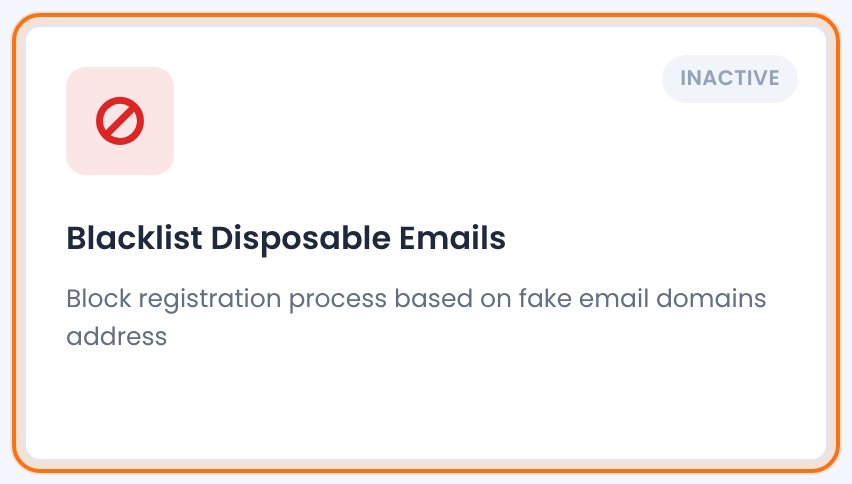
- Go to Ultimate Membership Pro›Modules and open Blacklist Disposable Emails, in the Security & Login group.
- Switch on Activate/Hold Blacklist Disposable Emails Integration.
- Type any domains you want to block in Restricted Email Domains:, then click Save Changes.
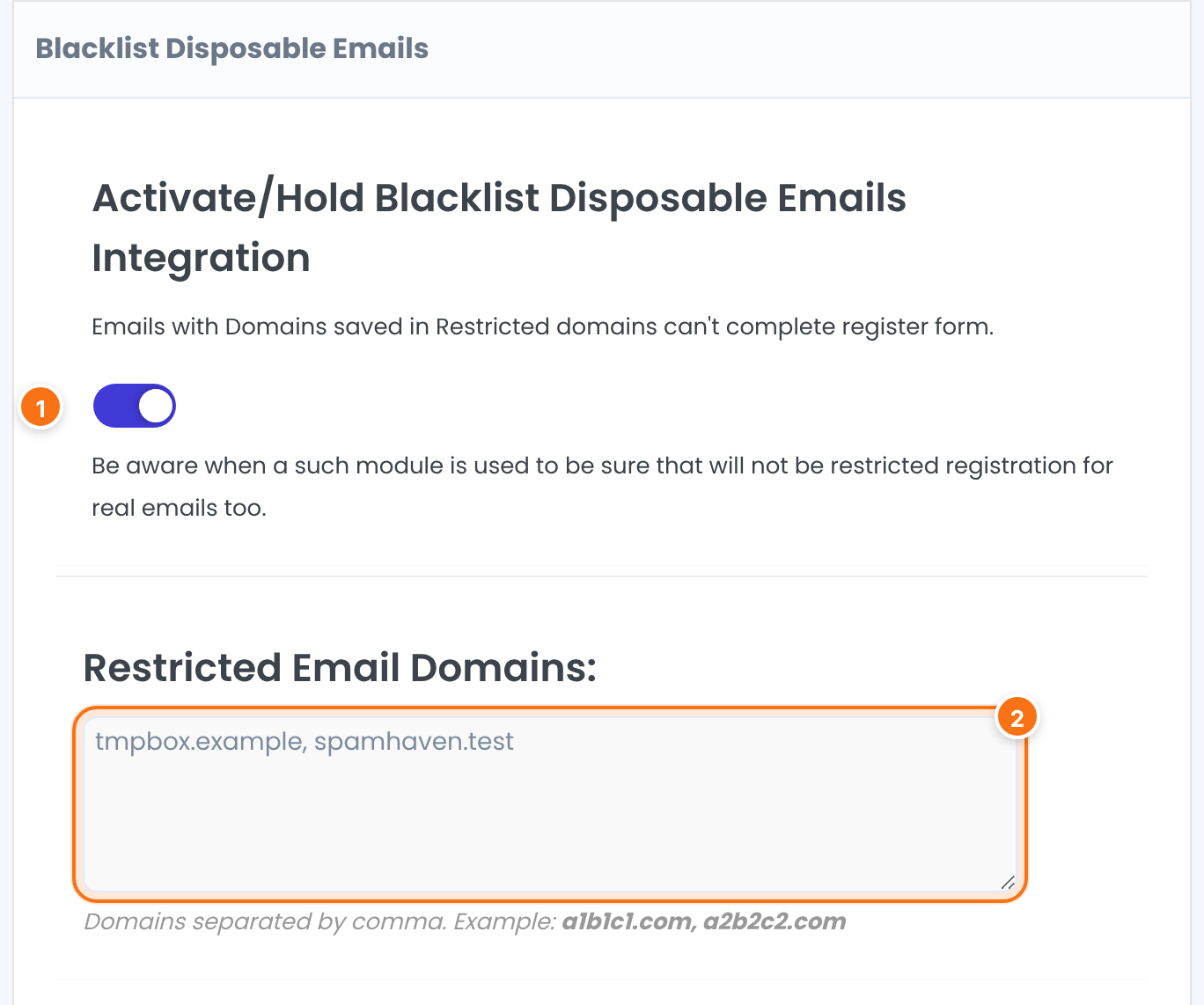
Turns the check on or off. The screen explains it this way: emails with domains saved in Restricted domains can’t complete the register form. It also reminds you to make sure real email addresses aren’t blocked by mistake.
Default: Off
The domains to block, separated by commas, for example tmpbox.example, spamhaven.test. Write only the part after the @ sign, in lower case. A domain must match exactly: tmpbox.example doesn’t cover mail.tmpbox.example, so list each one you want to block.
Default: Empty
Tick common disposable domains
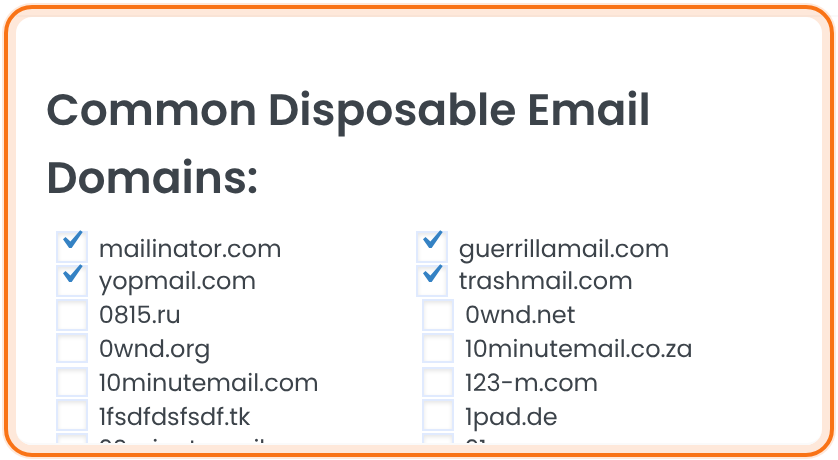
Below your own list, Common Disposable Email Domains: shows more than 500 well-known temporary-mail domains with a checkbox each. Tick the ones you want to block and click Save Changes. Ticked domains are saved together with the ones you typed, and stay ticked next time you open the screen.
Start with the services you see in spam sign-ups
New disposable services appear all the time, so no list is complete. Tick the common ones, then add to Restricted Email Domains whenever you spot a new one in your Members list.
Set the error message
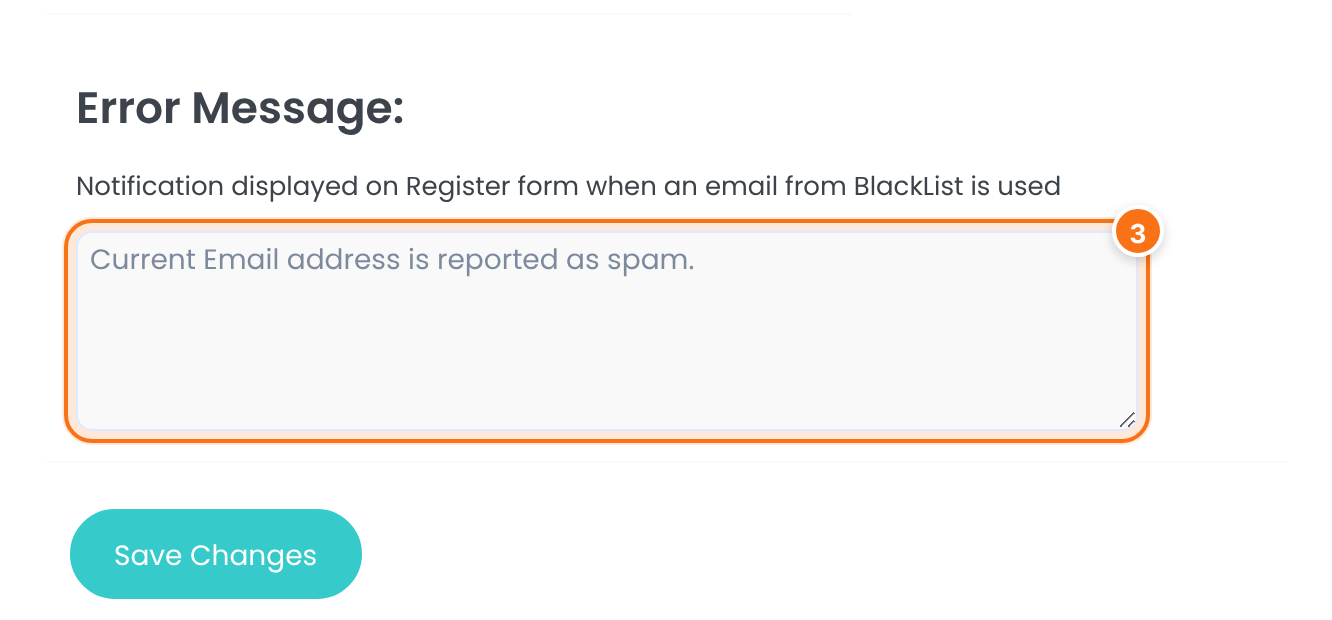
The notification shown on the registration form when a blocked domain is used. If you leave it empty, visitors see the standard message “Email address has already been taken” instead, so write a short message of your own, for example “Please use a permanent email address.”
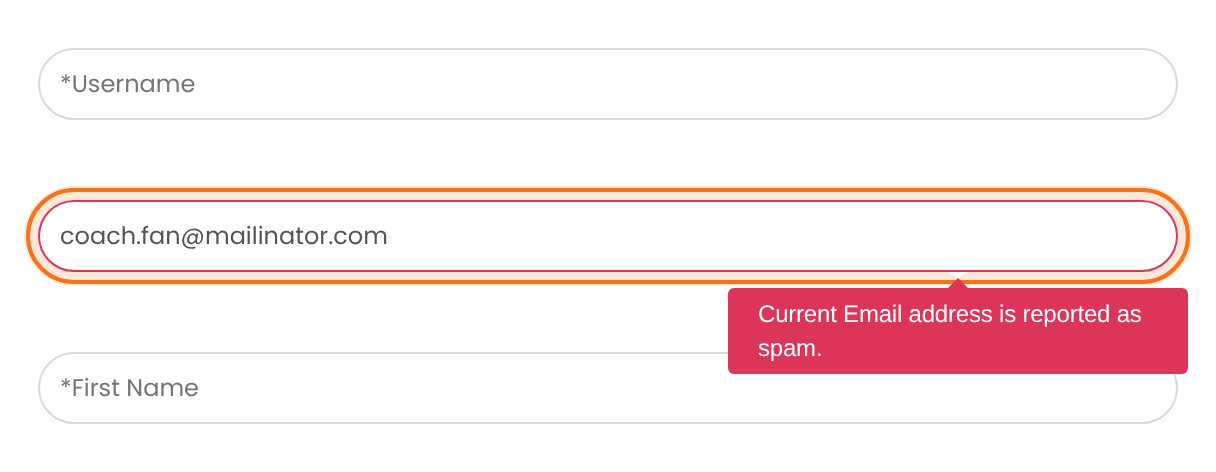
Default: Current Email address is reported as spam.
Click Save Changes.
What visitors see
On the registration form, the error appears under the Email field as soon as the visitor leaves the field. The form isn’t sent when they click Register while the address is blocked.
Example: keep throwaway addresses out
- Blacklist Disposable Emails
- On
- Common Disposable Email Domains:
- mailinator.com, guerrillamail.com, yopmail.com, trashmail.com
- Restricted Email Domains:
- tmpbox.example, spamhaven.test
- Error Message:
- Please use a permanent email address.
Learn more about Blacklist Disposable Emails
- Blacklist Disposable Emails add-on page: what it does, at a glance.
- All Pro add-ons for Ultimate Membership Pro.
- Ultimate Membership Pro plans: Pro add-ons come with the Full Package and Agency plans.
- Disposable email addresses (Wikipedia).
Troubleshooting
Why can someone still register with a disposable address?
The address’s domain isn’t on your lists, or it is a subdomain of a listed domain. A domain has to match exactly, so add the exact domain the visitor used to Restricted Email Domains. For extra protection, ask members to confirm their address; see Verify members’ email addresses.
Why do blocked visitors see “Email address has already been taken”?
The Error Message box is empty. Ultimate Membership Pro then falls back to its own “taken” message. Type your own text in Error Message: and save.
Can I block just one email address instead of a whole domain?
Yes, with the Email Address Black List in Settings›Security. It blocks full addresses, while this add-on blocks whole domains. See Stop spam registrations.
How do I block disposable email addresses in Ultimate Membership Pro?
Switch on the Blacklist Disposable Emails add-on, tick the common disposable domains and add your own to Restricted Email Domains, then save. Visitors who use a blocked domain see your error message under the Email field and can’t register.


