
In Ultimate Membership Pro, the ConvertKit Integration add-on saves your members as subscribers in ConvertKit, signed up to a form and marked with tags. You can use one form and tags for every new member and a different form and tags for each Membership, so your ConvertKit sequences and broadcasts reach the right audience.
This guide switches the add-on on, connects your ConvertKit account with an API key and secret, chooses forms and tags and shows when a member is sent to ConvertKit.
Before you start
- The ConvertKit Integration add-on is installed and active. It’s a Pro add-on, included in the Full Package and Agency plans. See Install a Pro add-on.
- Your license is active. See Find and activate your license key.
- A ConvertKit account with at least one form and one tag. In ConvertKit, create the tag in the Subscribers list and the form under Landing pages & forms.
- Your Memberships exist. See Create your first Membership.
Switch on the add-on
- Go to Ultimate Membership Pro›Modules and open the ConvertKit Integration card.
- Switch on Activate/Hold ConvertKit Integration and click Save Changes.
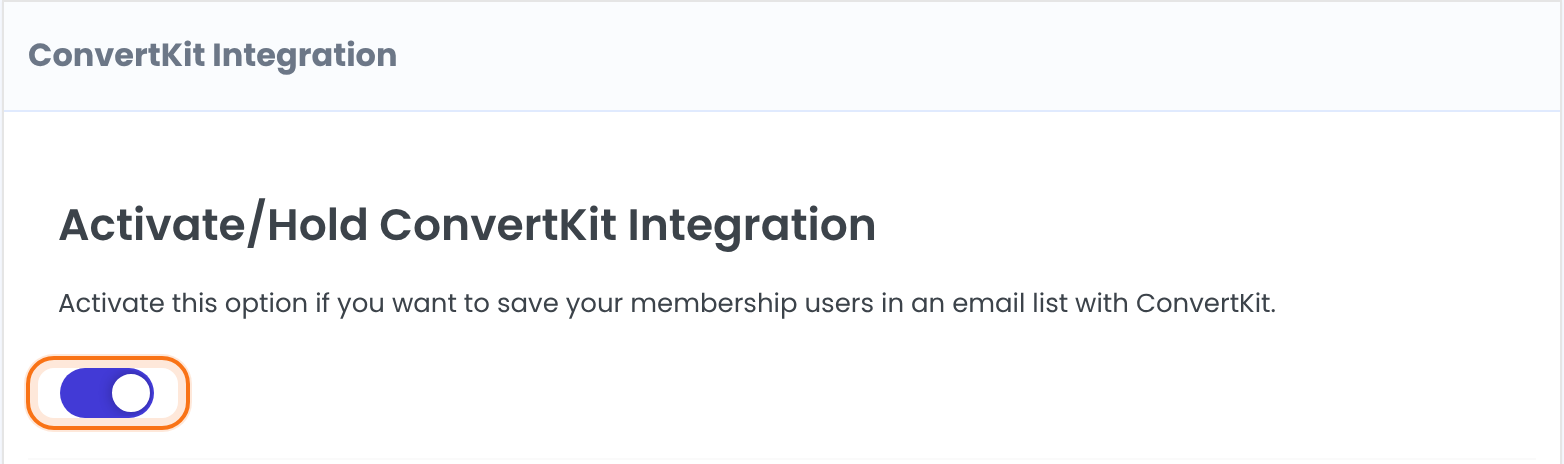
Saves your membership users in an email list with ConvertKit.
Default: Off
Connect your ConvertKit account
- Log in to ConvertKit, click your username and open Account settings.
- Copy the API Key and the API Secret into the two fields on the screen.
- Click Save Changes, then click Refresh Forms and Tags (next step).
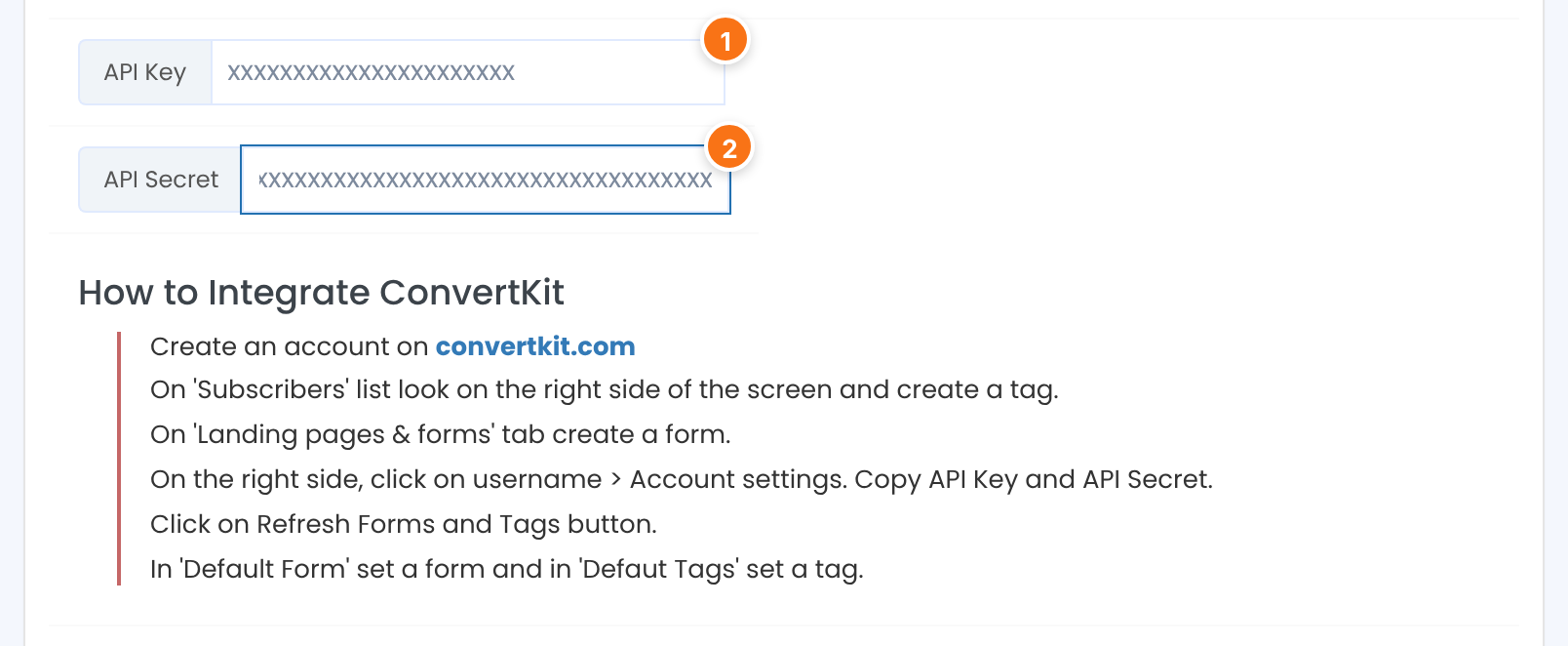
The API Key of your ConvertKit account.
The API Secret of your ConvertKit account.
Choose the forms and tags
The forms and tags of your ConvertKit account are loaded below the keys when the screen opens. Click Refresh Forms and Tags after you create a new form or tag in ConvertKit. Choose what you need, then click Save Changes.
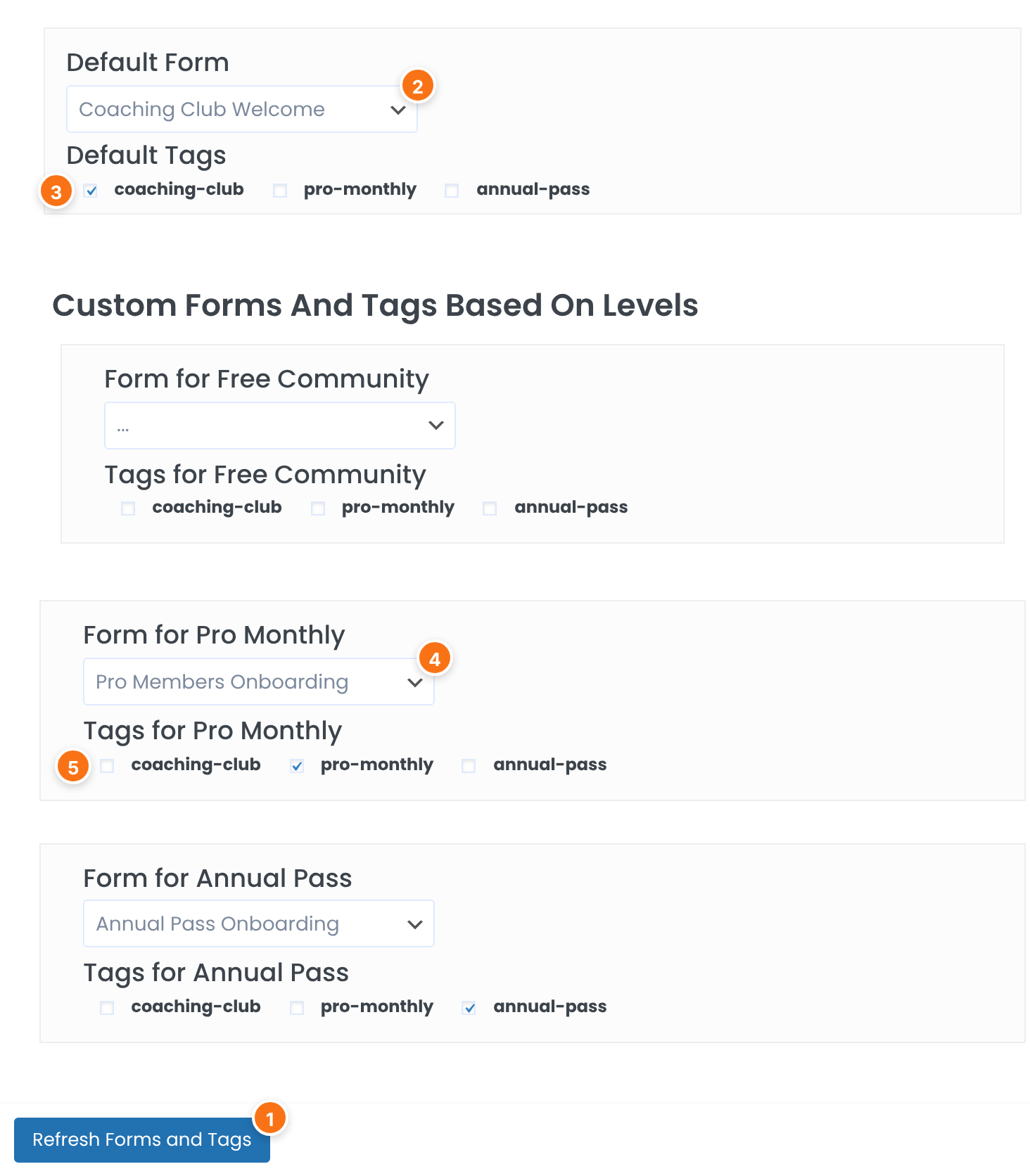
Loads your ConvertKit forms and tags into the screen.
The form that new registrations are signed up to. Leave “…” if you only want the forms of your Memberships.
The tags added to the subscriber when they register. They are also used for a Membership that has no tags of its own.
Under Custom Forms And Tags Based On Levels. The form that buyers of this Membership are signed up to.
The tags added to buyers of this Membership. When none is ticked, the Default Tags are used.
When a member is sent to ConvertKit
The member is signed up to the Default Form with the Default Tags.
The member is signed up to the form of that Membership with its tags (or the Default Tags). This also happens when you set an order to Completed in the admin.
A form and at least one tag are needed each time; without both, nothing is sent. The add-on adds subscribers only: it doesn’t remove them from ConvertKit when a Membership ends.
What is sent
- The email address, first name and last name.
- The member’s other registration form fields, with the field label as the name. Passwords, the email confirmation, the terms checkbox, reCAPTCHA, social login and the dynamic price are left out.
Default Form and per-Membership forms together
If you set a Default Form and also a form for a Membership, a buyer is signed up to both: the Default Form at registration and the Membership’s form after the payment. To use only the Membership forms, leave Default Form empty.
Example: a form and tag for each plan
- Activate/Hold ConvertKit Integration
- On
- Default Form / Default Tags
- Coaching Club Welcome / coaching-club
- Form for Free Community
- …
- Form for Pro Monthly / Tags
- Pro Members Onboarding / pro-monthly
- Form for Annual Pass / Tags
- Annual Pass Onboarding / annual-pass
Learn more about ConvertKit Integration
- ConvertKit Integration add-on page: what it does, at a glance.
- All Pro add-ons for Ultimate Membership Pro.
- Ultimate Membership Pro plans: Pro add-ons come with the Full Package and Agency plans.
- Kit (ConvertKit) API key and secret.
Troubleshooting
The forms and tags don’t appear. What should I do?
Check that the API Key and API Secret are correct and saved, then click Refresh Forms and Tags. The lists come from your ConvertKit account, so it needs at least one form and one tag.
Why isn’t a new member signed up to ConvertKit?
Check that the add-on switch is on and saved, and that a Default Form and at least one Default Tag are chosen. Without both, nothing is sent at registration.
Why isn’t a buyer signed up to the form of their Membership?
Choose a form under Form for <Membership name> and save. A payment for that Membership must also be completed. The tags come from Tags for <Membership name>, or from the Default Tags when none is ticked.
Do I need both a Default Form and forms for each Membership?
No. Use only the Default Form to send every registration to one form, or leave it empty and set forms for the Memberships you care about.
Are members removed from ConvertKit when their Membership expires?
No. The add-on signs members up; it doesn’t remove them. Manage unsubscribes and segments inside ConvertKit.
How do I send different emails to members of one Membership in Ultimate Membership Pro?
Give that Membership its own tag (and form) under Custom Forms And Tags Based On Levels, then target that tag in ConvertKit.


