
In Ultimate Membership Pro, the Slack Integration add-on posts a message in a Slack channel each time a member gets one of the Memberships you choose. Your team sees new members as they join, without opening the admin or waiting for an email.
This guide switches the add-on on, connects it to Slack with a webhook URL, chooses the channel and the Memberships to follow, and shows what the message looks like.
Before you start
- The Slack Integration add-on is installed and active. It’s a Pro add-on, included in the Full Package and Agency plans. See Install a Pro add-on.
- Your license is active. See Find and activate your license key.
- A Slack workspace where you can create an app, and a channel for the messages.
- Your Memberships exist. See Create your first Membership.
Switch on the add-on
- Go to Ultimate Membership Pro›Modules and open the Slack Integration card.
- Switch on Activate/Hold Slack Integration Integration and click Save Changes.
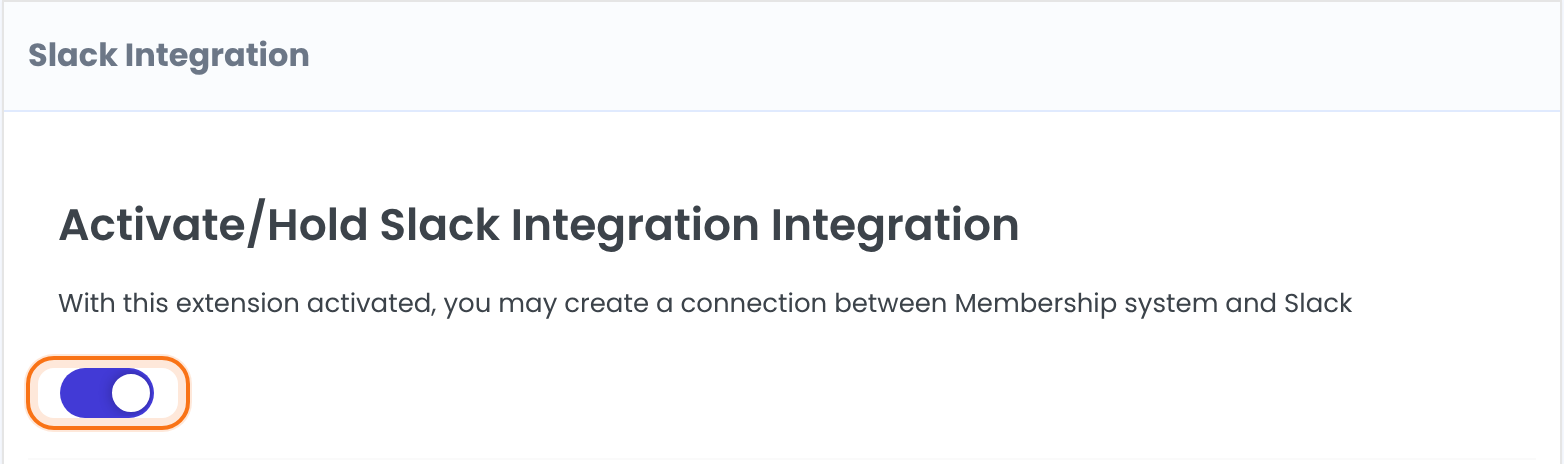
Creates a connection between Ultimate Membership Pro and Slack.
Default: Off
Create the webhook in Slack
- Go to api.slack.com (linked on the screen) and create an app. Activate the “Incoming Webhooks” feature.
- In the Webhook URL section, click “Add New Webhook to Workspace” and choose the channel.
- Copy the webhook URL from Slack and paste it into Webhook URL.
- In your Slack workspace, right-click your channel, click View channel details, open Integrations and add your app in the Apps section.
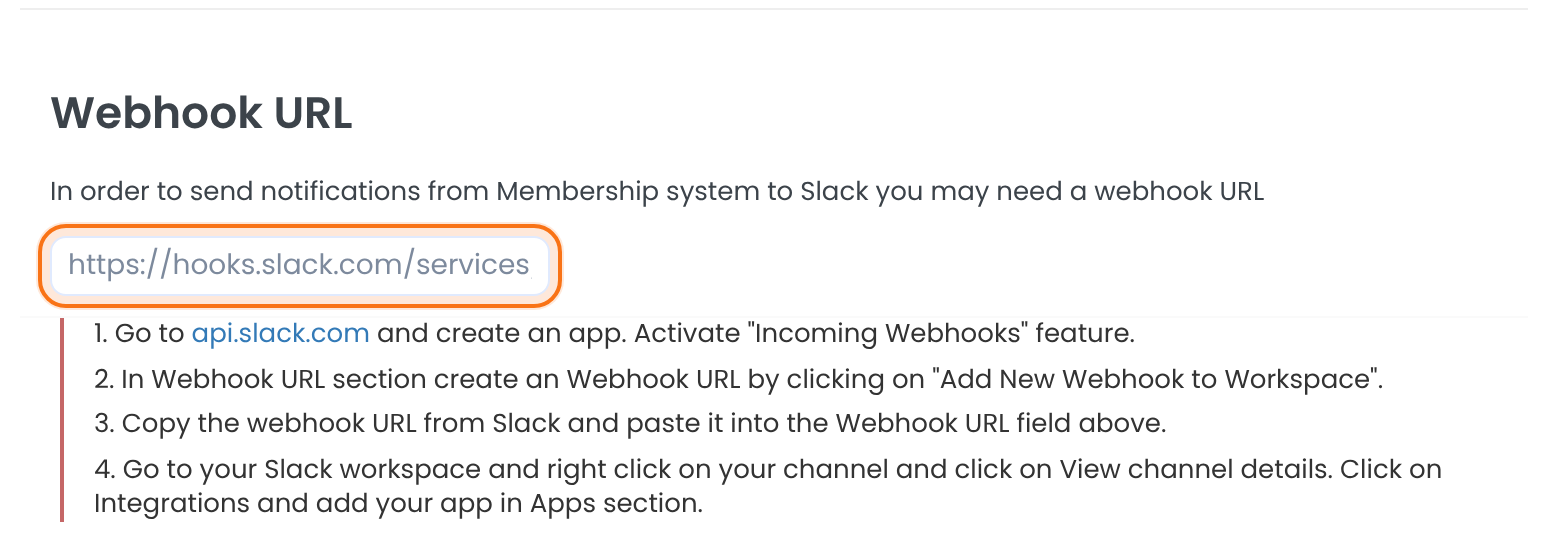
The address Slack gives you for your app. Without it, no message is sent.
Choose the channel and the Memberships
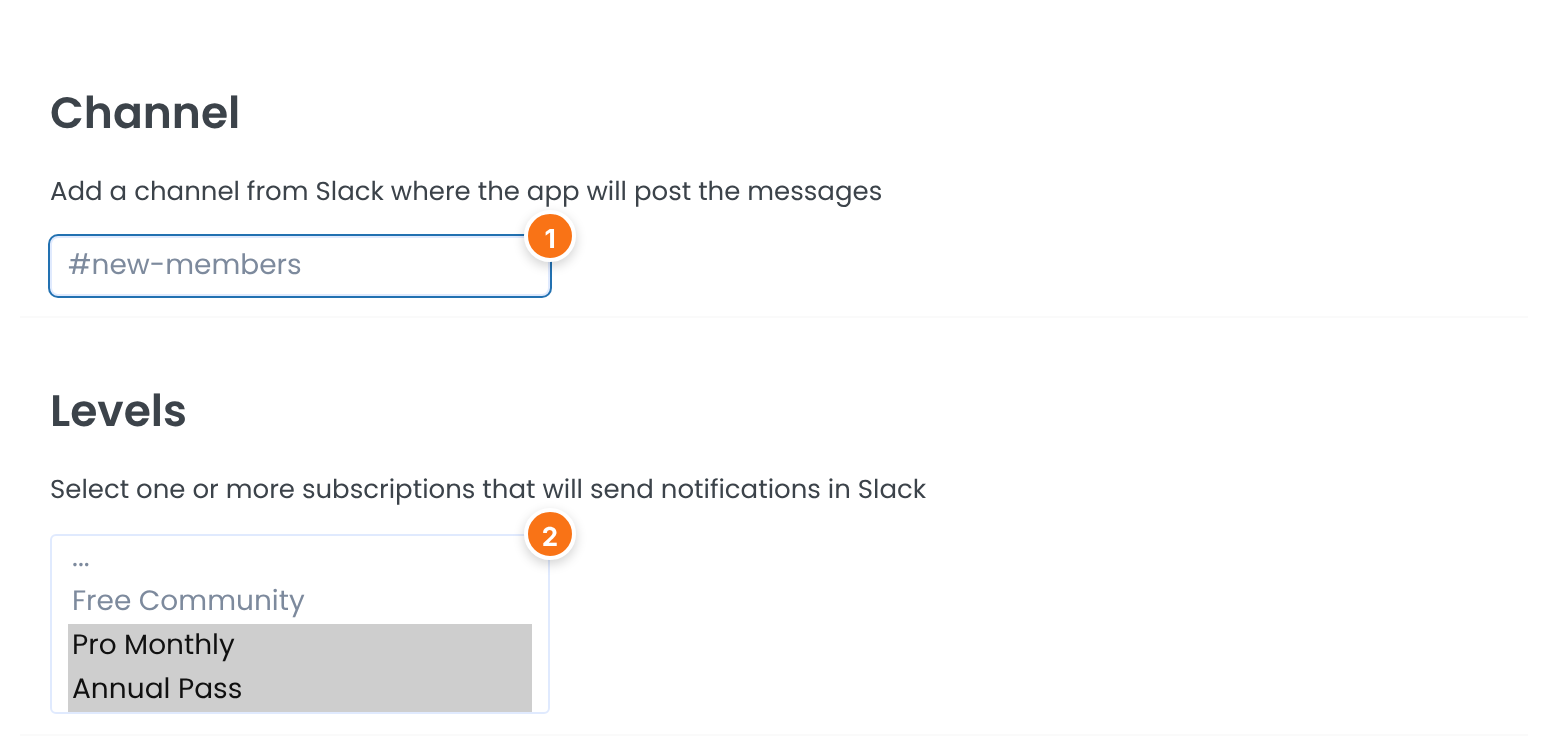
The Slack channel where the app posts the messages, for example #new-members.
Default: #general (used when the field is empty)
The Memberships that send a message. Hold Ctrl (Windows) or Cmd (Mac) to select more than one. A Membership that isn’t selected sends nothing.
Click Save Changes. The select is named Levels on the screen; its options are your Memberships.
What the message says
Each time a Membership you selected becomes active for a member, the add-on posts one message. It carries your site title as its username and reads:
Message text
User Emma Carter ( emma.carter@example.com ) has acquired the following subscription: Pro MonthlyThe member’s full name, email address and the Membership name are filled in for you. The wording of the message is fixed.
When a message is sent
- When a Membership becomes active for a member, for example after the payment is completed.
- Only for the Memberships selected under Levels, and only when Webhook URL is filled in.
- Not for sign-ups without a selected Membership, cancellations, expirations or failed payments.
Example: follow the paid plans
- Activate/Hold Slack Integration Integration
- On
- Webhook URL
- The address Slack gives you for your app
- Channel
- #new-members
- Levels
- Pro Monthly, Annual Pass
Learn more about Slack Integration
- Slack Integration add-on page: what it does, at a glance.
- All Pro add-ons for Ultimate Membership Pro.
- Ultimate Membership Pro plans: Pro add-ons come with the Full Package and Agency plans.
- Slack incoming webhooks guide.
Troubleshooting
No message appears in Slack. What should I check?
Check that the add-on switch is on and saved, that Webhook URL is filled in, and that at least one Membership is selected under Levels. In Slack, make sure your app was added to the channel. Then buy or activate one of the selected Memberships with a test account and look at the channel.
Which channel does the message go to if I leave Channel empty?
The add-on sends #general.
Can I change the text of the message?
No. The message always says that the user has acquired the subscription, with the name, email address and Membership.
Does Slack Integration tell me about cancellations or failed payments?
No. It sends a message when a Membership becomes active. For other events, use the email notifications. See the link below.
Can I send messages to more than one channel?
The add-on has one Webhook URL and one Channel field, so messages go to one place.
How do I get a Slack message when someone joins Pro Monthly in Ultimate Membership Pro?
Select Pro Monthly under Levels, fill in Webhook URL and save. Each member who gets Pro Monthly then triggers a message.


