
In Ultimate Membership Pro, the WordPress User Roles add-on gives a member an extra WordPress role, such as Contributor or Author, when they get a Membership, and takes it away when the Membership ends. It is useful when a plan should come with WordPress abilities, for example letting paying members write posts.
This guide switches the add-on on, links each Membership to a role and explains when the role is added and removed.
Before you start
- The WordPress User Roles add-on is installed and active. It’s a Pro add-on, included in the Full Package and Agency plans. See Install a Pro add-on.
- Your license is active. See Find and activate your license key.
- At least one Membership. See Create your first Membership.
Turn on WordPress User Roles
- Go to Ultimate Membership Pro›Modules and open the WordPress User Roles card.
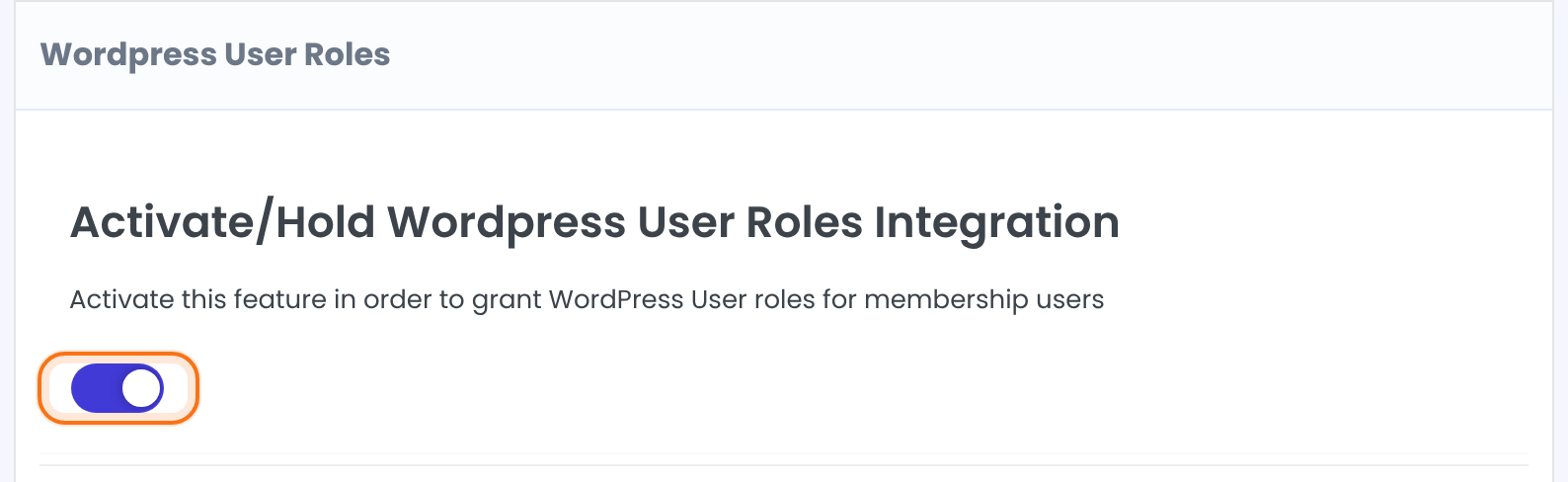
- Switch on Activate/Hold Wordpress User Roles Integration and click Save Changes.
Link each Membership to a role
Under User Role for each Subscription, every Membership has a list of roles. Pick the role members receive with that Membership, then click Save Changes.
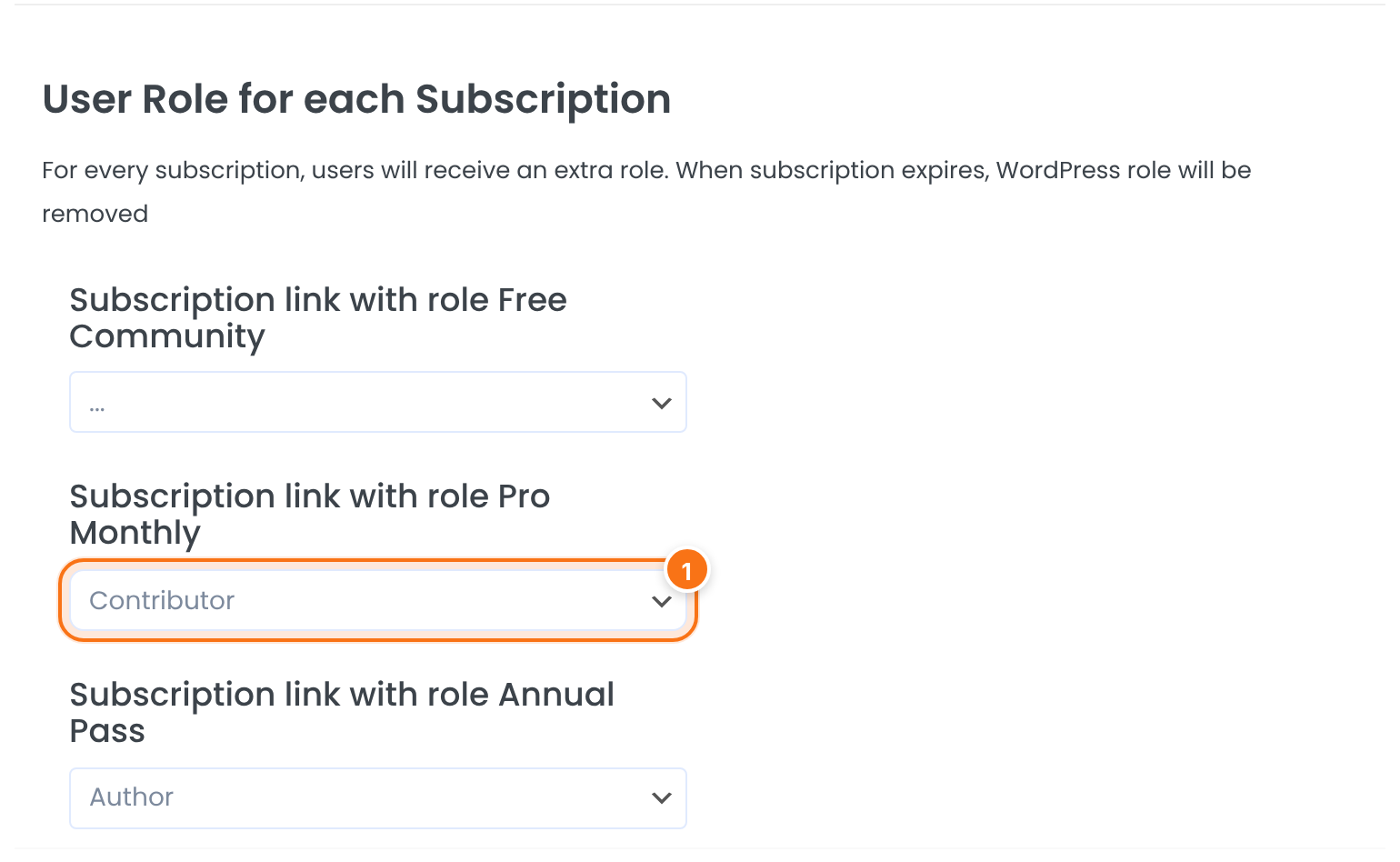
The role added to the member. The list has the roles of your site, for example Editor, Author, Contributor and Subscriber, plus any custom roles. Administrator is not in the list. Leave it on … for a Membership that should not add a role.
Default: …
Know when the role is added and removed
The member receives the role linked to that Membership, next to the roles they already have. Their normal role, usually Subscriber, stays.
The role linked to that Membership is removed. If it would be the member’s only role, it is kept.
A user with the Administrator role never receives a role from this add-on.
Good to know
- Roles are added when a Membership is activated after you save the settings. To give the role to people who already have the Membership, edit their roles on the WordPress Users screen.
- A member can hold several Memberships, each linked to a different role, and then has all of those roles.
Choose roles carefully
A role gives the member real abilities in your WordPress dashboard. Author and Editor can publish or edit posts. Use the lowest role that does the job.
Example: paying members can write posts
- Activate/Hold Wordpress User Roles Integration
- On
- Free Community
- …
- Pro Monthly, $19/month
- Contributor
- Annual Pass, $149/year
- Author
- Result
- When a member joins Pro Monthly, they can write posts that you review. When the Membership expires, the Contributor role is removed.
Learn more about WordPress User Roles
- WordPress User Roles add-on page: what it does, at a glance.
- All Pro add-ons for Ultimate Membership Pro.
- Ultimate Membership Pro plans: Pro add-ons come with the Full Package and Agency plans.
- WordPress roles and capabilities explained.
Troubleshooting
A member joined a Membership but did not get the role. Why?
Check that the switch is on and saved, and that a role is picked for that Membership. The role is added when the Membership is activated, so people who joined before you saved the settings need their role set by hand. Members with the Administrator role don’t receive roles.
The role is still there after the Membership expired. Why?
The add-on keeps the role when it is the member’s only role. This stops a member from being left without any role.
Why can’t I pick Administrator?
The Administrator role is left out of the list on purpose, so a Membership can never make someone an administrator.
How do I give members a WordPress role with a Membership in Ultimate Membership Pro?
Turn on the WordPress User Roles add-on and pick a role for the Membership under User Role for each Subscription. Members receive the role when the Membership is activated.


