
In Ultimate Membership Pro, the Invite Your Friends add-on lets members send an invitation email to a friend from a tab in their Member Portal. The email links to your registration page, so your current members help you find new ones, and each member sees a list of the friends they have invited.
This guide switches the add-on on, sets how many invitations each member can send, edits the invitation email and shows what members see in the Member Portal.
Before you start
- The Invite Your Friends add-on is installed and active. It’s a Pro add-on, included in the Full Package and Agency plans. See Install a Pro add-on.
- Your license is active. See Find and activate your license key.
- The Member Portal and the registration page are set up; the invitation email links to the registration page. See Set up the membership pages.
- Your site can send email. See Change the sender name and email.
Switch on the add-on and set the limit
- Go to Ultimate Membership Pro›Modules and open Invite Your Friends, in the Members & Registration group.
- Switch on Activate/Hold Invite Your Friends Integration.
- Set Limit Invitations Per User and click Save Changes.
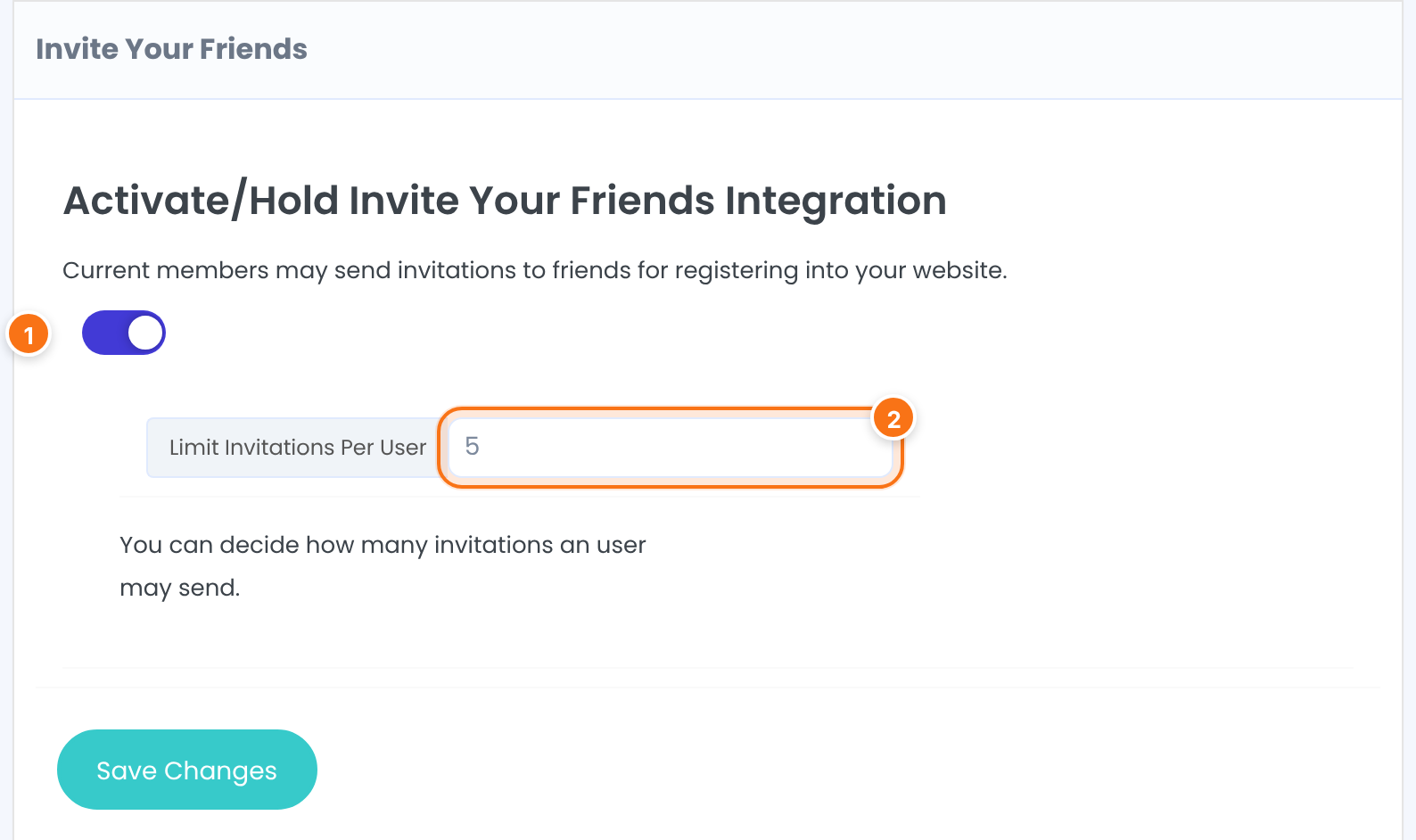
Turns the add-on on or off. When you save with the switch on, an Invite your Friends tab is added to the Member Portal menu and shown to members. Saving with the switch off removes the tab again.
Default: Off
The most invitations one member can send, counting each friend’s email address once. Members see the number in the text above the form and a message when they reach it.
Default: 5
Edit the invitation email
Further down the same screen, Invitation Notification Template is the email your members’ friends receive. The subject and message already hold a ready-to-use invitation, so you can skip this step and edit it later.
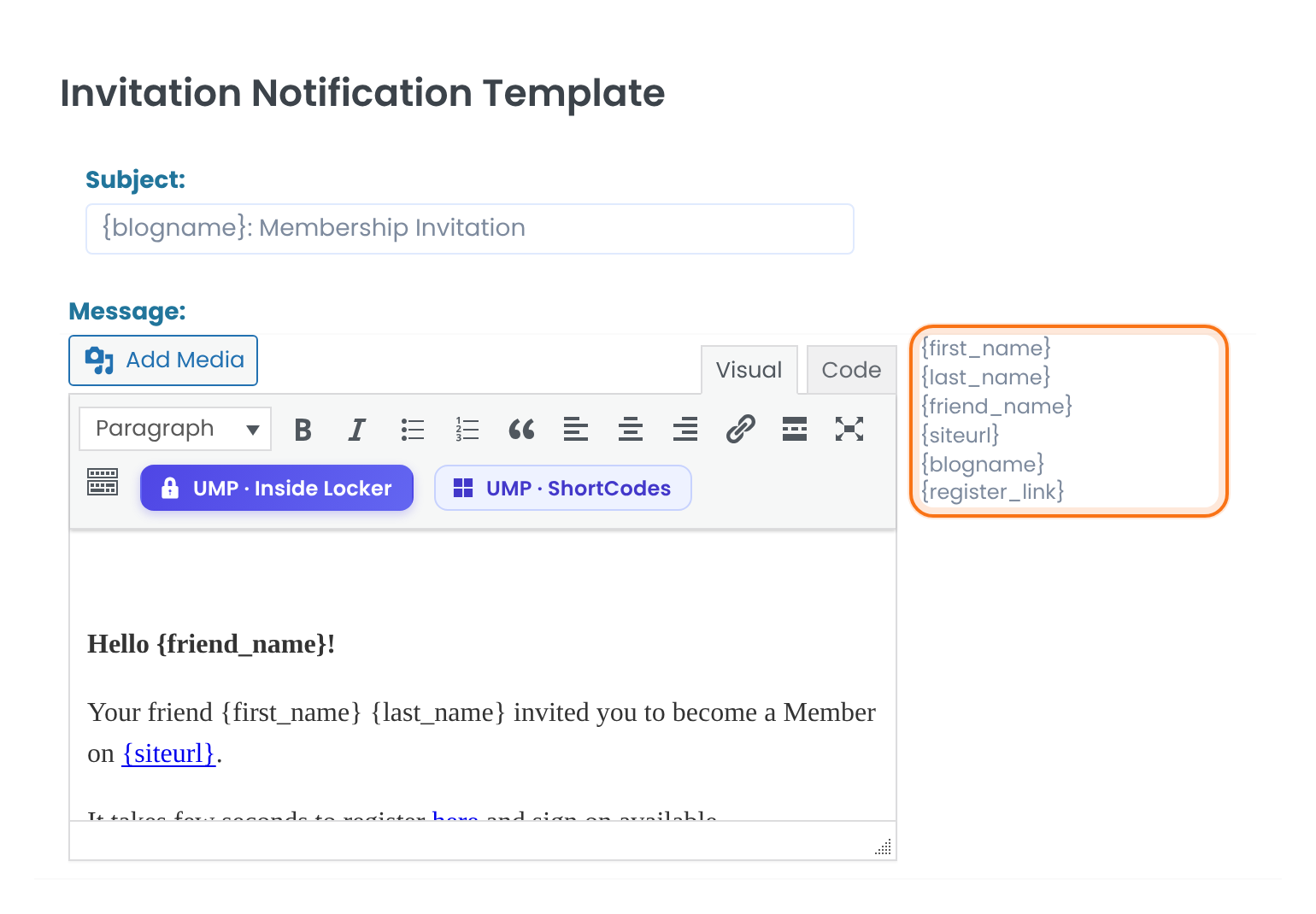
The subject line of the invitation.
Default: {blogname}: Membership Invitation
The body of the email, written in the editor.
Default: A short invitation that greets the friend, names the member who invited them and links to the registration page.
You can use these tags in the subject and the message. They are replaced when the email is sent:
{first_name} and {last_name}The first and last name of the member who sends the invitation.
{friend_name}The name the member typed for their friend.
{siteurl} and {blogname}The address and the title of your site.
{register_link}The address of your registration page, the one chosen in Settings›Pages Setup.
The sender name and address are the ones in Settings›Notifications Settings; if they are empty, your site title and the WordPress admin email are used. Click Save Changes; either button saves the whole screen.
Customize the Member Portal tab
The tab appears with the default label Invite your Friends. To rename it, change its icon or add a title and an introduction, go to Ultimate Membership Pro›Member Portal and open the tab in the Member Portal Menu.
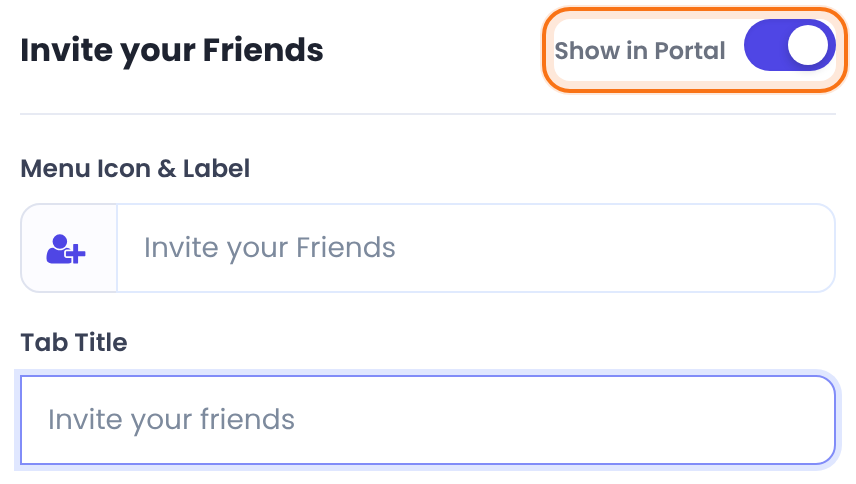
Shows or hides the tab. Switch it off to hide the tab without turning the add-on off.
Default: On
The icon and the name of the tab in the portal menu.
Default: Invite your Friends
A heading shown above the form, for example Invite your friends.
Default: Empty
The editor under Tab Title. Its text is shown under the heading, above the form.
Default: Empty
See Set up the Member Portal for the other portal settings.
What members see
Members open the Invite your Friends tab, type their friend’s name and email address, and click Send Invitation. The friend receives your invitation email, and a message confirms it was sent. Each invited friend is added to the table under the form.
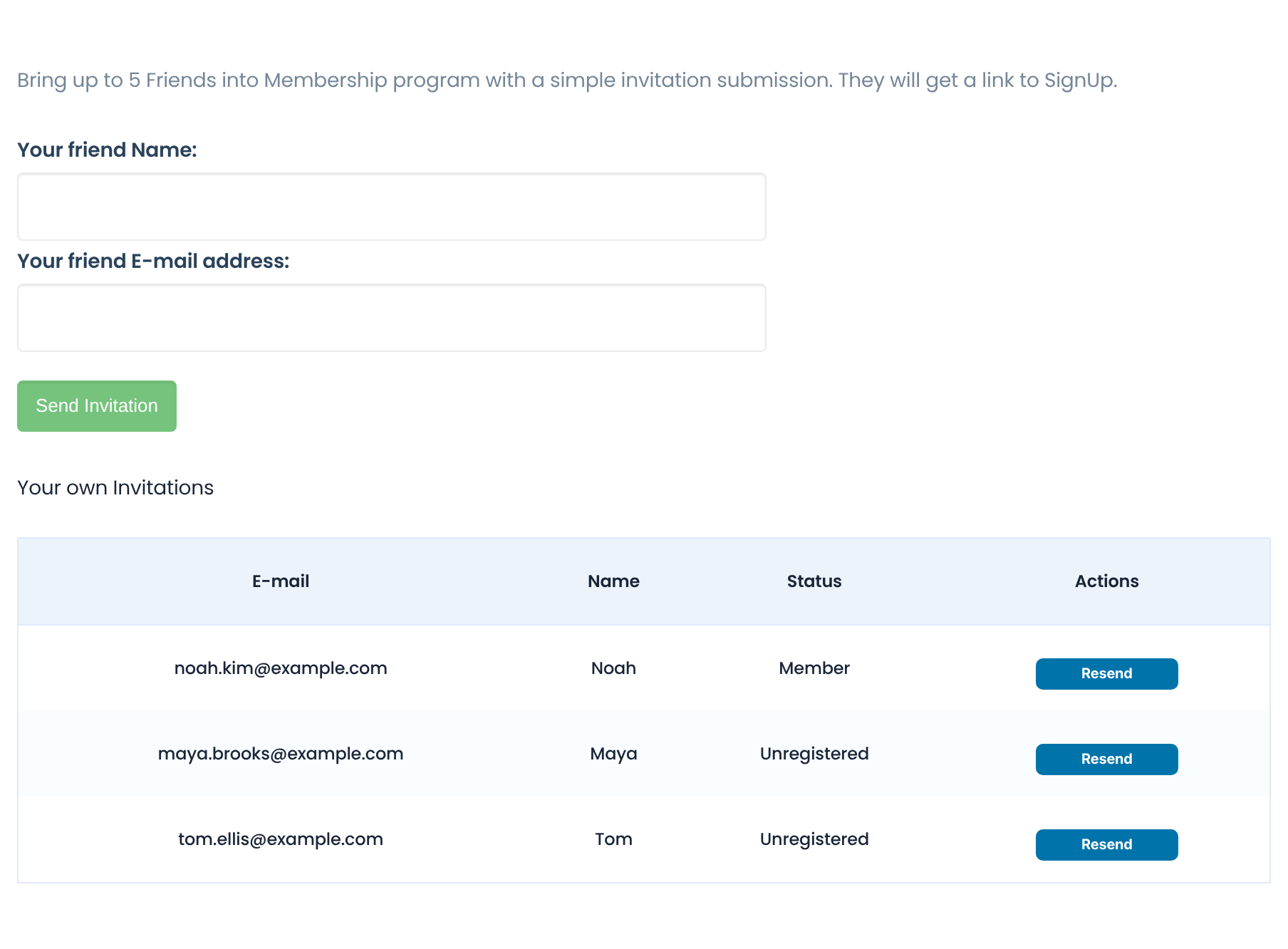
The friend’s address and the name the member typed.
Member when someone has registered on your site with that email address, Unregistered otherwise.
Sends the invitation to that friend again. It doesn’t count as a new invitation against the limit.
When a member has sent as many invitations as the limit allows, the form shows You have reached the invitations limit.
Show the form on any page
The form and the list also work as a shortcode, for example on a page that only logged-in members can open:
Shortcode
[ihc-iyf]Example: grow the Free Community
- Invite Your Friends
- On
- Limit Invitations Per User
- 5
- Subject:
- {blogname}: Membership Invitation
- Tab Title
- Invite your friends
- Result
- Each member can invite five friends from their Member Portal and see who has joined
Learn more about Invite Your Friends
- Invite Your Friends add-on page: what it does, at a glance.
- All Pro add-ons for Ultimate Membership Pro.
- Ultimate Membership Pro plans: Pro add-ons come with the Full Package and Agency plans.
- wp_mail() function reference.
Troubleshooting
Why don’t my members see the Invite your Friends tab?
Check that the switch is on and saved, and that Show in Portal is on for the tab in Member Portal. Members also need to be logged in and on the Member Portal page.
Why does a member see “Invitation was not submitted. Please try again.”?
The invitation email could not be sent. Check that your site sends email at all, and that the Subject and Message of the Invitation Notification Template aren’t both empty. See Emails are not sent.
Nothing happens when a member clicks Send Invitation. Why?
The invitation is only sent when the friend’s email address is a valid address and the member hasn’t reached the limit. Ask them to check the address, or raise Limit Invitations Per User.
How do I let members invite friends in Ultimate Membership Pro?
Switch on the Invite Your Friends add-on and save. Members then see an Invite your Friends tab in their Member Portal, where they enter a friend’s name and email and click Send Invitation.


