
In Ultimate Membership Pro, the Restrict WP Menu add-on shows a different WordPress menu in a menu location of your theme to visitors, to logged-in users, and to the members of each Membership. It gives each plan its own navigation, for example a Join link for visitors and a Live sessions link for paying members.
This guide switches the add-on on, chooses a menu for each group, sets the priorities for members who have several Memberships, and shows the result.
How this differs from the built-in menu rules
Ultimate Membership Pro already lets you show or hide each link of one menu. See Show menu items only to some members. The Restrict WP Menu add-on works one level up: it swaps the whole menu.
Built-in menu rules
- What you build
- One menu, with a rule on each link
- Where you set it
- Appearance›Menus, on each menu item
- Best when
- A few links differ, such as Log in and My Account
- Available in
- Every plan
Restrict WP Menu add-on
- What you build
- Several complete menus
- Where you set it
- Ultimate Membership Pro›Modules, Restrict WP Menu
- Best when
- Each group needs a different navigation
- Available in
- Full Package and Agency plans
Before you start
- The Restrict WP Menu add-on is installed and active. It’s a Pro add-on, included in the Full Package and Agency plans. See Install a Pro add-on.
- Your license is active. See Find and activate your license key.
- Your theme has at least one menu location, and a menu is assigned to it in Appearance›Menus. Create one menu for each group of people you want to serve.
- Your Memberships exist.
Switch on the add-on
- Go to Ultimate Membership Pro›Modules and open Restrict WP Menu, in the Content Protection group.
- Switch on Activate/Hold Restrict WP Menu Integration.
- Click Save Changes.
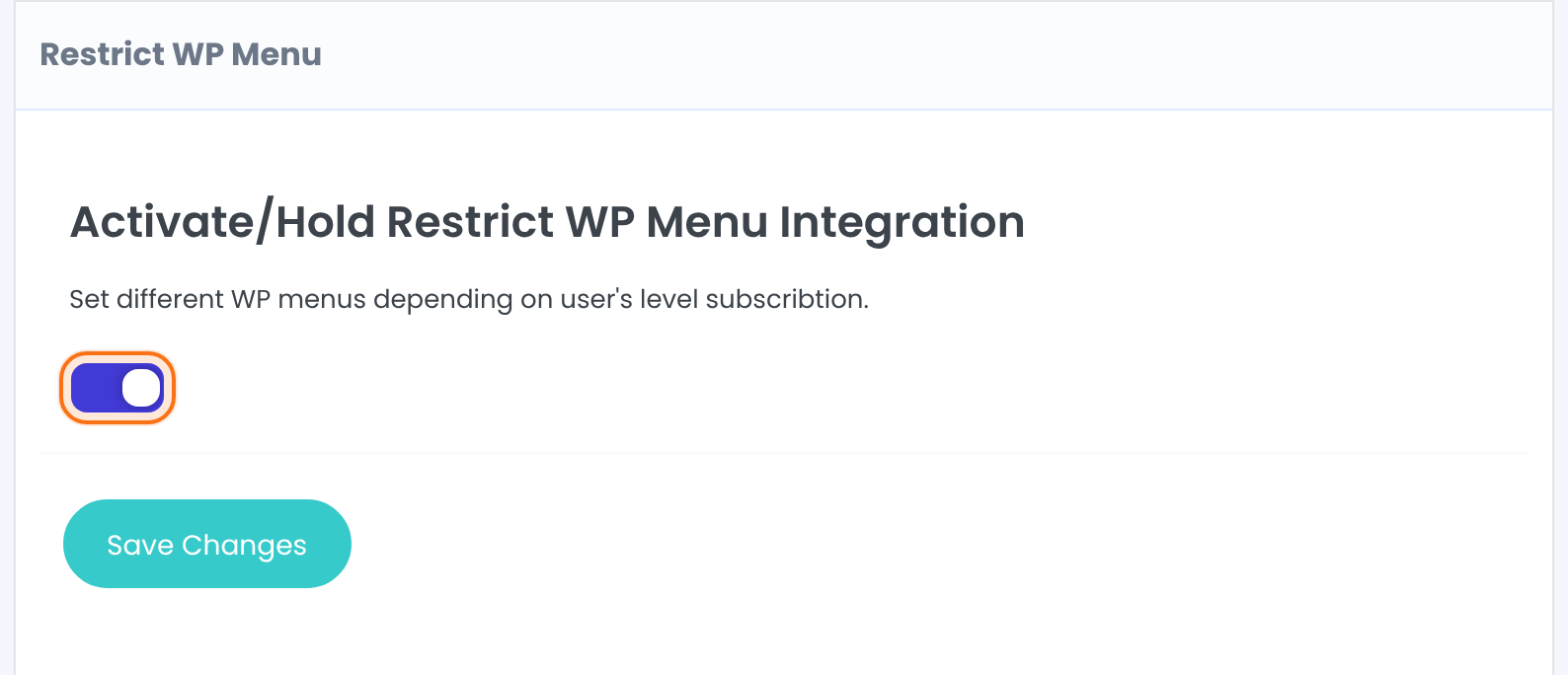
Turns the menu swap on. The menus you choose below are used only while the switch is on.
Default: Off
Choose a menu for each group
Below the switch, Right Menu For Each Level lists your groups. For each group, every menu location of your theme has a drop-down with your menus. Leave a location on its current menu if the group should keep it.
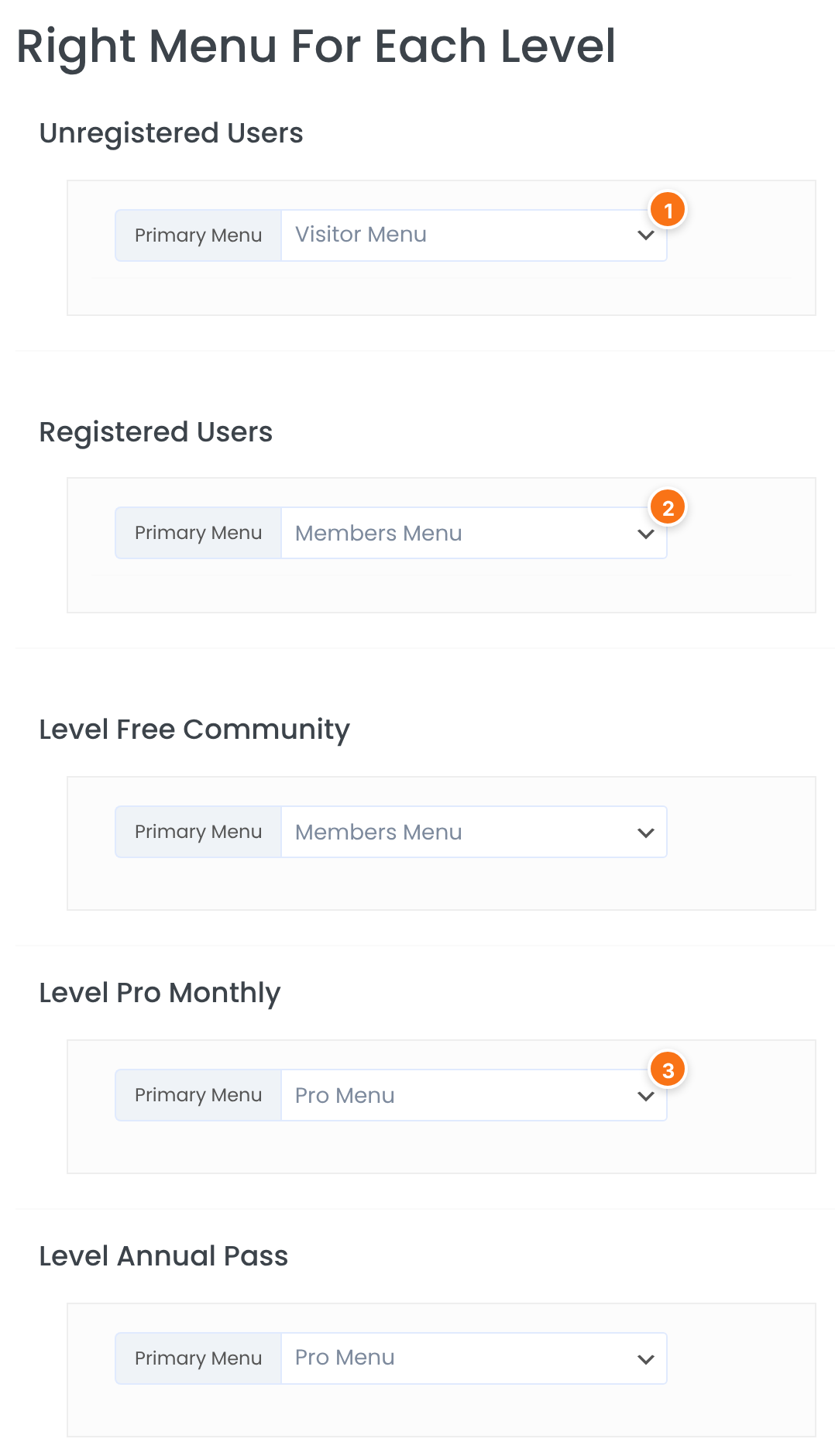
The menu visitors see, people who aren’t logged in.
The menu logged-in users see when they have no active Membership.
One block for each Membership, with the menu its members see. The screen says Level; it is your Membership.
Each drop-down starts on the menu currently assigned to that location. Click Save Changes when you are done.
Set the priorities
A member can have several Memberships. The priorities decide which menu is used then.
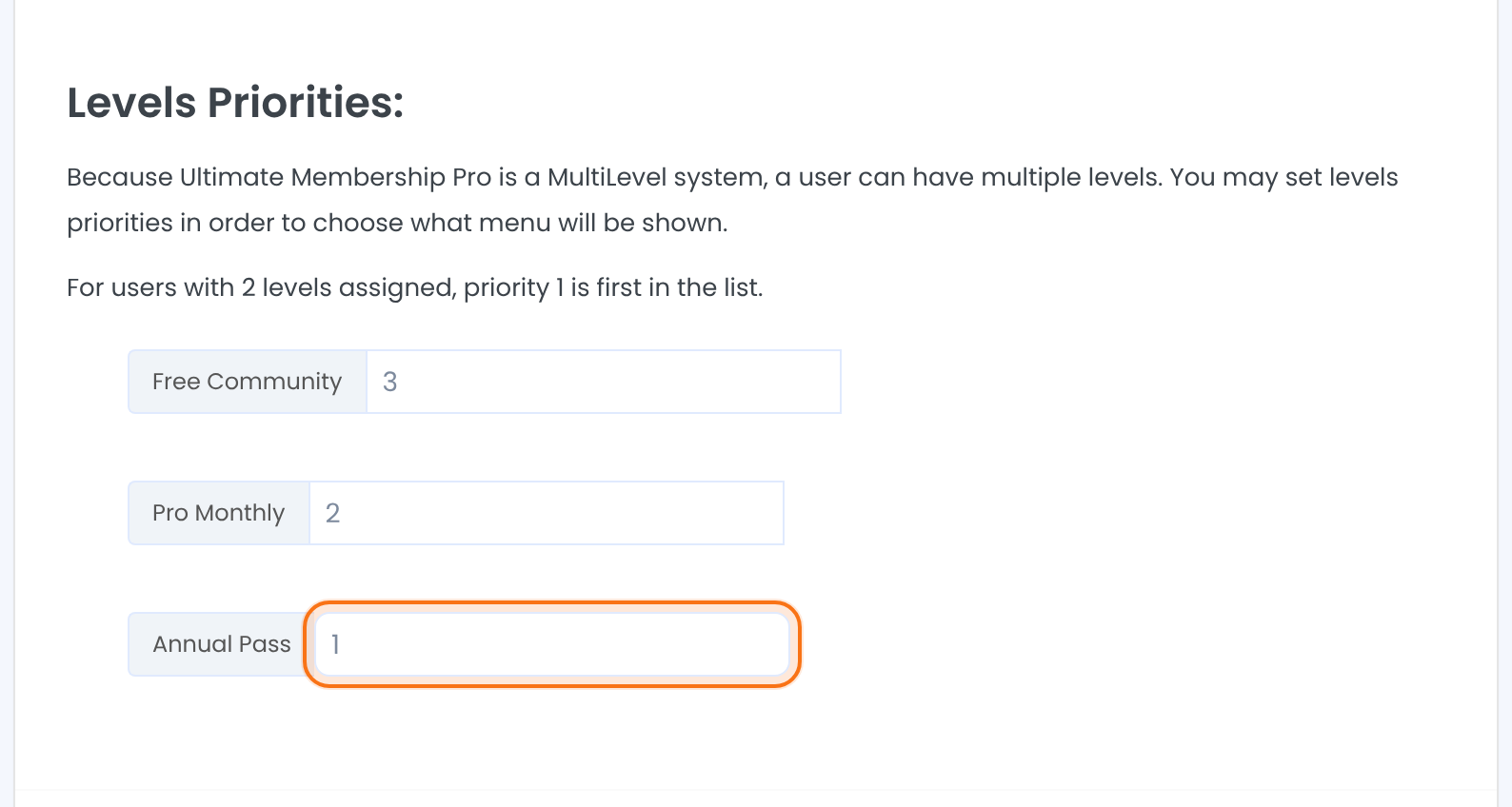
A number for each Membership. Priority 1 comes first, so a member with two Memberships gets the menu of the one with the lower number. The numbers start in the order of your Memberships list.
The priorities are saved with the menus when you click Save Changes, so save the screen at least once.
See the result
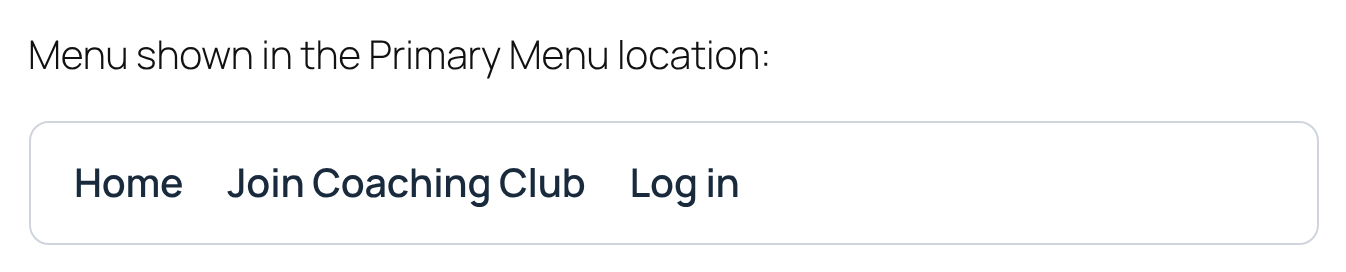
Open the site in a private window, or log in as a member, to check each menu. A visitor sees the menu you chose for Unregistered Users:
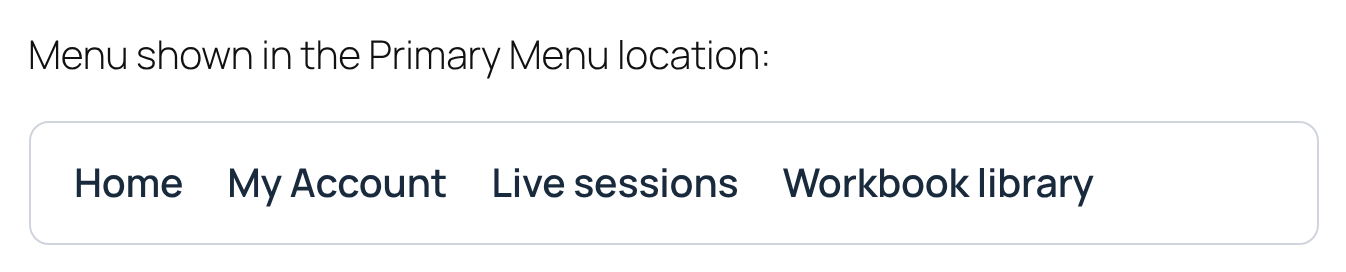
A Pro Monthly member sees the menu you chose for that Membership:
Good to know
- Administrators aren’t skipped. They see the menu of their own Memberships, or the Registered Users menu if they have none. Test with a member account or a private window.
- The add-on swaps the menus in the menu locations of your theme. Menus built with the Navigation block in the Site Editor don’t use menu locations.
Example: one navigation per plan
- Unregistered Users
- Visitor Menu: Home, Join Coaching Club, Log in
- Registered Users and Free Community
- Members Menu: Home, My Account, Community
- Pro Monthly and Annual Pass
- Pro Menu: Home, My Account, Live sessions, Workbook library
- Priorities
- Annual Pass 1, Pro Monthly 2, Free Community 3
Learn more about Restrict WP Menu
- Restrict WP Menu add-on page: what it does, at a glance.
- All Pro add-ons for Ultimate Membership Pro.
- Ultimate Membership Pro plans: Pro add-ons come with the Full Package and Agency plans.
- WordPress Appearance Menus screen guide.
Troubleshooting
Why don’t I see Right Menu For Each Level?
The section only appears when your theme has menu locations. Themes that build their menus in the Site Editor have none. Use a theme that registers menu locations, then reload the screen.
Why do I only see the names of the menu locations, without drop-downs?
The drop-downs list your menus, so create them first in Appearance›Menus.
Why does everyone still see the same menu?
Check that the switch is on and saved, and that you clicked Save Changes after choosing the menus, so the priorities are saved too. Check that a menu is assigned to the location in Appearance › Menus, that the Membership is active, and that you aren’t testing in a cached page. Then test as a member, not as an administrator.
Which menu does a member with two Memberships see?
The one chosen for the Membership with the lower priority number, so priority 1 comes first.
How do I show a different menu to each Membership in Ultimate Membership Pro?
Create one WordPress menu for each group, switch on the Restrict WP Menu add-on, then choose a menu for Unregistered Users, Registered Users and each Membership under Right Menu For Each Level, and click Save Changes.


