
In Ultimate Membership Pro, the Hidden WP Login add-on hides the standard WordPress login page: anyone who opens it is sent to your Ultimate Membership Pro login page instead. Members then only ever see one branded login form, and strangers don’t get the default WordPress screen to try passwords on.
This guide switches the add-on on, shows how to keep your own access with the IP allow list, and explains what visitors and administrators experience.
Before you start
- The Hidden WP Login add-on is installed and active. It’s a Pro add-on, included in the Full Package and Agency plans. See Install a Pro add-on.
- Your license is active. See Find and activate your license key.
- A login page is set under Ultimate Membership Pro›Settings›Pages Setup (the Login Page setting) and it shows the login form. See Set up the membership pages.
- Your own public IP address, if you want to keep using the WordPress login page.
Keep your own way in
- Once the add-on is on, the standard WordPress login page sends you to the membership login page too, unless your IP address is on the allow list.
- Add your IP address to IP’s allowed to access WP login form: before you save, and test with a member account in a private browser window.
- Administrators can still log in on the membership login page. After an administrator logs in, WordPress sends them to the dashboard.
Switch on Hidden WP Login
- Go to Ultimate Membership Pro›Modules and open Hidden WP Login (in Security & Login).
- Switch on Activate/Hold Hidden WP Login Integration.
- Optionally fill in the allow list, then click Save Changes.
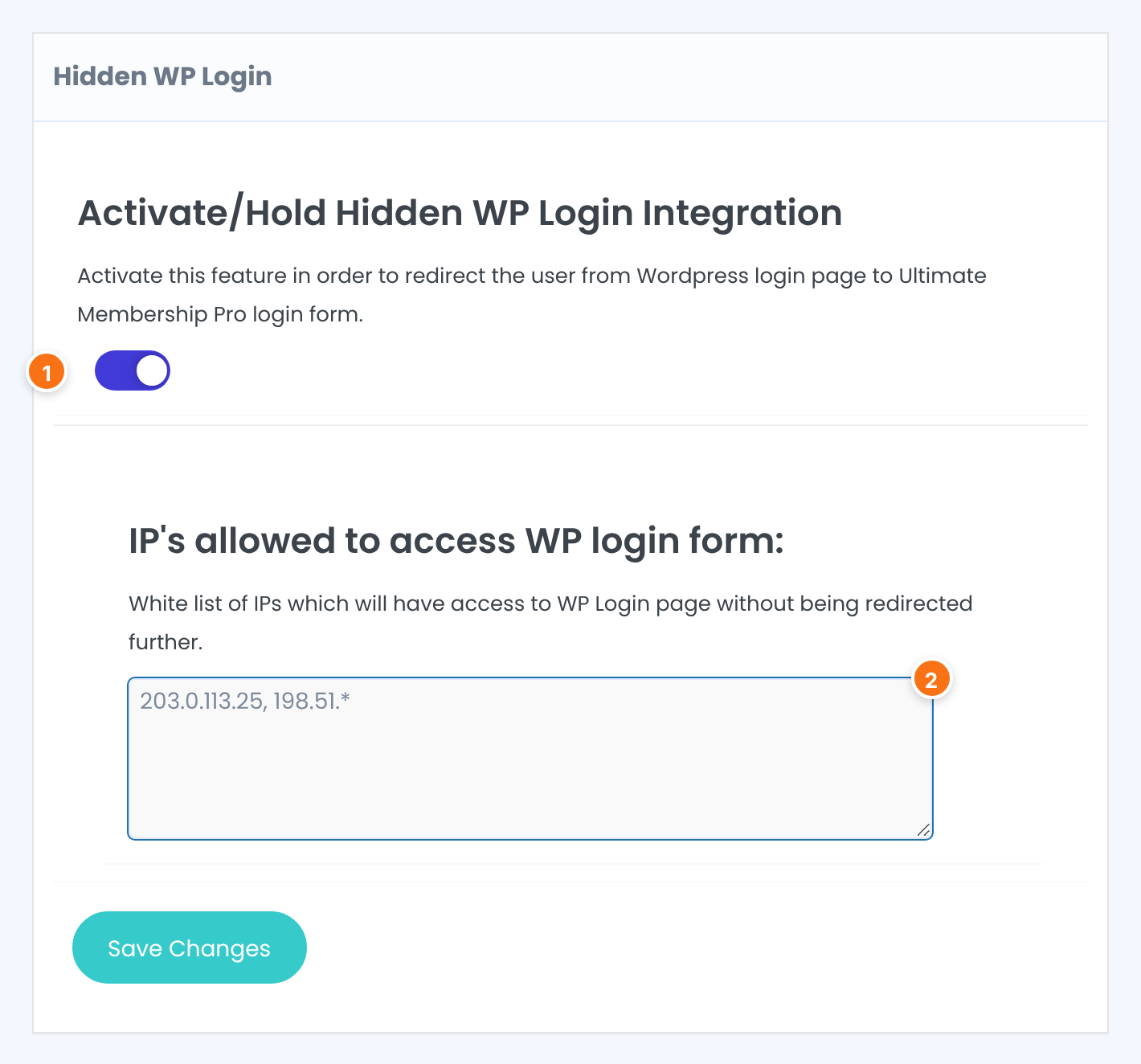
Turns the redirect on. Requests for the WordPress login page are sent to the Login Page of your Pages Setup.
Default: Off
A white list of IP addresses that reach the WordPress login page without being redirected. Separate values with commas, for example 203.0.113.25, 127.0.0.1. End a value with * to allow a whole range: 198.51.* allows every address that starts with 198.51. Leave it empty to redirect everyone.
Default: Empty
What visitors see
A visitor who opens yoursite.com/wp-login.php, including its lost-password address, lands on your membership login page:
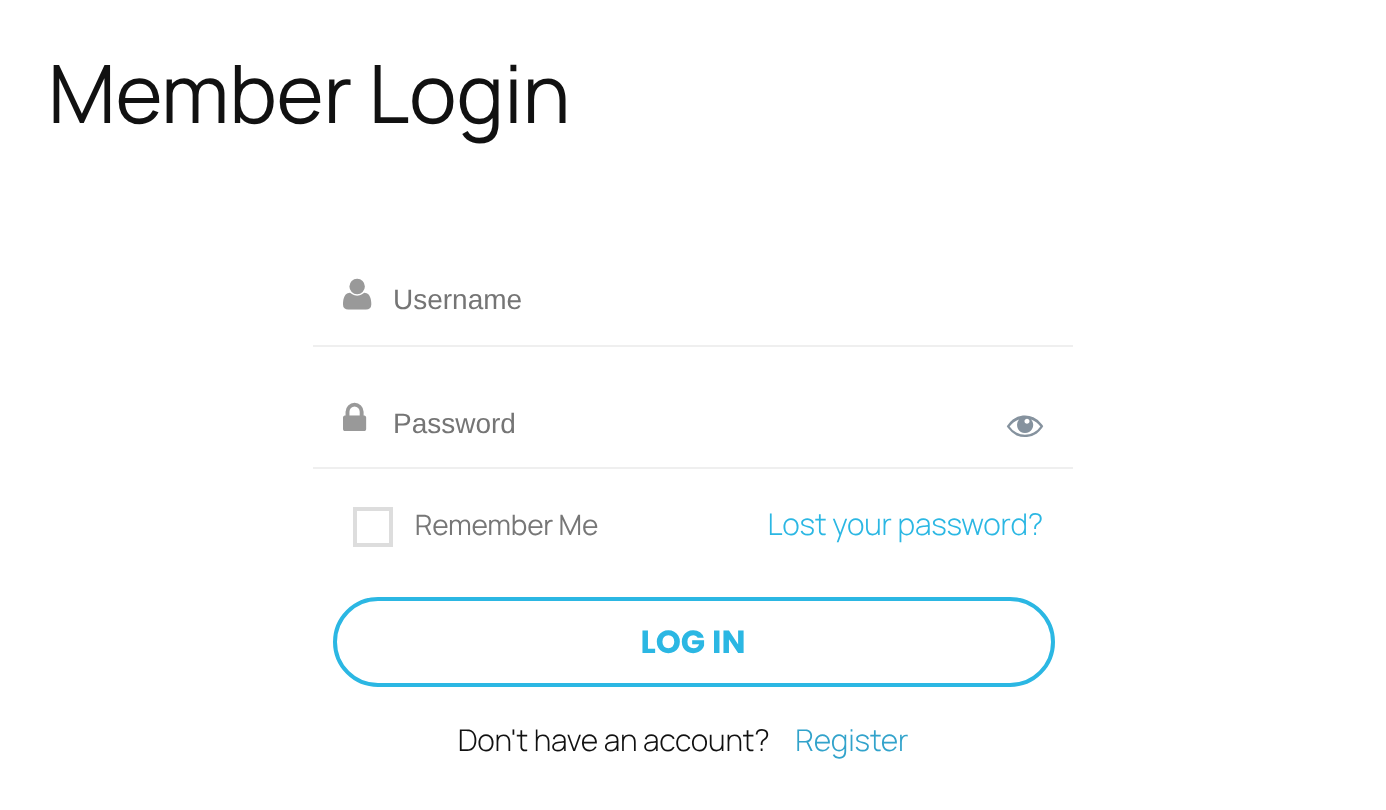
The members’ own login form works as before. The Lost your password? link on it goes to your lost-password page. See How password reset works.
Example: keep the office on the WordPress login page
- Activate/Hold Hidden WP Login Integration
- On
- IP’s allowed to access WP login form:
- 203.0.113.25
- Visitors from any other address
- Sent from wp-login.php to Member Login
- Administrators
- Log in on Member Login, then land on the WordPress dashboard
Learn more about Hidden WP Login
- Hidden WP Login add-on page: what it does, at a glance.
- All Pro add-ons for Ultimate Membership Pro.
- Ultimate Membership Pro plans: Pro add-ons come with the Full Package and Agency plans.
- WordPress brute force attack protection.
- Hardening WordPress.
Troubleshooting
I can’t reach the WordPress login page any more. What now?
The add-on redirects every address that isn’t on the allow list, yours included. Log in on your Member Login page with an administrator account, open Ultimate Membership Pro › Modules › Hidden WP Login, add your IP address to IP’s allowed to access WP login form: and save. You can also switch the add-on off there.
The WordPress login page still opens for me. Why?
Either the switch is off or wasn’t saved, or your IP address matches an entry of the allow list, including a range that ends with *. Visitors behind a proxy or CDN are matched on the address the proxy forwards.
Where do redirected visitors go?
To the page chosen as Login Page under Ultimate Membership Pro › Settings › Pages Setup. See Set up the membership pages.
How do I hide wp-login.php in Ultimate Membership Pro?
Install the Hidden WP Login add-on, switch on Activate/Hold Hidden WP Login Integration under Ultimate Membership Pro › Modules › Hidden WP Login and save. Add your own IP address to the allow list if you still want to open the WordPress login page.


