
The Ultimate Membership Pro login form is where your members sign in to reach their content and their Member Portal. The plugin gives you one form with 13 templates, a few on/off options and its own messages, and you can place it on any page.
This guide sets up the login form for the Coaching Club site: the template, the links under the fields, the messages, and what happens after a member logs in.
Before you start
- Your Login Page is set. The plugin creates a Member Login page with the
[ihc-login-form]shortcode when you activate it. See Set up the membership pages. - For the Lost your password? and Register links, the Lost Password Page and Register Page are set in the same place.
Open the Login Form showcase
- Go to Ultimate Membership Pro›Showcases and open Login Form.
- Stay on the Login Form Showcase tab. The Custom Messages tab holds the texts (Step 4).
The two tabs save separately: each one has its own Save Changes button and saves only its own fields.
Pick a template
In the Login Form Display card, click a thumbnail under Login Form Template. The Preview card on the same screen shows the form with your choice.
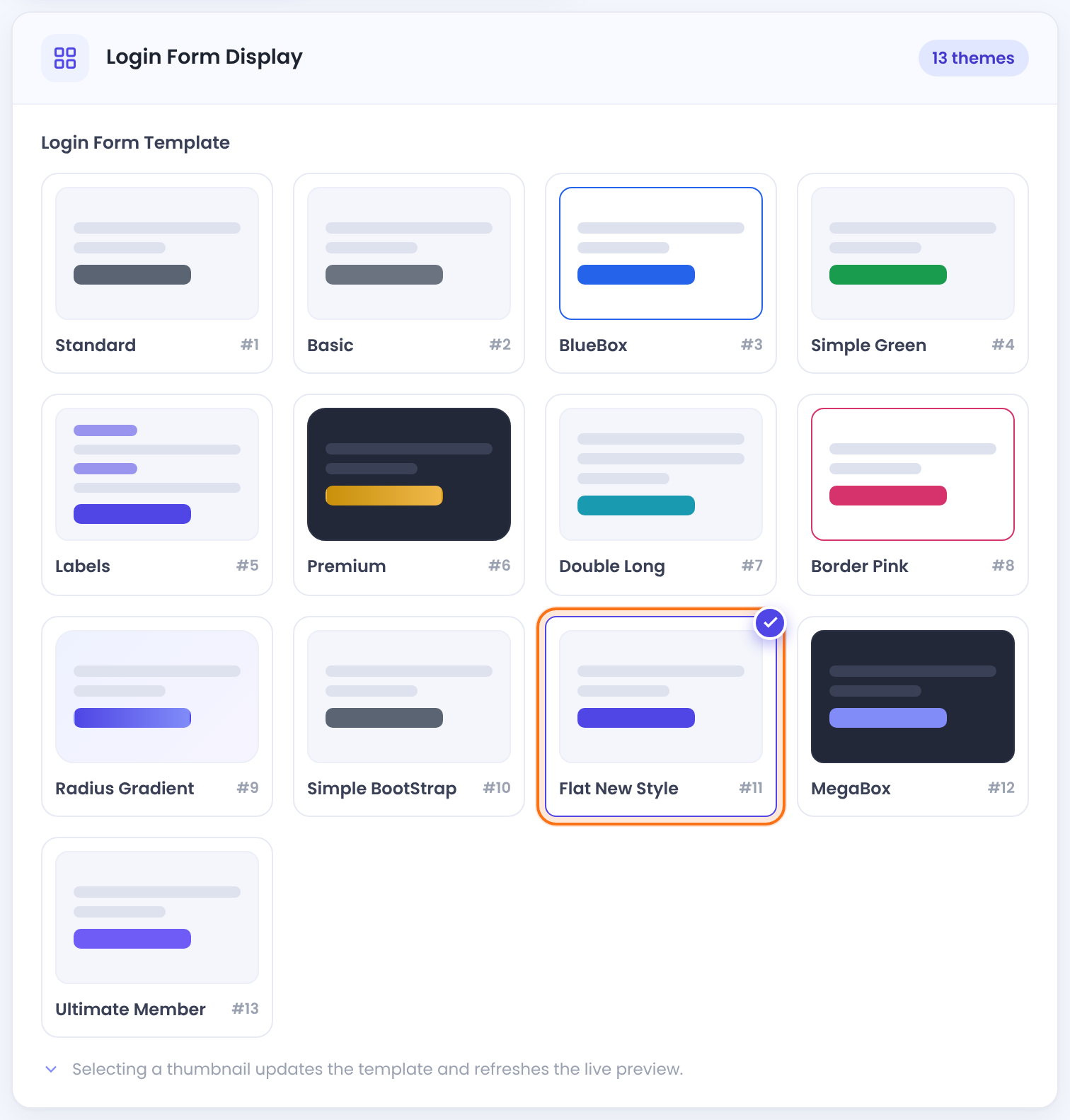
The look of the form: Standard, Basic, BlueBox, Simple Green, Labels, Premium, Double Long, Border Pink, Radius Gradient, Simple BootStrap, Flat New Style, MegaBox or Ultimate Member. The same template is used by the Lost Password form.
Default: Flat New Style (#11)
Choose what the form shows
The Additional Options card switches the extra parts of the form on or off. The numbers match the screenshot.
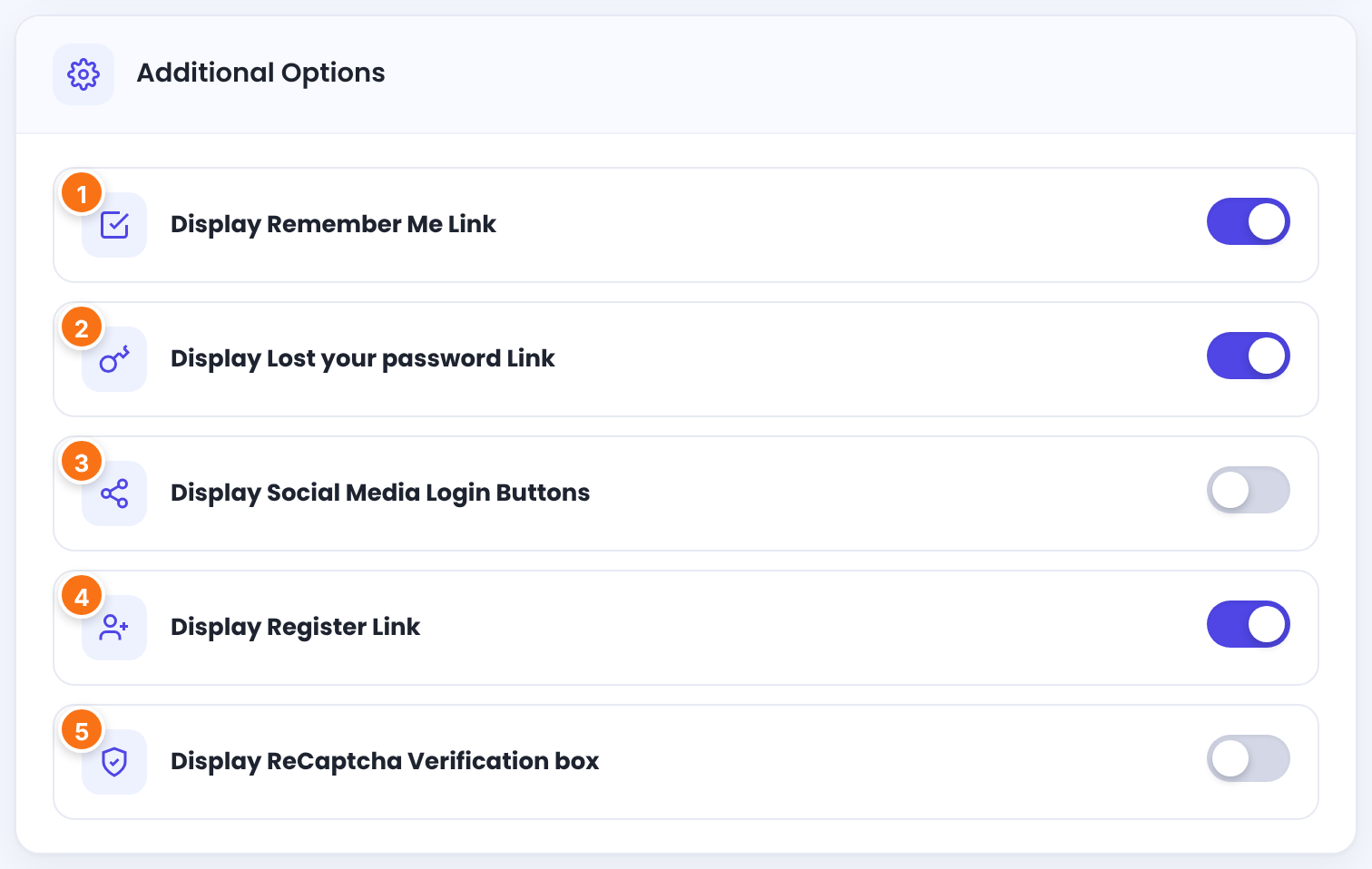
A Remember Me checkbox. When a member ticks it, they stay logged in for longer on that browser.
Default: On
A Lost your password? link to the Lost Password Page. See How password reset works.
Default: On
Buttons for the social networks you set up and switched on in Settings›Social Connect. With no network active, nothing shows. See Let members log in with social accounts.
Default: Off
A link to your Register Page for visitors who don’t have an account yet.
Default: On
A Google reCAPTCHA box. It shows only after you save your keys in Settings›reCaptcha Setup. See Add Google reCAPTCHA.
Default: Off
Below these options, the Custom CSS card takes CSS rules for the form. They load on every page that shows it. See Style forms and pages with CSS.
Click Save Changes.
Edit the messages
Open the Custom Messages tab. The Login Messages section holds the texts members see while they log in.
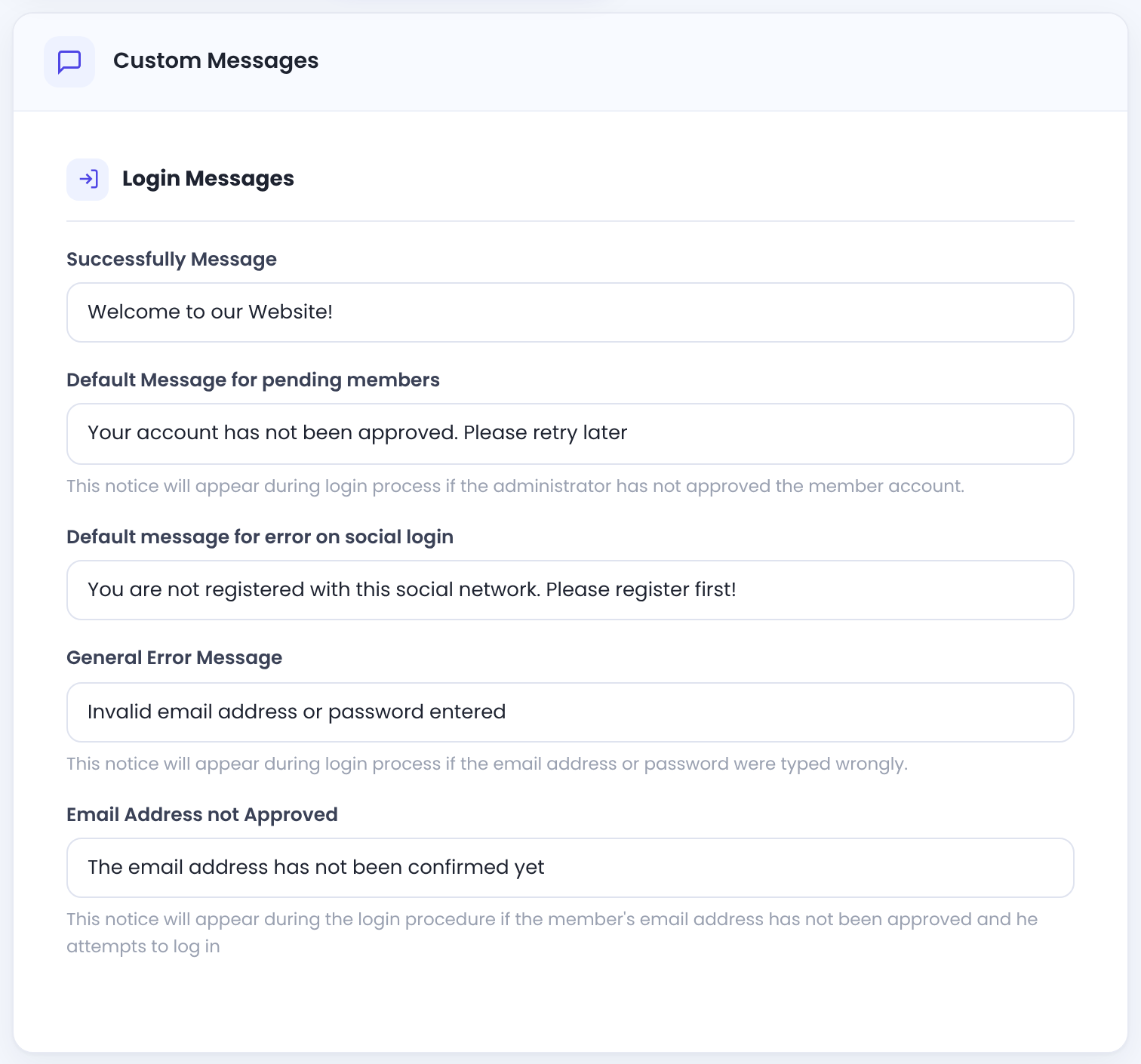
Replaces the form after a successful login when no redirect is set (see below).
Default: Welcome to our Website!
For members whose account is waiting for your approval.
Default: Your account has not been approved. Please retry later
When someone uses a social button that isn’t linked to an account on your site.
Default: You are not registered with this social network. Please register first!
Wrong username, email address or password.
Default: Invalid email address or password entered
For members who haven’t clicked their email verification link. See Verify members’ email addresses.
Default: The email address has not been confirmed yet
Click Save Changes on this tab. The other messages on the screen belong to the Lost Password form. For every other text, see Change plugin texts and messages.
Check the form on your site
Open your Login Page in a private (incognito) window. This is what visitors see:
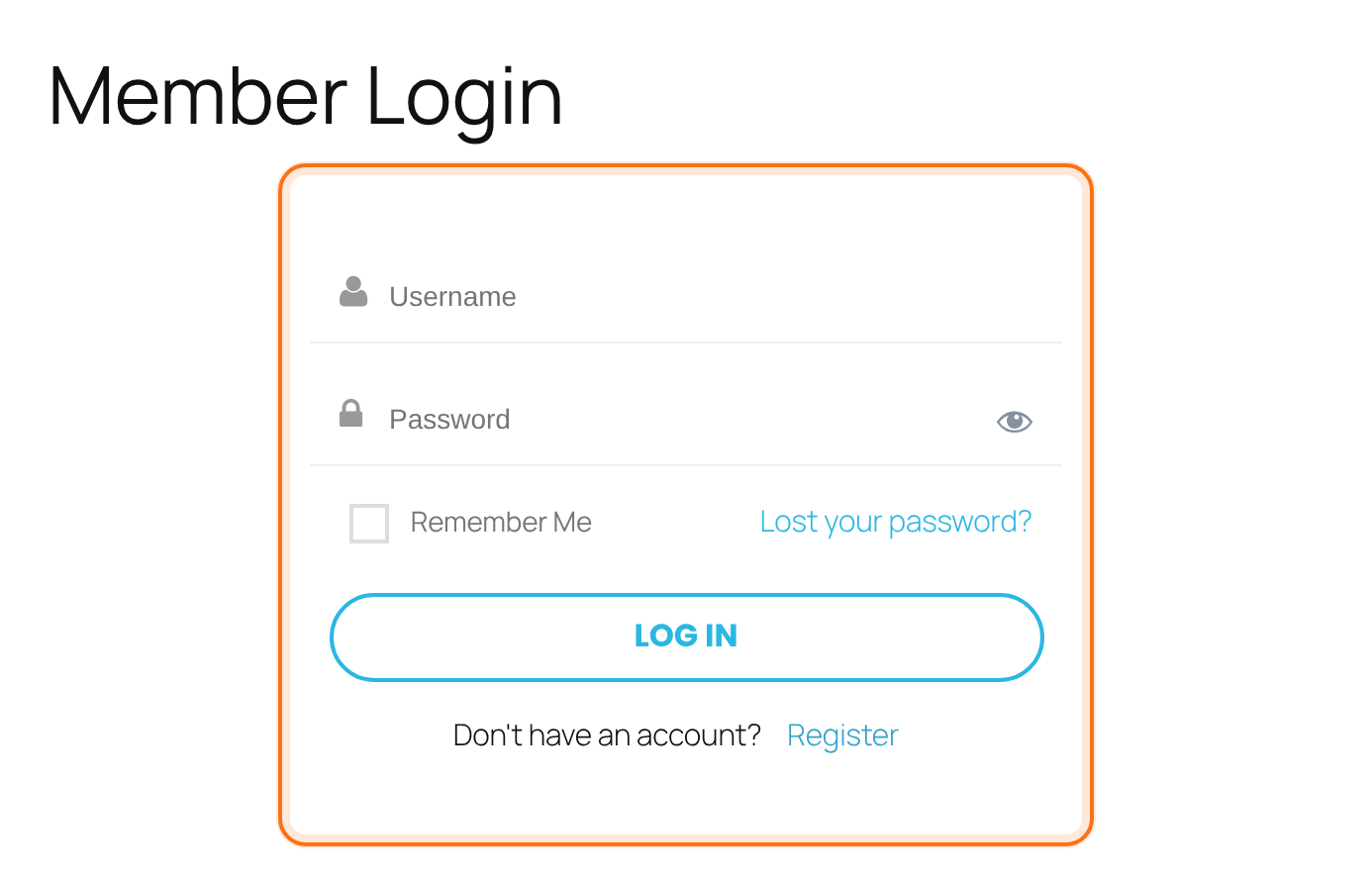
Members can type their username or their email address in the first field. Who sees what on a page with the form:
The login form.
Nothing. If they open the Login Page itself, they’re sent to the Member Portal (My Account), because of the Locker the plugin sets on that page.
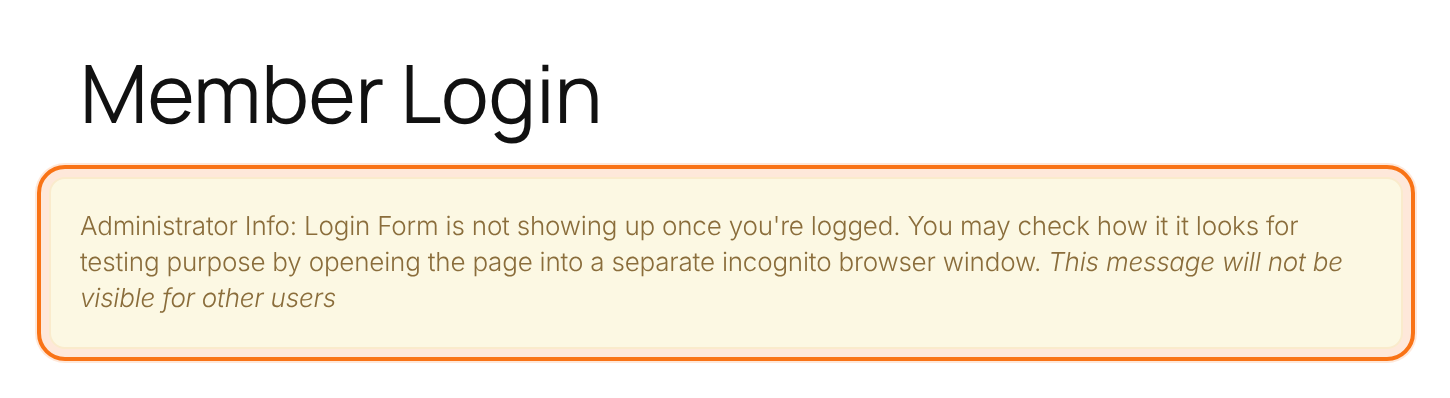
A yellow notice instead of the form, so you know it’s there. Other users never see this notice.
Add the form to another page
Paste the shortcode into any page, post or widget. The screen shows it at the top with a Copy button.
Login form
[ihc-login-form]Attributes change one form without touching the saved settings. Use 1 for on and 0 for off:
templateA template by its key, from ihc-login-template-1 to ihc-login-template-13. The number is the one on the thumbnail.
rememberShow the Remember Me checkbox.
lost_passShow the Lost your password link.
registerShow the Register link.
socialShow the social login buttons.
captchaShow the reCAPTCHA box.
A compact form for a sidebar, without the register link
[ihc-login-form template="ihc-login-template-3" register="0"]Page builders have it too: the Elementor widget UMP – Login Page and the WPBakery element Membership Pro – Login Form add the form with the saved settings. To open the form in a popup instead, see Login and registration popups.
What happens after login
The plugin looks for a destination in this order and uses the first one that applies:
- Login inside a Locker: when the member logs in from the form on a restricted page, they stay on that page and now see the content.
- Login Redirects+ module: a page per Membership, when the module is on. See Redirect members after login.
- After Login: the page set in Settings›Pages Setup, card Redirects Setup. After install it’s My Account, the Member Portal.
- Do Not Redirect: when After Login is set to Do Not Redirect, the member stays on the same page and the form is replaced by the Successfully Message.
Members who can’t log in yet
Some accounts exist but aren’t allowed in yet. The form tells them why, and they stay logged out:
Accounts you approve by hand (pending). They see the Default Message for pending members. Approve them with Approve Member in the ⋮ menu of the Members list; see Manage your members.
When email verification is on and the member hasn’t clicked the link yet. They see Email Address not Approved.
Members whose account is suspended see “Something went wrong, please try again later!”.
Test with a real member account
Keep a test member with a known password and log in with it in a private window. As an administrator you only see the notice, not the form.
Example: the Coaching Club login page
- Login Page
- Member Login, with [ihc-login-form]
- Login Form Template
- Flat New Style (#11)
- Remember Me, Lost your password, Register
- On
- Social Media Login Buttons, ReCaptcha
- Off
- After Login
- My Account
- General Error Message
- Invalid email address or password entered
Troubleshooting
Why does the login form say “Invalid email address or password entered”?
Ultimate Membership Pro shows this message when the username, email address or password is wrong, or a field was left empty. Ask the member to reset the password with the Lost your password link. If it happens with the right password, another login or security plugin may block the sign-in: test with other plugins switched off.
Why does a member see “Your account has not been approved. Please retry later”?
The login form shows this message when the member is waiting for your approval. In Ultimate Membership Pro › Members, open the ⋮ menu of the member and click Approve Member.
Why does the login form say “The email address has not been confirmed yet”?
The login form shows this message when the member hasn’t clicked the link in the verification email. You can also click Approve Email in the member’s ⋮ menu in Members.
Why does the login form say “Something went wrong, please try again later!”?
The login form usually shows this message when the page was served from a cache, or left open for a long time, so the form’s security check expired. Reload the page and exclude the Login Page from page caching. Members whose account is suspended also see this text.
Why do I only see a yellow “Administrator Info” box instead of the login form?
Ultimate Membership Pro shows the yellow “Administrator Info” box because you’re logged in as an administrator. Open the page in a private window to see the form.
Why don’t the social login buttons show on the login form?
The social login buttons show on the login form only when at least one network is switched on in Settings › Social Connect and Display Social Media Login Buttons is on in Additional Options.
Why does the Lost your password or Register link go nowhere?
The Lost your password and Register links go nowhere when no Lost Password Page or Register Page is selected. Pick both pages in Settings › Pages Setup.
More fixes: Login and registration problems.


