
Security Login is an Ultimate Membership Pro module that counts failed logins per IP address and locks the login form for that address for a while, then for longer if the attempts go on. This brute force login protection stops bots that try thousands of passwords on login forms.
This guide sets up the module for the Coaching Club site: 5 tries, a 30-minute lock, then a 24-hour lock after 3 lockouts.
Before you start
- Your license is active. This module needs an active license; see Find and activate your license key.
- Members log in with the Ultimate Membership Pro login form. See Set up the login form.
How the lock works
- Each wrong password from an IP address counts as a failed attempt. The member sees the usual “Invalid email address or password entered”.
- When the failed attempts reach Allowed Retries, each one within the Locked Time of the one before, the IP address is locked out for the Locked Time. Every login from it is refused, even with the right password, and the form shows the Locked Message.
- After the Locked Time, the address gets a new set of tries.
- When an address has been locked out Maximum number of Lockouts times, the form is hidden from it for the Extended Locked Time and replaced by the Extended Locked Message.
The lock applies to the Ultimate Membership Pro login form wherever it appears: the Login Page, login popups and the login form inside Lockers.
Switch on the module
- Go to Ultimate Membership Pro›Modules and open Security Login, in the Security & Login group.
- Switch on Activate/Hold Security Login.
Set the limits
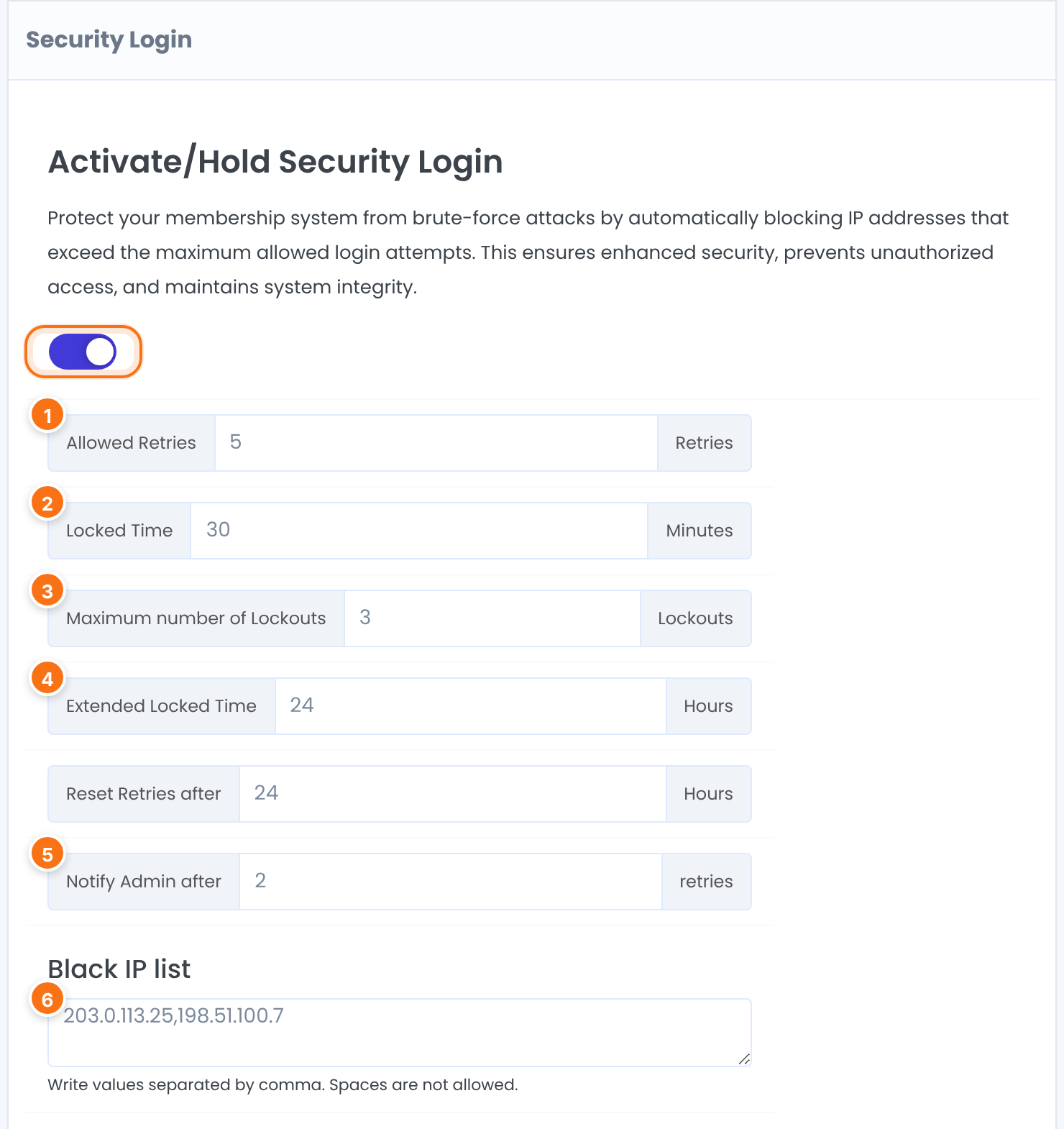
Failed attempts before the IP address is locked out.
Default: 3
Minutes the login form stays locked for that address.
Default: 15
Lockouts before the longer, extended lock starts.
Default: 3
Hours the form is hidden from that address after the last lockout.
Default: 24
Emails you when an IP address is locked out for this number of times. The email goes to the Admin Notifications Email Address(es) set in Settings›Notifications Settings, or to the WordPress admin email.
Default: 2
IP addresses that never see the login form, separated by commas, without spaces. They see “You are not allowed to see this Page.” instead. Use full addresses; ranges aren’t supported.
Default: Empty
Reset Retries after can stay as it is: the counters start again on their own after the Locked Time and the Extended Locked Time.
Match the messages to your limits
The default texts mention 15 minutes and 24 hours. They don’t change when you change the numbers, so edit them to match:
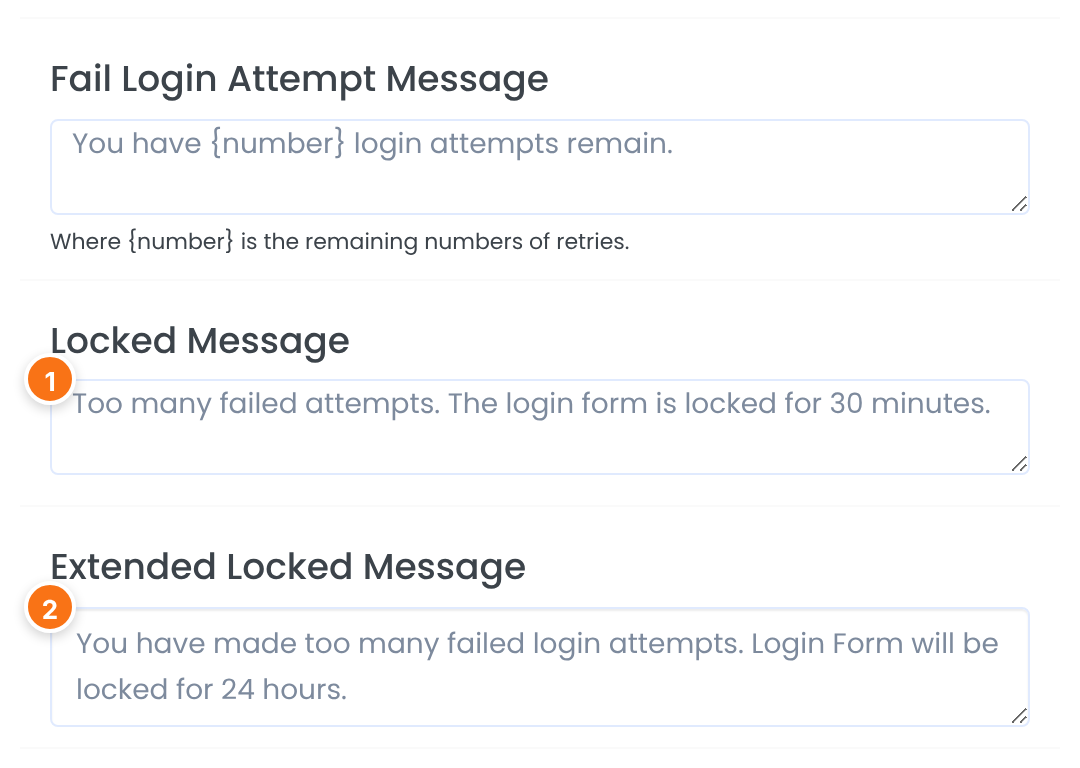
Shown under the form during a lockout.
Default: Login Form is locked for 15 minutes.
Shown instead of the form during the extended lock.
Default: You have made too many failed login attempts. Login Form will be locked for 24 hours.
Leave Fail Login Attempt Message as it is. After a wrong password, members see the login form’s General Error Message, which you edit in the Login Form showcase. Click Save Changes.
Good to know
- Attempts are counted per IP address, not per account. People who share a network, such as an office, share the count.
- There’s no list of locked addresses in the admin. A lockout ends by itself after the Locked Time or Extended Locked Time; an address in the Black IP list stays blocked until you remove it.
- Before you add an address to the Black IP list, make sure it isn’t your own.
- The module protects the plugin’s login form. For the WordPress login page (wp-login.php), use a security plugin, or hide that page with the paid add-on Hidden WP Login.
Example: Coaching Club login security
- Allowed Retries
- 5
- Locked Time
- 30 Minutes
- Maximum number of Lockouts
- 3
- Extended Locked Time
- 24 Hours
- Notify Admin after
- 2
- Black IP list
- 203.0.113.25,198.51.100.7
- Locked Message
- Too many failed attempts. The login form is locked for 30 minutes.
Troubleshooting
Why does the login form say “Login Form is locked for 15 minutes.”?
Ultimate Membership Pro shows this message when the IP address reached Allowed Retries in the Security Login module. Wait for the Locked Time, then log in with the right password, or reset it from the Lost your password link.
Why does the login form say “You have made too many failed login attempts. Login Form will be locked for 24 hours.”?
Ultimate Membership Pro shows this message when the IP address reached the Maximum number of Lockouts. The form comes back after the Extended Locked Time.
Why do I see “You are not allowed to see this Page.” instead of the login form?
Ultimate Membership Pro shows this message instead of the login form when the visitor’s IP address is in the Black IP list. Remove the address there and save.
How do I get back in after locking myself out?
If you locked yourself out, log in from another network (for example your phone’s mobile data) or wait for the lock to end. Administrators can also log in at wp-login.php.
Why doesn’t the Security Login admin alert arrive?
The Security Login admin alert goes to the Admin Notifications Email Address(es) in Settings › Notifications Settings. Check that address and that your site can send email. See Set up email notifications.


