
In Ultimate Membership Pro, the Hidden HTML Elements add-on hides elements of your pages from the people you choose, by targeting their CSS class or ID. It works with any theme or page builder, so you can hide a banner, a menu link or a widget box from members, or show it to them alone, without editing the page.
This guide switches the add-on on, adds a rule, and shows what visitors and members see.
Before you start
- The Hidden HTML Elements add-on is installed and active. It’s a Pro add-on, included in the Full Package and Agency plans. See Install a Pro add-on.
- Your license is active. See Find and activate your license key.
- You know the CSS class or ID of the element. Many builders have a CSS Class or CSS ID field in the element’s advanced settings, and your browser’s Inspect tool shows both.
The element is hidden, not removed
The add-on hides the element with CSS. Its content is still in the page’s HTML source, so a visitor who views the source can read it. Use it for things such as banners and links. For content that must stay private, use Hide part of a page (Inside Locker) or Restrict content with Access Rules.
Switch on the add-on
- Go to Ultimate Membership Pro›Modules and open Hidden HTML Elements, in the Content Protection group.
- Switch on Activate/Hold Hidden HTML Elements Integration.
- Click Save Changes.
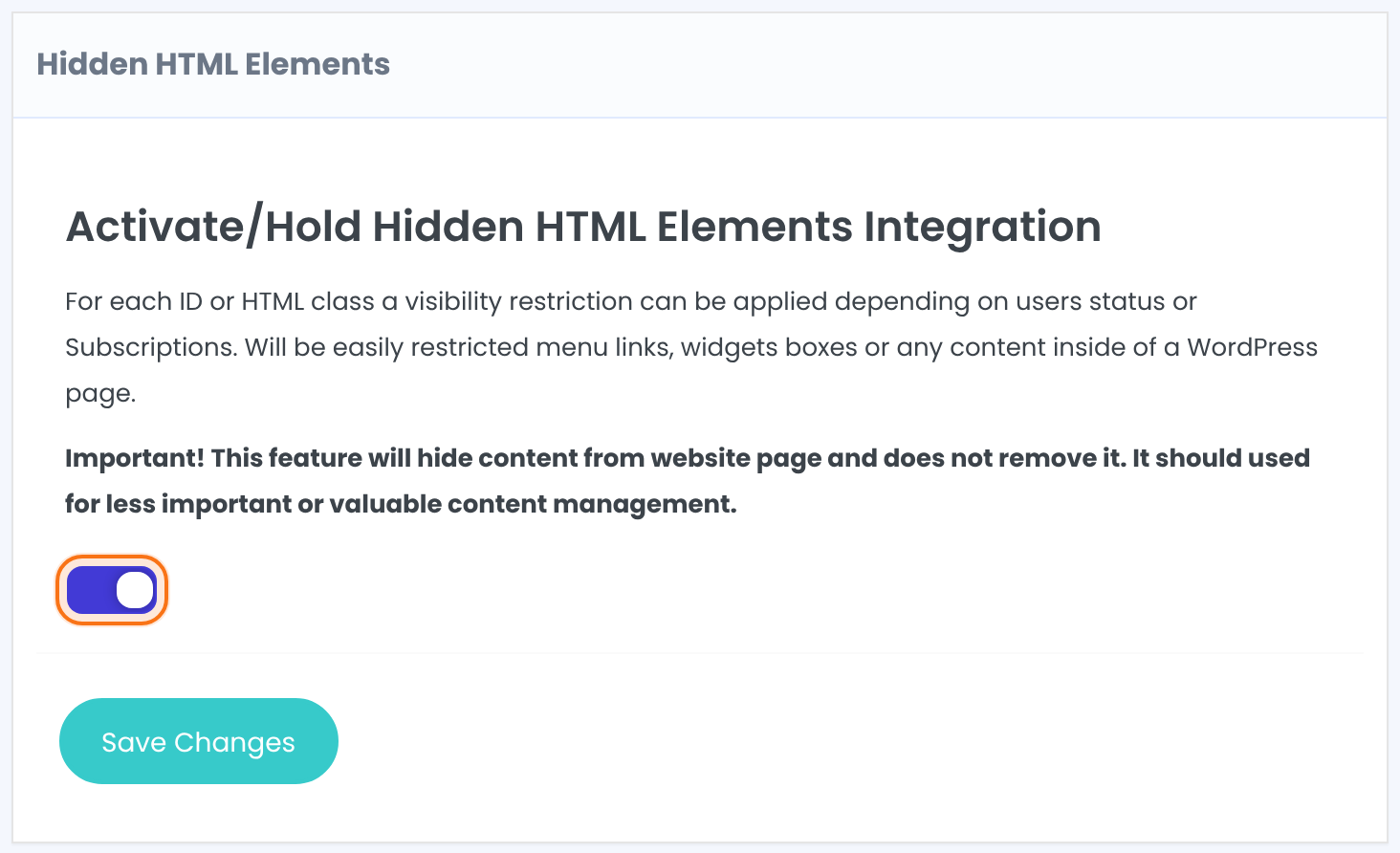
Applies your rules on the front end of the site. Switch it off to stop all rules at once without deleting them.
Default: Off
Add a rule
Under the switch, the Add new Restriction box creates one rule for one class or ID.
- Type the name in HTML selector:, without the dot or hash.
- Choose (.)Class or (#)ID in HTML selector type:.
- Choose Block Only or Show Only in Restriction process:.
- Pick who the rule is for in Target Users:. Each choice appears as a tag, and the x on a tag removes it.
- Click Add New.
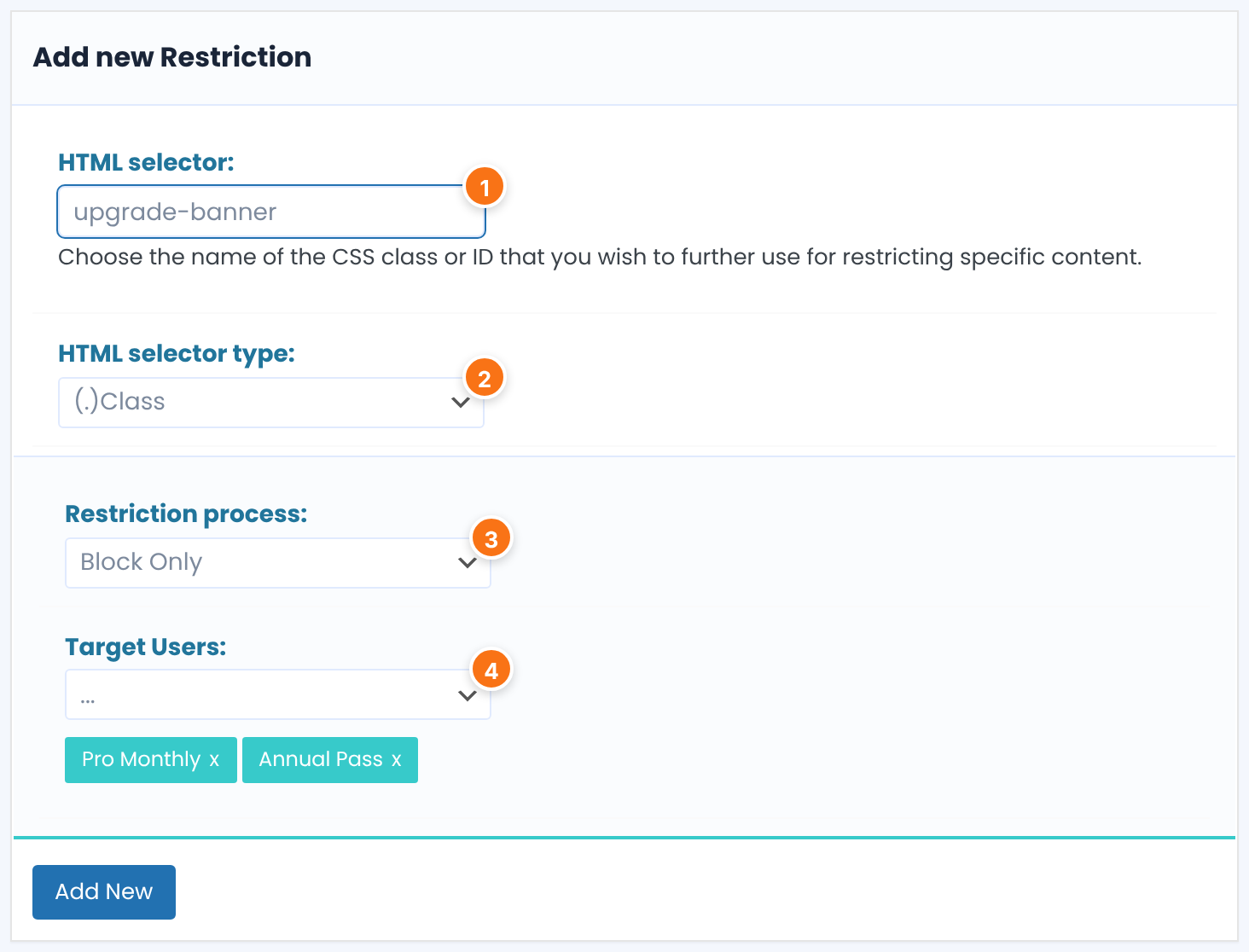
The name of the CSS class or ID, for example upgrade-banner. Don’t type the dot or hash; the next field adds it.
(.)Class targets every element with that class. (#)ID targets the element with that ID.
Default: (.)Class
How the Target Users are used.
- Block Only: the element is hidden from the Target Users and everyone else sees it.
- Show Only: the element is shown to the Target Users and hidden from everyone else.
Default: Block Only
The people the rule is for: All, Registered Users (logged in, with or without a Membership), Unregistered Users (visitors) or any of your Memberships. You can add several.
The rule applies on every page of your site that has an element with that class or ID. Administrators always see every element.
Check and delete rules
Your rules are listed below the form, with the selector as it is used on the page, the Restriction type and the Target Users.
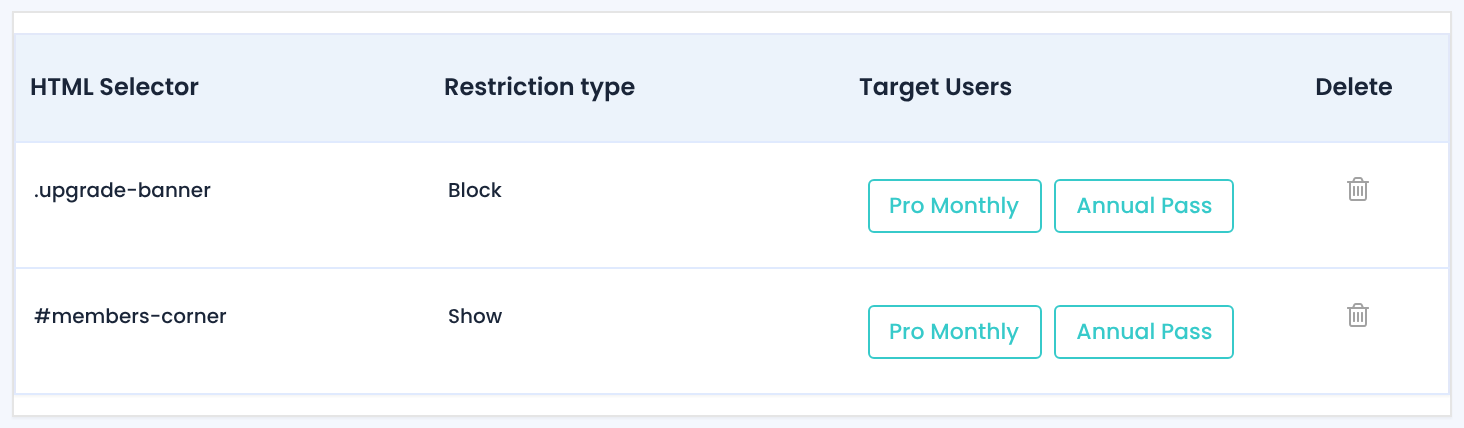
To remove a rule, click the trash icon in the Delete column. The rule is deleted at once. To change a rule, delete it and add it again.
See the result
Open the page in a private window, or log in as a member, because administrators see everything. With the two rules above, a visitor sees the upgrade banner and not the members corner:

A Pro Monthly member sees the members corner and not the banner:

Example: hide the upgrade banner from paying members
- Rule 1
.upgrade-banner, Block Only, Pro Monthly and Annual Pass- Rule 2
#members-corner, Show Only, Pro Monthly and Annual Pass- Result
- Visitors and Free Community members see the banner. Pro Monthly and Annual Pass members see the members corner
Learn more about Hidden HTML Elements
- Hidden HTML Elements add-on page: what it does, at a glance.
- All Pro add-ons for Ultimate Membership Pro.
- Ultimate Membership Pro plans: Pro add-ons come with the Full Package and Agency plans.
- CSS class selectors (MDN).
- CSS ID selectors (MDN).
Troubleshooting
Why doesn’t my new rule appear in the list?
A rule needs a selector and at least one Target User. A rule with the same selector, selector type and restriction process as an existing rule isn’t added again, so delete the old one first if you want to replace it.
Why can I still see the element?
Administrators see everything, so check in a private window or as a member. Then check that the switch is on and saved, that the selector type matches (class or ID), that you typed the name without the dot or hash, and that the element really has that class or ID. If your site uses page caching, clear the cache.
Is the hidden content private?
No. The add-on hides the element with CSS, and its content stays in the page’s HTML source. Use it for things such as banners and links, and use an Inside Locker or Access Rules for content that must stay private.
How do I hide an element from members of one Membership in Ultimate Membership Pro?
Switch on the Hidden HTML Elements add-on, then add a rule with the element’s class or ID, Restriction process Block Only, and the Membership as Target Users. Members who have that Membership no longer see the element.


