
In Ultimate Membership Pro, the Restriction Hold add-on keeps a post or page open to everyone until a date you choose. From that date on, its normal restriction applies and only the right members can open it. It lets you give content away for free first, then move it behind your Memberships.
This guide switches the add-on on and sets the date in the post editor. The opposite add-on, Restriction Release, frees a restricted post on a date.
Before you start
- The Restriction Hold add-on is installed and active. It’s a Pro add-on, included in the Full Package and Agency plans. See Install a Pro add-on.
- Your license is active. See Find and activate your license key.
- The post already has a restriction, for example Show Page Only for Pro Monthly in its Locker box. See Restrict your first page.
Switch on the add-on
- Go to Ultimate Membership Pro›Modules and open Restriction Hold (in the Content Protection group).
- Switch on Activate/Hold Restriction Hold Integration and click Save Changes.
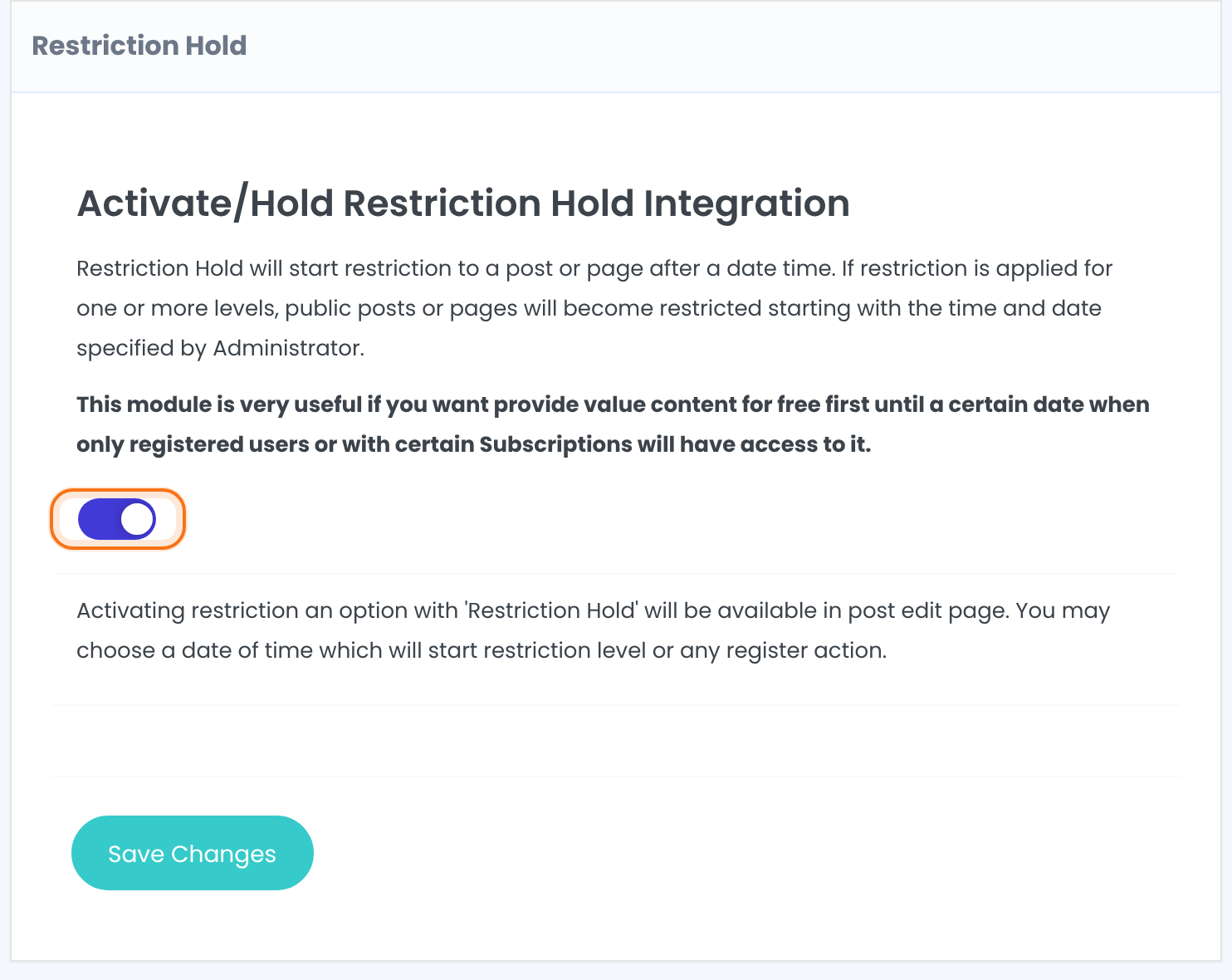
The add-on has no other settings here. The date is set on each post.
Set the date on the post
- Edit the post or page. In the editor sidebar, scroll to the Ultimate Membership Pro Locker box.
- At the bottom, under Restriction Hold, click the date field next to Restriction will be applied and post restricted starting with: and pick a date.
- Click Update on the post.
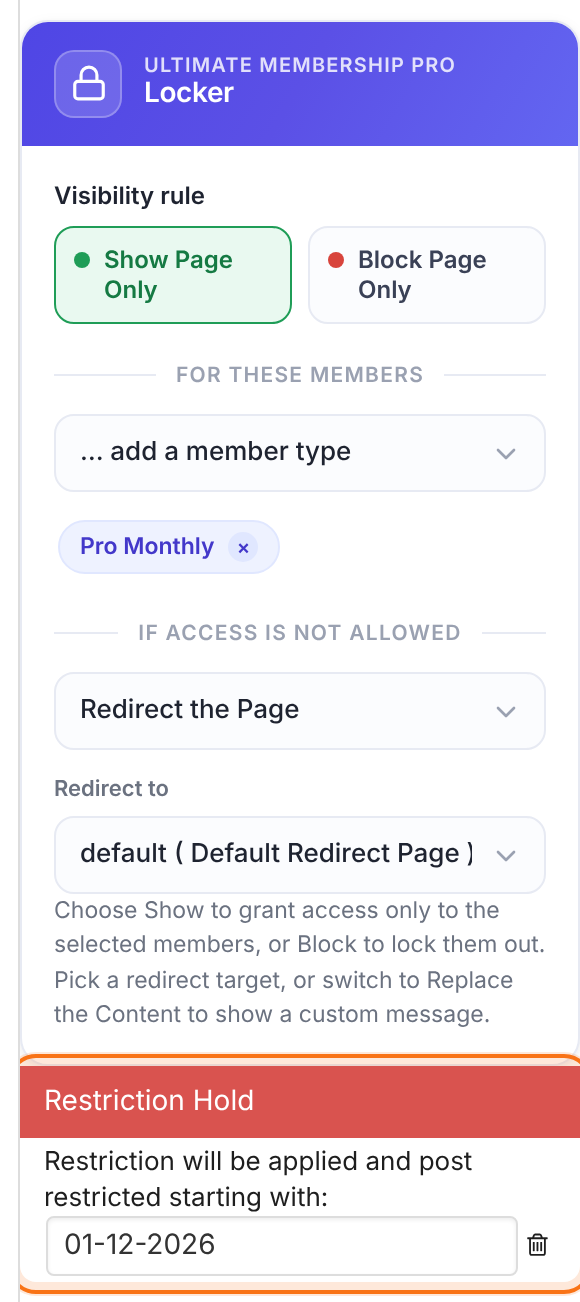
The date the restriction starts, written day-month-year, for example 01-12-2026. The post is open to everyone before it. From the start of that day its normal restriction applies. Leave the field empty, or click the bin icon next to it, to remove the date.
Default: Empty
The box appears wherever the Locker box does: pages, posts and custom post types. The restriction that starts on the date is the one you set in the Locker box or in Access Rules. The add-on only decides when it starts.
Hold or Release?
- Restriction Hold: open now, restricted from the date.
- Restriction Release: restricted now, open from the date. See Make a restricted post free on a date (Restriction Release).
- Drip Content is different again: it opens a post to a member some time after that member’s Membership starts, so every member gets a different date. See Release content over time (Drip Content).
Use both add-ons on one post for a full timeline: public until the Hold date, restricted after it, and public again from the Release date.
Example: a free first lesson that moves behind Pro Monthly
- Post
- Coaching Club – Week 1 lesson
- Locker
- Show Page Only for Pro Monthly ($19/month)
- Restriction Hold date
- 01-12-2026
- Before December 1
- Everyone can read the lesson, including visitors
- From December 1
- Only Pro Monthly members can open it; everyone else goes to the Default Redirect Page
Learn more about Restriction Hold
- Restriction Hold add-on page: what it does, at a glance.
- All Pro add-ons for Ultimate Membership Pro.
- Ultimate Membership Pro plans: Pro add-ons come with the Full Package and Agency plans.
- Scheduling a WordPress post.
Troubleshooting
I set a Restriction Hold date, but the post is already restricted today. Why?
Check that the Restriction Hold switch is on and saved under Modules, and that you clicked Update on the post after setting the date. The restriction starts at the beginning of the chosen day.
Where is the Restriction Hold box in the post editor?
It’s at the bottom of the Ultimate Membership Pro Locker box in the editor sidebar. It shows only while the Restriction Hold add-on is switched on.
What date format should I use for Restriction Hold in Ultimate Membership Pro?
Pick the date with the date picker. It is written day-month-year, for example 01-12-2026.
How do I keep a post free for everyone first and restrict it later?
Restrict the post in its Locker box, switch on Restriction Hold, and set the date when the restriction should start. Before that date the post is open to everyone.


