
In the WordPress block editor, Ultimate Membership Pro adds 12 blocks: 11 that place a plugin form or page, such as the registration form, the checkout or the Member Portal, and the Content Locker Shortcode block, which hides part of a page from some visitors. You build member pages by adding blocks, without typing shortcodes.
This guide finds the blocks, explains what each one shows, and sets up the locker block around members-only content.
Before you start
- Ultimate Membership Pro is up to date. Older versions show only the Content Locker Shortcode block; update the plugin to get the other 11.
- You have at least one Membership. See Create your first Membership.
- Your membership pages exist. See Set up the membership pages.
Find the blocks
- Open a page or post in the block editor.
- Click the + block inserter and type UMP (or membership) in the search box.
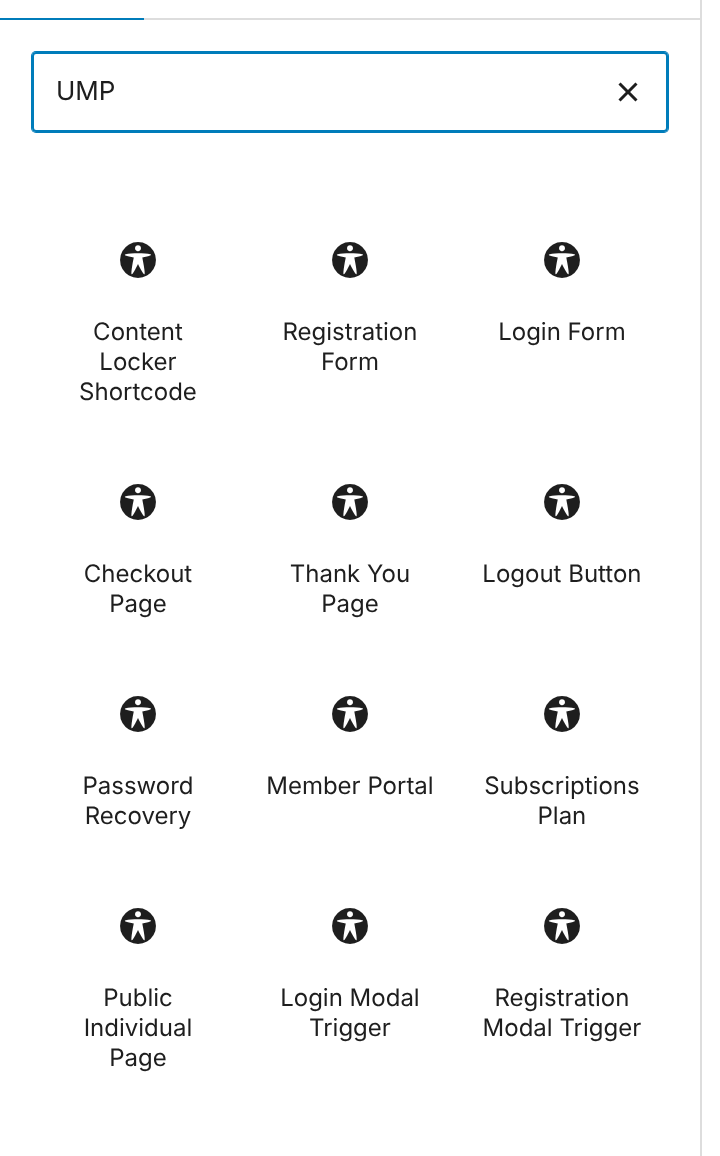
Without a search, the 11 page blocks are in the Ultimate Membership Pro – Shortcodes group of the inserter, and Content Locker Shortcode is in the Text group.
Add a form or page
- Click a block to add it, for example Login Form.
- Publish or update the page, then open it to see the result.
![Block editor with the page Coaching Club lesson: a paragraph, the Login Form block selected and showing [ihc-login-form], another paragraph and the Registration Form block showing [ihc-register]; the sidebar shows Login Form with only Advanced settings](https://ultimatemembershippro.com/wp-content/uploads/2026/10/ump-block-editor-02-canvas.png)
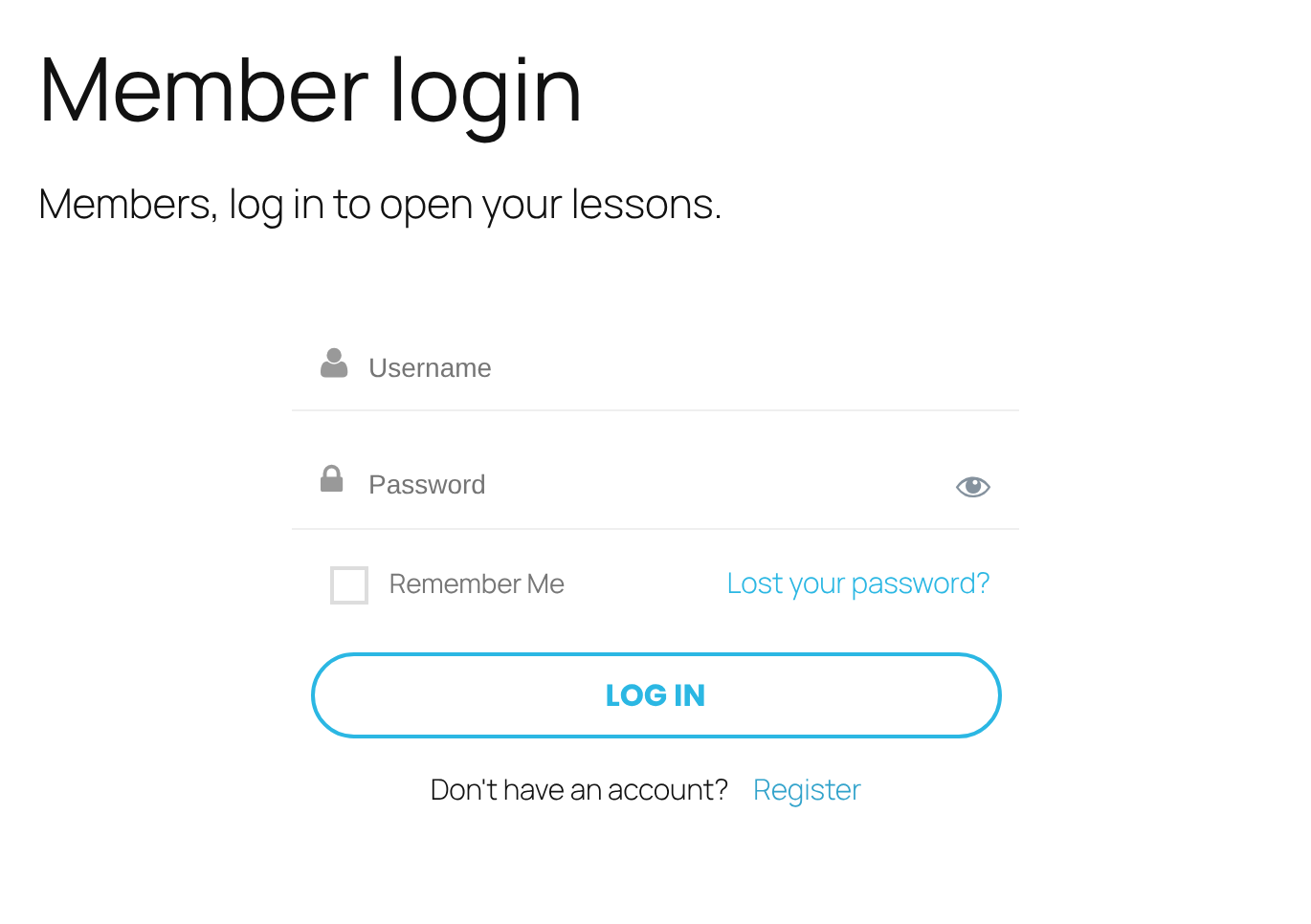
These blocks have no settings of their own. Each one places the plugin’s shortcode, so the form or page looks the way you set it up in Ultimate Membership Pro›Showcases.
The 11 page blocks
The registration form. See Set up the registration form. Places [ihc-register].
The login form. See Set up the login form. Places [ihc-login-form].
The checkout: payment method, coupon, taxes and the purchase button. Places [ihc-checkout-page].
The page members see after a purchase. Places [ihc-thank-you-page].
A logout link. See Add a logout link to your menu. Places [ihc-logout-link].
The lost password form. See How password reset works. Places [ihc-pass-reset].
The member’s account area. See Set up the Member Portal. Places [ihc-user-page].
Your Memberships as a pricing table, with their buy buttons. Places [ihc-select-level].
A member’s public profile. See Show public member profiles. Places [ihc-visitor-inside-user-page].
A “Login” link that opens the login form in a popup. See Login and registration popups. Places [ihc-login-popup]Login[/ihc-login-popup].
A “Register” link that opens the registration form in a popup. Places [ihc-register-popup]Register[/ihc-register-popup].
Put forms on the pages the plugin uses
Redirects and links go to the pages chosen in Ultimate Membership Pro›Settings›Pages Setup. Add the Registration Form block to your Register page, Login Form to your Login page, and so on, so members land where the block is.
Need an option? Use the Shortcode block
The blocks always place the shortcode without attributes. To pick a form template or another option, add the WordPress Shortcode block instead and paste the shortcode with its attributes, for example [ihc-login-form template="ihc-login-template-3"]. Every attribute is in Shortcodes reference.
Hide part of a page with the locker block
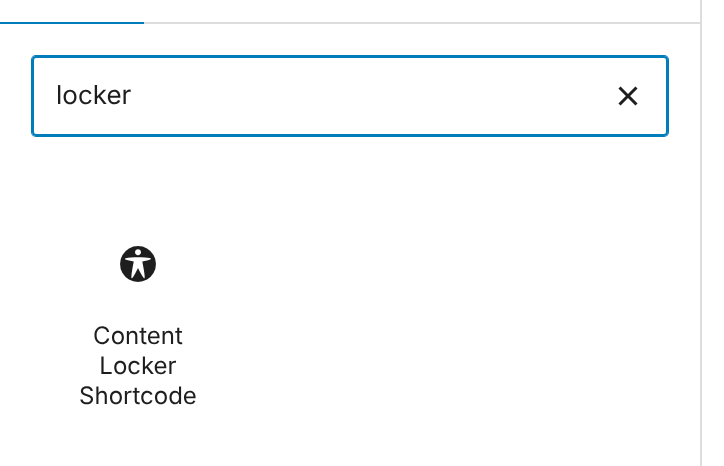
- In the inserter, search for locker and click Content Locker Shortcode.
- Put the members-only blocks inside it: paragraphs, images, videos or any other block.
- Select the locker block and set its options in the block settings sidebar.
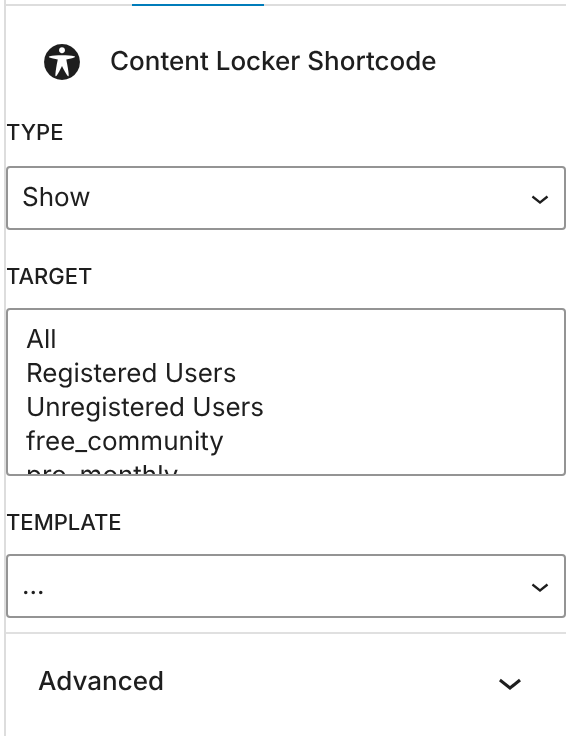
How the Target list is used.
- Show: only the targets see the content.
- Block: everyone except the targets sees it.
Default: Show
Who the rule is about: All, Registered Users, Unregistered Users or one or more Memberships. Hold Ctrl (Cmd on a Mac) to pick several.
The locker box shown instead of the hidden blocks. Leave it on “…” for the default. Templates are made in Hide part of a page (Inside Locker).
Test as a visitor
Administrators always see locked content. Check the page logged out or as a member. See Restricted content is visible to everyone.
To restrict a whole page instead of a part of it, use the Locker box in the editor sidebar; see Restrict your first page.
Example: a lesson page for members
- Top of the page
- Paragraph, then the Login Form block
- For new visitors
- Paragraph, then the Registration Form block
- Locker block
- Type Show, Target Pro Monthly and Annual Pass
- Inside the locker
- Video block and a File block with the worksheet
- Visitors see
- The forms, then the locker box instead of the lesson
Troubleshooting
Why do I only see the Content Locker Shortcode block?
Your Ultimate Membership Pro version is older and doesn’t load the other blocks. Update the plugin, then reload the editor. Until then, the WordPress Shortcode block with the shortcodes listed above shows the same forms and pages.
Searching “UMP” finds nothing. Why?
Check that Ultimate Membership Pro is active and up to date. You can also search for “membership” or open the Ultimate Membership Pro – Shortcodes group in the inserter.
The editor shows [ihc-login-form] instead of the form. Is that right?
Yes. In the editor the blocks show their shortcode; the form or page appears on the published page.
Everyone can see the content inside the locker block. Why?
You’re probably logged in as administrator, and administrators see everything. Open the page in a private window or as a member. Then check Type and Target.
Can I use these in the classic editor or in Elementor?
Yes. Use the shortcodes in the classic editor, or the Ultimate Membership Pro widgets in Elementor. See Use the Elementor widgets.


