
Ultimate Membership Pro is fully translatable: the forms, the Member Portal, the checkout, the emails’ default texts and the admin all use standard WordPress translation files with the text domain ihc. Translate it once and your members see your language everywhere.
This guide explains how the translation files work, then translates the plugin with Loco Translate or Poedit, and lists the texts you change in the plugin settings instead.
Before you start
- Your site language is set in WordPress, in Settings›General›Site Language.
- The free Loco Translate plugin, or the free Poedit app on your computer plus FTP or file manager access to your site.
- One site in several languages? Read Translate with WPML instead.
How the translation files work
ihc. Every translatable text of the plugin belongs to it.
languages/ihc.pot inside the plugin folder. It lists more than 4,000 texts and is the starting point of every translation.
ihc- + the WordPress locale code, as a pair: ihc-fr_FR.po (the editable file) and ihc-fr_FR.mo (the file WordPress reads). Use the exact locale of your site language, for example de_DE, es_ES or pt_BR.
In wp-content/languages/plugins/, outside the plugin. The plugin’s own languages folder is replaced on every plugin update, and files saved there are lost.
Choose a method
Loco Translate
- Where
- In your WordPress admin
- Good for
- Translating on the site, no file uploads
- Files
- Created and compiled for you
Poedit
- Where
- On your computer
- Good for
- Translators and agencies, offline work
- Files
- You upload the .po and .mo files
Translate with Loco Translate
- Install and activate the Loco Translate plugin from Plugins›Add New.
- Go to Loco Translate›Plugins and open Ultimate Membership Pro.
- Add a new language: pick your language and, for the location, choose the custom location in Loco’s own folder (wp-content/languages/loco/plugins/). Loco recommends it because updates never overwrite it.
- Translate the texts you need. The search box finds a text quickly, for example Log In.
- Save. Loco writes both the .po and the .mo file.
Or translate with Poedit
- Copy
languages/ihc.potfrom the plugin folder to your computer. - In Poedit, create a new translation from that template and choose your language.
- Translate, then save the file as
ihc-fr_FR.po(with your locale). Poedit also writesihc-fr_FR.mo. - Upload both files to
wp-content/languages/plugins/on your site.
Change the texts that live in the settings
Some texts are typed in the plugin screens, not in the code, so translation files don’t change them. Edit them where they are saved:
Login, registration and password reset messages: Settings›Custom Messages. See Change plugin texts and messages.
Labels of registration and profile fields: Showcases›Registration Form, Custom Fields.
Tab names, titles and messages: Showcases›Member Portal. See Set up the Member Portal.
Titles, buttons and messages: Showcases›Checkout Page and Showcases›Thank You Page.
Subjects and messages: Email Notifications. See Set up email notifications.
Good to know
- Plugin updates can add new texts. After an update, sync your translation with the new ihc.pot (Loco: Sync button; Poedit: Update from POT file).
- A few texts on the plugin’s forms belong to WordPress itself, for example Remember Me on the login form. They follow the WordPress translation of your site language, not the ihc files.
- Ultimate Membership Pro shows one language at a time: the language of the site. To offer several languages side by side, use a multilingual plugin such as WPML.
Tip
- Translating only a handful of texts? Change them in Custom Messages or in the showcase settings first; you may not need a translation file at all.
Example: Coaching Club in French
- Site Language
- Français
- Tool
- Loco Translate, custom location
- File
- wp-content/languages/loco/plugins/ihc-fr_FR.mo
- Translated
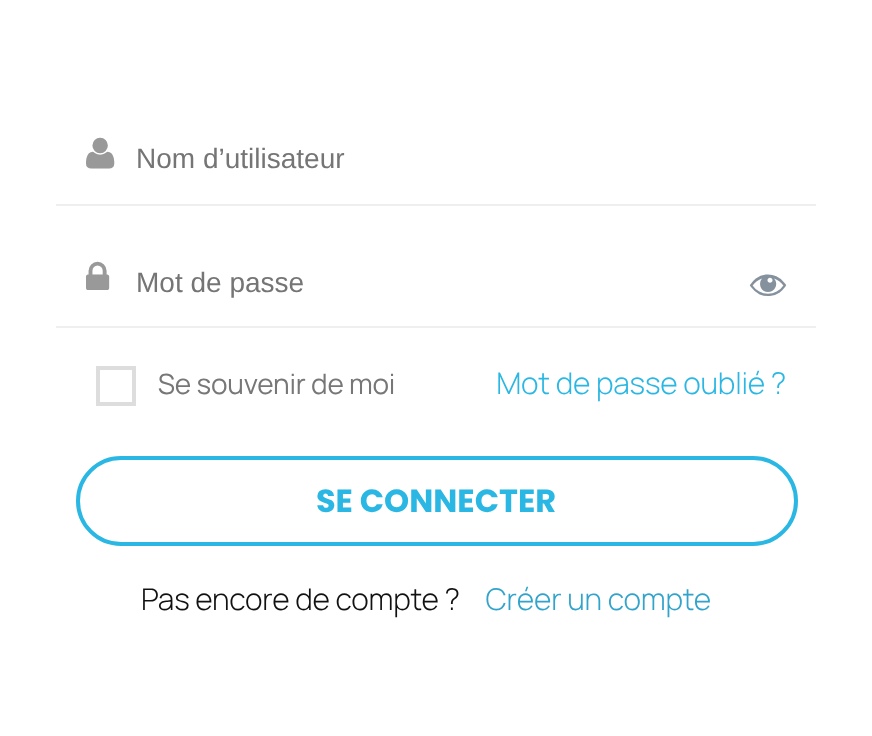
- Username → Nom d’utilisateur, Log In → Se connecter, Register → Créer un compte
- Changed in settings
- Custom Messages and Member Portal tab names
Troubleshooting
I translated a text but it still shows in English
Check that the file name uses the exact locale of the site (ihc-fr_FR.mo for Français), that the .mo file exists next to the .po, and clear any page cache. If the text is a message or label you can edit in the plugin settings, change it there; translation files don’t override saved settings.
My translation disappeared after a plugin update
The files were saved in the plugin’s own languages folder, which is replaced on every update. Save them in wp-content/languages/plugins/ or in Loco Translate’s custom location.
Is Ultimate Membership Pro multilingual?
It can be translated into any language and shows the language of the site. For a site in several languages at the same time, use WPML; see Translate with WPML.
Can I translate the admin screens too?
Yes. Admin texts use the same ihc text domain, and each administrator sees them in the language of their WordPress profile.


