How to Create a Membership Dashboard: Use Cases and Best Practices

A membership dashboard is the page members see after they log in: one place to check their Membership, manage billing, update their profile and get to the content they paid for. To create one on WordPress, use a membership plugin with a front-end account page, then choose which tabs to show and add links to your key content.
A good membership dashboard gives your members a better experience and saves you support work. Below you’ll find what it should include, seven use cases, how to build one, and nine best practices to make members actually enjoy using it.
What Is a Membership Dashboard?
A membership dashboard (also called a member dashboard, member portal or account page) is a front-end interface where members manage their membership. It usually covers their subscription status, payments, profile and links to members-only content.
Members can check their status and make changes without searching through multiple pages or emailing you. That better experience helps you boost member retention and loyalty.
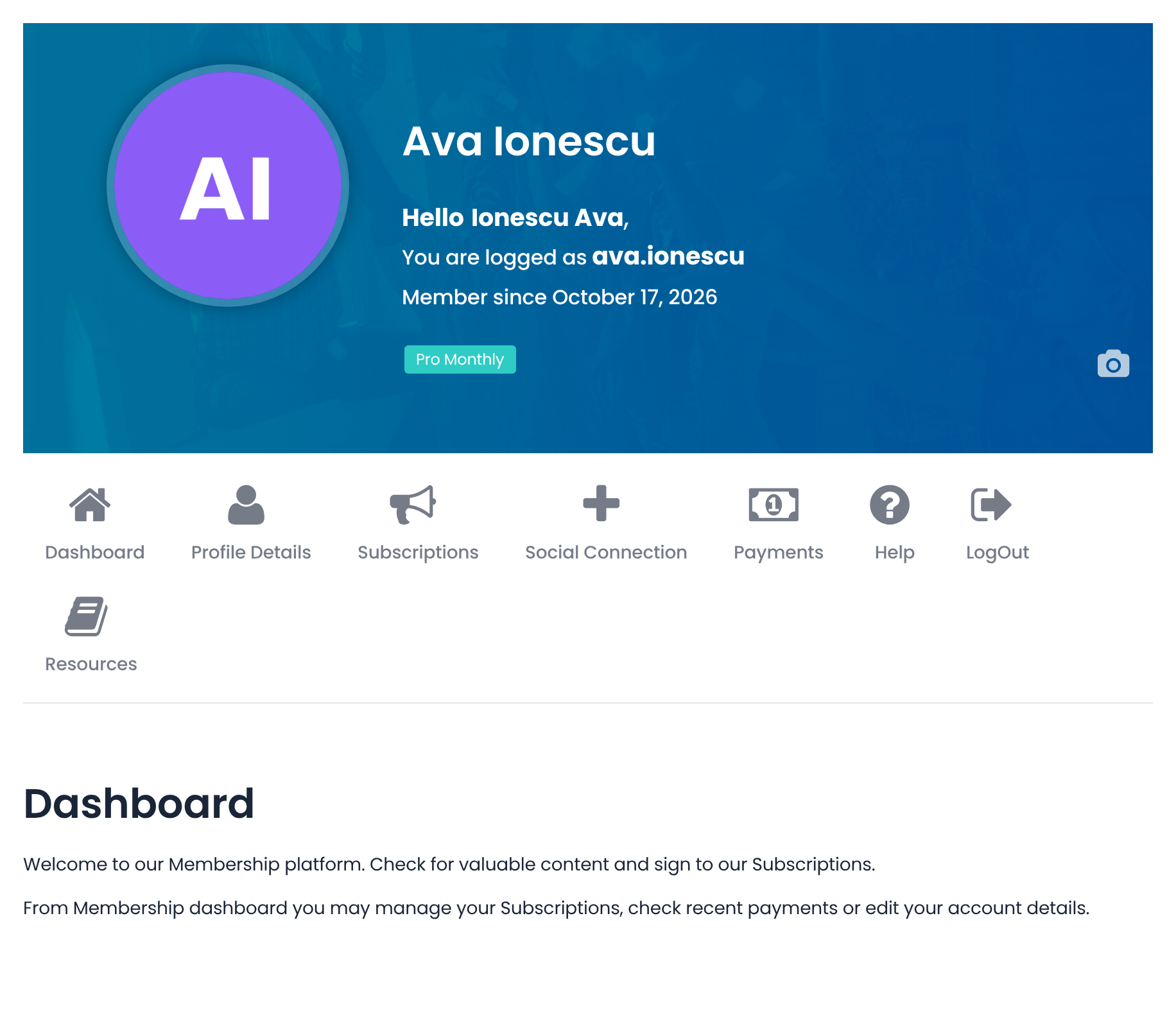
What a Membership Dashboard Should Include
- Membership status: the member’s current Membership, start date and expiry or renewal date.
- Subscription controls: options to renew, upgrade, downgrade or cancel.
- Payment history: past orders and downloadable invoices.
- Profile settings: name, email, password and avatar.
- Content shortcuts: links to courses, downloads, community spaces or anything else the Membership unlocks.
- Help: a clear way to contact you or find answers.
7 Use Cases for a Membership Dashboard
Pretty much every type of membership site can benefit from a membership dashboard. Here are seven use cases to inspire you:
E-Learning Membership Sites
If you run an e-learning membership site, such as a subscription-based online course business, you can use your membership dashboard to display the courses and other resources available to members. This makes it much easier for them to know which courses to pick up next, what their progress is, and how they can get help.
Subscription Sites
A membership dashboard can be very useful for a subscription site too. You can use it to let members easily manage their billing, upgrade or downgrade their plans, and access exclusive content.
Online Communities
If you run a private online community, a membership dashboard helps members get to the group and its content. You can also link it to your membership forum, activity streams and notifications, so members see what’s new as soon as they log in.
Associations and Clubs
A membership dashboard gives members of associations and clubs an easy way to manage their accounts. They can update profile information, pay their dues, print a membership card and read announcements.
Health and Wellness Sites
If you have a health and wellness membership site, you can use your dashboard to let members access personalized programs, track their progress, and schedule appointments with a health coach.
Job Boards
On a membership-based job board, the dashboard can streamline job searching and connecting with employers. It can include saved job postings, profile information, past searches and applications.
Team and Group Memberships
When a company or family buys one membership for several people, the account owner needs a place to manage seats. A dashboard tab can let them invite team members, see who has joined and reassign access. Learn more about group memberships.
How to Create a Membership Dashboard in WordPress
You don’t need to code a membership dashboard from scratch. A membership plugin with a front-end account page gives you one out of the box. Here’s how it works with Ultimate Membership Pro, where the dashboard is called the member portal.
Step 1: Add the Account Page
Create a page, add the account page shortcode, and set it as your Account page. Link to it from your menu. Non-admin users stay out of wp-admin by default, so the portal becomes their home on your site.
Step 2: Choose the Built-In Tabs
Every plan includes an Overview tab with the member’s Membership, expiry date and avatar, a Subscriptions tab where members renew, cancel or move between Memberships, an Orders tab with printable invoices, a profile tab and a Membership Cards tab. Turn each tab on or off and drag them into the order you want.
Step 3: Add Custom Tabs for Your Content
Add your own tabs with a name, icon and content, such as a Resources tab with worksheets and recordings or a Live Events link. With the Full Package and Agency plans, Restrict Member Portal Tabs lets you show a tab only to chosen Memberships.
Step 4: Personalize the Welcome Message
Write a greeting that pulls in member details, such as their first name, username or join date, and pick a ready-made header and tab design that matches your brand.
Step 5: Send Members to the Right Place After Login
Use Login Redirects+ to send each Membership to its own page after login, for example the dashboard for most members and a course page for students. If you run a WooCommerce store or a BuddyPress community, the portal can also appear as a tab in WooCommerce My Account or the BuddyPress profile.
Membership Dashboard: 9 Best Practices
Want to make sure your membership dashboard is a truly great experience for every member? Here are nine best practices to keep in mind:
Quick Links to Key Areas
The dashboard should include quick links to key areas, such as the membership plan, account settings, and payment options. This ensures users can quickly access the most important links on your site. For example, you could include a “Manage My Plan” link to easily access the plan page.
Onboarding for New Members
Make new members feel at home from the start with a short onboarding guide right in their dashboard. It could include a tour of the key areas and simple instructions on how to get started.
Account Personalization
Give members the ability to personalize their accounts to make them unique. For example, you could let them choose a profile avatar or set up a profile page. This helps make them feel like they’re part of your community. Moreover, it can help them better socialize and network with other members of your group.
Mobile Responsiveness
This is a must if you want members to use your dashboard. A mobile-responsive design makes sure the membership dashboard looks good and works well on any device, whether a laptop, tablet or phone.

Latest News and Updates
This is particularly important if you run a subscription site or have a private online community. Use the membership dashboard to keep members informed with the latest news from your organization, as well as exclusive updates, new content, merchandise you may be selling, and any other bits of info your members will find useful.
Help and Support Access
Make sure your help and support section is easy to reach from the membership dashboard, so members who get stuck can get help quickly. It may seem like yet another link on the dashboard page, but it can easily be considered the digital equivalent of a friendly, helpful employee in a mall store.

Clear Navigation
Make sure the navigation on your dashboard is clear and straightforward. Use headings to divide different areas, and make sure there are no confusing links or menus that members have to go through. Keep the structure of your dashboard simple, so users can find what they’re looking for without any hassle.
Optimized Performance
Your membership dashboard should be optimized for performance and speed. Slow loading times can quickly lead to user frustration and overall poor user experience. Make sure your dashboard works on all devices and is optimized for loading times.
Gamification
Gamification refers to the practice of adding game-like elements to a website or app. Consider adding achievements, points, and leaderboards to your membership dashboard to keep members engaged and motivated. For instance, if you run an e-course, you can add a “course completion” badge to your dashboard.

Conclusion
A membership dashboard is an excellent way to build loyalty and retention, and to make people feel at home on your website. It works for course sites, communities, associations, job boards and teams alike, and setting one up is easier than it sounds. With Ultimate Membership Pro, the member portal gives each member one account page for their Memberships, payments and profile, and you decide which tabs they see. Compare plans and pricing to get started.
Frequently asked questions
What is a membership dashboard?
A membership dashboard is the front-end page members see after they log in to a membership site. It shows their current membership and renewal date, lets them manage billing and subscriptions, update their profile, and reach members-only content. It is also called a member dashboard, member portal or account page.
What should a member dashboard include?
At a minimum, include membership status, subscription controls to renew, upgrade or cancel, payment history with invoices, and profile settings. Add shortcuts to the content members use most and a clear link to help. Keep it simple, so members find each option in one or two clicks.
How do I create a membership dashboard in WordPress?
Install a membership plugin that includes a front-end account page, add its account shortcode to a page and set that page as your account page. Then turn on the tabs you need, add custom tabs for your content, and link the page from your menu. No coding is needed.
Can members manage their own subscriptions from the dashboard?
Yes, with most membership plugins. In Ultimate Membership Pro, the Subscriptions tab lets members renew, cancel or finish a pending payment, and move between Memberships. The Orders tab lists every payment with a printable invoice, which cuts down on billing questions sent to you.
Should members use the WordPress admin dashboard?
No. The WordPress admin area is built for site managers and can confuse members or expose settings they should not see. Give members a front-end dashboard instead and keep wp-admin for your team. Ultimate Membership Pro blocks wp-admin for non-admin users by default.
Ready when you are
Turn visitors into paying members with Ultimate Membership Pro
Launch your membership website, protect exclusive content and automate subscription payments, all in one WordPress plugin.
- 14-day money-back guarantee
- Unlimited members
You May Also Like
WooCommerce Subscriptions: How It Works and When to Use It
How to Choose a WordPress Subscription Plugin (+ 6 Best Options)
Stripe vs PayPal: Which One’s Best for a Membership Business?
Best WordPress Membership Plugins Compared
Understanding Stripe Payment Gateway (And Why It’s a Great Option for Membership Sites)