How to Create a Gym Membership Website on WordPress
Plan, build and launch a gym or fitness membership site on WordPress: what to sell, the setup steps, and which jobs stay with your booking and check-in software.

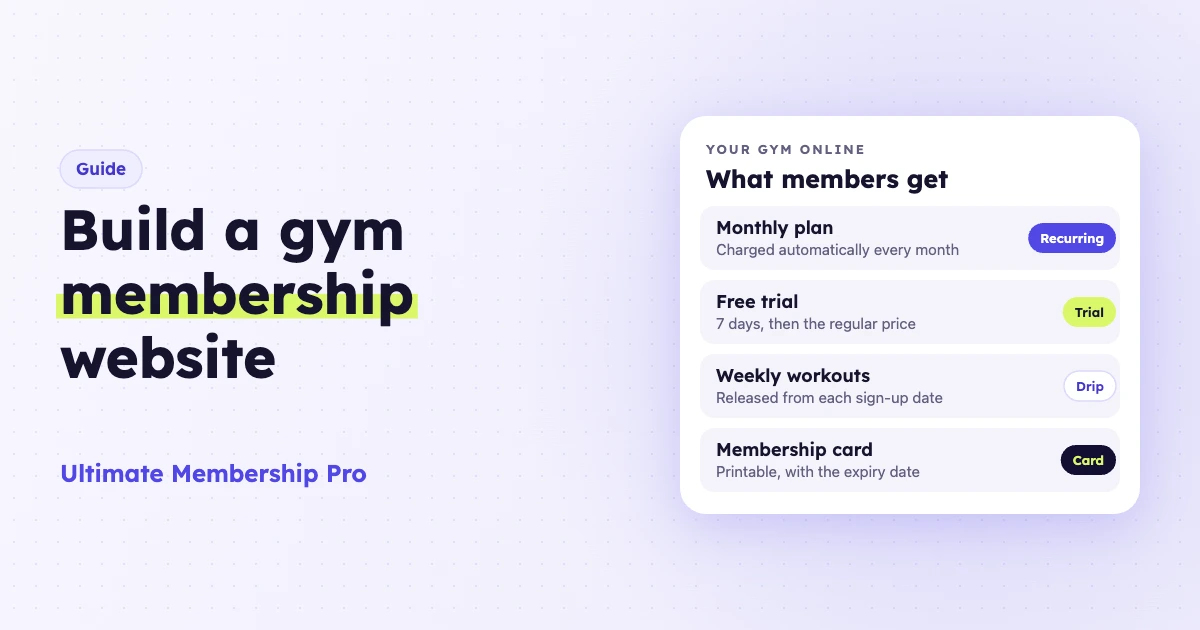
To create a gym membership website on WordPress, you need hosting, a theme and a membership plugin that charges members every month and locks your workouts to paying members. Set up monthly and annual plans with a free trial, release programs week by week and give members a printable card. Class booking and door check-in stay with your gym or booking software.
A gym membership website is a site where people join your gym or training program online, pay on a schedule and get members-only content such as workouts, video classes and meal plans. It works for a local gym, a studio, a personal trainer with online clients or a coach who only trains online.
What does a gym membership website do?
A gym membership website sells your plans online, takes recurring payments and decides who sees which content. It runs around the clock, so people can join at 11 p.m. without a front desk.
Most gym sites do four jobs:
- Sign-up: visitors pick a plan, fill in a short form and pay.
- Billing: members are charged every month or year until they cancel.
- Members-only content: workout plans, video classes, recipes and downloads only paying members can open.
- Self-service: members renew or cancel from their own account page.
What the site does not do on its own: book a class, open the door or scan a card at the front desk. Those jobs need other tools, covered further down.
What can you sell on a fitness membership site?
You can sell recurring memberships, trials, fixed-length programs and on-demand classes. The same options work if you only sell workout programs online, with no physical gym. Mixing two or three of them gives people more than one way to start.
- Monthly and annual memberships. A monthly plan lowers the barrier, and an annual plan rewards commitment.
- Free or paid trials. A 7-day free trial, or a lower price for the first payments, lets people test your programs first.
- Fixed programs. An 8-week strength program can be paid once or in a set number of installments.
- On-demand video classes. Record your classes and keep a library members can stream at home.
- Downloads. Meal plans, workout sheets and progress trackers as members-only files.
- Family or company plans. With group accounts, one person pays for a household or a team. In Ultimate Membership Pro, they come with Full Package.
Price each option separately so members can move from one to another. A trial member who loves the weekly program is your easiest upgrade to an annual plan.
Which public pages does a gym membership website need?
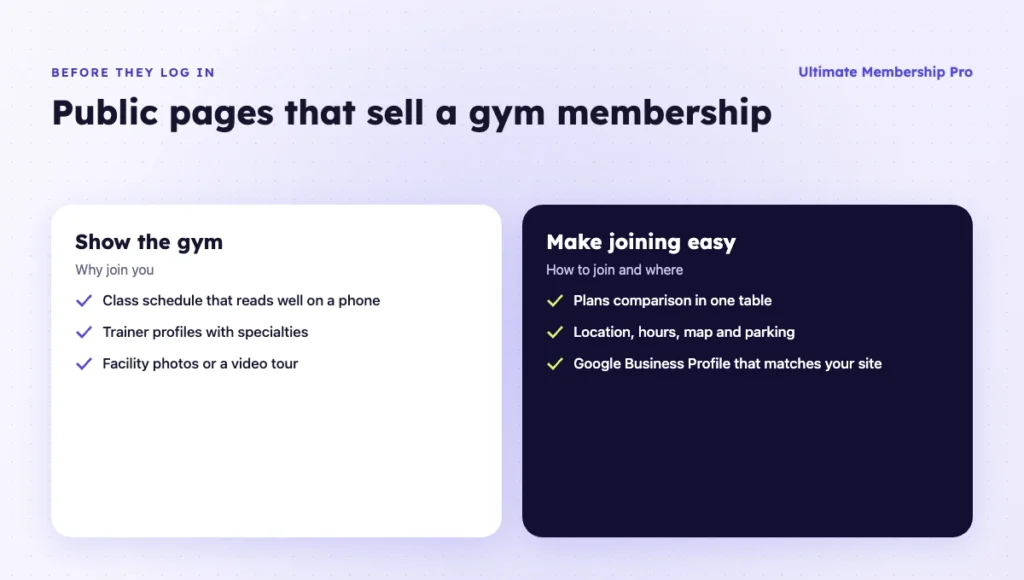
Visitors decide to join on your public pages, before they ever log in. Most gym sites need five: a class schedule, trainer profiles, a facility tour, a plans comparison and a location page.
- Class schedule. Days, times, class type and level, in a layout that stays readable on a phone. If booking software runs your timetable, embed it here.
- Trainer profiles. A photo, qualifications, specialties and the classes each trainer leads.
- Facility photos or a video tour. Real photos of the training floor, equipment, changing rooms and parking.
- Plans comparison. Every plan in one table, with what it includes, the billing cycle, the trial and how to cancel.
- Location and contact. Address, opening hours, a map, phone number and parking or transit notes.
Gym searches are mostly local, such as “gym near me” or a gym plus your city. Claim and complete your Google Business Profile with the same name, address, phone number and hours as your site, add real photos and link it to your location page. If you run more than one location, give each one its own page.
How do you build a gym membership website step by step?
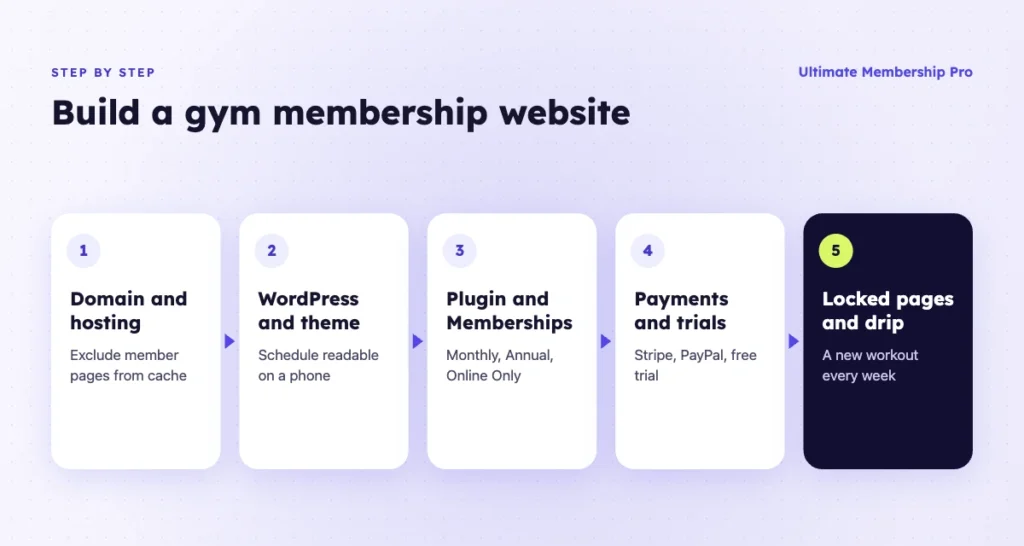
You can build a gym membership website in about eight steps, most of them done once. The order below keeps you from building pages before you know what they will sell.
1. Pick a domain and hosting
Choose a short domain with your gym name or city in it. Then pick hosting that handles logged-in users well, because member pages are built fresh for each person and can’t be served from a page cache like a public blog. Check that your host or cache plugin lets you:
- Exclude the register, login, checkout and account pages, and every members-only page, from page caching.
- Skip the cache for logged-in users, which most cache plugins do by default.
- Keep daily backups and a staging copy, so you can test plan changes before members see them.
- Serve the whole site over HTTPS, which card payments need.
The guide to cache plugins and host caching lists the exact pages to exclude for WP Rocket, LiteSpeed Cache and other common setups.
2. Install WordPress and a fitness theme
Install WordPress, then a fitness theme that passes three checks on your own phone:
- The class schedule stacks into a readable list on a small screen instead of a wide table you scroll sideways.
- It has a pricing table and trainer cards you can edit without code.
- It works with your page builder and loads quickly, without a slider and animations on every section.
Build the public pages listed above before the members area, so you know what each plan promises.
3. Install a membership plugin
The membership plugin handles plans, payments and locked content. Ultimate Membership Pro installs like any premium plugin: you upload the .zip file from the Plugins screen and activate it.
On first activation it creates the pages members need, such as Register, Login, My Account and Checkout. A six-step setup wizard then sets the currency, turns on a payment gateway and creates your first Membership.
4. Create your Memberships
Create one Membership for each plan you sell, for example Monthly, Annual and Online Only. Each one gets its own price, billing cycle and access.
With recurring subscriptions, you can bill every few days, weeks, months or years, split a program into installments or charge once for a fixed period. Every plan includes unlimited Memberships and unlimited members.
5. Set up payments and trials
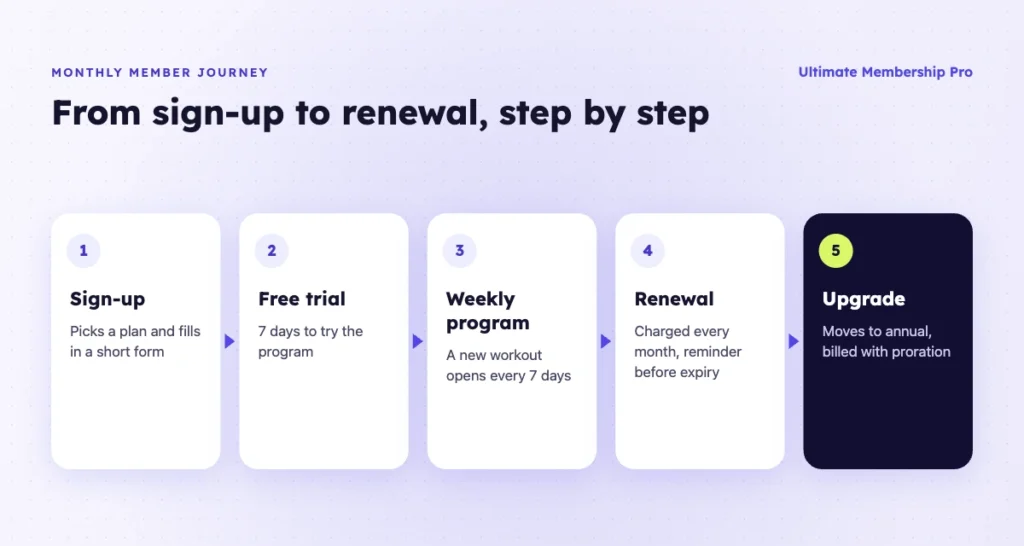
Turn on the gateways your members use. Ultimate Membership Pro includes 10 payment gateways in every plan, among them Stripe and PayPal, and charges members automatically every period.
Add a free trial or a lower first payment to a recurring Membership. The guide on how to offer a free or paid trial shows how to set the trial price and length. You can also add taxes by country and state, and members get invoices with your logo.
6. Build your members-only pages
Create the pages members pay for: a workout library, video classes and downloads. Lock each page for the Memberships you choose, and send everyone else to your plans page or show them a message.
For video classes, keep the videos on your video host and embed them in locked pages. The video membership setup explains where the plugin stops and your host takes over.
7. Release programs week by week
Use drip content to open each workout a set number of days after a member joins. Week 1 opens on day one, week 2 on day seven, and so on.
Members get an email when a new workout opens, and every member follows the program from their own start date. You can also close bonus content again after a period, which suits challenge-style programs.
8. Turn on membership cards and account protection
Members can open a printable membership card in their account page, with their name, Membership, expiry date and member ID. Staff check the details on the card by eye.
To stop one paid login being shared by a whole group, turn on the one-login-at-a-time setting. When someone logs in with an account already in use, the earlier session is logged out.
What do you need besides a membership plugin for booking and check-in?
You need class booking software and, for a physical gym, a check-in or door access system. A membership plugin handles online plans, payments and content. It does not book classes or scan members at the door.
| Job | Membership site | Booking or gym software |
|---|---|---|
| Online sign-up and recurring payments | Yes | Often |
| Members-only workouts, videos and downloads | Yes | Rarely |
| Week-by-week program release | Yes | Rarely |
| Printable membership card | Yes, no QR code or barcode | Varies |
| Class booking, waitlists and capacity | No | Yes |
| Door access and check-in scans | No | Yes |
| In-person sales at the front desk | No | Yes |
A few ways to make the two work together:
- Put your booking widget on a members-only page. Only paying members can open the page, so only they see the booking form.
- Pick one billing system per member. If someone pays online, don’t also bill them through your front desk software.
- Check cards by eye. Ultimate Membership Pro cards show the name, Membership and expiry date as text, so staff read them instead of scanning them.
How do you keep gym members from canceling?
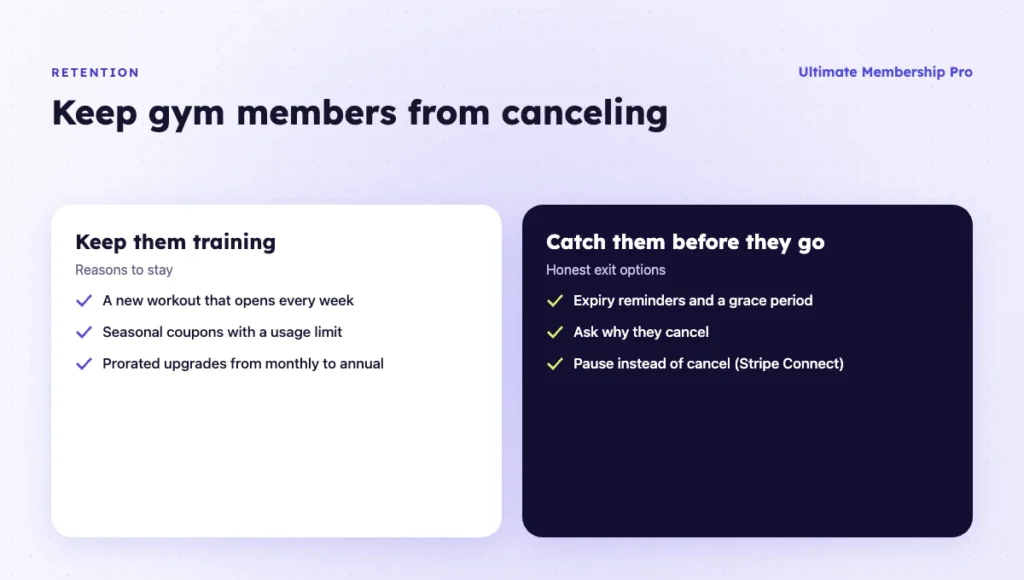
Keep members by making the next step easy and the exit honest. Most cancellations happen when a member stops using the plan, so small nudges matter.
- Ask why they leave. Asking members why they cancel shows whether price, time or results drive people away. In Ultimate Membership Pro, the Reason for Cancelling add-on comes with every plan.
- Offer a pause. With Stripe Connect, you can pause and resume a member’s subscription, which suits injuries and holidays.
- Make upgrades fair. Moving from monthly to annual can be billed with proration, so members only pay the difference.
- Remind before access ends. Expiry reminder emails and a grace period give members time to renew.
- Run seasonal offers. Coupons with a usage limit work well for January sign-ups and summer challenges.
Keep new content coming too. A weekly workout that opens on schedule gives members a reason to come back to your gym membership website every week.
What should you check before you launch?
Check your plans, payments and locked pages with a test account before you announce your gym membership website. Use this list:
- Each Membership has the right price, billing cycle and trial.
- A test payment goes through, and the member lands on the right page.
- Locked pages show your message or redirect to visitors who aren’t logged in.
- Week 2 of your program stays closed for a member who joined today.
- The welcome email and payment confirmation arrive and read well.
- The membership card shows the right name and expiry date.
- Members can renew and cancel from their account page, and a test upgrade charges the prorated difference.
- Your plans page explains what each plan includes, in plain words.
For a wider walkthrough of the same build, read how to create a membership website. For ideas on pacing your programs, see these benefits of drip content. Ultimate Membership Pro is sold as annual plans (Pro, Full Package, Agency), and you can compare the plans before you start.
Ready when you are
Turn visitors into paying members with Ultimate Membership Pro
Launch your membership website, protect exclusive content and automate subscription payments, all in one WordPress plugin.
- 14-day money-back guarantee
- Unlimited members
Frequently asked questions
Can I sell gym memberships online with WordPress?
Yes. A membership plugin adds plans, recurring payments and members-only pages to a WordPress site. Members pick a plan, pay by card or PayPal and get access right away. Renewals are charged automatically every month or year with the built-in gateways, and members can renew or cancel from their account page.
How do I offer a free trial?
Add a trial to a recurring Membership: free, or at a lower price, for a set number of days or billing cycles. When the trial ends, the member pays the regular price every cycle. Check which gateway you use, because a few gateways, such as PayFast, Paystack and Razorpay, don’t support trial periods.
Can members get a digital membership card?
Yes. In Ultimate Membership Pro, members open a printable card in their account page, with their name, Membership, join date, expiry date and member ID. They can print it or save it as a PDF. The card has no QR code or barcode, so staff check the details by eye.
Can I release workouts week by week?
Yes. Drip content opens each workout page a set number of days, weeks or months after a member joins, or on a date you choose. Every member follows the program from their own start date, and an email tells them when a new workout is available.
Do I need booking software too?
Yes, if you run classes with limited spots. A membership plugin sells plans, takes payments and locks content, but it doesn’t book classes, manage waitlists or scan members at the door. Use a booking tool for classes and place its booking form on a page only members can open.