How to Build an Association Membership Website
Build a website where association members join, pay dues, renew every year and use a member directory, and see when association management software is the better fit.

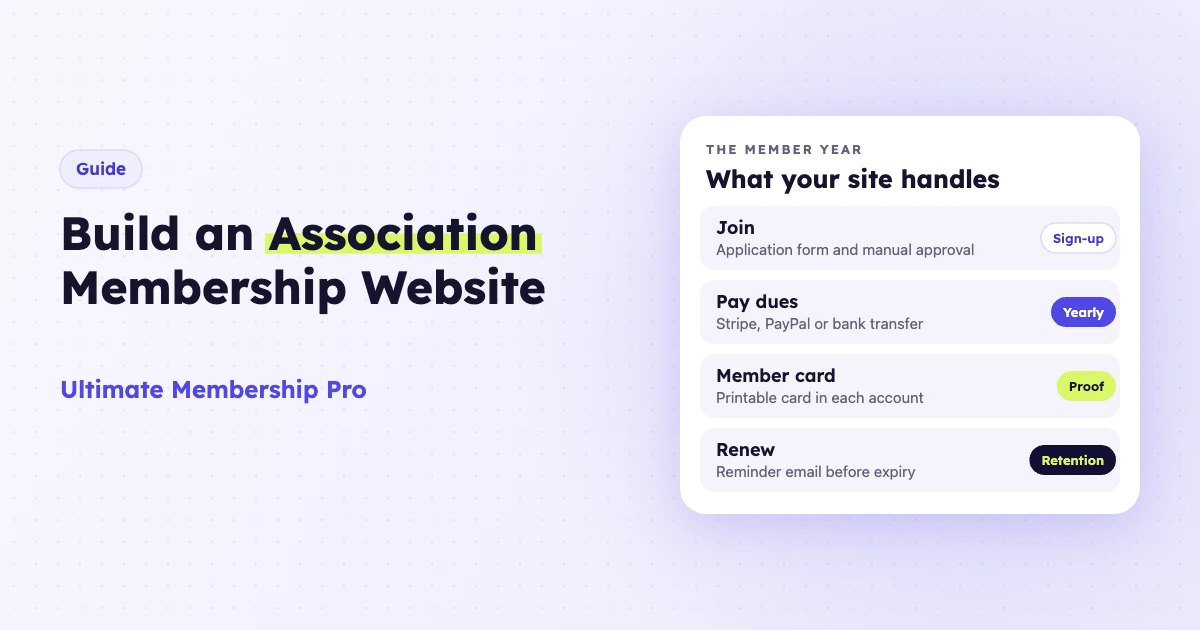
To build an association membership website, you need a site where people can join, pay dues, renew every year and reach member-only resources. For small and mid-sized associations, a WordPress site with a membership plugin covers these jobs on a site you own, while larger associations with heavy event, CRM and accounting needs may prefer association membership software. This guide compares both paths and walks through the setup.
An association membership website is the online home of a club, society, chamber or professional body. It handles sign-ups and dues, keeps the member list up to date, sends renewal reminders and gives members a directory, documents and news that the public cannot see. The same setup works for a club membership website or a small nonprofit.
What does an association membership website need?
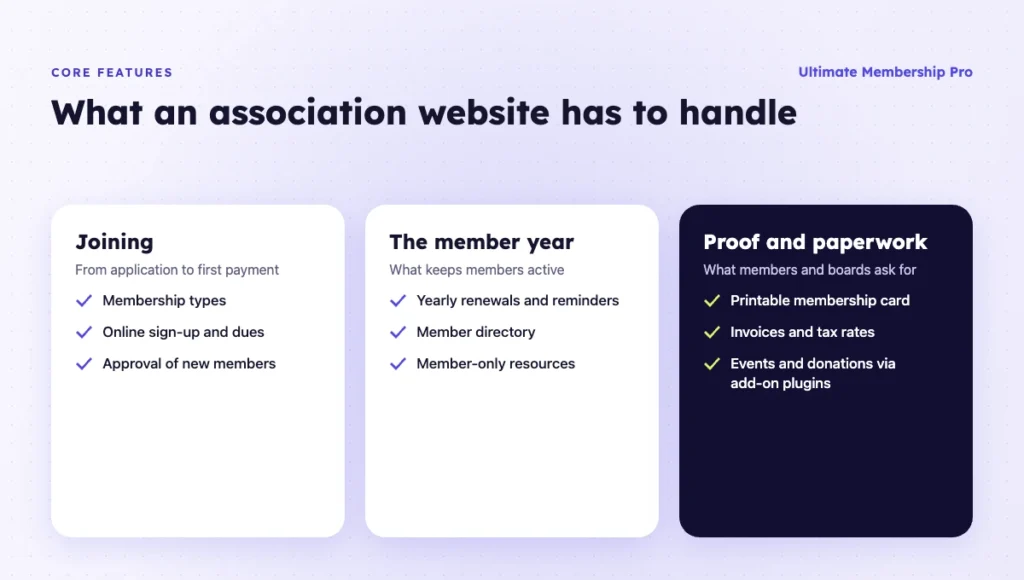
Most associations need the same core features: membership types, online payments, yearly renewals, a member directory, proof of membership and invoices. The table maps each need to how you solve it on a WordPress site.
| Need | How you solve it on WordPress |
|---|---|
| Membership types (individual, student, family, corporate) | One membership plan per type, each with its own price and rules |
| Online sign-up and dues | Registration form with custom fields, connected to Stripe, PayPal or bank transfer |
| Approval of new members | Manual approval, so applications wait until an admin accepts them |
| Yearly renewals | Automatic yearly billing, plus reminder emails before a membership expires |
| Member directory | A searchable directory and profile pages, visible to members only if you choose |
| Proof of membership | A printable membership card in each member’s account |
| Invoices and tax | Invoices with your logo and details, and tax rates by country or state |
| Member-only resources | Content restriction for pages, posts, categories and files |
| Events and donations | A separate events or donations plugin (see below) |
Association membership software or a WordPress plugin: which should you use?
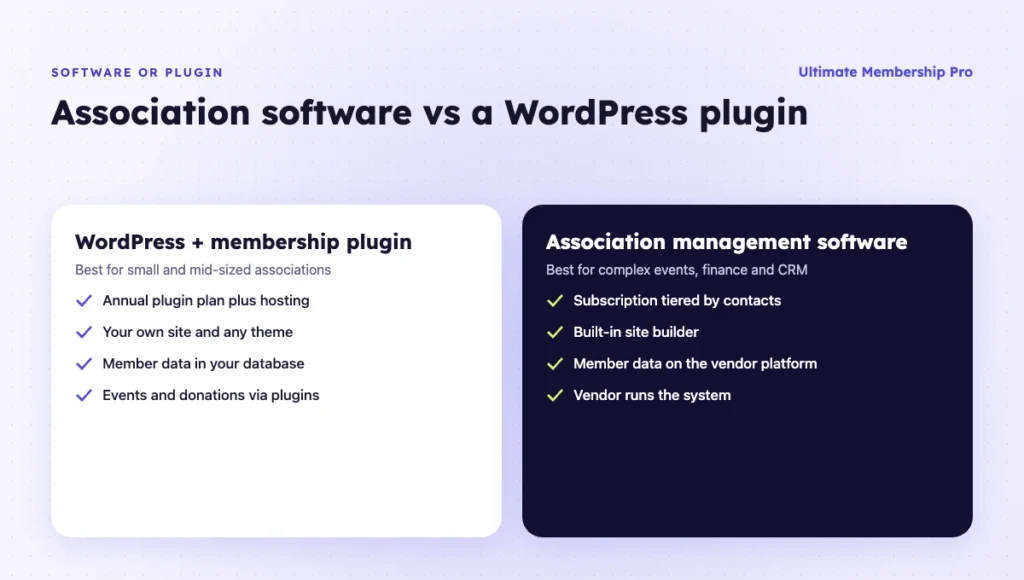
Use a WordPress membership plugin if your main needs are dues, renewals, a directory and members-only content, and you want to keep your own website. Use association management software (AMS) if you need events, fundraising, accounting and a CRM in one hosted system and have the budget for a monthly plan.
Hosted AMS tools such as Wild Apricot, MemberClicks and YourMembership are built for associations. As an example, as of October 2026 Wild Apricot includes a website builder, events, online payments and email in every plan and prices its plans by number of contacts, starting at $66 per month for 100 contacts on monthly billing. The price goes up as your contact list grows.
| WordPress + membership plugin | Association management software | |
|---|---|---|
| Pricing model | Hosting plus an annual plugin plan, usually not tied to member count | Monthly or yearly subscription, usually tiered by contacts |
| Website | Your own WordPress site, any theme | Built-in site builder and templates |
| Events and donations | Add a separate plugin | Usually built in |
| Data ownership | Member data in your own database | Member data on the vendor’s platform |
| Setup and upkeep | You or a developer handle setup and updates | Vendor runs the system |
| Best for | Small and mid-sized associations, clubs and societies | Associations with complex events, finance and CRM needs |
If your association already runs its website on WordPress, a plugin is the shorter path. If your events program later becomes the center of your operations, you can revisit the choice.
What pages should an association membership website have?
Plan a small set of public pages that sell membership and a members area that delivers it. Visitors should reach the Join page in one click from any page, and members should reach their account in one click after they log in.
| Page | Public or members only | What it does |
|---|---|---|
| Home | Public | Says who the association is for and links to Join and Member login |
| About | Public | Mission, board, history and contact details |
| Membership benefits | Public | What each membership type gets, in plain terms |
| Join | Public | Membership types, yearly dues and the application form |
| Events | Public listing, members-only details if you choose | Upcoming meetings, conferences and recordings |
| Member login and account | Members only | Membership status, invoices, card and renewal |
| Directory and resources | Members only | Member profiles, documents, newsletters and recordings |
Two patterns are common on association sites, and both work well on WordPress:
- Public preview, members-only detail. The public sees a summary of each report, guideline or recording, and members open the full version. The preview brings search traffic and shows non-members what they miss.
- Member and non-member pricing. Members pay less for reports, training or conference seats. If you sell these as WooCommerce products, Ultimate Membership Pro can give each Membership its own discount or price on the products you choose.
How much does an association membership website cost to run?
The cost of an association membership website comes from a few recurring items, not one big build. Put each one in your yearly budget before you compare options:
- Hosting and domain. A yearly fee for the server and your web address. Managed WordPress hosting costs more, but it handles updates and backups for you.
- Theme. A free theme, or a premium theme with a one-time or yearly fee.
- Membership plugin. Usually a yearly plan. Check how many sites it covers and whether features such as group memberships sit on a higher plan.
- Payment fees. Your gateway takes a percentage and often a fixed fee on each card payment, so part of every dues payment goes to processing.
- Extra plugins. Events, donations and an email marketing tool, if you need them.
- Time. Someone has to approve members, answer questions and keep the site updated, even if that someone is a volunteer.
Compare that yearly total with what a hosted association tool would charge for your number of contacts, and count the hours each option takes. Time is often the cost that small associations forget.
How do you build an association membership website, step by step?
Plan your membership types and rules first, then build the sign-up and renewal flow, then add the member benefits. Here is the order that works for most association membership websites.
- Define your membership types. List each type (for example Individual, Student, Family, Corporate), its yearly dues, who qualifies and what each type includes.
- Set up WordPress and a membership plugin. Choose hosting, a clean theme and a plugin built for recurring memberships.
- Create one plan per membership type. Set yearly billing, or monthly or installment billing if you want to spread dues across the year.
- Build the application form. Add the fields you need, such as organization, job title or member number, and turn on manual approval if members must qualify.
- Connect payments. Use Stripe or PayPal for automatic yearly charges. Offer bank transfer if members prefer to pay by invoice, and confirm those payments by hand.
- Set up renewal reminders. Send an email before each membership expires, so members can update their card or pay before access ends.
- Add the member directory. Choose which fields appear and limit the directory to logged-in members.
- Turn on membership cards and invoices. Give members a printable card and an invoice for every payment.
- Lock member resources. Restrict documents, newsletters, recordings and forms to active members.
- Test the full year. Join, approve, pay, print a card and renew as a test member before you open the site to real members.
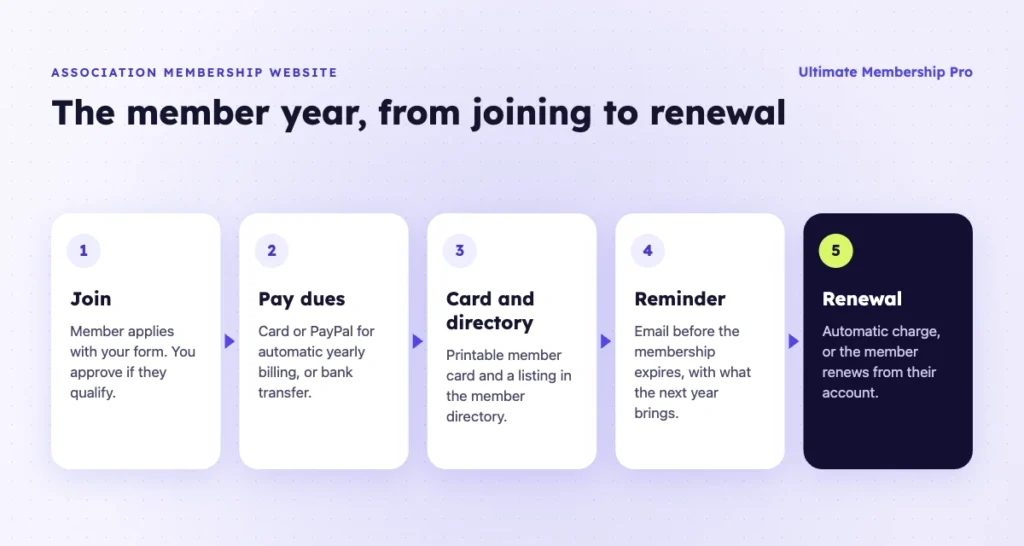
With Ultimate Membership Pro for associations and clubs, you can set up individual, student and other membership types with yearly, monthly or one-off billing, hold new sign-ups for manual approval, accept bank transfers you confirm by hand, and email members before their Membership expires. Every plan includes the member directory and profiles, printable membership cards, invoices and tax rates.
Family and company memberships need Full Package or Agency. Ultimate Membership Pro is sold as annual plans (Pro, Full Package and Agency), with unlimited members on every plan; see the pricing page for details.
How do you offer family or corporate memberships?
Offer them as group memberships. One person buys the membership, becomes the group owner and invites the other members. Each invited person signs up from the invitation and gets the same access as the owner.
- Create one plan per group size, such as Family (up to 4) or Corporate (up to 10), each with its own price.
- The owner sends email invitations from their account and can remove people who leave.
- If the owner cancels or the membership expires, everyone in the group loses access, so make renewal reminders clear.
In Ultimate Membership Pro, group memberships are part of Full Package and Agency. For ideas on pricing company plans by size or benefit, read this guide on how to price corporate memberships.
How do members renew each year?
Members renew in one of two ways: automatic yearly charges or a manual payment before the expiry date. Automatic renewal is easier for members, because nobody has to remember to pay.
- Automatic renewal. The member pays by card or PayPal at sign-up, and the gateway charges them again each year. Stripe’s guide on how subscriptions work explains what happens when a renewal payment fails.
- Manual renewal. The member gets a reminder before expiry and renews from their account page, or pays by bank transfer that you confirm.
- Grace period. Give members a short window after expiry to renew before access ends.
Send at least two reminders: one a few weeks before the renewal date and one a few days before. Include what the member gets in the coming year, such as events, resources or discounts.
Can members get a membership card?
Yes. Most membership plugins can show a card in the member’s account with their name, membership type and expiry date. Members print it or save it as a PDF and show it at events or partner venues.
In Ultimate Membership Pro, the card shows the member name, Membership, join date and expiry date, plus your logo and, if you choose, the member ID. It does not include a QR code or a wallet pass. The membership card documentation covers templates and sizes, and this article explains how a digital membership card helps your members.
How do you move existing members from a spreadsheet?
Many associations start with a spreadsheet of members and renewal dates. Move it once, carefully, and then retire it.
- Clean the list. One row per member, with email, name, membership type, join date and expiry date.
- Create the plans first. Every row needs a matching membership plan on the site.
- Import the file. In Ultimate Membership Pro, you can import members from a CSV file with each Membership’s start and expiry dates. Imported Memberships don’t create gateway subscriptions, so members pay through the site at their next renewal.
- Send a launch email. Explain how to set a password, log in and renew.
Keep the old spreadsheet as a backup, but make the website the only place where you update member records.
How do you welcome and keep new members?
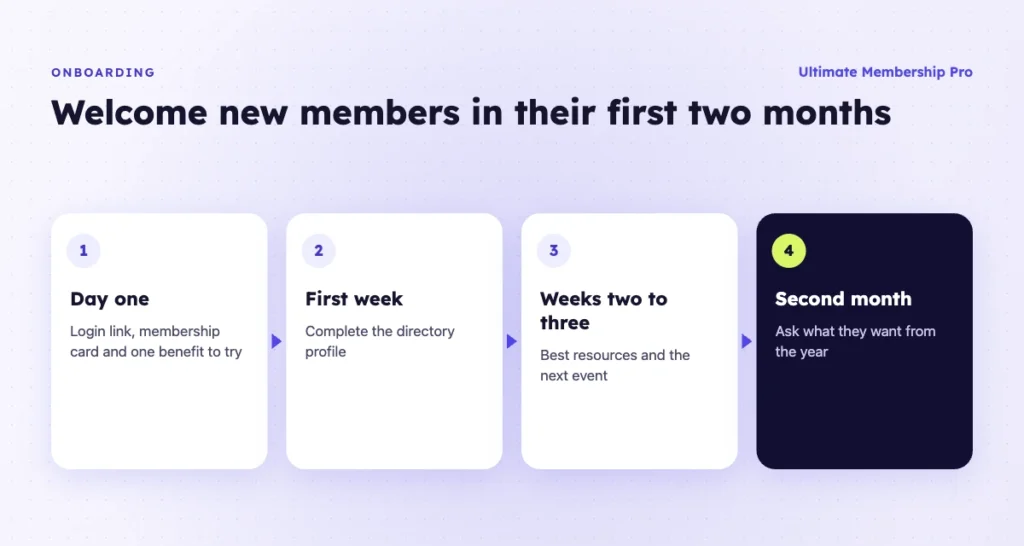
Send a short series of onboarding emails in the first weeks, so new members use their benefits before the first renewal. Members who never use their benefits have little reason to renew.
- Day one: a welcome email with the login link, the membership card and one benefit to try first.
- First week: a reminder to complete the directory profile, so other members can find them.
- Second or third week: the best resources and the next event, with links that open in the members area.
- Second month: a check-in that asks what they want from the association this year.
Ultimate Membership Pro includes 45+ email notifications, among them welcome emails, payment confirmations and expiry reminders that you can set per Membership. For a longer series, use your email marketing tool and add members to it at sign-up.
What about events and donations?
Plan to add a separate plugin for events and for donations. A membership plugin handles access, dues and renewals. Event ticketing, calendars and fundraising are separate jobs.
- Events. Use an events or booking plugin for listings and tickets. Ultimate Membership Pro does not sell event tickets, but you can lock event pages, recordings and slides to members.
- Donations. Use a donation form or fundraising plugin, and test it with your theme and payment gateway before launch.
- Email newsletters. Connect an email marketing tool, so members who opt in at sign-up join your list.
Check that each extra plugin works with the rest of your site before renewal season.
What mistakes should you avoid?
Most problems come from launching too much at once or skipping the test. Watch for these:
- Too many membership types. Start with the few you actually sell and add more later.
- Long application forms. Ask only for what you use to approve members or run the directory.
- Launching payments without a test. Run a real sign-up, renewal and refund before you announce the site.
- Keeping the old spreadsheet alive. Import existing members once, then manage them only on the site.
- Loose access rules. Check that board papers and member data are locked before launch.
- No launch message. Tell existing members how to log in, renew and get help.
Ready when you are
Turn visitors into paying members with Ultimate Membership Pro
Launch your membership website, protect exclusive content and automate subscription payments, all in one WordPress plugin.
- 14-day money-back guarantee
- Unlimited members
Frequently asked questions
Can WordPress manage association memberships?
Yes. A WordPress association membership website with a membership plugin can take applications, collect yearly dues, send renewal reminders, run a member directory and lock member-only resources. For many small and mid-sized associations, that covers the essentials. If you need advanced event management, fundraising and accounting in one system, association management software may suit you better.
How do I offer family or corporate memberships?
Create group memberships. One person buys the membership, becomes the owner and invites the other members by email. Each invited person signs up and gets the same access. Create one plan per group size, such as Family up to four people or Corporate up to ten, and set a price for each.
How do members renew each year?
Members can renew automatically, with the card or PayPal account they used at sign-up charged again each year. Members who pay manually get reminder emails before their membership expires and renew from their account page or by bank transfer. Automatic renewal is the simplest option, because nobody has to remember to pay.
Can members get a digital membership card?
Yes. Many membership plugins show a card in each member’s account with their name, membership type and expiry date. Members can print it or save it as a PDF. Some cards include QR codes or wallet passes, so check whether you need scanning at the door before you choose a plugin.
Do I need association management software?
Not always. If your needs are dues, renewals, a directory and member-only content, an association membership website on WordPress can cover them on a site you control. Association management software makes more sense when events, fundraising, accounting and a CRM are central to your work and you want one hosted system for all of them.