
In Ultimate Membership Pro, the MailChimp Pro add-on saves your members as subscribers in your Mailchimp audiences and keeps each audience in step with the Memberships people hold. A member can join a different audience for each Membership, and is removed from it when that Membership expires or is deleted, so your newsletters reach the right people.
This guide switches the add-on on, connects your Mailchimp account with an API key, chooses the audiences and shows when members are added and removed.
Before you start
- The MailChimp Pro add-on is installed and active. It’s a Pro add-on, included in the Full Package and Agency plans. See Install a Pro add-on.
- Your license is active. See Find and activate your license key.
- A Mailchimp account with at least one audience, and permission to create an API key.
- Your Memberships exist. See Create your first Membership.
What it adds to the built-in Opt-In
Ultimate Membership Pro already has a Mailchimp option in the Opt-In module. MailChimp Pro goes further: it works with the Membership a person holds, not only with the sign-up. See Collect newsletter subscribers (Opt-In) for the built-in option.
Opt-In with Mailchimp (built in)
- Audience
- One audience for everyone
- Added
- When a new member registers
- Removed
- Never
- Setup
- API Key and ID List typed in Opt-In Management
MailChimp Pro (add-on)
- Audience
- A Default Audience, plus a different audience for each Membership
- Added
- When a new member registers (as an Opt-In service) and each time a Membership is activated
- Removed
- When a Membership expires or is deleted, and when the account is deleted
- Setup
- API Key, then pick audiences from a list loaded from your account
Use the built-in option when one list for all new members is enough. Use MailChimp Pro when you send different emails to Free Community members, Pro Monthly members and Annual Pass holders.
Switch on the add-on
- Go to Ultimate Membership Pro›Modules and open the MailChimp PRO card.
- Switch on Activate/Hold MailChimp Pro Integration and click Save Changes.
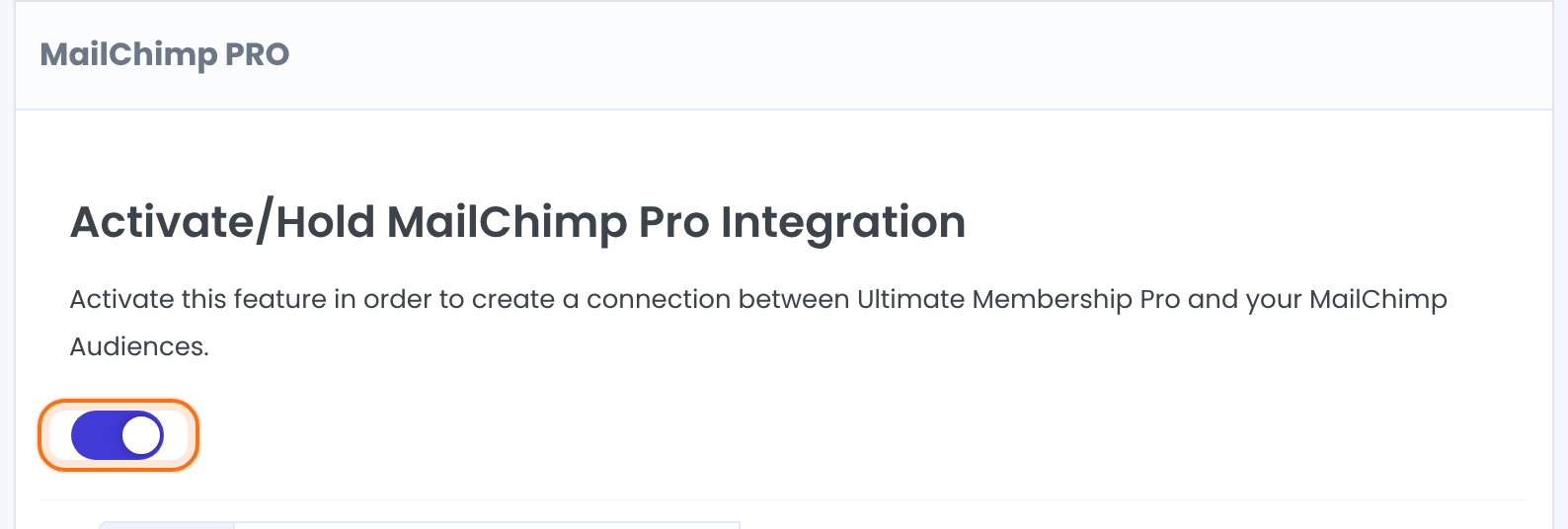
Turns the connection between Ultimate Membership Pro and your Mailchimp audiences on or off.
Default: Off
Connect your Mailchimp account
- Log in to Mailchimp.
- Click your profile name, then Account, Extras and API keys, and click Create A Key.
- Copy the key from the Your API keys table and paste it into API Key.
- Click Refresh Audience Lists.
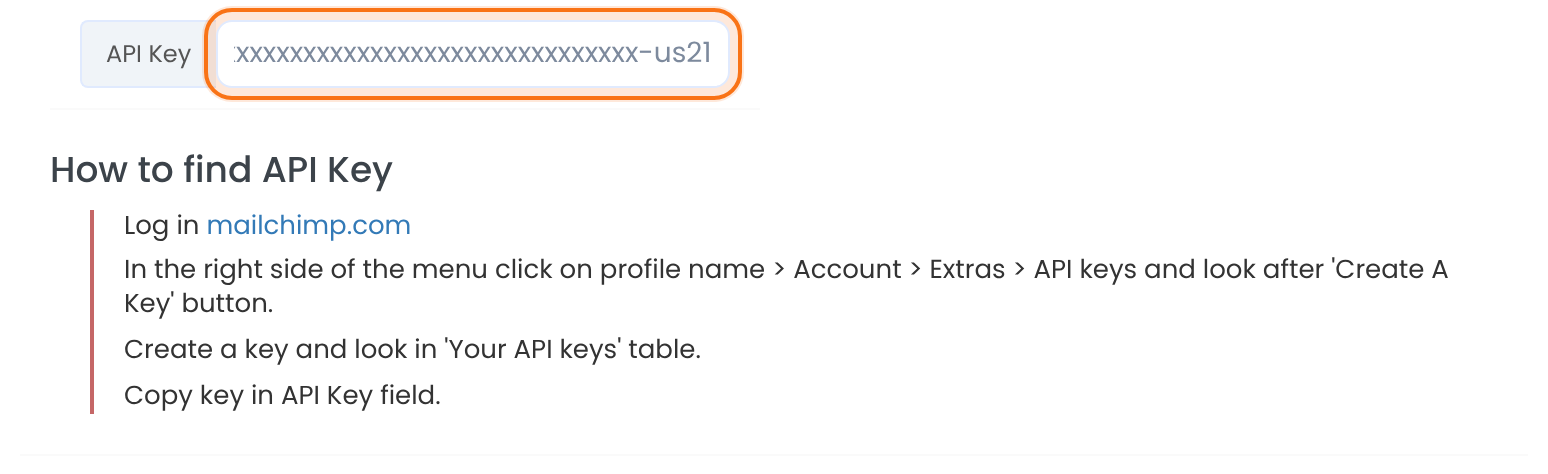
Your Mailchimp API key. Paste all of it: the end of the key, such as -us21, tells the add-on which Mailchimp server to talk to.
Choose the audiences
Refresh Audience Lists loads the audiences of your Mailchimp account into the lists below. Click it again whenever you create a new audience in Mailchimp. Then pick an audience for the default and for each Membership, and click Save Changes.
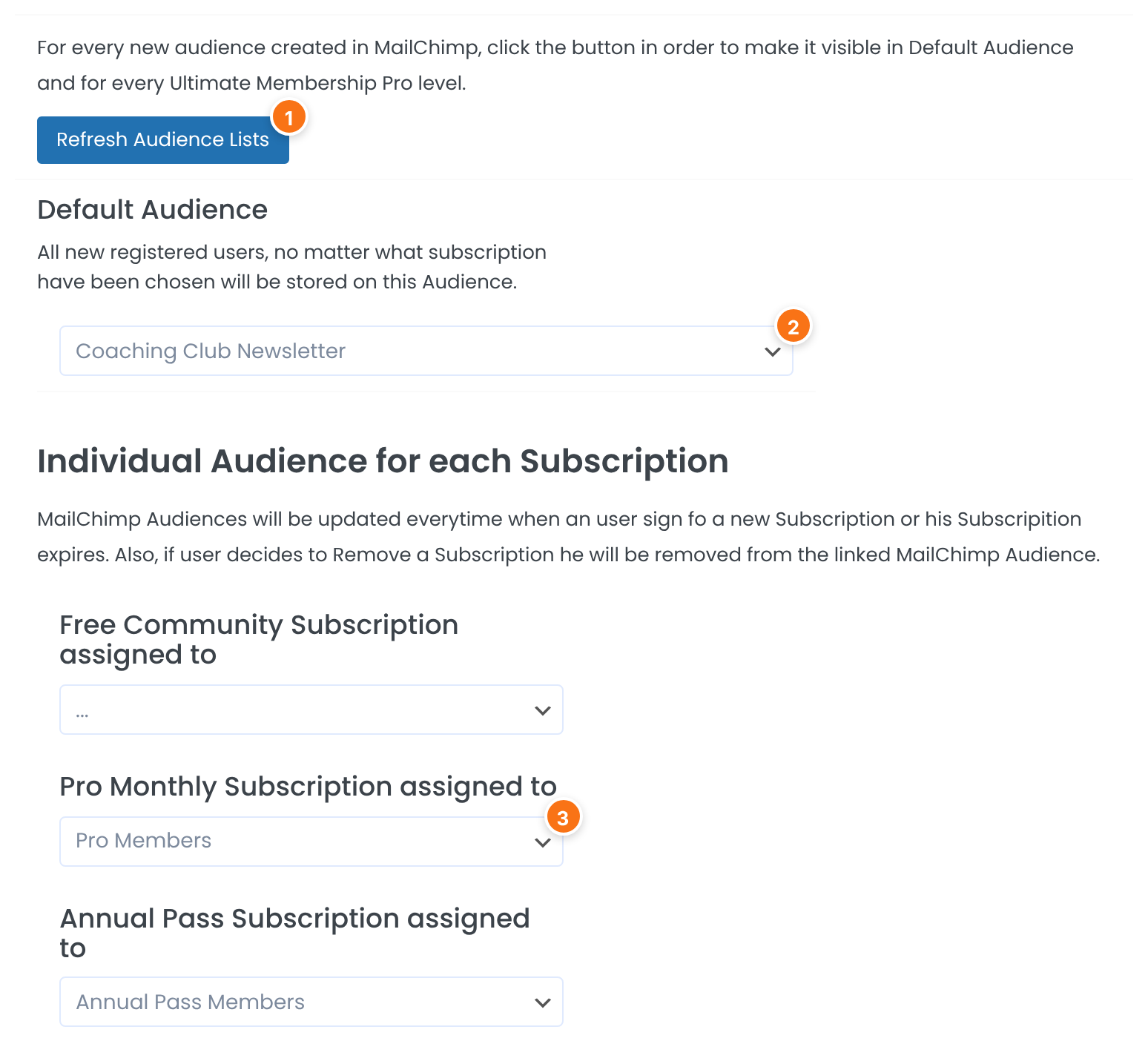
Loads your Mailchimp audiences into the selects. It also stores the API Key you typed.
Members go to this audience when a Membership has no audience of its own, and when they register with MailChimp PRO chosen as the Opt-In service.
One select per Membership, labeled “<Membership name> Subscription assigned to”. Members who get that Membership are added to the audience you pick. Leave “…” to use the Default Audience.
Add new sign-ups to the Default Audience
When the add-on is on, MailChimp PRO appears in the list of Opt-In services. Choose it to send every new registration to the Default Audience.
- Go to Ultimate Membership Pro›Registration Form.
- Switch on Opt-In Subscription, click MailChimp PRO under Choose Opt-In Service and click Save Changes.
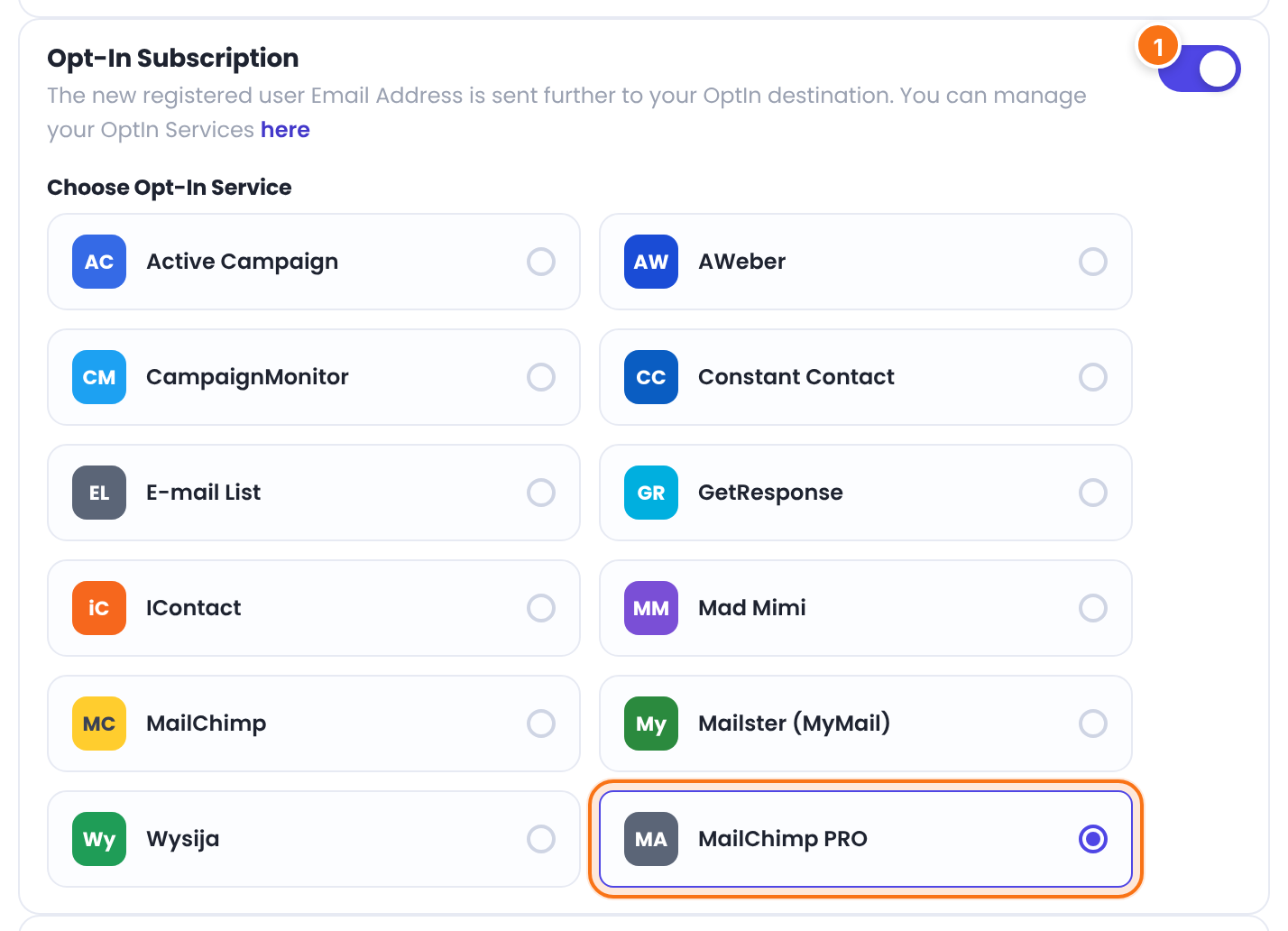
The consent checkbox of the Opt-In module works the same way here. See Collect newsletter subscribers (Opt-In).
When members are added and removed
The member is added to the Default Audience with their email address, first name and last name.
The member is added to the audience assigned to that Membership, or to the Default Audience when the Membership has none. The status is “subscribed”, so Mailchimp does not send a confirmation email.
The member is removed from the audience of that Membership, or from the Default Audience when it has none. Expiry is processed by the daily scheduled task.
Same as expiry: the member is removed when they or you remove the Membership.
The member is removed from the audiences assigned to their Memberships and from the Default Audience.
Good to know
- Adding a member when a Membership is activated doesn’t depend on the opt-in checkbox of the registration form. If you ask for consent, tell people on the sign-up page that they join your mailing list with their Membership.
- A Membership without its own audience uses the Default Audience for adding and for removing. If members can hold several Memberships, give each one an audience of its own.
- Members are added to your audiences only from the moment the add-on is on. Existing members are not copied.
Example: three audiences for Coaching Club
- Activate/Hold MailChimp Pro Integration
- On
- API Key
- Your Mailchimp key, for example xxxxxxxx-us21
- Default Audience
- Coaching Club Newsletter
- Free Community Subscription assigned to
- …
- Pro Monthly Subscription assigned to
- Pro Members
- Annual Pass Subscription assigned to
- Annual Pass Members
- Opt-In Subscription
- On, MailChimp PRO
Learn more about MailChimp Pro
- MailChimp Pro add-on page: what it does, at a glance.
- All Pro add-ons for Ultimate Membership Pro.
- Ultimate Membership Pro plans: Pro add-ons come with the Full Package and Agency plans.
- About Mailchimp API keys.
Troubleshooting
The audience lists only show “…”. What should I do?
Paste your API Key, click Refresh Audience Lists and open the select again. The lists are loaded from your Mailchimp account, so the key must be correct and the account must have at least one audience. After you save, the audiences also load when you open the screen.
Why isn’t a new member added to my audience?
Check that the add-on switch is on and saved, that the API Key is filled in, and that an audience is chosen: the one for the Membership or the Default Audience. For members who only register, MailChimp PRO must also be chosen under Choose Opt-In Service.
Can I use MailChimp Pro together with the built-in Mailchimp Opt-In?
Yes, but the registration form sends new sign-ups to one Opt-In service only. The Membership audiences of MailChimp Pro are filled whichever service you chose there.
Does Mailchimp send members a confirmation email?
No. Members are added with the status “subscribed”, which is why your sign-up page should say that they join your mailing list.
How do I add the members I already have?
The add-on adds a member when a Membership is activated or when they register. Existing members are not copied, so add them in Mailchimp yourself, for example by importing a list of their email addresses.
How do I send different newsletters to different Memberships in Ultimate Membership Pro?
Create one audience per Membership in Mailchimp, assign each one under Individual Audience for each Subscription, and send your campaign to the audience you want.


